

Available with:Port Call Management
Find your way around Port Call Management
The left menu, the top bar, and the guided tours.
The menu on the left takes you to each area of Port Call Management (PCM). The bar at the top holds the tools you use from any screen.
The left menu
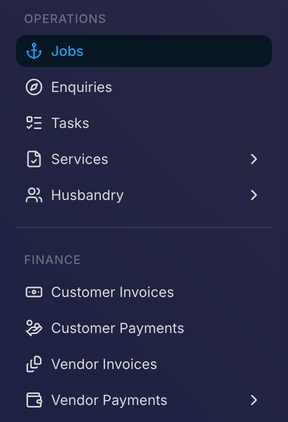
Operations is your day-to-day work:
- Jobs: every job in the branch. A job is a unit of work, such as a port call or a project, and everything about it sits under it. See Jobs.
- Enquiries: the quotations you send before you are appointed. See Enquiries.
- Tasks: your team’s to-dos.
- Services: every service on every job, with shortcuts to the ones Awaiting Vendor Invoice and the ones Ready to Bill.
- Husbandry: crew changes, shipments, boat operations and transport.
Finance is the money side:
- Customer Invoices: what you bill your customers. See Customer invoices.
- Customer Payments: the money your customers pay you. See Customer payments.
- Vendor Invoices: what your vendors bill you. See Vendor invoices.
- Vendor Payments: what you pay your vendors. See Vendor payments.
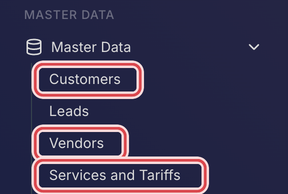
Master Data holds the lists PCM works from, such as Customers, Vendors and Services and Tariffs. A customer must be here before you can open a job for them. See Manage vendors and other master data.
Note: You see only the items your role allows. If something is missing, see I can’t see a menu or a button.
The top bar

| Button | What it does | |
|---|---|---|
| 1 | Add | Start a new enquiry, job or vendor invoice from any screen |
| 2 | Branch | The branch you work in. Everything you see belongs to it. See Branches and what you can see |
| 3 | Bell | Your notifications. See Read and manage your notifications |
| 4 | ? | Help & support: report an issue, or replay the guided tours |
| 5 | Gear | PCM Settings, for administrators. See Settings |
| 6 | Grid | MagicPort Apps: your MagicPort Dashboard and the other products |
| 7 | Your picture | Profile, Preferences and Sign out |
Replay the guided tours
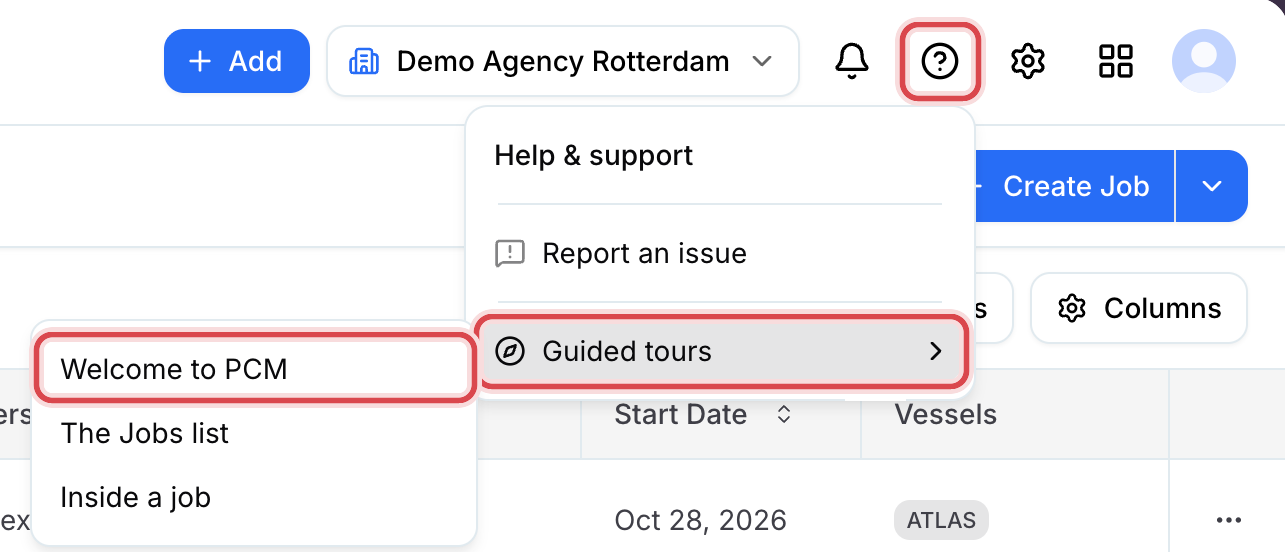
The Welcome to PCM tour opens by itself the first time you use PCM. To see it again, click ? and choose Guided tours.
Was this article helpful?
Thanks for your feedback.