

Log in and open Port Call Management
Open Port Call Management from your MagicPort account and check the branch you work in.
You need a MagicPort account with access to Port Call Management. Your company’s MagicPort owner gives colleagues access to it from the team settings of the MagicPort dashboard.
Enter your email and password
On the Welcome Back page, enter your Email and Password and click Continue. You can also sign in with your Google or Microsoft account using the buttons at the top.
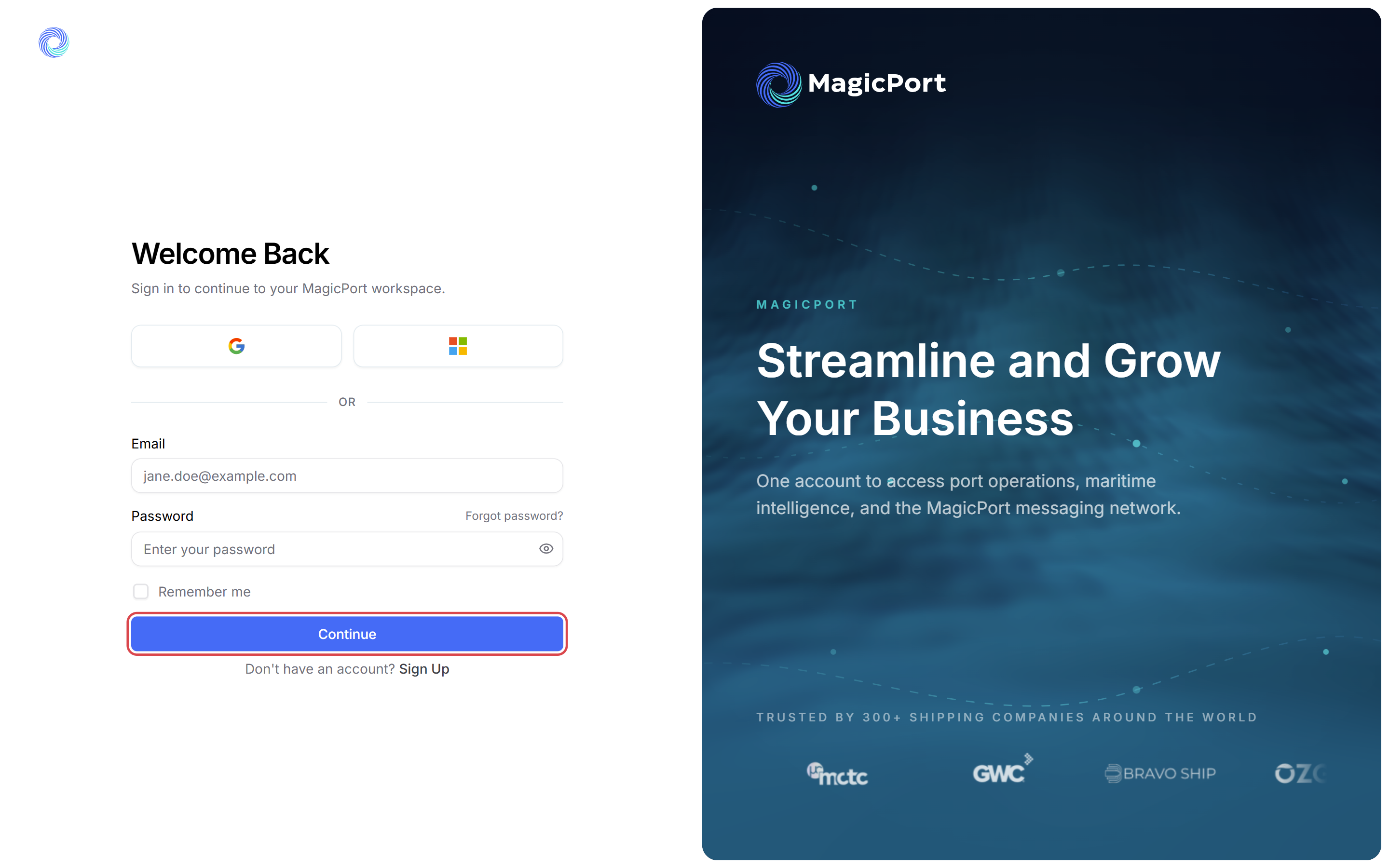
Tip: If you have forgotten your password, click Forgot password? above the password field.
Open the apps menu
After you sign in you land on your MagicPort dashboard. Click the grid icon at the top of the screen to open MagicPort apps, the list of the MagicPort products you can move between.
Choose Jobs
Port Call Management is listed as Jobs, with the description Port call operations. Click it to open Port Call Management.
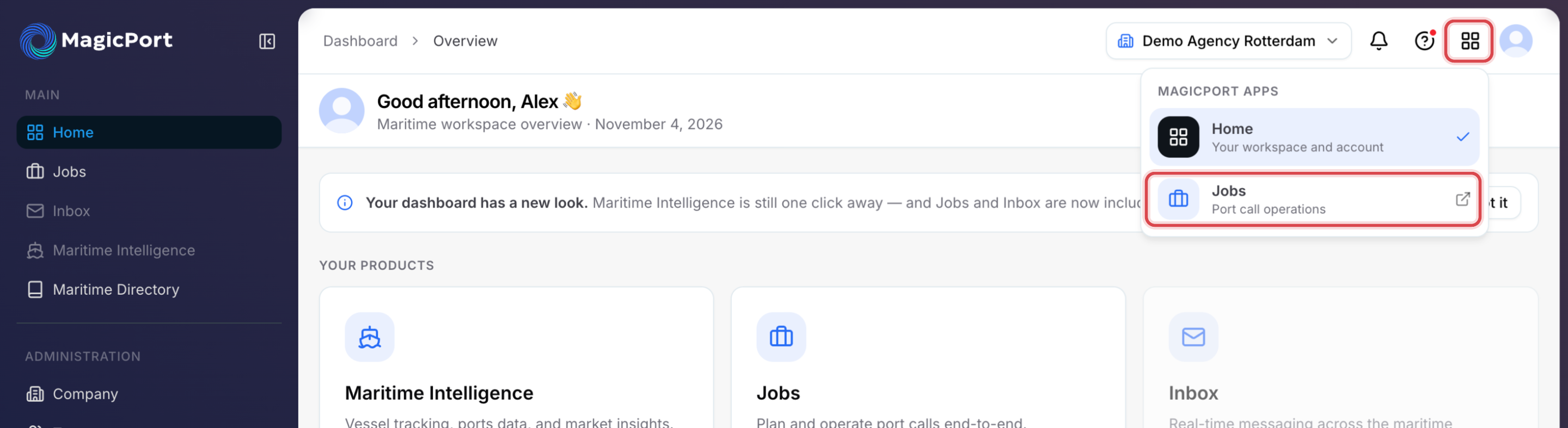
Note: If Jobs is not in the list, or you cannot open it, your account has no access to Port Call Management yet. Ask your company’s MagicPort owner to give you access.
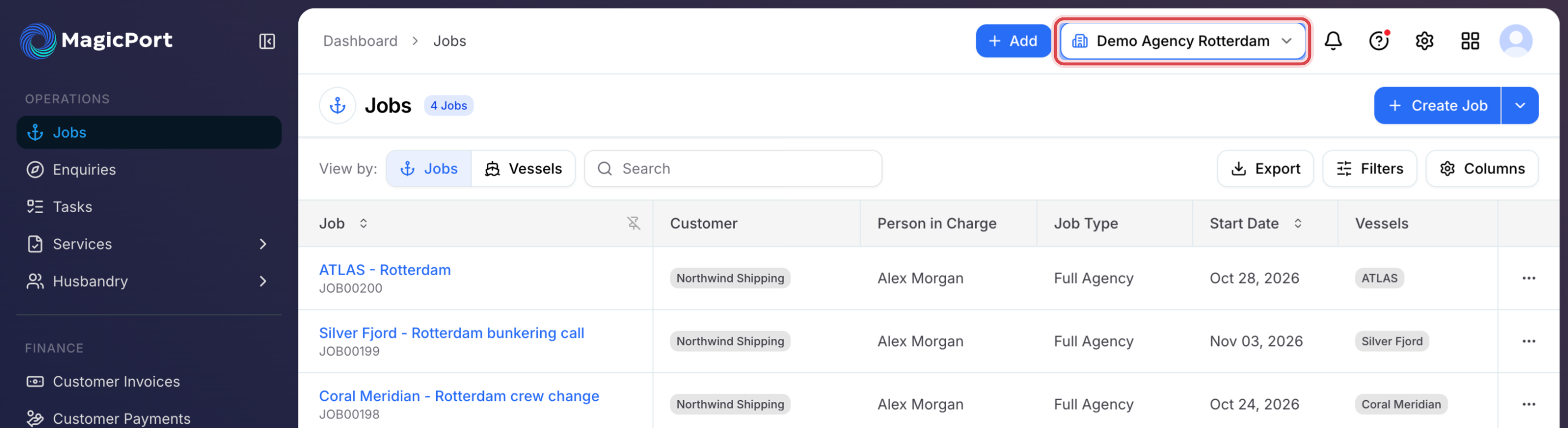
Check the branch you are in
Port Call Management opens in the branch you last worked in on this browser, or in your first branch the first time. The branch shows on the button with the building icon at the top of the screen.
Everything you see and create belongs to that branch, so check it before you start. To change it, click the button and choose another branch from Branches. See Branches and what you can see.
Tip: Bookmark the page once it opens, so you can go straight to Port Call Management next time.
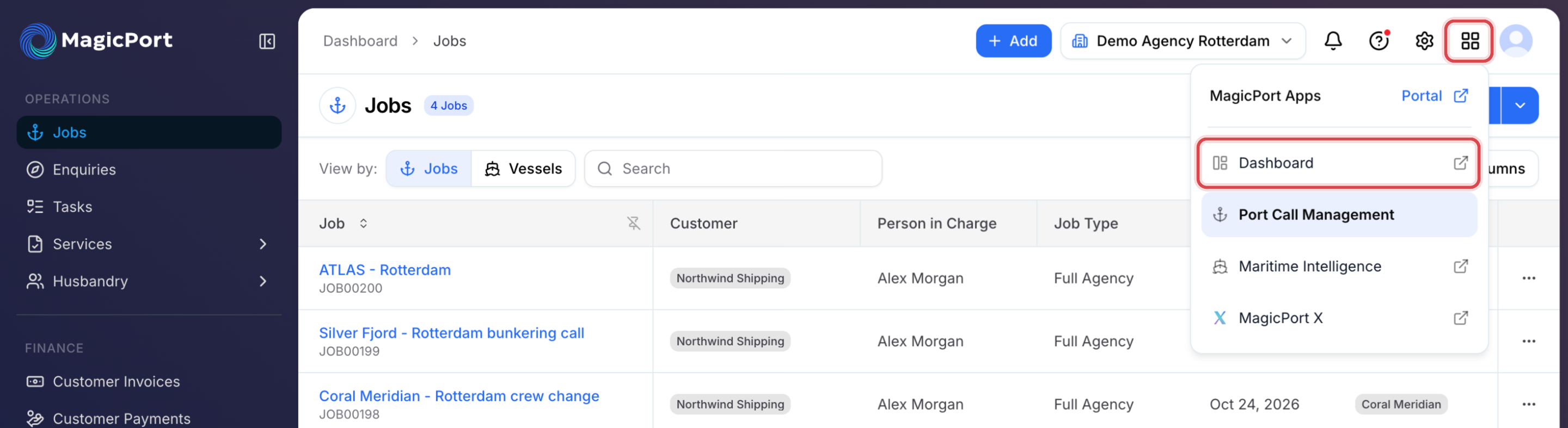
Switch back to the dashboard when you need it
To get back to your MagicPort account from inside Port Call Management, click the grid icon at the top of the screen to open MagicPort Apps and choose Dashboard. From the same menu you can also open the other MagicPort products your company uses, such as Maritime Intelligence.
Was this article helpful?
Thanks for your feedback.