

Read and manage your notifications
Read your notifications, mark them as read, and see what Port Call Management notifies you about.
PCM tells you when something needs your attention, such as an approval waiting for you or a report that is ready. Notifications appear under the bell at the top of the screen; some also arrive by email.
Open the bell
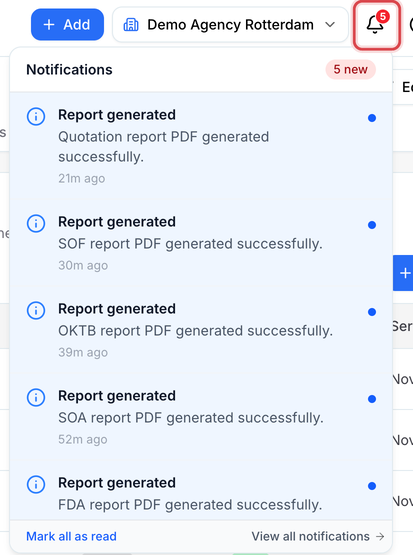
Click the bell at the top of the screen. The number on it is how many you have not read. Click a notification to go straight to its record.
Open All Notifications
At the bottom of the list, click View all notifications. Switch between All and Unread, and click View on a row to open its record.
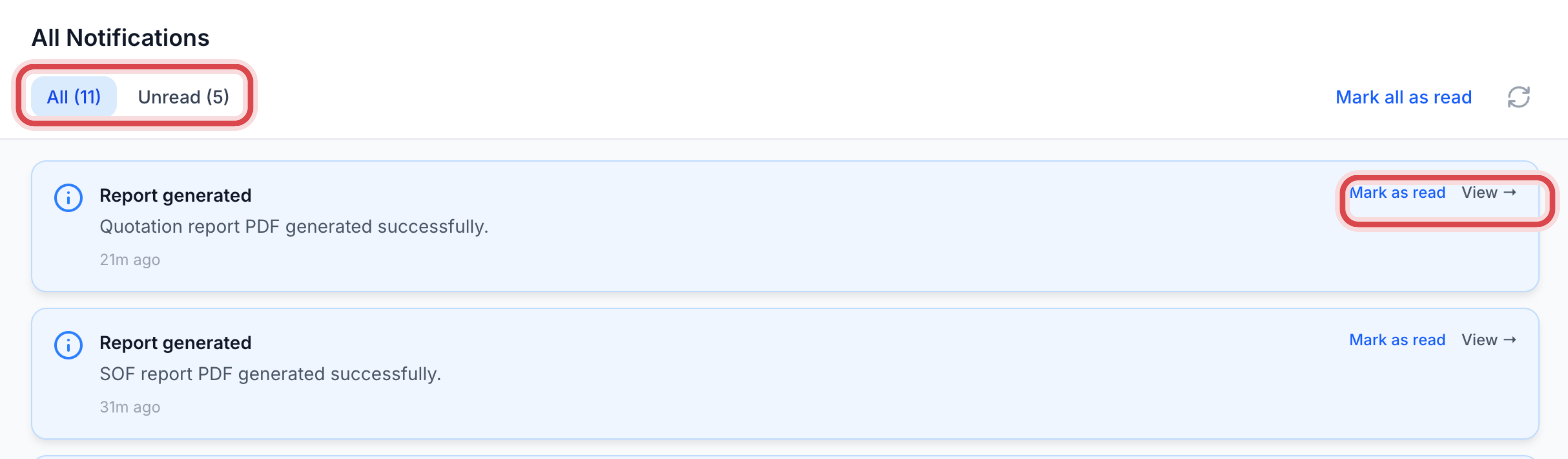
Note: You see the notifications of every branch of your company, not only the selected one, and notifications from other MagicPort apps addressed to you.
Mark them as read
Click Mark as read on a notification once you have dealt with it, or Mark all as read to clear everything.
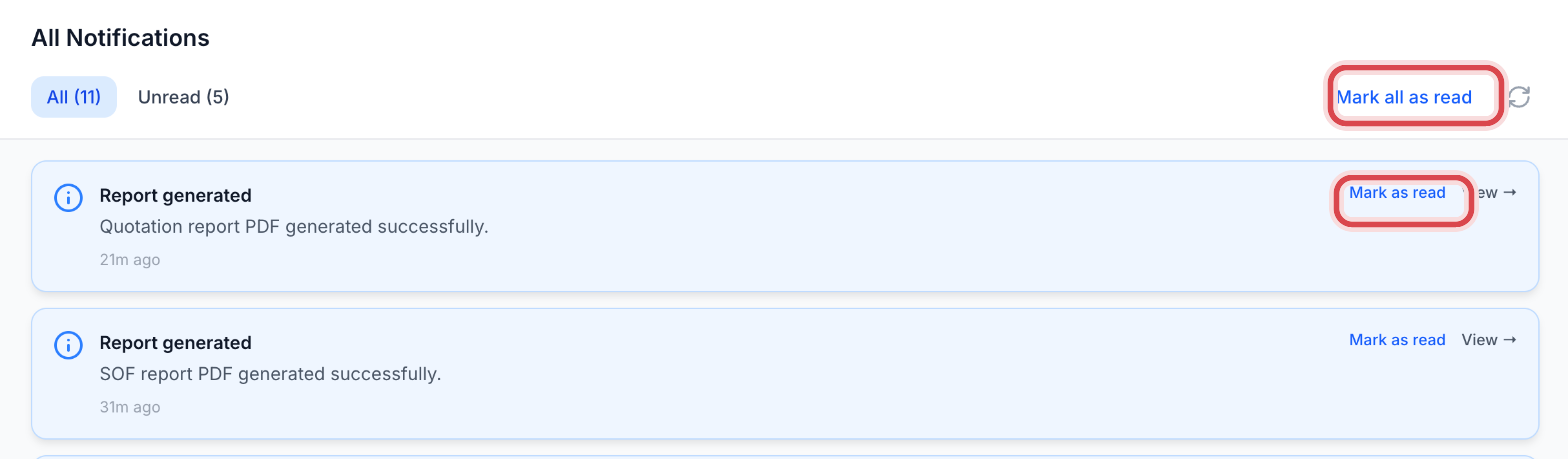
Note: Mark all as read also marks your notifications in your other companies, branches and MagicPort apps as read.
Check what you are notified about
There are no personal notification settings. You are notified because of your part in the work:
You are notified when Also by email A job or an enquiry is created with you as Person in Charge, unless you created it No A job you lead is closed or reopened, unless you did it No An approval request is waiting for you Yes Your approval request moves to the next step, or is approved or rejected Yes Another branch shares work with your branch (if you can see Incoming requests) No The branch you shared work with updates the request or hands work back (you are an agent of the job) No An export or a report you asked for is ready, or failed No Your administrator can add more with notification rules and automations. See Set up notification rules and Automate actions with automations.
Was this article helpful?
Thanks for your feedback.