

Approve or reject items waiting for you
Act on approval requests assigned to you.
With approval rules, actions such as approving a Final Invoice, closing a job or creating a job wait for an approver first. You see a request when it reaches the step for your role in the branch you are working in. For how approvals work, see Approvals.
Open Awaiting My Approval
Go to Approvals in the left menu and click Awaiting My Approval. The number next to it is how many requests wait for you in the current branch.
Each row shows the Type, such as Approve Final Invoice or Close Job, the Object it is about, Requested By, Submitted and Status.

Note: Requests are per branch. If you expect one and do not see it, check the branch selected at the top of the screen.
Check the request’s history
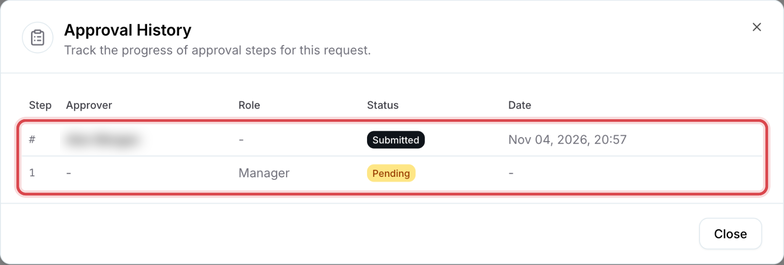
Click the request’s ID to open Approval History: each step so far, who approved or rejected it, with which role, and when.
Approve or reject it
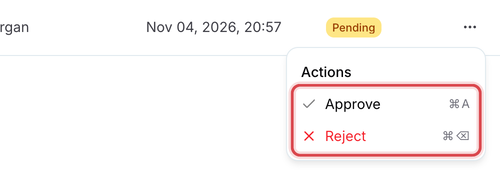
Open the actions menu at the end of the row:
- Approve: the request moves to the next step’s approver, or, if yours was the last step, PCM carries out the action.
- Reject: enter a Reason (required) in Reject Request and click Reject. The person who asked gets the reason in their notification and email.
To decide while looking at the record itself, see Approve or reject from the record.
Know what happens next
You What happens Approve, more steps follow The request goes to the next step’s approver. Approve the last step PCM carries out the action. A job requested with Create Job is created for the colleague who asked. Reject The action does not happen. A customer or vendor invoice goes back to Draft. A job waiting to close goes back to its previous status; one waiting to reopen stays Closed. Note: An approved or rejected request cannot be changed. A corrected item comes back to you as a new request.
Tip: My Requests, above Awaiting My Approval, shows the requests you sent and where they stand.
Was this article helpful?
Thanks for your feedback.