

Set up notification rules
Decide who is notified about what in your branch.
PCM already notifies some people on its own, such as a job’s Person in Charge when it is closed. A notification rule also tells everyone with a chosen role in the branch, for example your accounts team when services are ready to bill.
Open Notification Rules
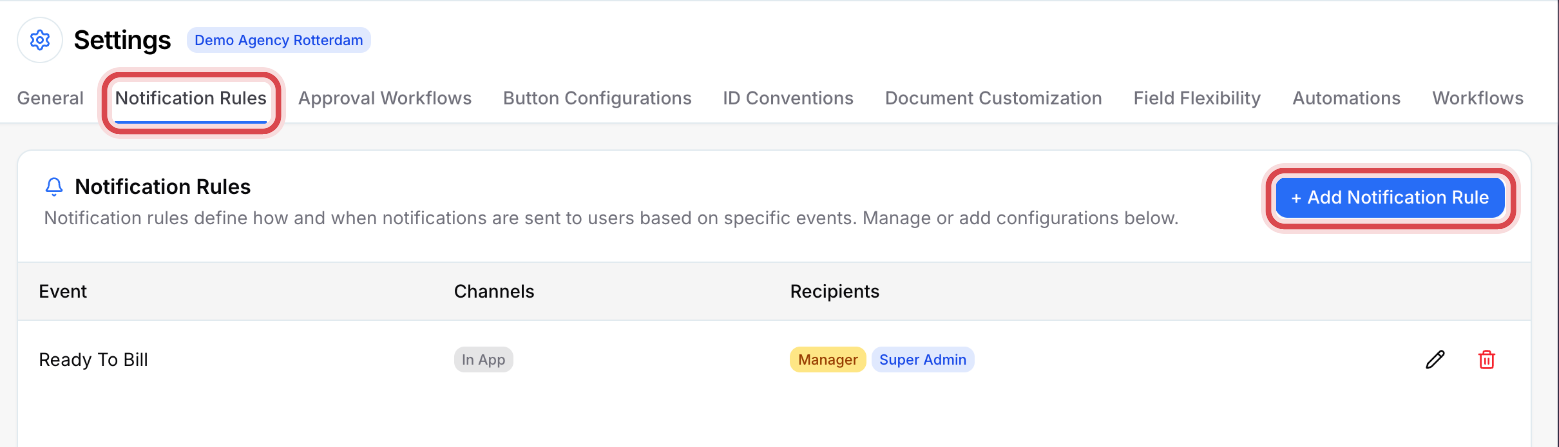
Check the branch at the top of the screen: rules belong to it. Click the gear icon (PCM Settings) and open the Notification Rules tab.
Note: You need permission to see and change the Notification Rules settings. Super Admin and Manager have it. See Roles, permissions and plans.
Add a rule
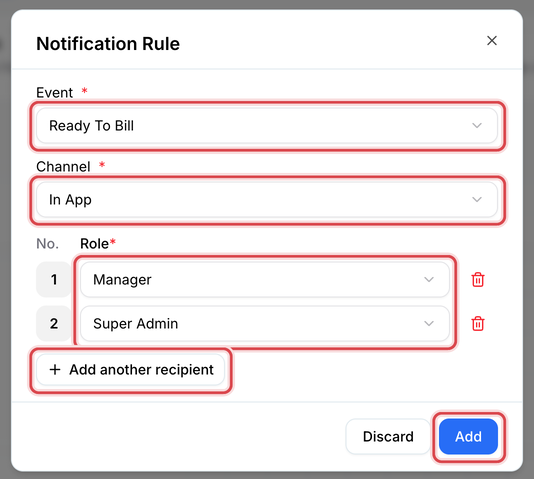
Click + Add Notification Rule and fill in:
- Event: Close Job (a job of the branch is closed) or Ready To Bill (services are marked Ready to Bill; one notification covers the services marked together). One rule per event.
- Channel: In App or E-Mail.
- Role: everyone with this role in the branch is notified. Click Add another recipient for more roles.
Click Add.
Change or remove a rule
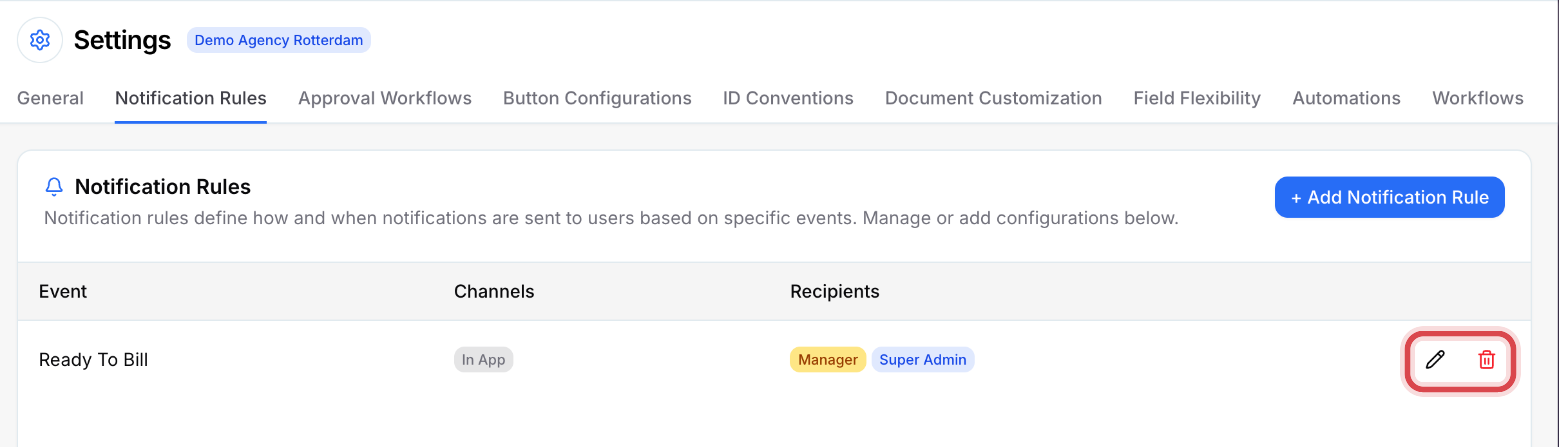
Click the edit icon on the rule’s row, make your changes and click Save. To stop the notifications, click the delete icon and confirm with Delete.
Note: A rule reaches people by role, not one by one. To see what each person is notified about without a rule, see Read and manage your notifications.
Was this article helpful?
Thanks for your feedback.