

Automate actions with automations
Let PCM act on jobs when something happens or on a schedule.
An automation says “when this happens on a job, and these conditions hold, do that”. It takes over routine work, such as adding the usual services when a job is opened or emailing an ETA update before the vessel arrives.
Open Automations
Check the branch at the top of the screen: automations act on that branch’s jobs. Click the gear icon (PCM Settings) and open the Automations tab.
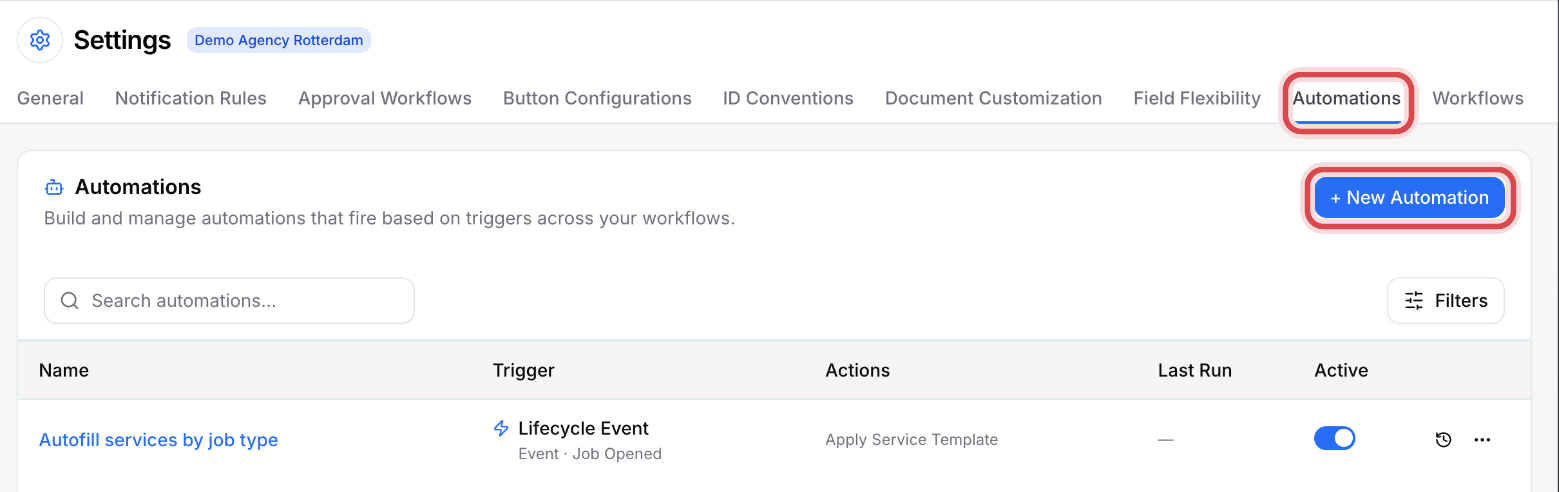
Note: You need permission to see and change the Automations settings. Super Admin and Manager have it. See Roles, permissions and plans.
Pick a template or start blank
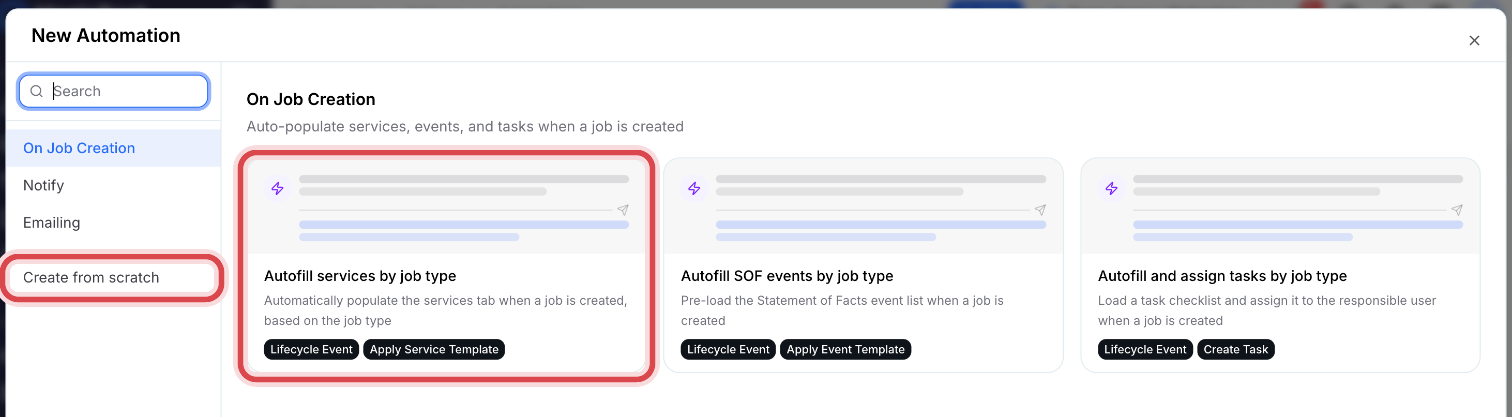
Click + New Automation. Pick a ready-made starting point to open the form already filled in:
- On Job Creation, such as Autofill services by job type.
- Notify, such as ATA arrival notification.
- Emailing, such as 48 hrs ETA update.
Or choose Create from scratch. Either way, give the automation a Name.
Check the trigger and the actions
Adjust what the template filled in, or set it yourself:
- When should this run? and Run only when…: see Choose when an automation runs.
- What should happen?: see Choose what an automation does.
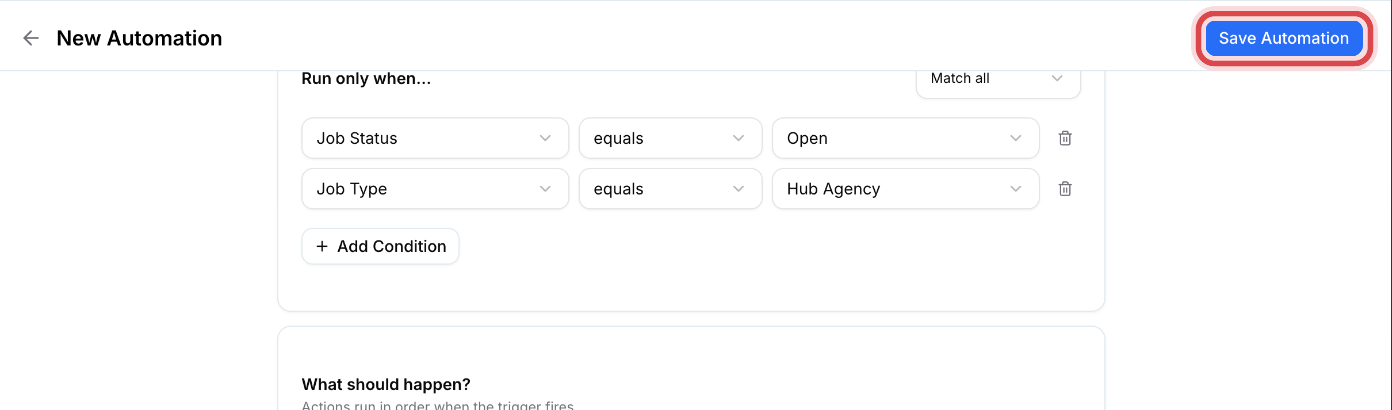
Save it
Click Save Automation. It is active straight away.
Pause, edit or check it
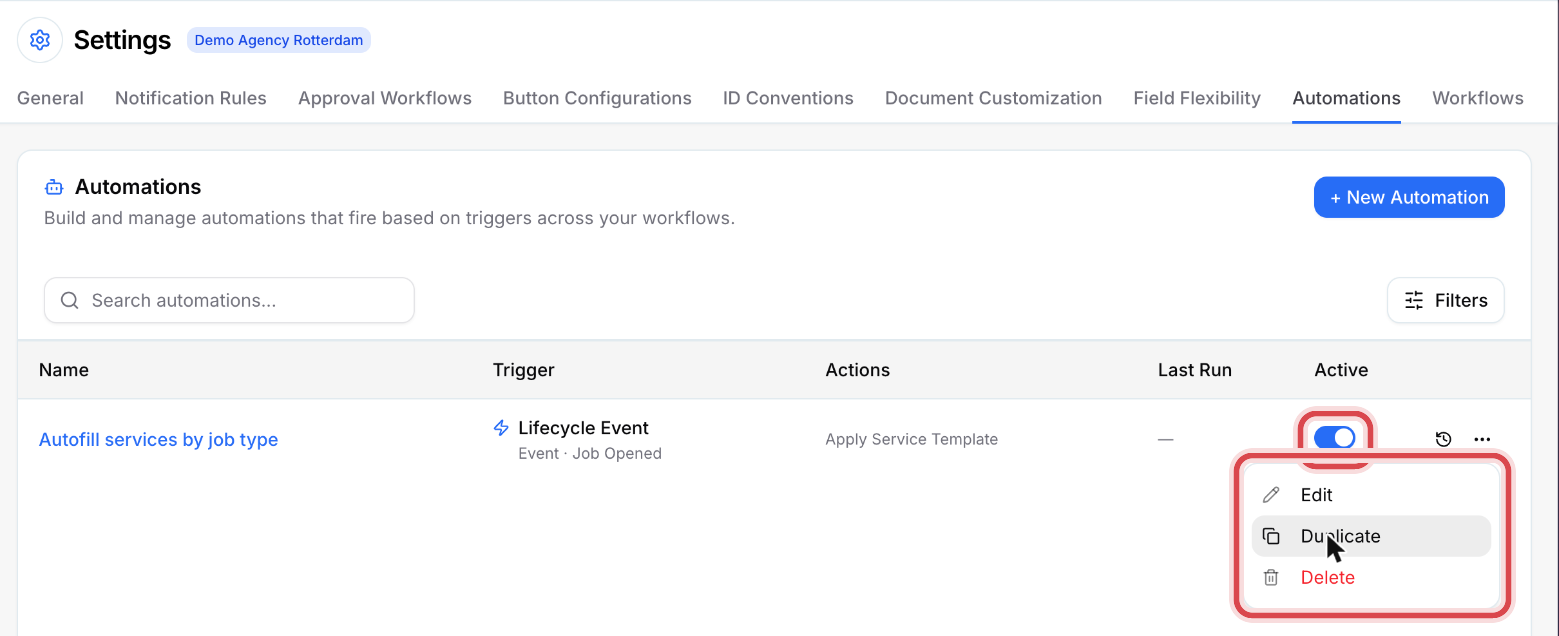
Use the switch in the Active column to pause an automation without deleting it. Open its Run History to see each run: Success, Failed or Skipped. The row’s menu has Edit, Duplicate and Delete.
Was this article helpful?
Thanks for your feedback.