

Choose what an automation does
Add services, events, emails, notifications or tasks with an automation.
An automation’s actions run in order when its trigger fires. Open the automation from the Automations tab of Settings, or start one with + New Automation. See Automate actions with automations.
Add an action
Under What should happen?, click Add Action and choose the Action Type:
Action Type What it does Triggers Apply Service Template Adds a service template’s services to the job, for each of its customers Lifecycle Event Apply Event Template Adds an event template’s events to each vessel of the job Lifecycle Event Send Email Sends an Email Template to the Person in Charge, the Customer or the Vendor All Notify User Sends your Message to chosen colleagues, In-app, by Email or Both All Create Task Creates a task for a colleague, due a number of days after the trigger Lifecycle Event, Time-Since 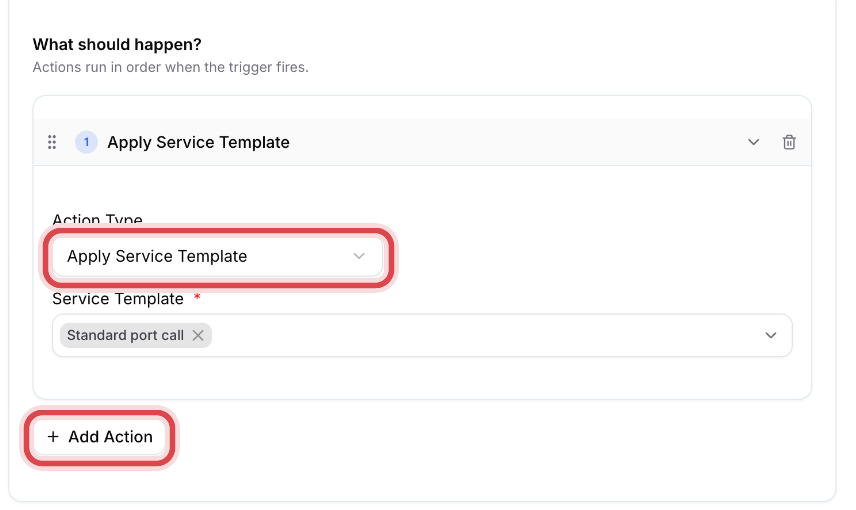
Note: Services added by an automation start as pending, dated today, without a vendor or prices. Fill these in on the job before you bill them.
Decide whether emails wait for review
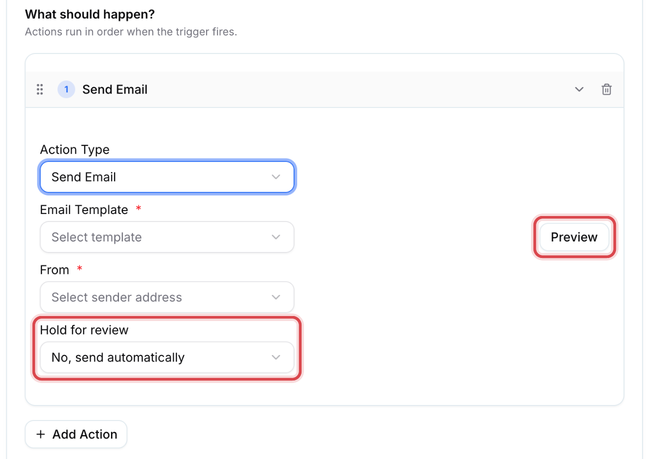
For Send Email, choose the Email Template and the From address. Hold for review decides whether the email goes out at once (No, send automatically) or waits as a draft (Yes, create draft). Click Preview to see the template.
Save the automation
Click Save Automation.
Was this article helpful?
Thanks for your feedback.