

Create and apply a service template
Save a set of services and add it to a job in one go.
A template is a set of services you add to many jobs. Apply it to a job instead of adding the services one by one. Each branch has its own templates.
Add the template
Go to Master Data → Templates and click Add Template. Choose the Type: Service for a set of services (Event is for vessel events). Give it a Name and click Add.
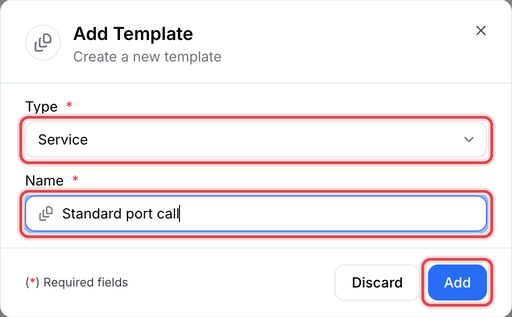
Note: The type cannot be changed later.
Add its services
Open the template and click Add Service for each line. Choose the Service, and fill in the Quantity, the Vendor and Vendor Unit Price if you buy it in, and the Customer Unit Price. A template can hold up to 25 lines.
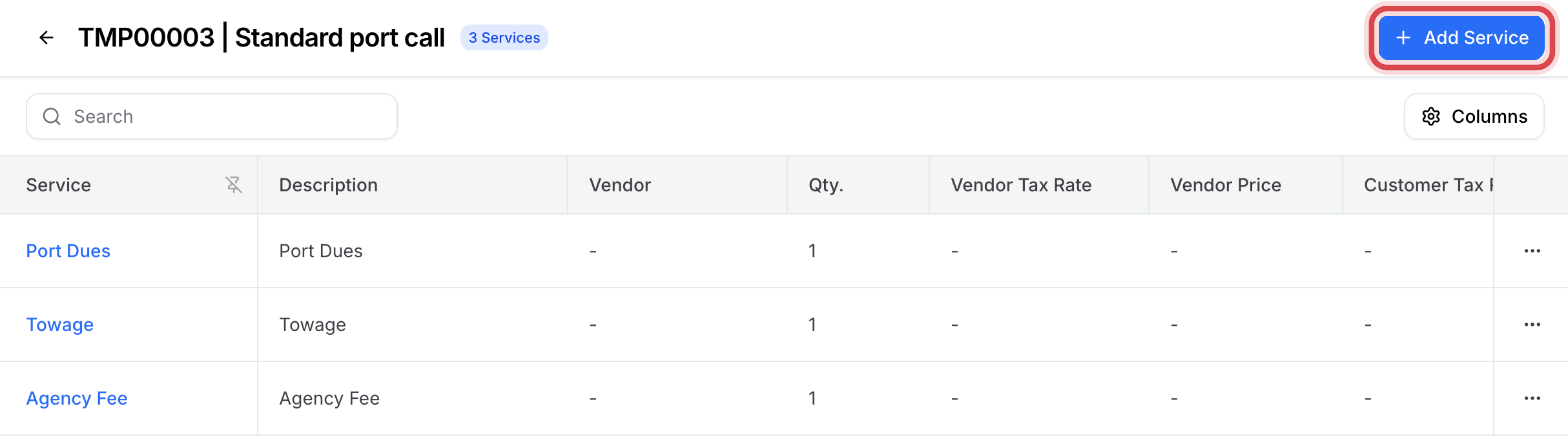
Apply it to a job
On the job’s Services tab, open the arrow next to Add Service, click Apply Template and choose the template. Check the services PCM lists, then add them. Where the job’s customer has a tariff for a service, PCM uses the tariff price.
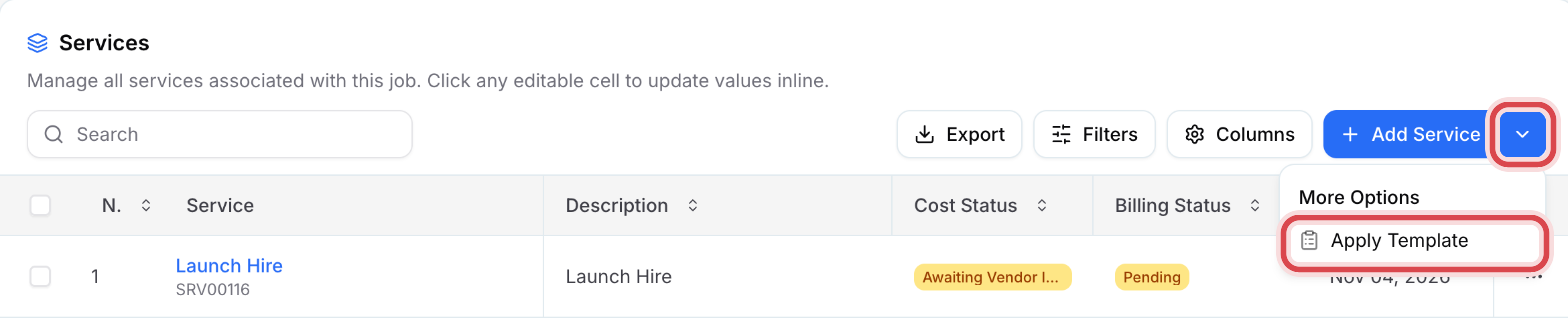
Apply Template shows only when your branch has at least one service template. An automation can also apply a template whenever a job is opened; see Automate actions with automations.
Was this article helpful?
Thanks for your feedback.