

Manage services and tariffs
Set up the services you offer and their prices.
Every service you add to a job is picked from your branch’s list in Master Data → Services and Tariffs. A tariff is the price you agreed with one customer for one service. Each branch has its own list.
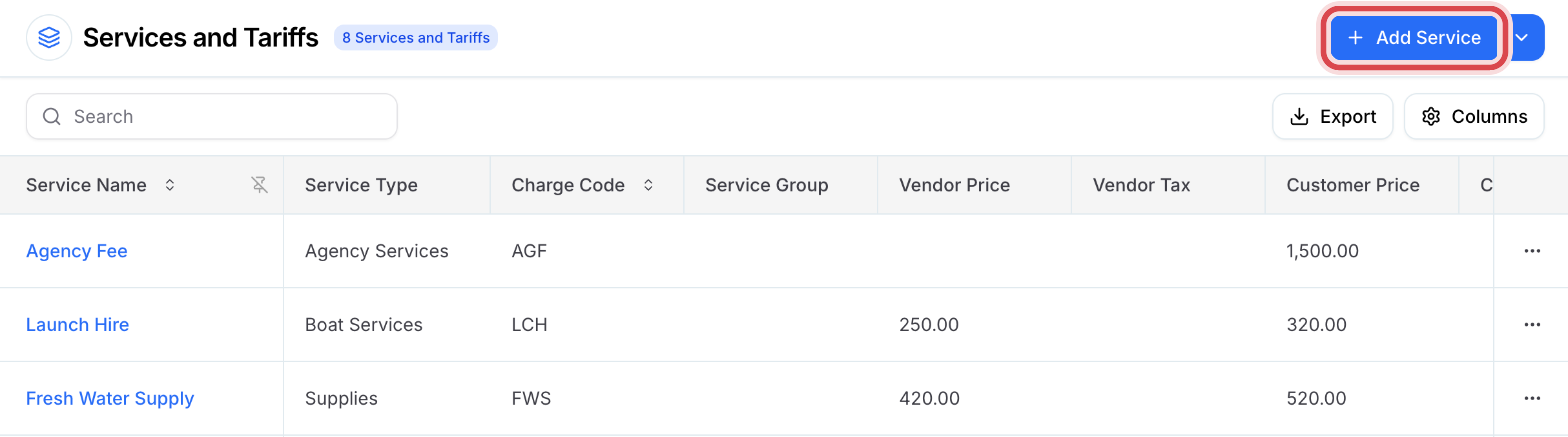
Open Add Service
Go to Master Data → Services and Tariffs and click Add Service.
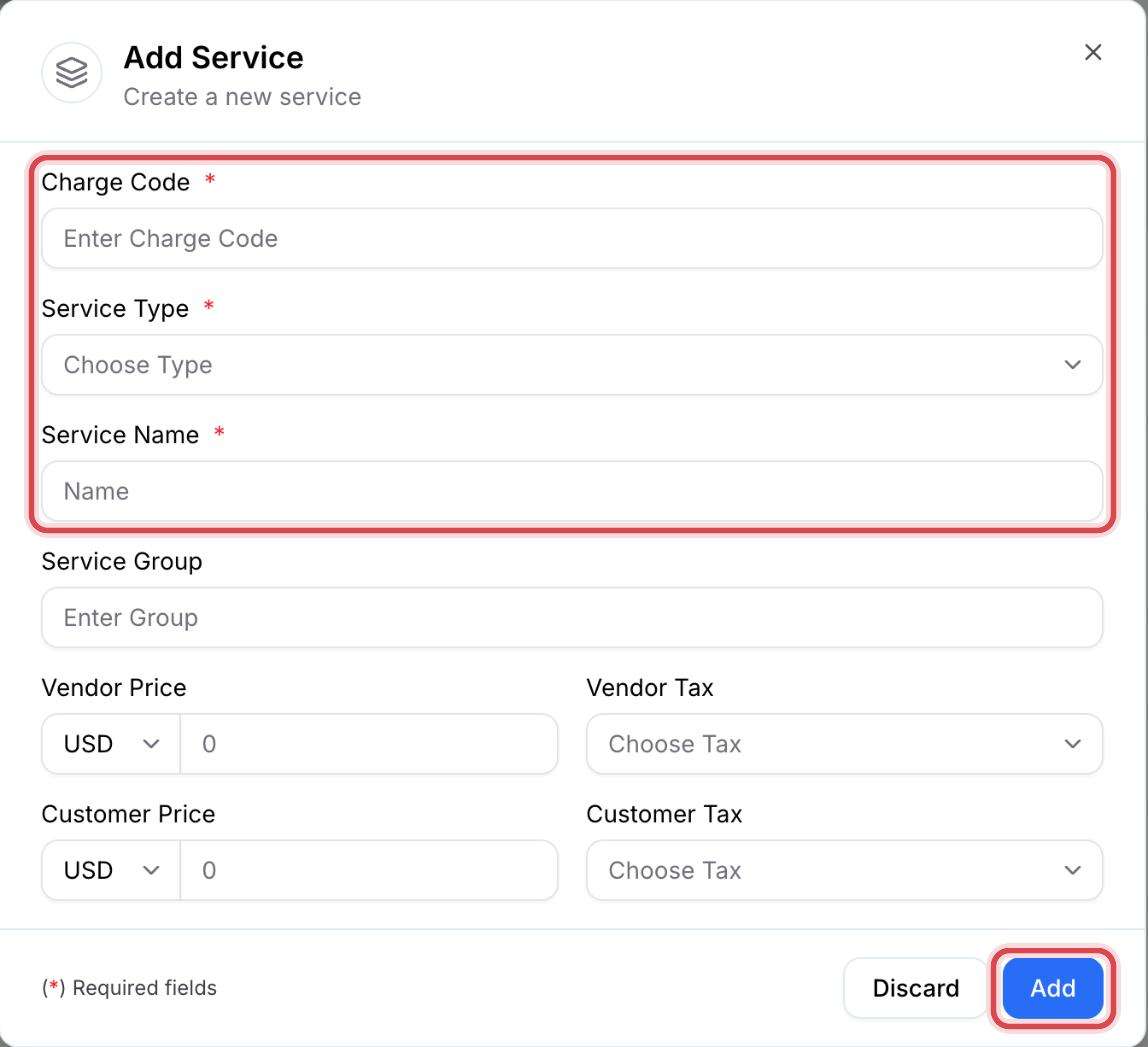
Fill in the service
- Service Name: the name people pick on a job.
- Charge Code: your code for the service, for example your accounting’s. Each code can be used once in the branch.
- Service Type: the category, such as Pilotage, Port dues or Supplies. Only Rebate services can go on a vendor rebate, and Cash to Master and Customs Duty are left out of a job’s profit.
Prices and taxes are optional. Click Add.
Note: If your branch has an approval workflow for Creates Service and Tariffs, you see Approval request submitted successfully instead, and the service is added when the approvers accept it. See Set up approval rules.
Agree a price with a customer
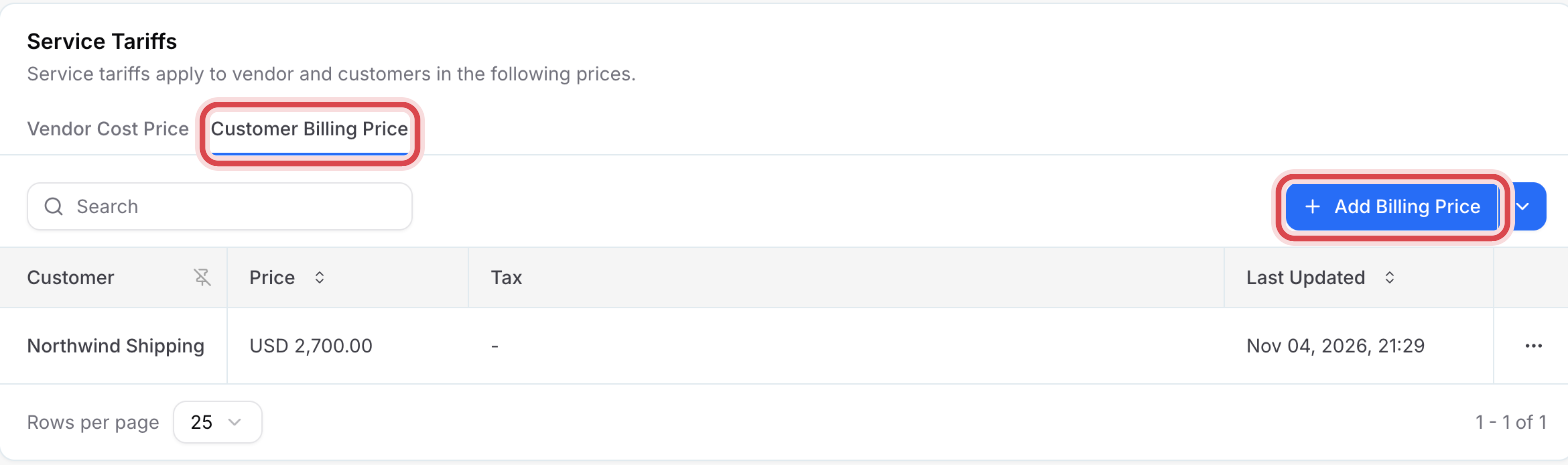
Open the service from the list. Under Service Tariffs, open Customer Billing Price and click Add Billing Price. Choose the Customer, enter the Customer Price and its currency, and a Customer Tax if one applies. Click Add.
A customer can have one tariff per service. To change the price, delete the tariff and add it again.
Note: PCM fills in the tariff price when services are added from a template. Prices on the Vendor Cost Price tab are recorded only; PCM does not use them on jobs.
Change or delete a service
Open the service from the list and edit it. Deleting a service removes it from the list; services already on jobs keep it.
Was this article helpful?
Thanks for your feedback.