

Add services to a job
Add the services you provide and charge for on a job.
A service is one thing you provide on a job and charge the customer for, such as pilotage or the agency fee, or the provisions delivered. Its customer price and its vendor cost give your profit, and later become the lines of your invoices.
Open the Services tab
Open the job and go to the Services tab. It lists the job’s services with their prices, Billing Status and Cost Status.
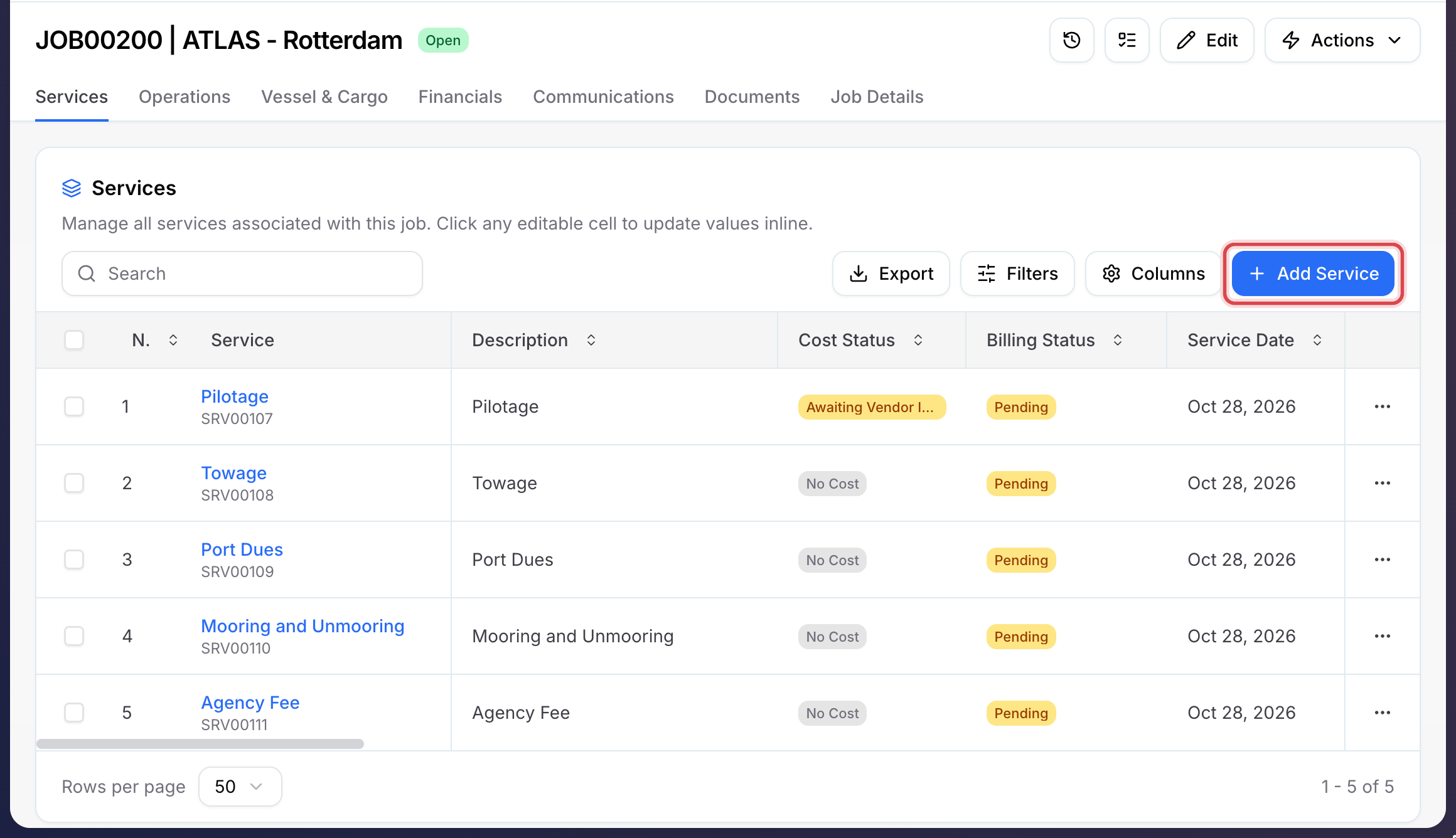
Note: You can add services only while the job is open or reopened.
Fill in the service
Click Add Service and fill in:
- Service: the type, from your branch’s list. It is required and cannot be changed once saved.
- Quantity and Service Date: they start as 1 and today.
- Customer, Customer Unit Price and its currency: who pays and how much per unit.
- Vendor, Vendor Unit Price and its currency: only if a vendor does the work. Leave it empty for work you do yourself.
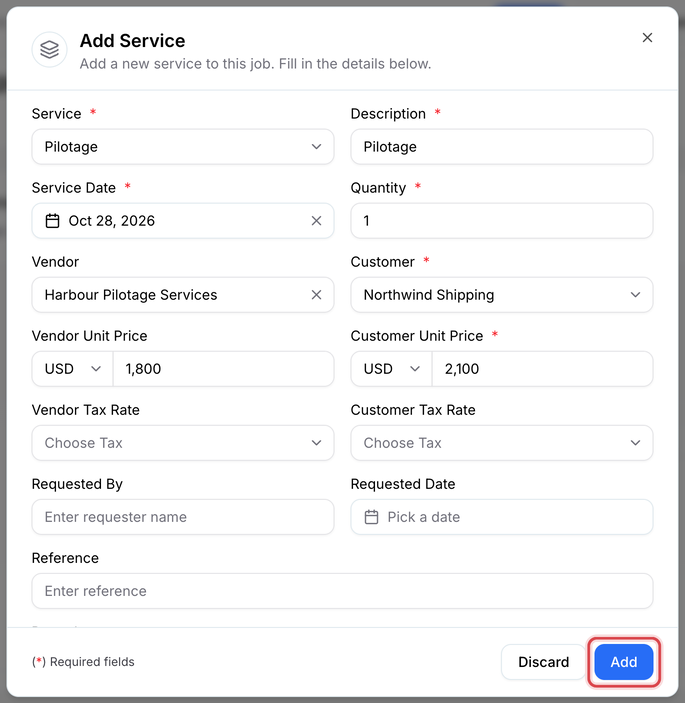
Note: Choosing a service does not fill in a price. Prices come in automatically only from a template. See Add services from a template.
Note: A price in a currency other than your branch’s needs an exchange rate for the service date. See Use exchange rates.
Save it
Click Add. The service appears in the list.
Change a service later
Open the service’s row menu to Edit it, add a remark, manage its documents or change its status. Prices can change while the service is not billed; the vendor side until the vendor’s invoice is approved. See Services.
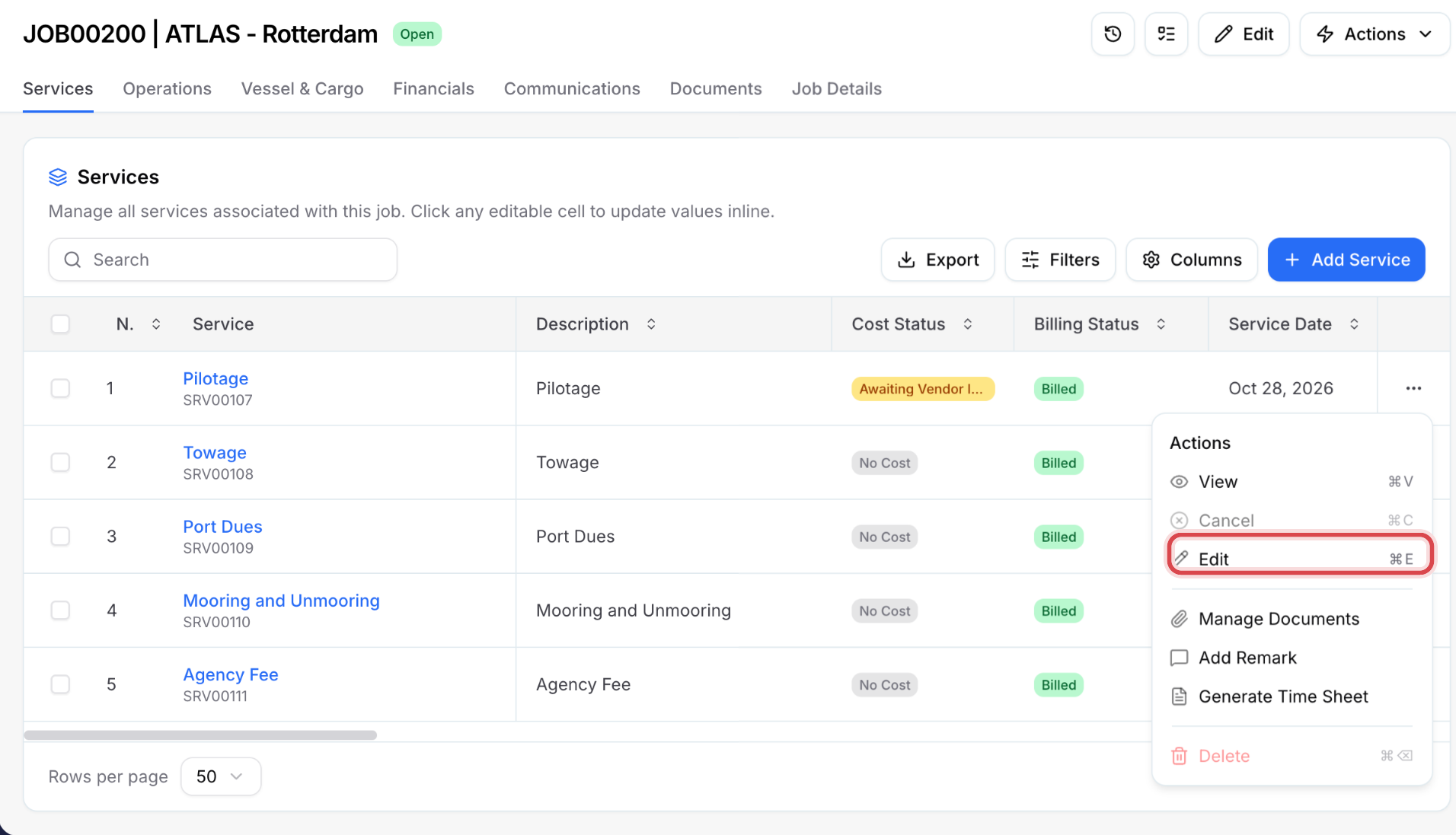
To act on many services at once, see Work on several services at once.
Was this article helpful?
Thanks for your feedback.