

Use exchange rates
Set the exchange rates used for invoices and payments.
When a vendor bills you in one currency and you invoice the customer in another, PCM converts the amounts with the rates you enter. PCM does not fetch rates; you enter them, and all branches of your company share them.
Note: You need permission to change exchange rates. If you do not have it, ask your administrator.
Open Exchange Rates
Click Exchange Rates at the bottom of the left menu. Each row is one rate: From, To and Rate, with when and by whom it was last updated.
A rate works in one direction: USD to EUR at 0.9 means 1 USD is 0.9 EUR. EUR to USD is a separate row.
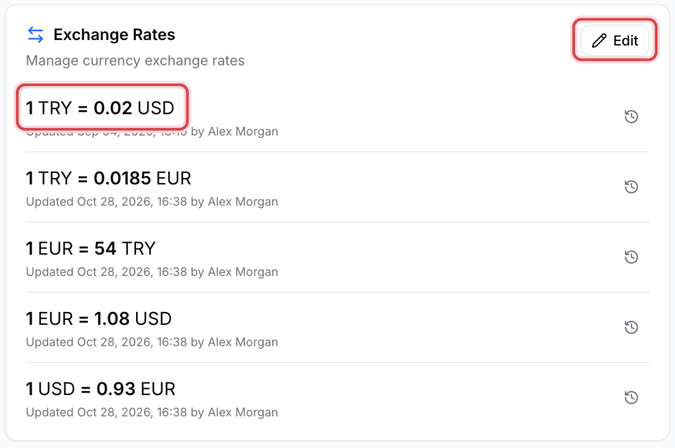
Note: The note at the top shows your Group currency and Branch currency. Only super admins can change them, in Settings.
Change a rate
Click Edit. Type the new Rate, with up to five decimals, and click Save. Discard leaves without saving.
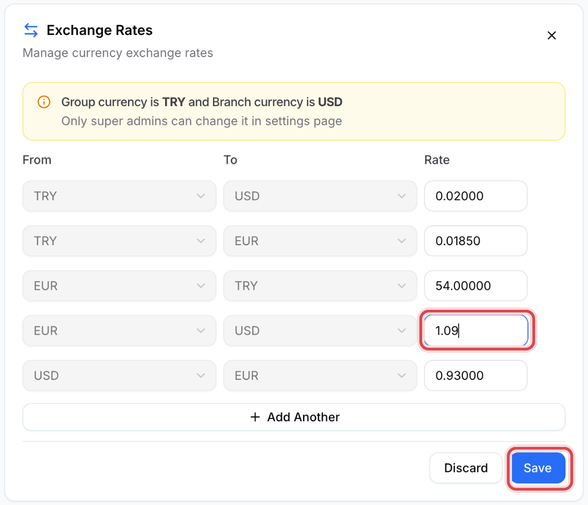
A new rate applies from today. Documents dated before today keep the old rate, and approved documents keep the rate they were created with. Draft customer invoices dated today or later are recalculated.
Add a currency pair
In edit mode, click Add Another. From is set to the group currency. Choose the To currency, enter the Rate and click Save. Remove drops a new row before saving.
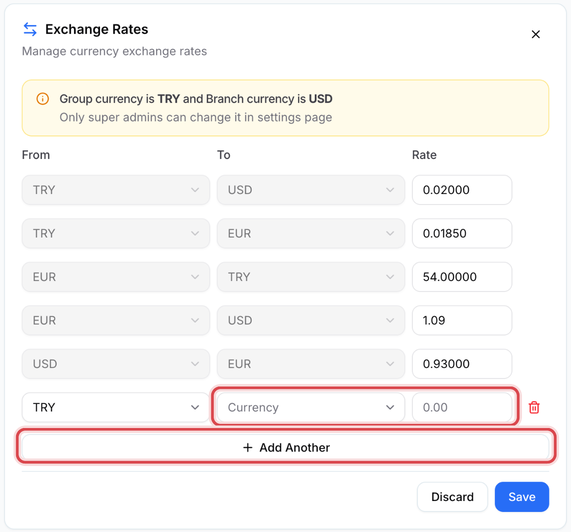
Note: Add a rate from the group currency to each currency first, before a pair between two other currencies. A pair can be added only once: This currency pair already exists.
The currencies you can choose on customer invoices are the ones in your exchange rates, plus the group currency.
To see which rate applied on a date, see Check an exchange rate’s history.
Was this article helpful?
Thanks for your feedback.