

Set credit limits and currency controls
Warn your team when a customer is over its credit limit.
Credit Limit Control warns your team when they start new work for a customer whose unpaid invoices are already over its credit limit. It is set per branch.
Give the customer a credit limit
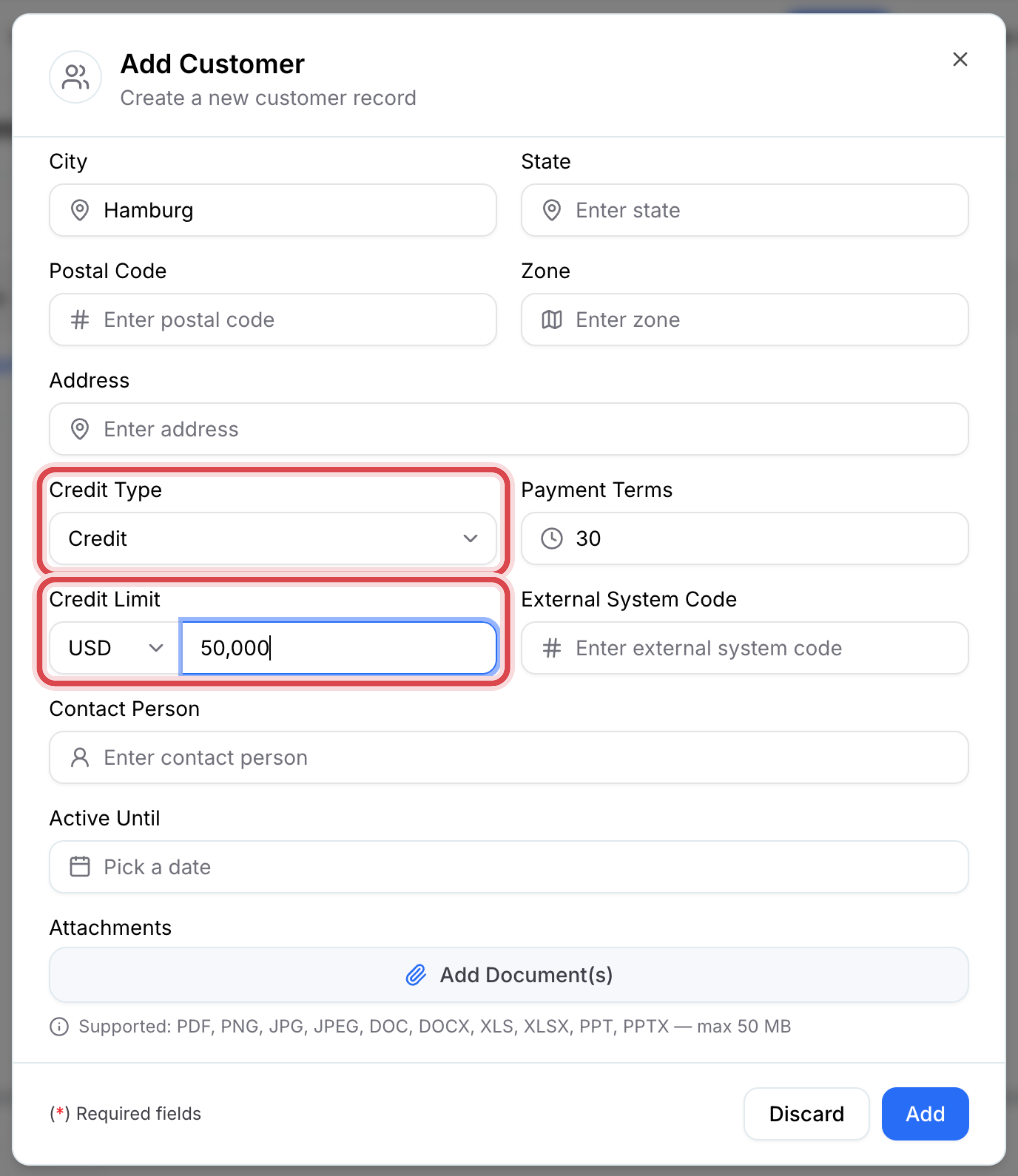
Go to Master Data → Customers, open the customer and edit it. Fill in:
- Credit Type: Credit. Customers set to Cash are never checked.
- Credit Limit and its Currency: how much the customer may owe you.
- Payment Terms (days): the days it has to pay; it sets its invoices’ due date.
Save the customer. These details belong to the branch you are working in.
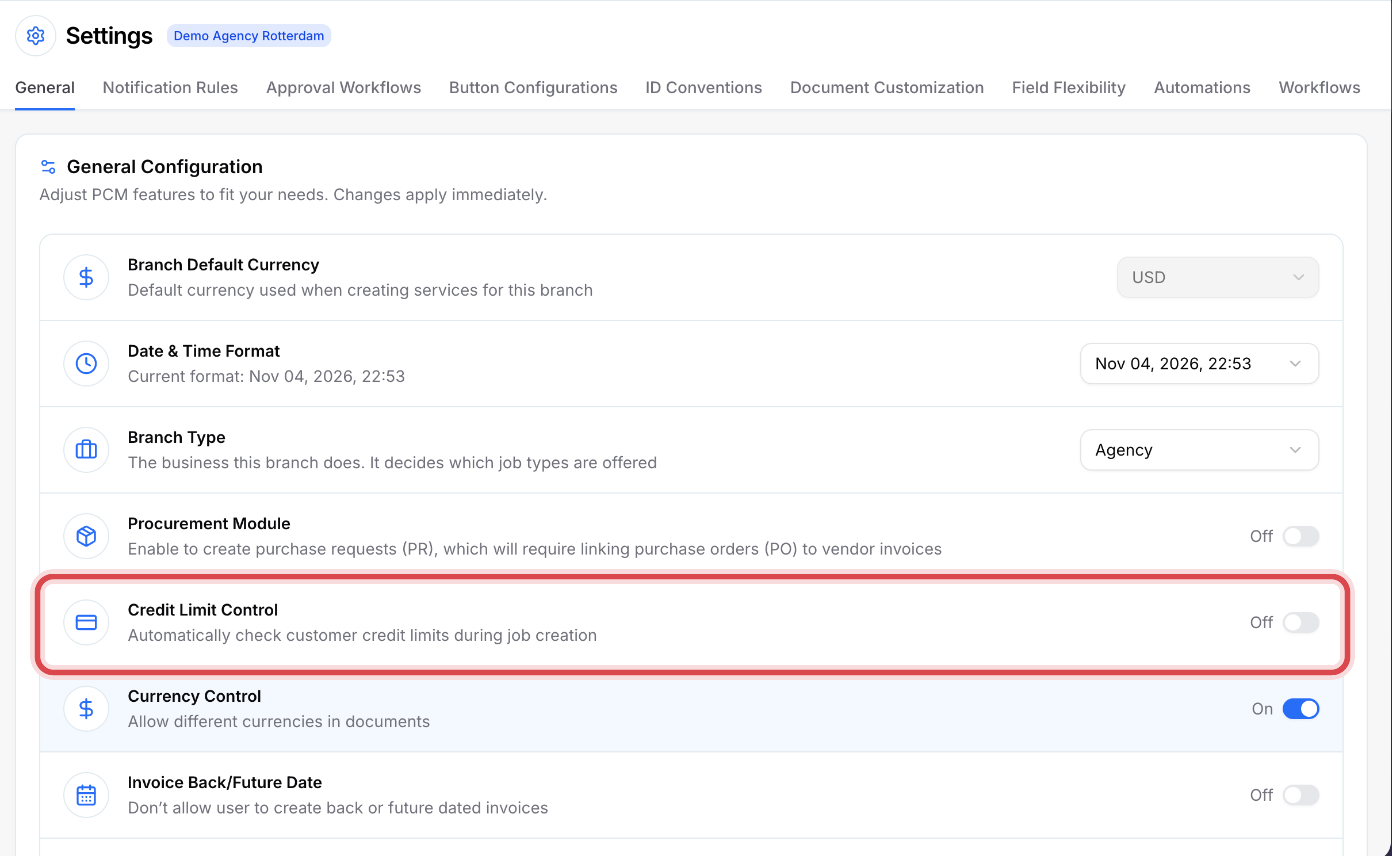
Turn on Credit Limit Control
Check the branch at the top of the screen. Click the gear icon (PCM Settings) and, on the General tab, turn on Credit Limit Control. The change applies immediately.
Note: You need permission to see and update the General settings, and to update customers. See Roles, permissions and plans.
Check the warning
When someone picks a credit customer on a new job, on an enquiry, or when adding a customer to a job, PCM adds up its open Final Invoices in the branch, converted to the limit’s currency. Over the limit, it shows Credit limit exceeded with the Credit limit and the Open balance. The user can still click Continue: the warning does not block the work.
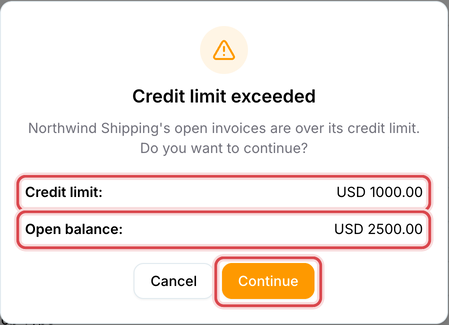
Note: Only Final Invoices awaiting payment count. Proforma Invoices, credit notes and unallocated payments do not. If an exchange rate is missing for an invoice’s date, the check cannot be made; see Use exchange rates.
Was this article helpful?
Thanks for your feedback.