

Add a customer
Add a customer and its payment terms.
A customer is a company you work for and bill, such as a ship owner, ship manager or charterer. It must be in PCM before you can put it on a job or an invoice.
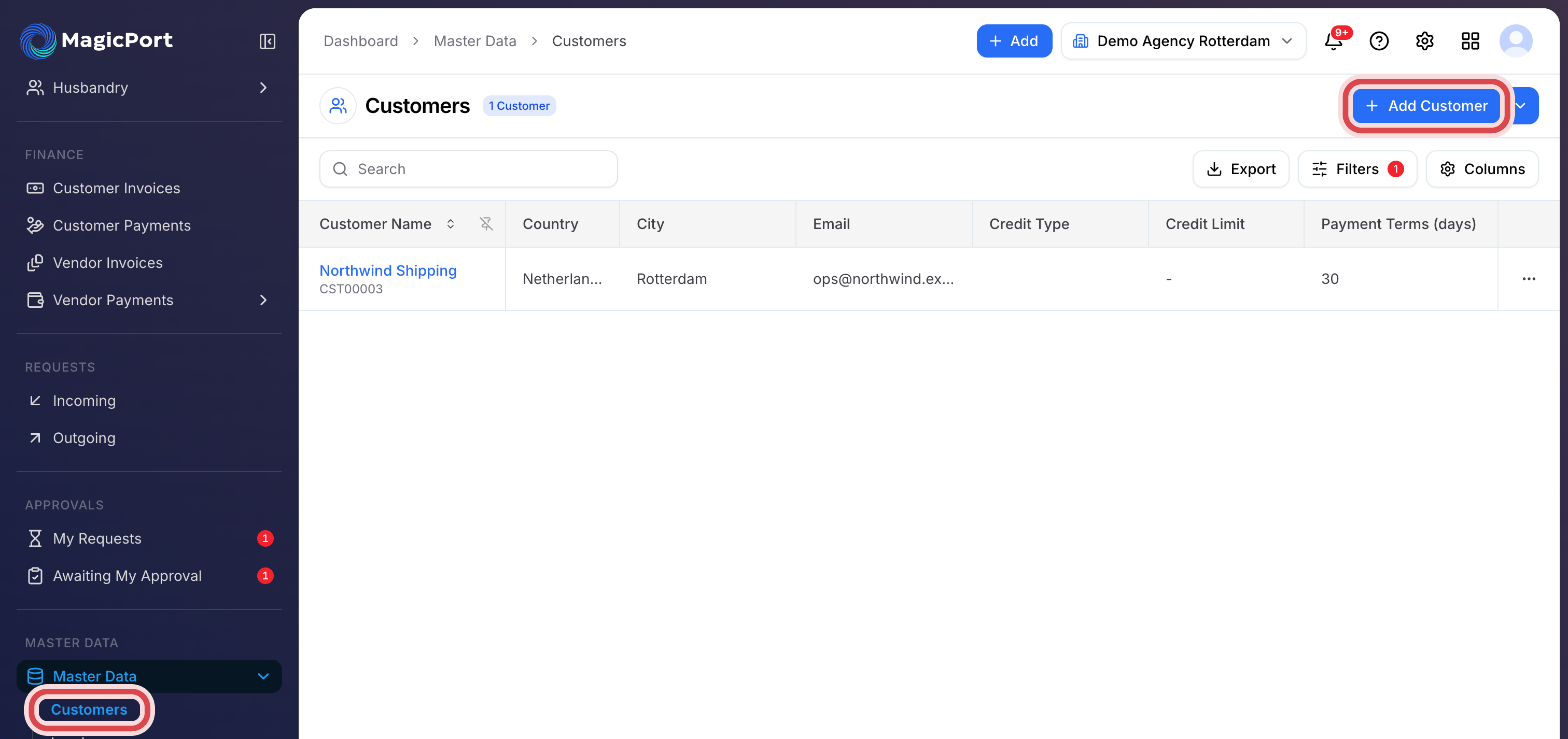
Open Add Customer
Go to Master Data → Customers and click Add Customer.
You can also add one while creating a job: in Create Job, open the Customer list and click Create new (or Create new customer if your search found nothing). The new customer is then filled in on the job.
Fill in the required fields
- Name: the company’s name, as it should appear on your documents.
- Country: the country of the customer’s address.
- Branch: the branches that work with this customer. It appears only in the branches you choose.
The address fields are optional, but they become the customer’s first address and are printed on invoices.
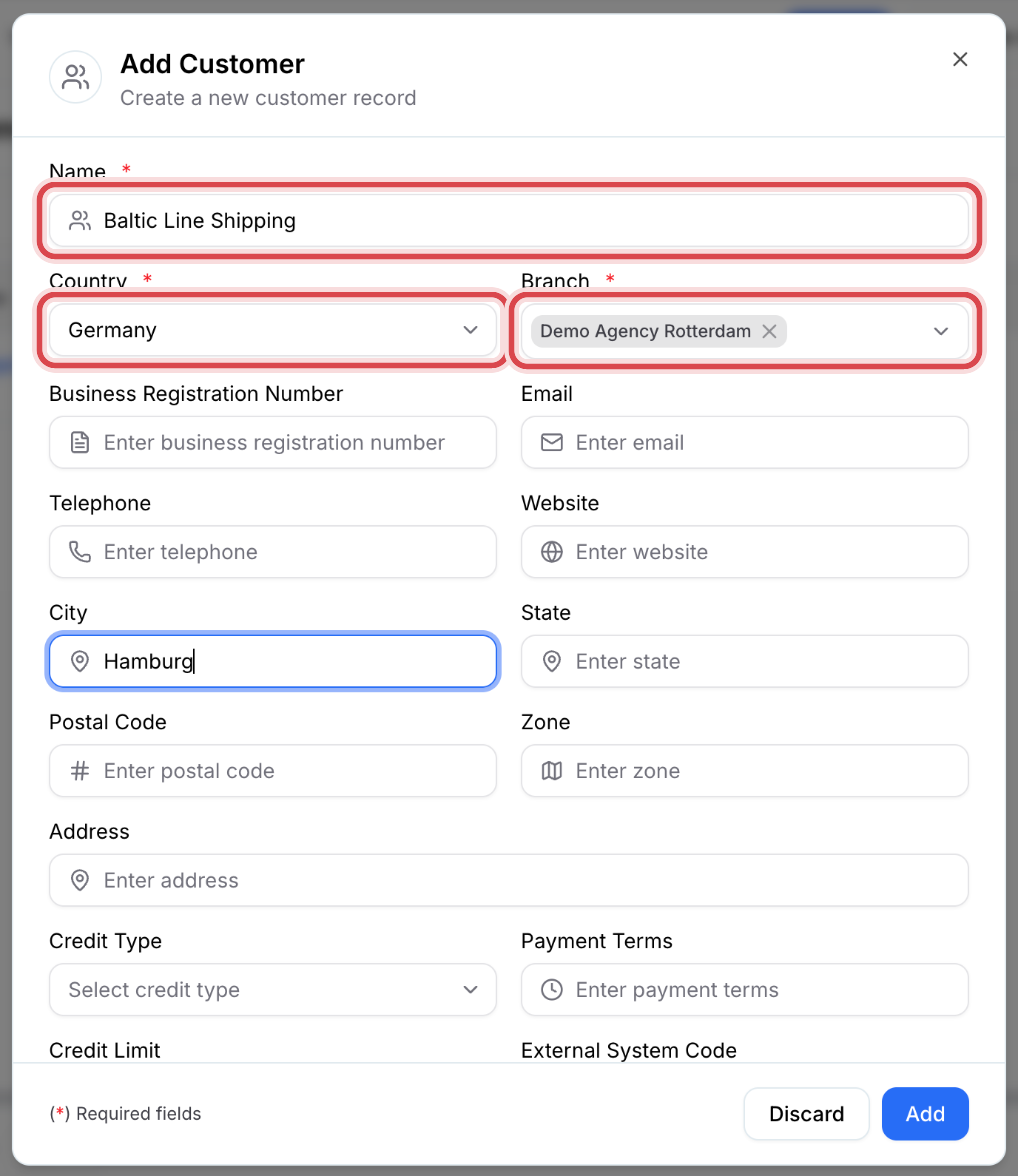
Set the payment terms
- Credit Type: Cash or Credit.
- Payment Terms: the days the customer has to pay. A Final Invoice’s Due Date is worked out from it.
- Credit Limit and its Currency: the most the customer may owe you. A credit limit needs a currency.
Click Add.
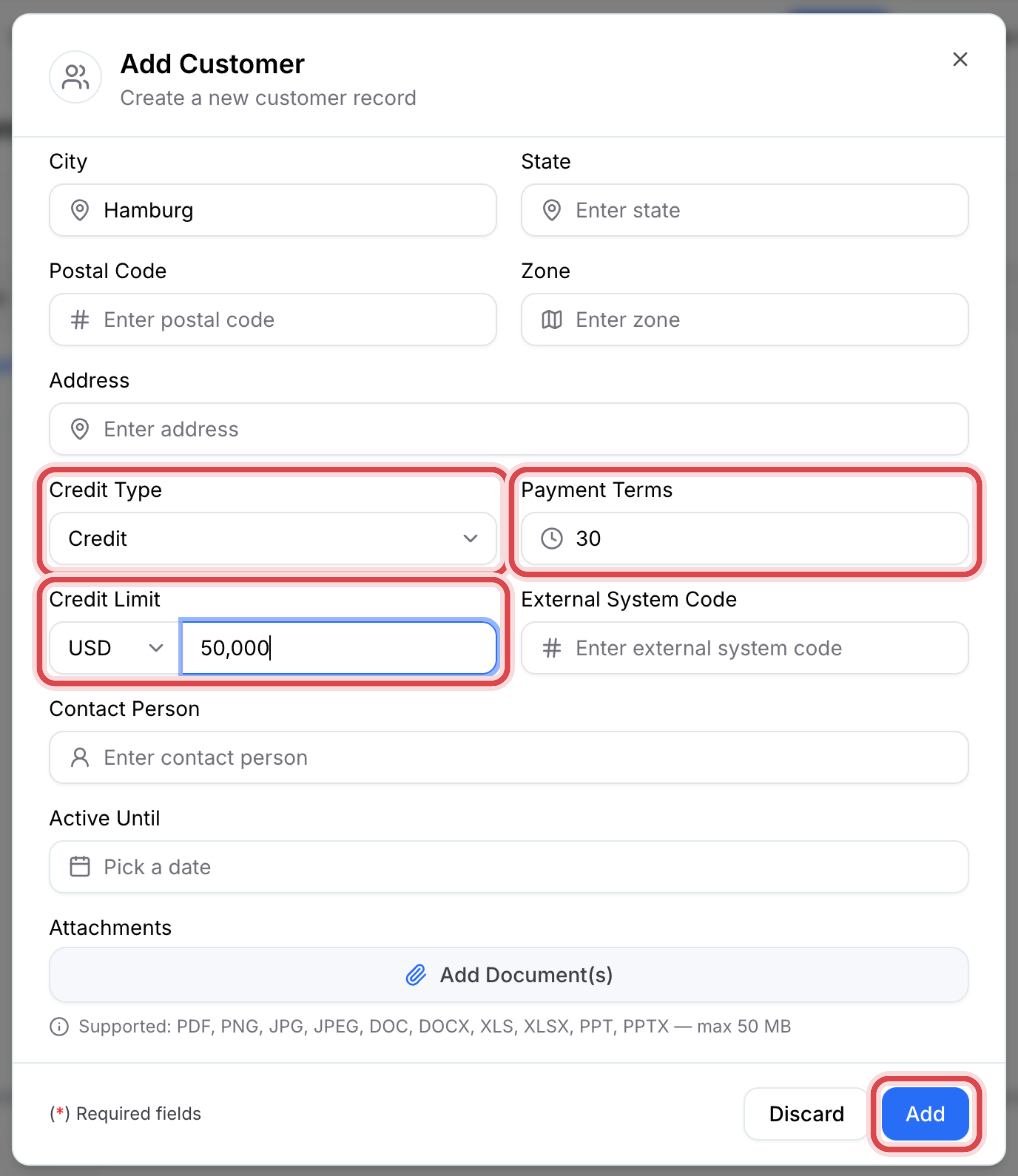
Note: Payment terms and credit limit belong to the branch you are working in. Another branch can give the same customer different terms. See Set credit limits and currency controls.
Change or hide the customer later
Open the customer and click Edit to change its details or terms. The Active switch at the top shows or hides the customer in your branch only; other branches keep it.
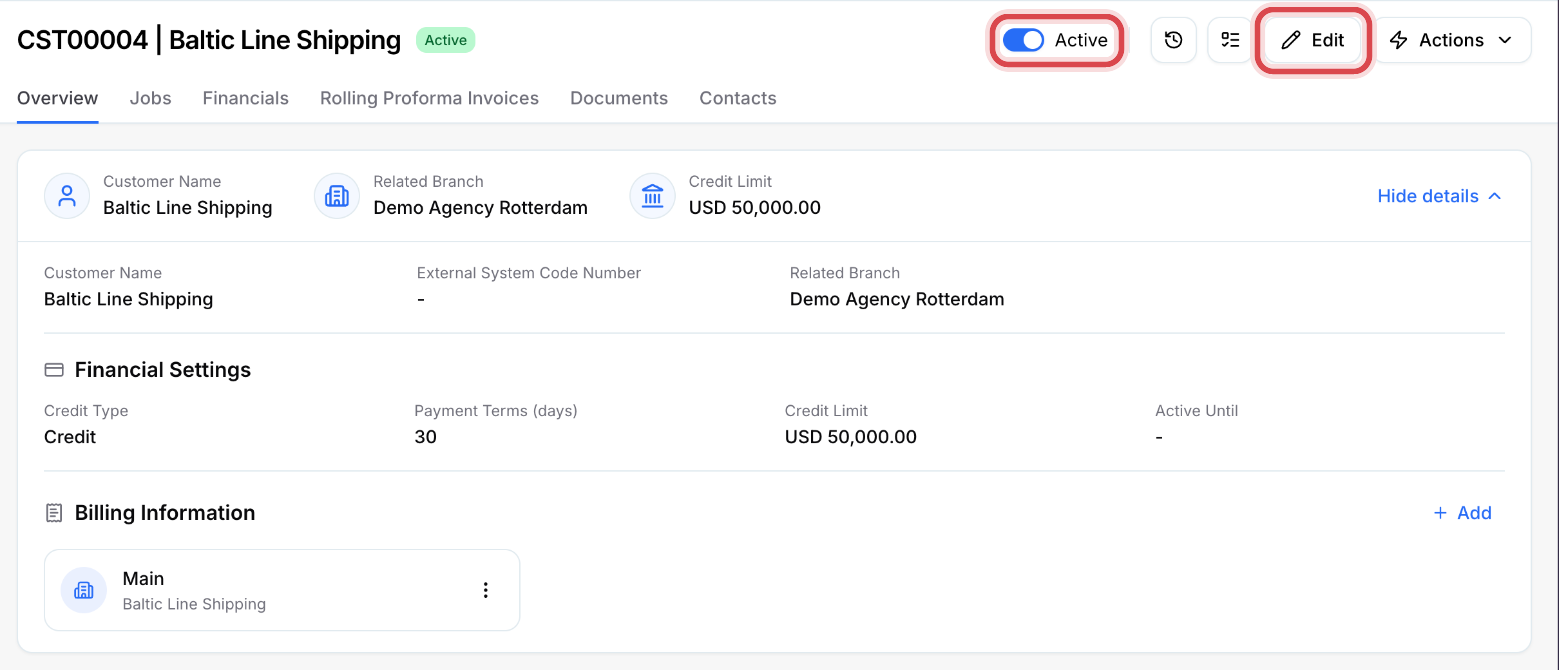
Note: If you cannot find a customer a colleague in another branch uses, it may be inactive in your branch. Find it under Master Data → Customers and turn on Active.
Was this article helpful?
Thanks for your feedback.