

Add billing addresses and contacts to a customer
Add the addresses a customer is billed at and the people you deal with there.
Some customers want invoices sent to another address, for example another office of the same group. Add each address once, and choose it on the invoice.
Open the customer
Go to Master Data → Customers and click the customer’s name. On the Overview tab, Billing Information lists its addresses; the one you entered when you added the customer is the first.
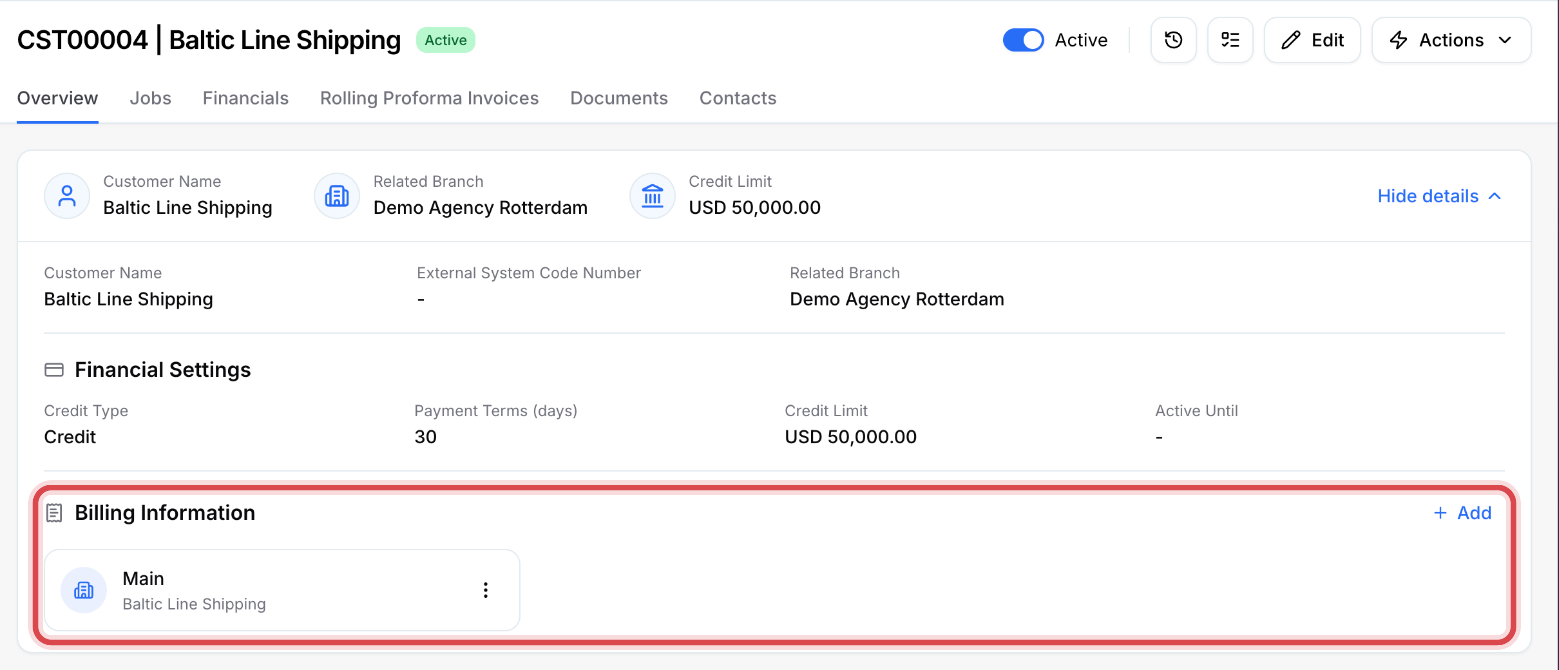
Add a billing address
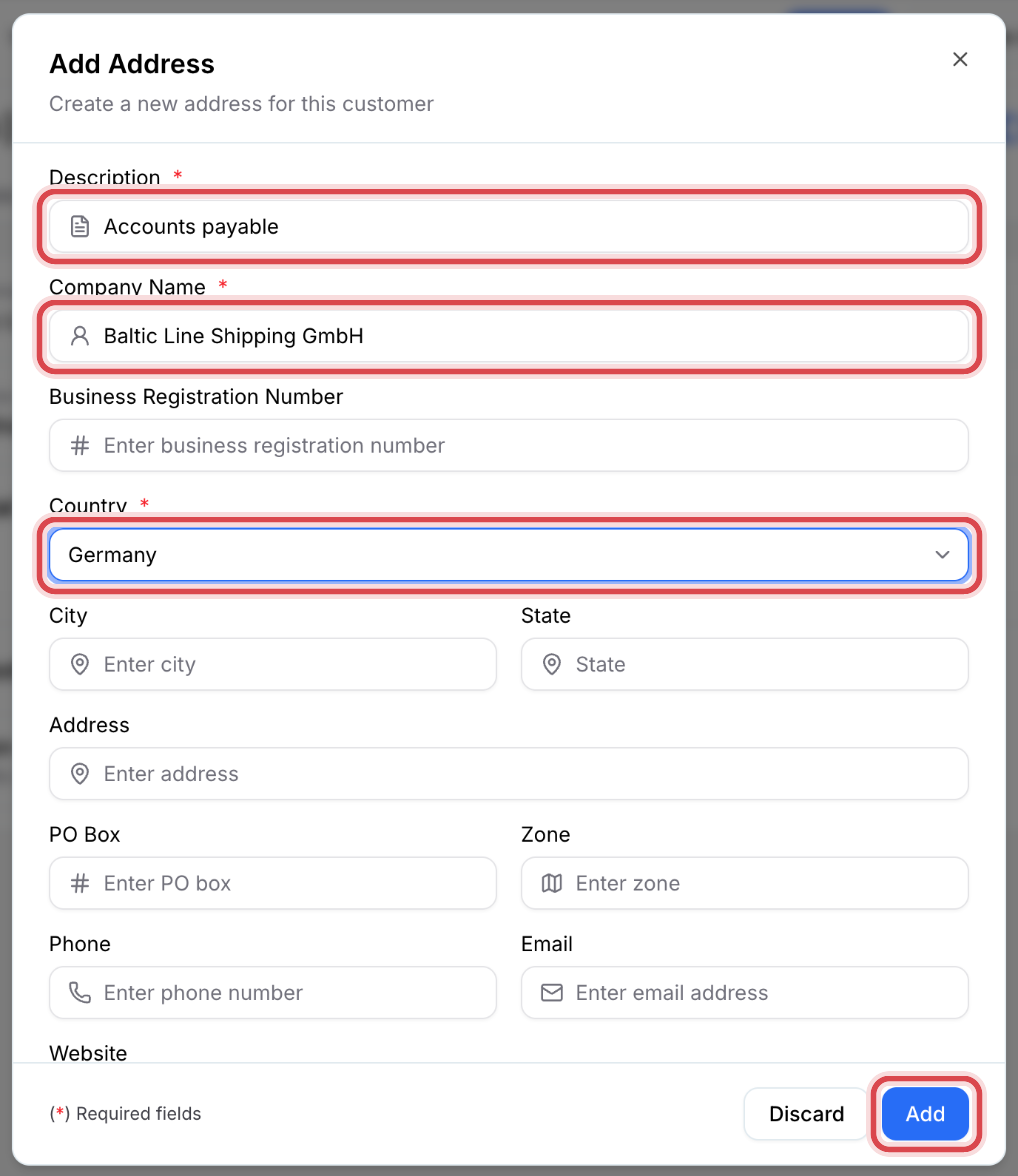
Click Add next to Billing Information. Description, Company Name and Country are required. Click Add.
When you create an invoice for this customer, you choose one of these addresses as its Billing Address.
Note: The customer’s first address cannot be deleted.
Add a contact
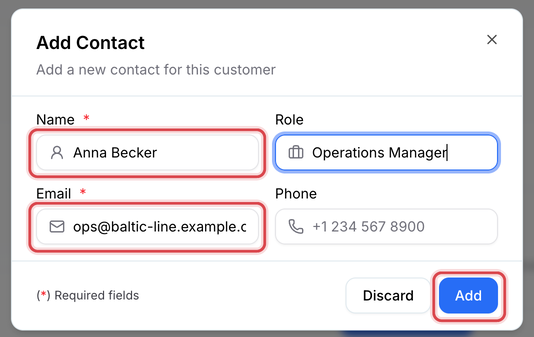
Open the Contacts tab and click Add Contact. Name and Email are required; Role and Phone are optional.
Was this article helpful?
Thanks for your feedback.