

Create a job
Open a job for a vessel call.
A job is a unit of work you define, such as a port call, a project or a husbandry service. The vessel, the services, the invoices and the documents are all added to it, so creating the job is the first thing you do when a customer appoints you.
Open Create Job
Go to Jobs in the left menu and click Create Job.
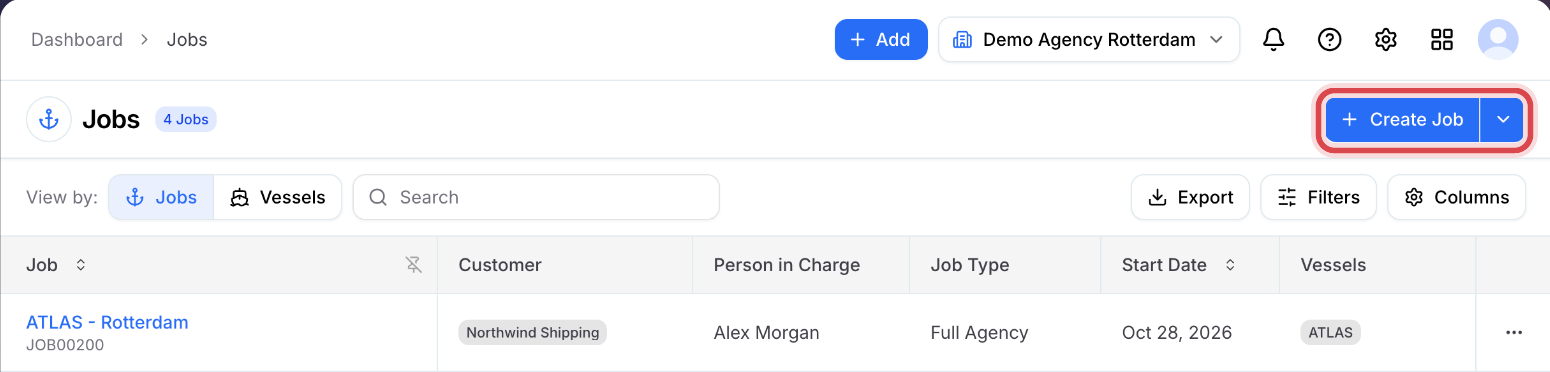
Note: The job is created in the branch selected at the top of the screen. Check it before you start.
Fill in the job
Four fields are required:
- Job: a name your team will recognise, such as the vessel and the port.
- Customer: the company you do the work for, and its role on the job, such as Ship Owner, Ship Manager or Charterer. If more than one company is involved, click Add Another Customer.
- Start Date: when the work begins. It starts as today.
- Person in Charge: the colleague who leads the job.
End Date and Job Type are optional. The job types fit your branch: an agency sees types such as Full Agency, a supplier types such as Provisions & Catering Stores.
Click Add.
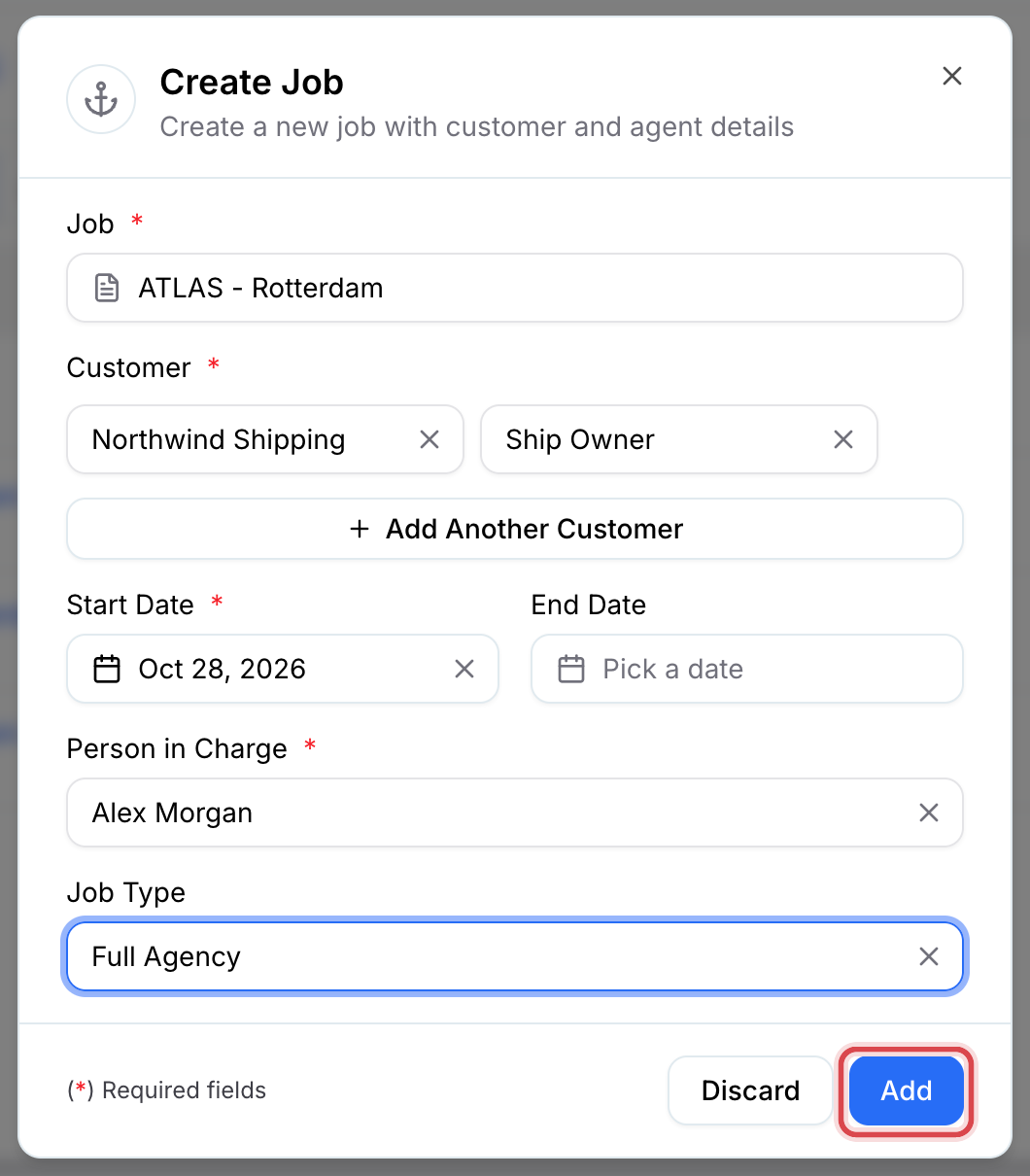
PCM opens the new job on its Services tab.
Note: If the customer is not in the list yet, click Create new at the bottom of the Customer list to add it without leaving the form. See Add a customer.
Note: If Cost Center appears, it is required: cost centers are part of your company’s plan.
If your branch has an approval rule for new jobs, you see Approval request submitted successfully instead, and the job is created when the approver accepts it. See Approvals.
Change the job later
Open the job and click Edit. You can change the name, the dates, the Job Type and the Agents: the colleagues who work on the job. Click Add Another Agent to add one, and turn on In Charge for the one who leads it. Click Save.
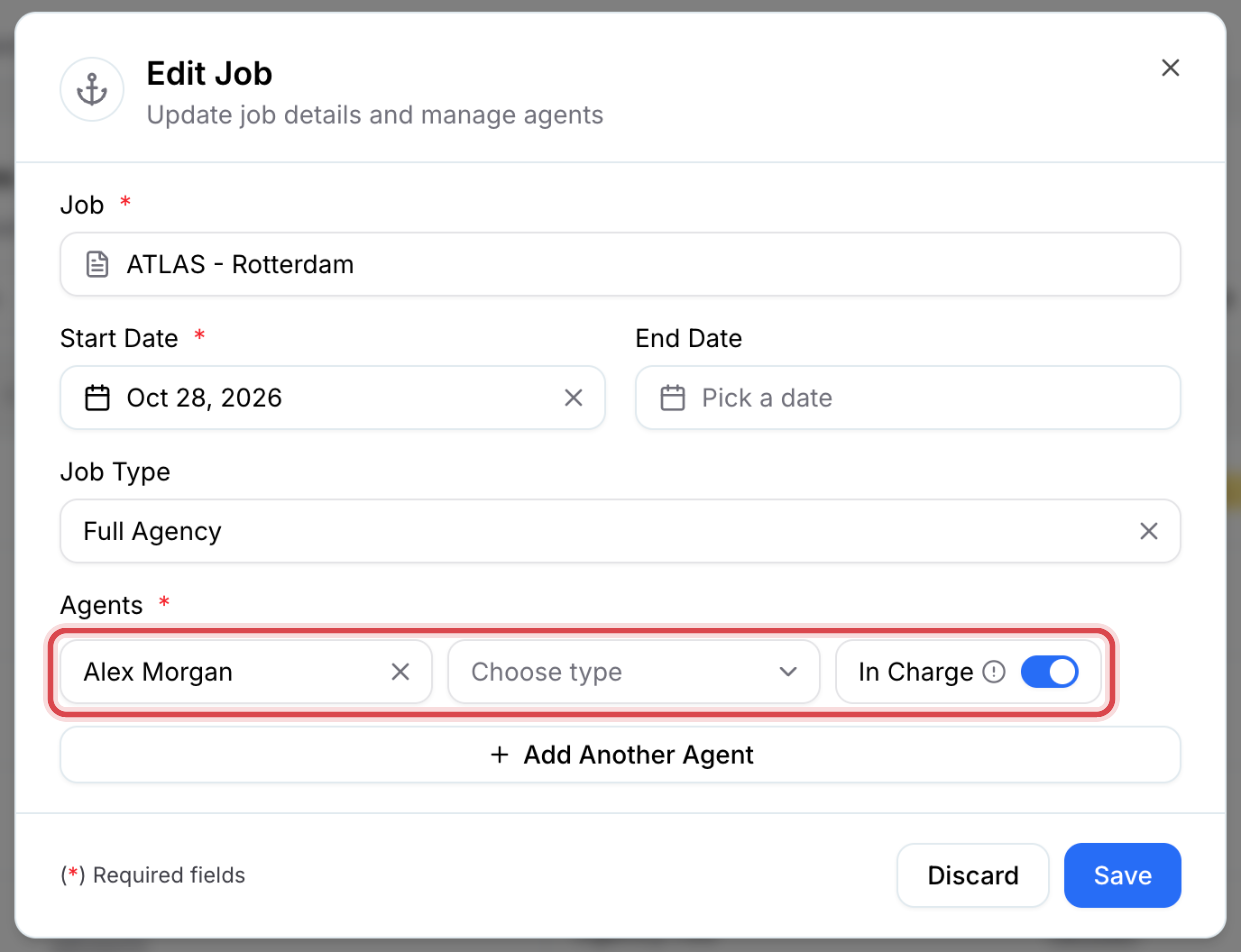
Note: Customers are changed on the job’s Job Details tab, not in Edit Job. A closed or cancelled job cannot be edited.
For what you can do with a job in each status, see Jobs.
Was this article helpful?
Thanks for your feedback.