

Choose when an automation runs
Set the trigger of an automation and the jobs it acts on.
The trigger decides when an automation runs; the conditions decide which jobs it acts on. Open the automation from the Automations tab of Settings, or start one with + New Automation. See Automate actions with automations.
Choose the trigger
Under When should this run?, choose one:
Trigger Runs Lifecycle Event When an Event happens on a job: Job Opened, Job Closed, Job Reopened, Service Added, Vessel ATA Recorded, Vessel ATB Recorded or Vessel ATD Recorded Schedule At a set Time, Daily, Weekly on a Day, or Monthly, in your branch’s time Time-Since An Amount of Hours or Days Before or After an Anchor date, such as Vessel ETA, Final Invoice Due Date or Service Date 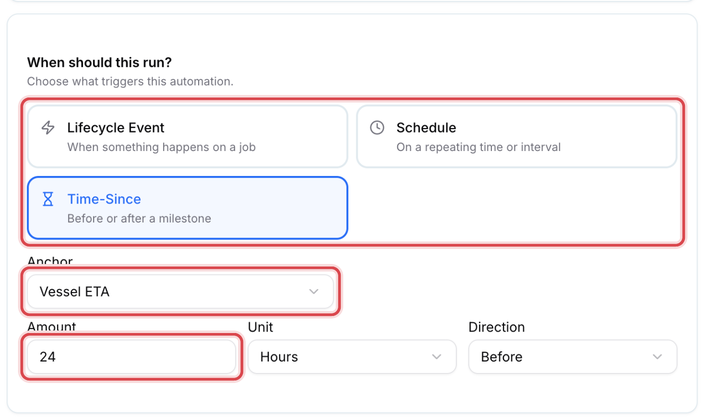
Note: The vessel events fire when the date is first filled in on the job’s vessel, not when it is changed later.
Limit it to some jobs
Under Run only when…, click Add Condition. Conditions are on Job Status, Job Type, Customer or Person in Charge. Choose Match all if every condition must hold, Match any if one is enough.
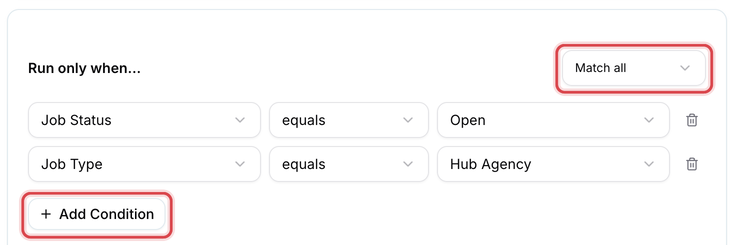
Tip: A Schedule or Time-Since automation without conditions acts on every job of the branch, closed ones too. Add a Job Status condition to keep it to open jobs.
Was this article helpful?
Thanks for your feedback.