

Hide job sections with a workflow
Hide the job sections your jobs never use.
Jobs that never use crewing or cargo do not need to show those sections. A job workflow can hide them, for all jobs or only for some job types.
Open the workflow
On the Workflows tab of Settings, open the workflow, or start a new one with Add workflow. Use Applies to to limit it to some job types. See Set up workflows.
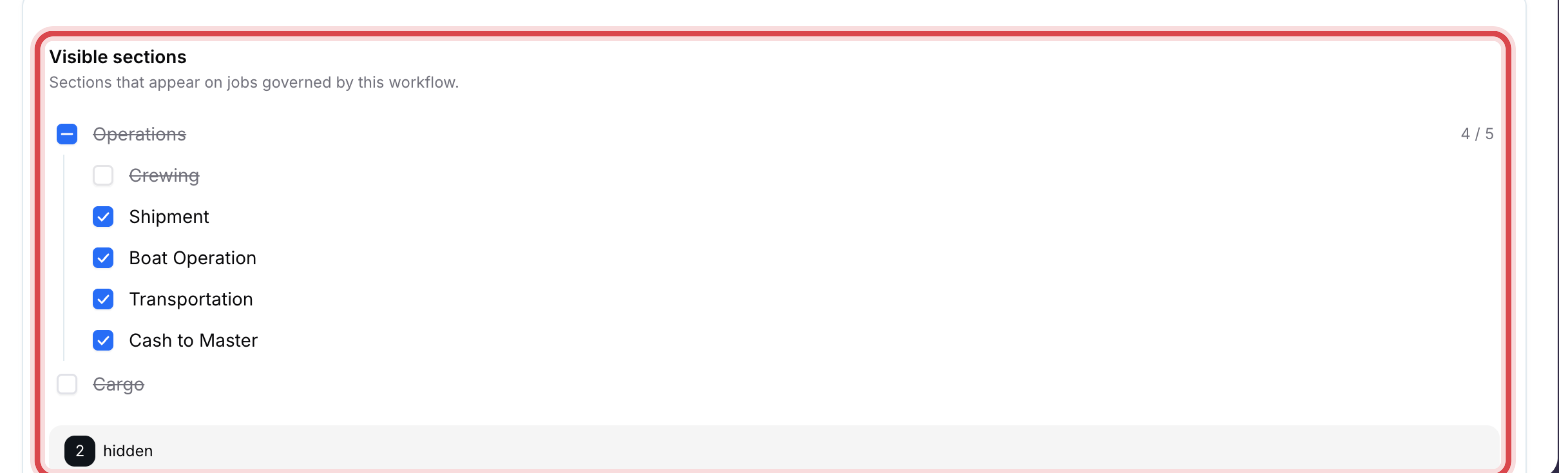
Untick the sections
Under Visible sections, untick the sections jobs under this workflow do not use: Crewing, Shipment, Boat Operation, Transportation, Cash to Master (the Operations sections) and Cargo. When all Operations sections are hidden, the job’s Operations tab disappears.
Note: Hiding a section only tidies up the job screen. It does not stop anyone from adding that kind of record; that is still decided by their role.
Save the workflow
Click Save.
Was this article helpful?
Thanks for your feedback.