

Add approval checks to a workflow
Require a field or send a document to an integration around its approval.
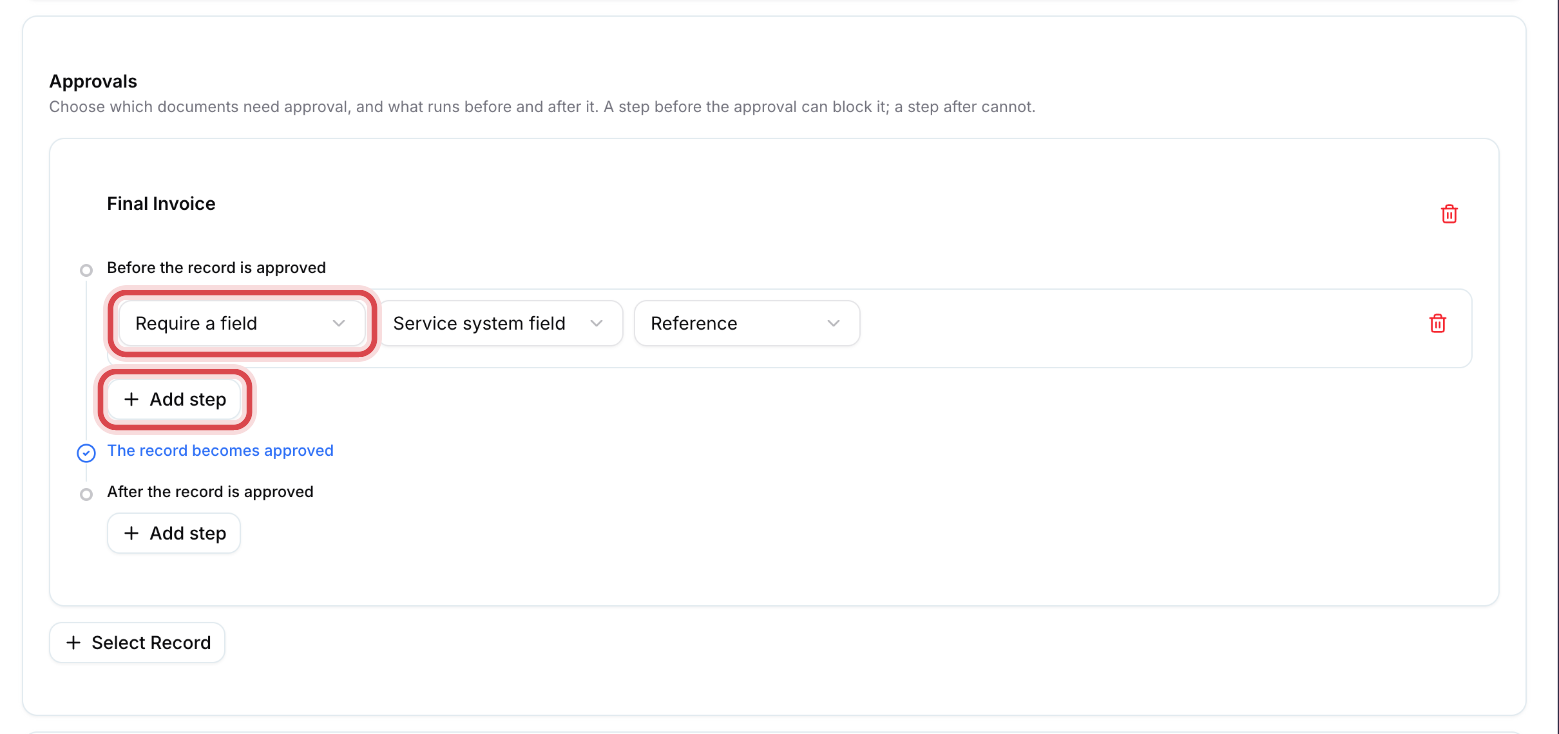
A workflow can add steps around the approval of a document, for example refusing to approve a Final Invoice while a service field is empty. Who approves is set separately, in Set up approval rules.
Open the workflow
On the Workflows tab of Settings, open the workflow, or start a new one with Add workflow. See Set up workflows.
Choose the document
Under Approvals, click Select Record: Final Invoice or Customer Credit Note for a job workflow, Vendor Invoice for a vendor invoice workflow. If the branch has an approval rule for it, its Approval chain is shown for reference.

Add a step
Click Add step under Before the record is approved or After the record is approved, and choose what it does:
- Require a field: the document cannot be approved while this field is empty on any of its services. Only before the approval.
- Send to integration: send the document to one of your company’s integrations. Before the approval, the document waits as submitted until the integration answers; a rejection sends it back to draft. After the approval, turn on Must pass if the steps below should not run when it fails.
Note: While a workflow requires a service field, that field cannot be switched off in Field Flexibility. See Show, hide or require fields.
Save the workflow
Click Save.
Was this article helpful?
Thanks for your feedback.