

Show, hide or require fields
Adapt forms to how your branch works.
Field Flexibility adapts PCM’s forms to your branch: make a field required so nobody can save without it, or hide a field your branch never uses. Your choices apply to the branch selected at the top of the screen.
Open Field Flexibility
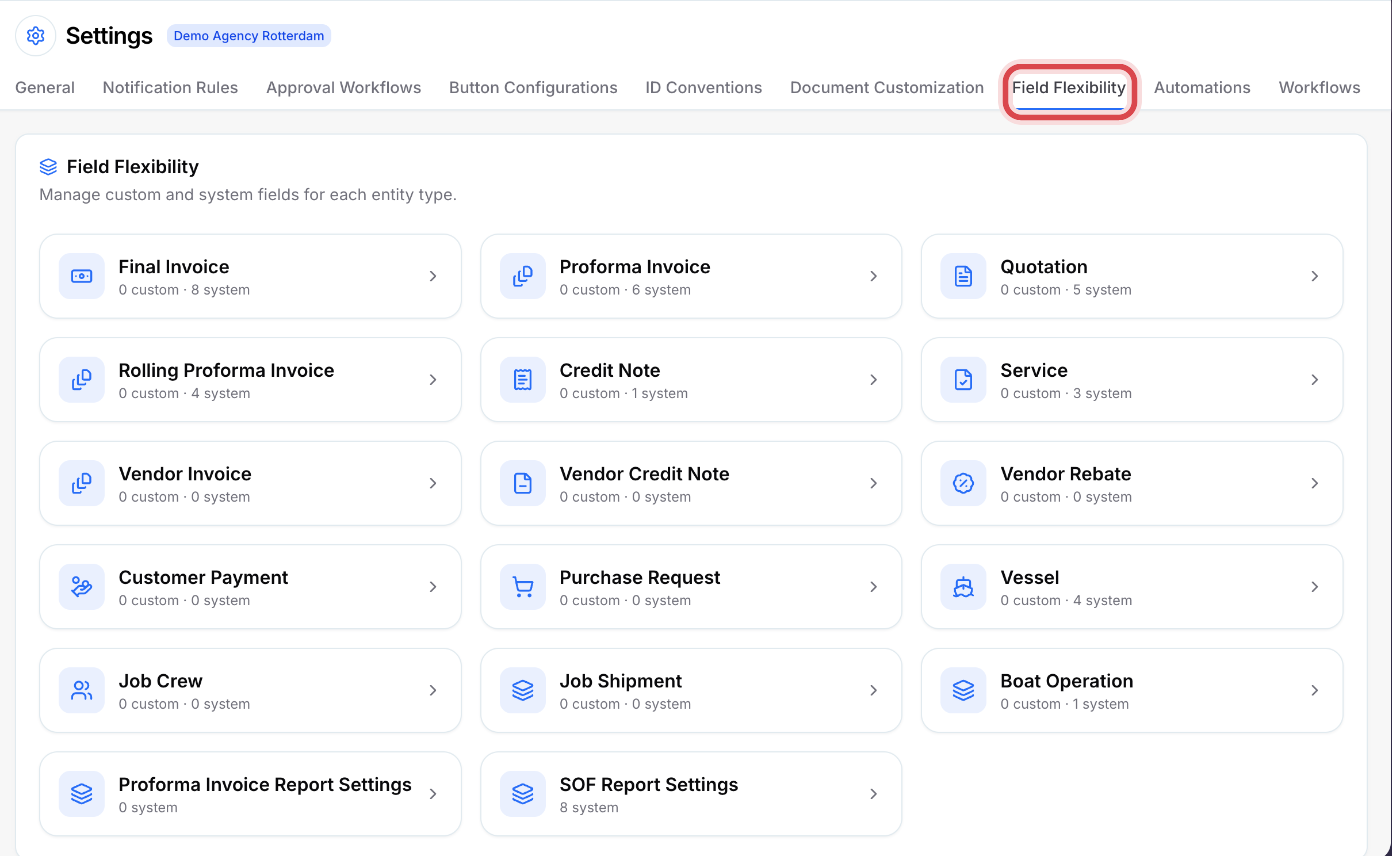
Check the branch at the top of the screen. Click the gear icon (PCM Settings) and open the Field Flexibility tab.
Note: You need permission to see and change the Field Flexibility settings. Super Admin and Manager have it. See Roles, permissions and plans.
Open the form
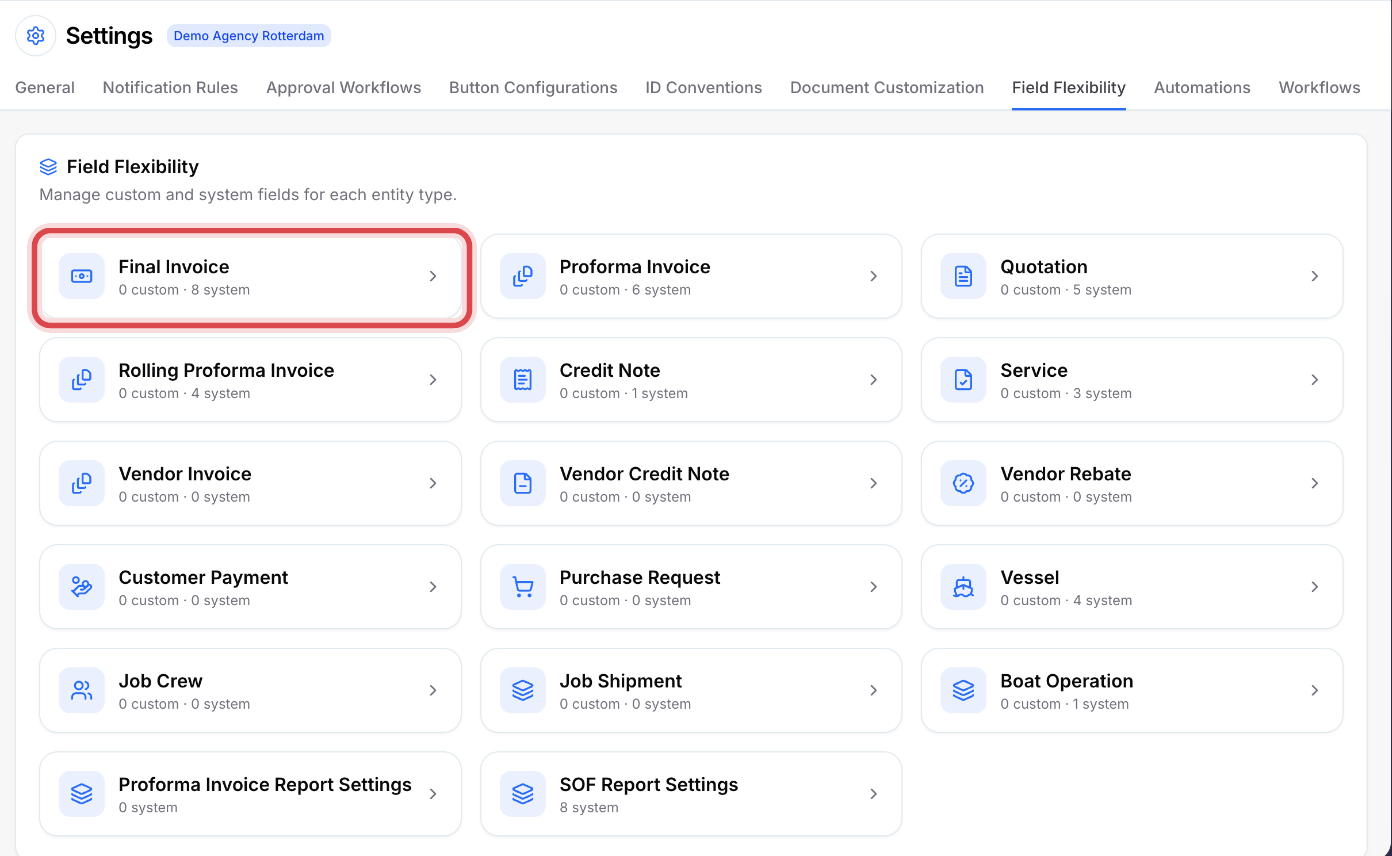
Click the card of the form, such as Final Invoice, Service, Vendor Invoice or Vessel.
Switch fields on or off
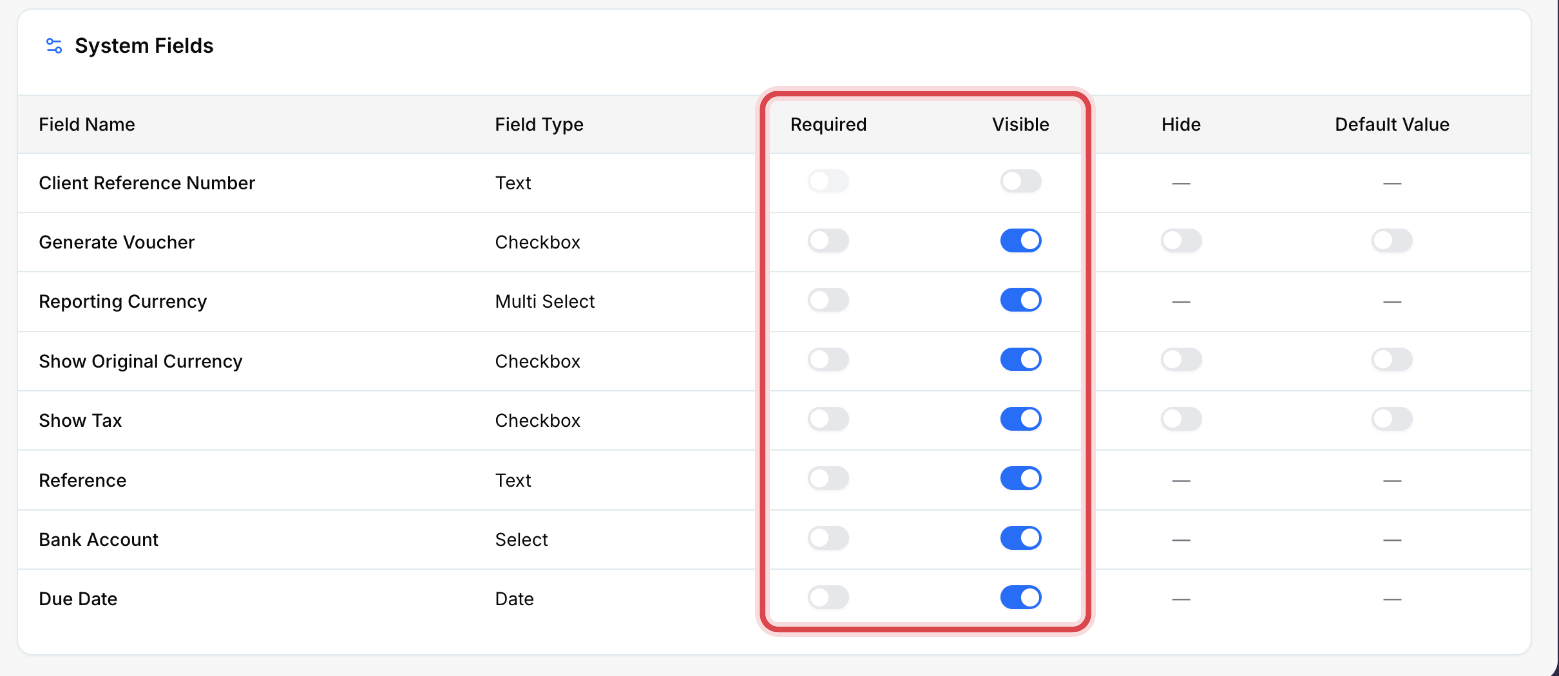
System Fields lists the fields PCM has on this form, such as Due Date or Reference. For each one:
- Visible: whether the field is on the form at all.
- Required: whether the form can be saved without it. Only for visible fields. A required field shows an asterisk on the form.
Changes are saved as soon as you switch them.
Note: A service field that a workflow step requires cannot be switched off while that workflow is active. Change the workflow first. See Add approval checks to a workflow.
Fix the value of an on/off field
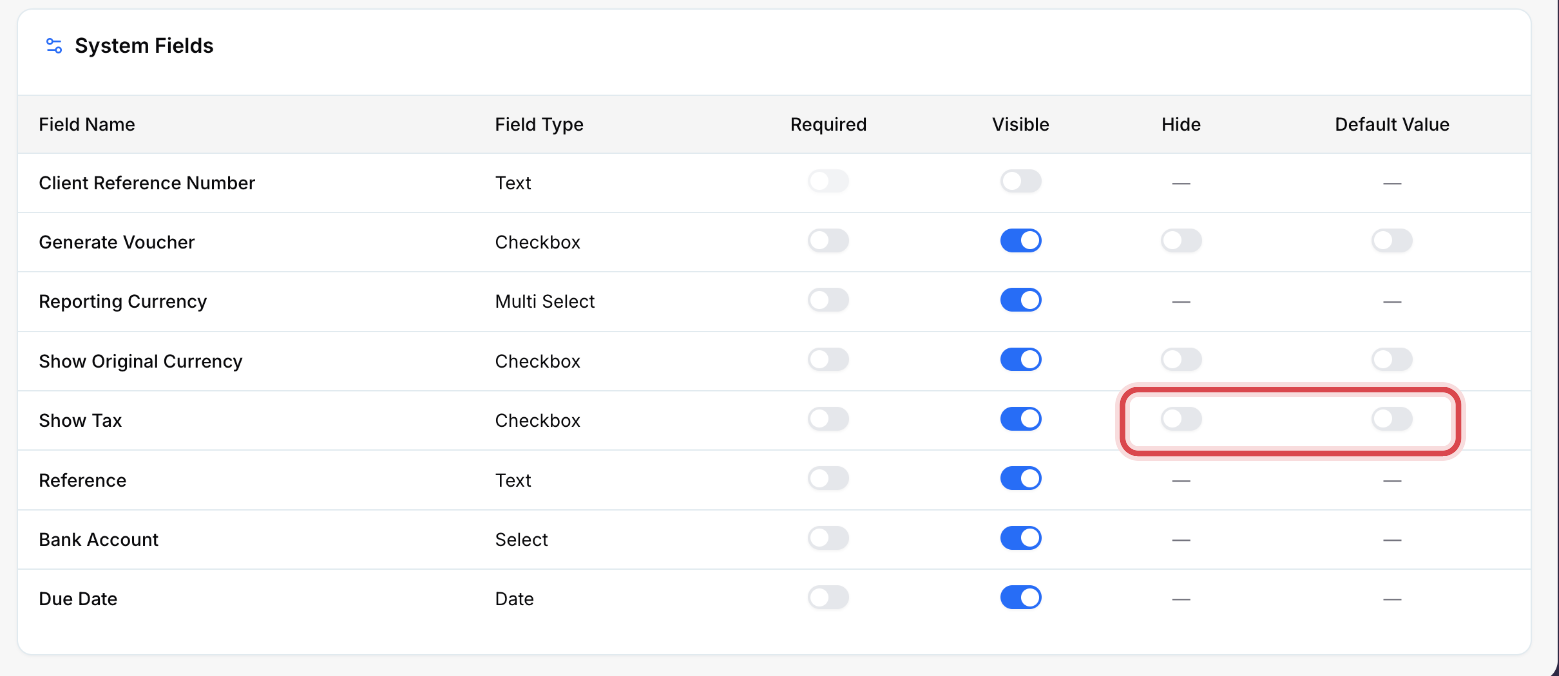
Some on/off fields, such as Show Tax, also have Hide and Default Value. With Hide on, the field is not shown and PCM uses the Default Value instead. Use it when your branch always wants the same choice.
Was this article helpful?
Thanks for your feedback.