

Add a custom field
Add a field of your own to an invoice, a service or another form.
A custom field holds information PCM has no field for, such as a customer reference your customers ask to see. Custom fields belong to the branch they were added in; another branch has its own list.
Open the form
Click the gear icon (PCM Settings), open the Field Flexibility tab and click the card of the form. See Show, hide or require fields.
Add the field
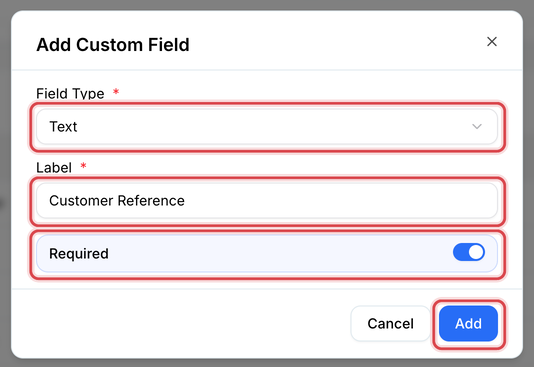
Under Custom Fields, click Add Field and fill in:
- Field Type: Text, Date, Datetime, Textarea or Checkbox. It cannot be changed later.
- Label: the name people see on the form.
- Required: on if the form must not be saved without it.
Click Add. The field appears on the form for everyone in the branch.
Change or remove it
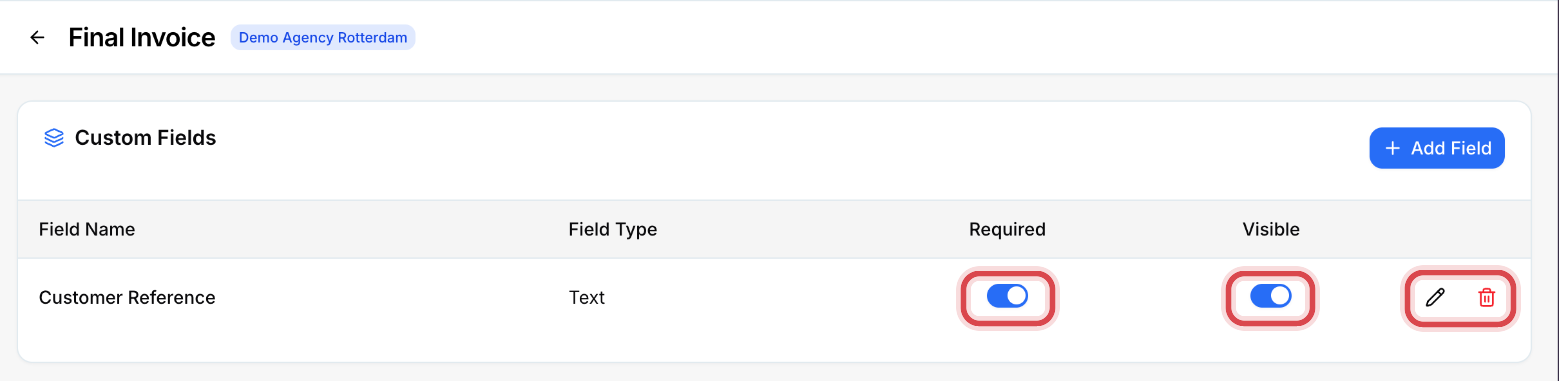
In the Custom Fields list, switch Required or Visible to change a field straight away. With Visible off, the field leaves the form but stays in Settings.
To rename it, click its edit icon, change the Label and click Save. To remove it, click its delete icon and confirm with Delete.
Note: A deleted field cannot be brought back. Values already entered on records are kept.
Was this article helpful?
Thanks for your feedback.