

Set up workflows
Start a workflow and choose which jobs it applies to.
A workflow adds your branch’s own way of working to its jobs: operation statuses, checks before an approval, and which job sections are shown. Start the workflow here, then fill in its sections. See Workflows and operation statuses.
Open Workflows
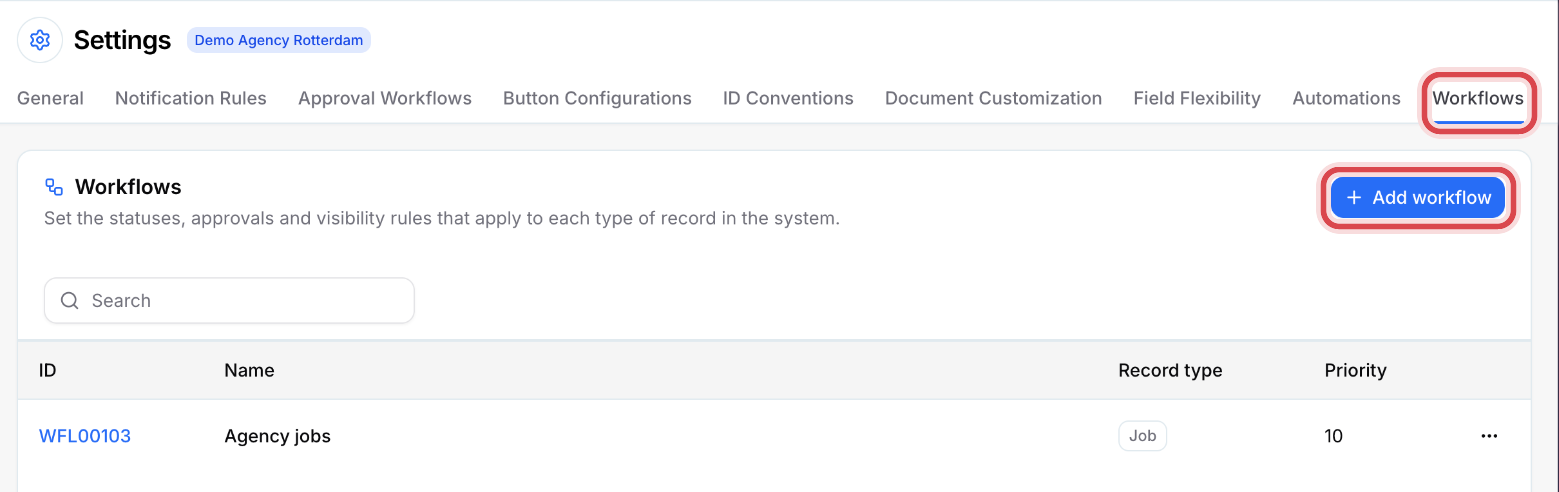
Check the branch at the top of the screen: workflows belong to it. Click the gear icon (PCM Settings) and open the Workflows tab.
Your branch may already have a workflow called Default Visibility, which hides job sections some job types do not use. You can change or delete it.
Note: You need permission to see and change the Workflows settings. Super Admin and Manager have it. See Roles, permissions and plans.
Start the workflow
Click Add workflow and choose the Record type: Job, or Vendor Invoice for checks around vendor invoice approvals. Enter a Workflow Name and a Priority from 0 to 9999. Two workflows for the same record type cannot share a number.

Choose which jobs it applies to
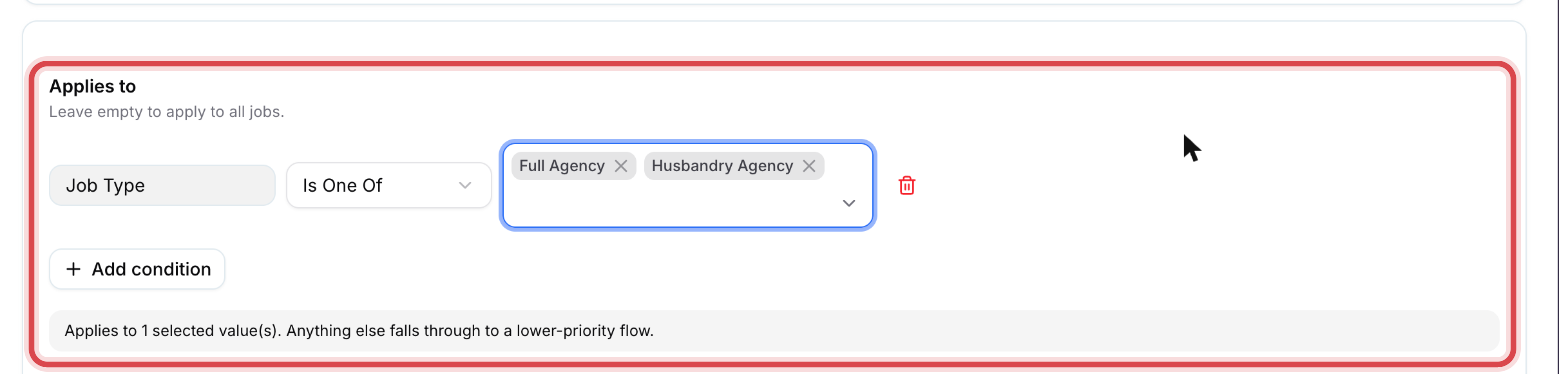
Under Applies to, add a condition if the workflow is only for some jobs, for example Job Type Is One Of a few job types. For a vendor invoice workflow, the condition is on Vendor Type. All conditions must hold. Leave it empty to cover every job of the branch.
Tip: When several workflows match a job, each section follows the matching workflow with the highest Priority that fills it in. A workflow that can never take effect is marked Shadowed.
Fill in the sections
Fill in at least one section; conditions alone are not enough:
- Statuses: see Add operation statuses to a workflow.
- Approvals: see Add approval checks to a workflow.
- Visible sections: see Hide job sections with a workflow.
Save the workflow
Click Save. If PCM warns that one of the workflows will never run, check the priorities and conditions before you choose to save anyway.
To change a workflow later, open it from the list. To delete it, choose Delete on its row and confirm. Jobs already in one of its statuses keep that status but stop moving automatically.
Was this article helpful?
Thanks for your feedback.