

Add operation statuses to a workflow
Give jobs your own statuses and let PCM move them on.
Operation statuses are the stages your team uses to follow a job. PCM can move a job between them on its own, for example when all its services are billed.
Open the workflow
On the Workflows tab of Settings, open the workflow, or start a new one with Add workflow. See Set up workflows.
Add the statuses
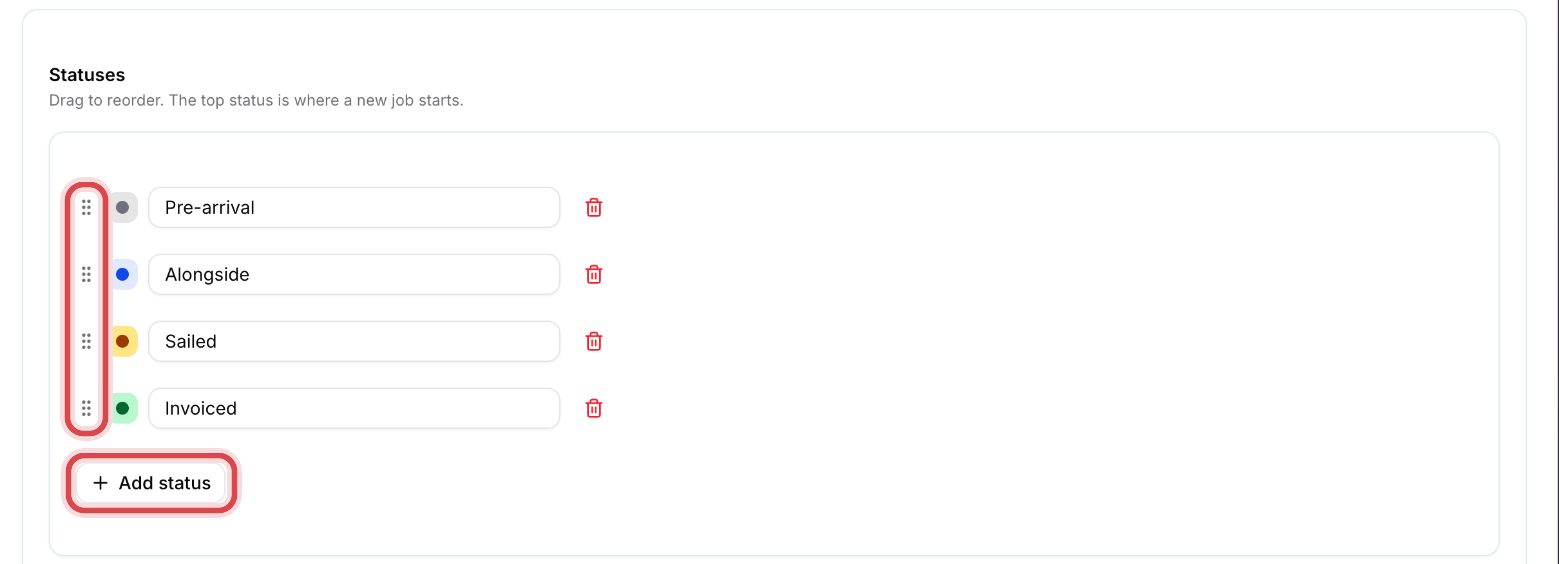
Under Statuses, click Add status, type a name and pick a color. Add them in the order a job goes through them: the top status is where a new job starts. Drag a status to change the order.
Add the transitions
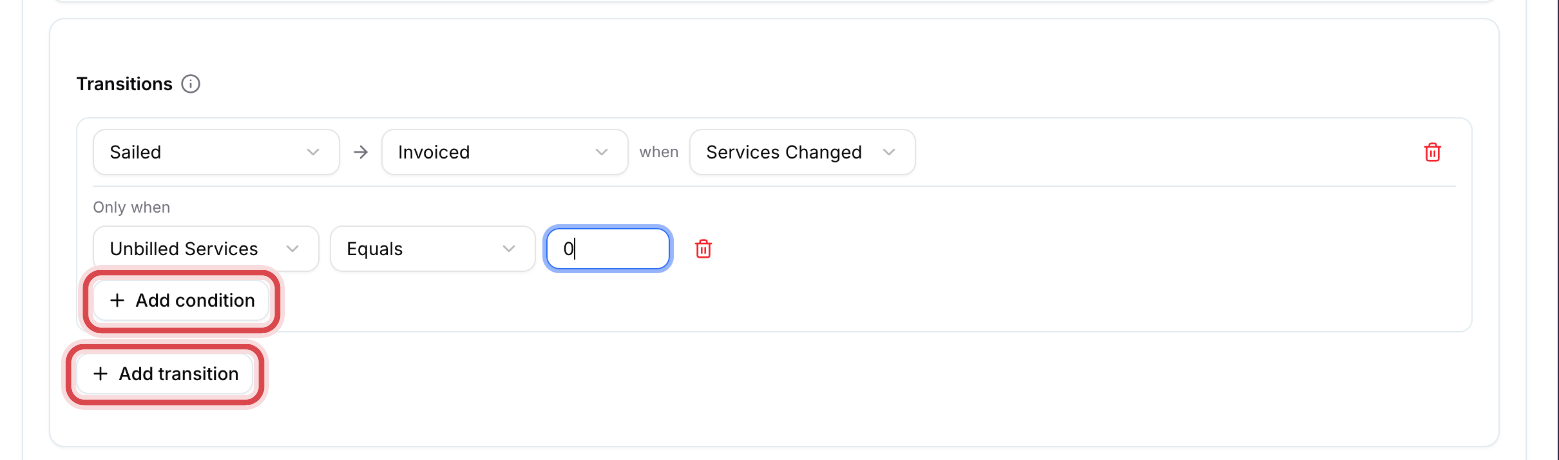
Under Transitions, click Add transition. Each one moves a job From a status (or Any status) to another, when something happens:
Event When it happens Job Created A job is created Services Changed Services are added, billed, cancelled, deleted or change status Job Closed The job is closed Job Reopened The job is reopened To make the move depend on the job’s services, click Add condition under Only when, for example Unbilled Services equals 0.
Save and check the job
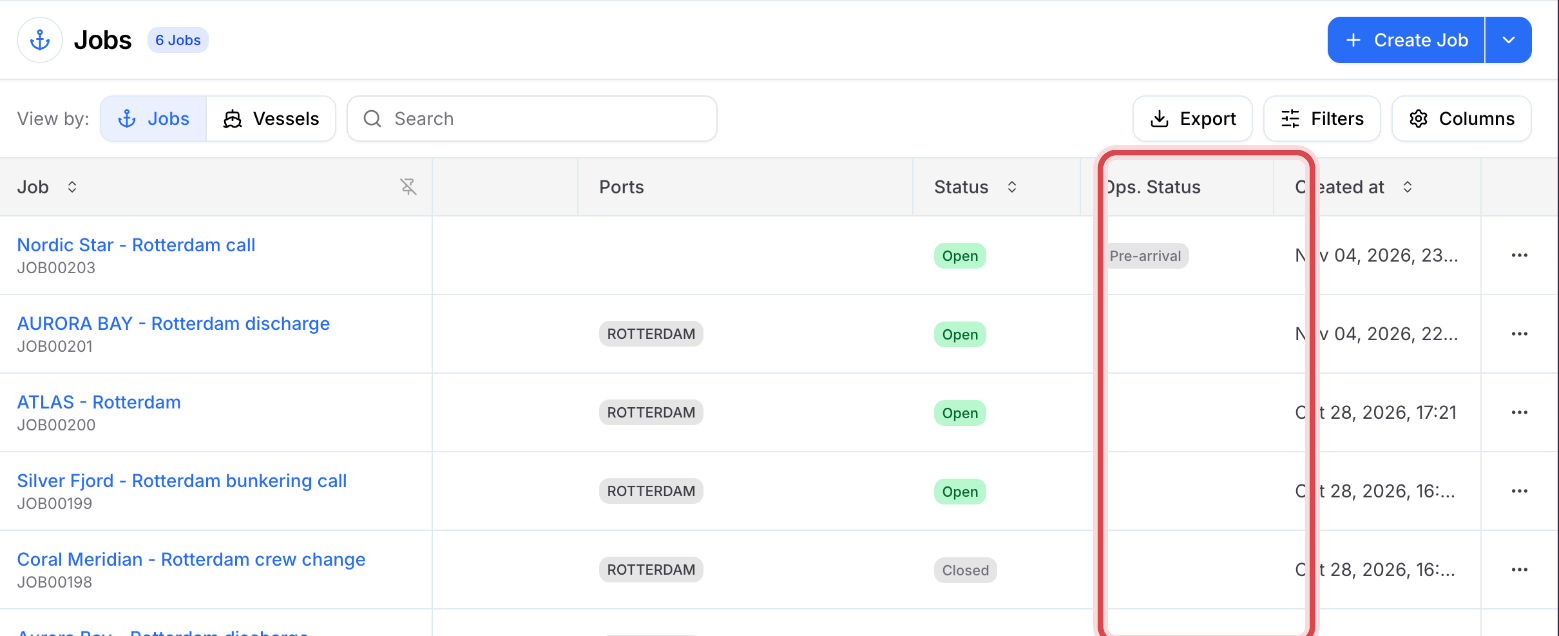
Click Save. The status shows in the Ops. Status column of the Jobs list and at the top of the job. Your colleagues can also change it by hand on the job.
Note: Jobs created before the workflow have no operation status; new jobs start in the top status.
Was this article helpful?
Thanks for your feedback.