

Stay on top of vessel events with Alerts
An Alert emails you when a vessel event you define happens, such as a scheduled arrival, an ETA change or a sanctions status change, so you never have to run the same search twice.
 4 min walkthrough of Alerts
Alerts turn a search you would otherwise repeat every morning into an email digest. You define the rules once, for example “tankers due in Singapore within three days”, and Maritime Intelligence checks for you on a schedule you choose.
Who uses Alerts
- Ship agents and marine suppliers watch for vessels due at their port, so they can reach the owner or manager before the vessel arrives.
- Commercial and operations teams follow ETA and destination changes on the vessels they already work with.
- Compliance teams are told when a vessel’s sanctions status or identity changes.
How an alert works
Every alert is built in three steps: Build Rules, Scope & Delivery and Review.
| Part | What it decides | Example |
|---|---|---|
| Rules | What has to happen | A vessel is due at Singapore within 1 to 3 days |
| Scope | Which vessels are watched | The vessels in your Singapore Bunker Tankers fleet |
| Delivery | When the email arrives | Daily at 09:00, Asia/Singapore time |
All rules in one alert must be true at the same time. Each alert can have one event trigger; add filters to narrow it further. To watch two different events, create two alerts.
Event triggers
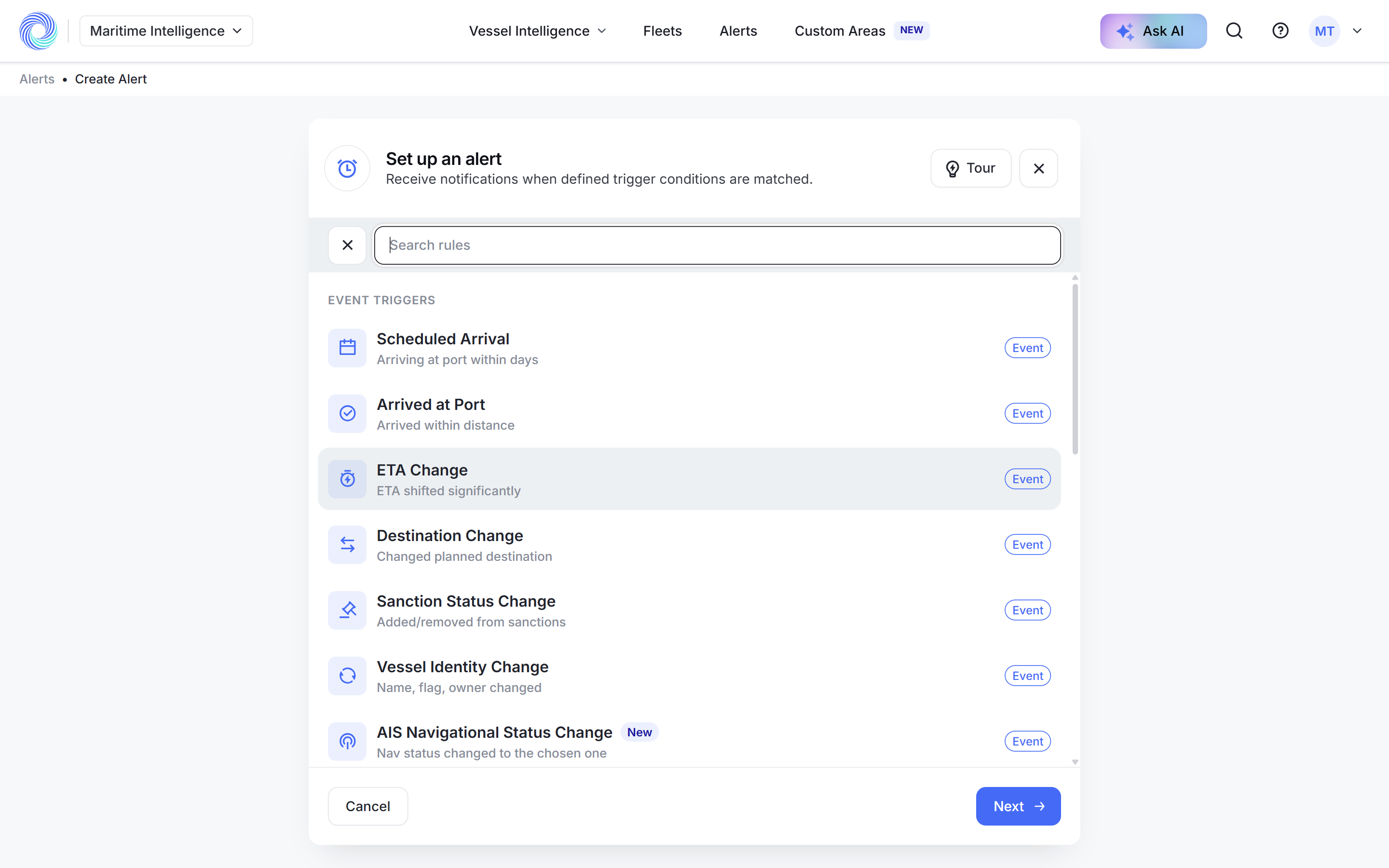
The event trigger is what the alert waits for.
| Trigger | Fires when |
|---|---|
| Scheduled Arrival | A vessel is due at a port within a day range you set |
| Arrived at Port | A vessel comes within a set distance of a port |
| ETA Change | A vessel’s estimated time of arrival moves by more than a threshold you set |
| Destination Change | A vessel changes its reported destination |
| Sanction Status Change | A vessel is added to or removed from a sanctions list |
| Vessel Identity Change | A vessel’s name, flag or owner changes |
| AIS Navigational Status Change | A vessel changes to a status you choose, for example Anchored or Moored |
| Area Entry / Exit | A vessel enters or leaves one of your custom areas |
Note: Area Entry / Exit stays unavailable until you have created at least one custom area. See Draw a custom area.
Filters
Filters narrow which vessels can trigger the alert, based on what the vessel is rather than what it does: Vessel Types, Technical (flag, deadweight, class, tonnage), Ownership, Voyage, Port Call History, AIS Navigational Status, Custom Areas, Class Surveys, Ship Building, Engine and Certificates.
Scope options
| Scope | Watches |
|---|---|
| Existing Fleet(s) | The vessels in one or more of your fleets |
| Single or Multiple Vessels | Vessels you pick by name, IMO or MMSI |
| Upload Excel | Vessels listed by IMO in an .xlsx file |
| All Matching | Any vessel in the world that matches your rules |
Delivery
Alerts arrive as an Email Digest. Choose how often (Daily Digest, Every 3 Days, Weekly or Every 2 Hours), the time and the time zone. You can also set an expiry date for alerts you only need for a while.
Where you can start an alert
You can open the alert builder from the Alerts page, or straight from a fleet, a vessel profile, a custom area, or the results of a Scheduled Arrivals or Nearby Vessels search. Starting from one of these fills in the scope for you.
How-to guides
- Create an alert, the full walk-through
- Create an alert for a single vessel
- Alert on ETA changes
- Alert on destination changes
- Alert on sanctions or identity changes
- Alert when vessels enter or leave an area
- Manage your alerts: pause, duplicate, edit, delete and see matching vessels
Frequently asked questions
Can one alert watch for an ETA change and a destination change? No. Each alert has one event trigger. Create one alert per event; they can share the same scope and schedule.
Does an alert send an email every time something happens? No. Matches are collected and sent together as a digest at the frequency and time you set.
Who receives the email? Your own account email by default. The recipients are listed under Recipients on the Review step.
What happens when an alert expires? It stops sending emails but stays in your list. Choose Expired in the status filter to find it.
Can I stop an alert without deleting it? Yes. Use the toggle on the alert in the Alerts list to pause it, and again to resume.
Was this article helpful?
Thanks for your feedback.