

Alert when vessels enter or leave an area
Get an email digest when vessels cross into or out of one of your custom areas.
An Area Entry / Exit alert in Maritime Intelligence emails you when a vessel enters or leaves a custom area you have drawn, for example when a tanker enters the approaches to Rotterdam. It lets you monitor a port approach, anchorage, or strait without watching the map.
You need at least one area in My Areas first. Until you have one, Area Entry / Exit shows as Unavailable in the rule list. See Draw a custom area or Use a template area.
Open the area and click Create an Alert
Click Custom Areas in the top navigation, open the area under My Areas, and click Create an Alert.
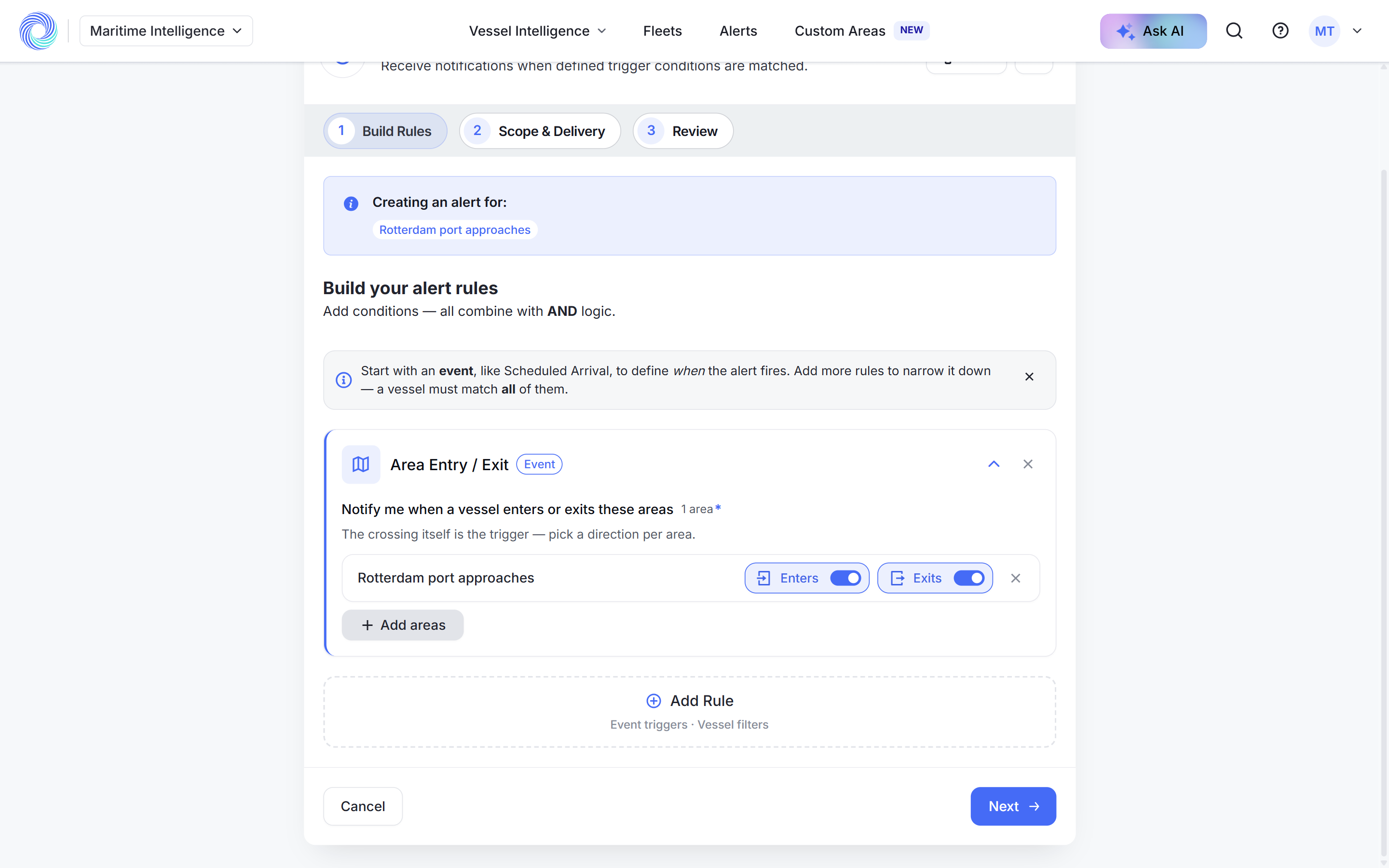
The form opens with “Creating an alert for:” and your area, and the Area Entry / Exit rule already added.
Tip: You can also start from Alerts → Create an Alert → Add Rule → Area Entry / Exit, then pick the areas.
Choose Enters, Exits or both
For each area, use the Enters and Exits switches. Both are on to start with. Turn one off to hear only about vessels coming in, or only about vessels leaving.
Click Add areas to watch more than one area in the same alert.
Narrow it to the vessels you care about
Click Add Rule and add a vessel filter, for example Vessel Types → Tanker. Without filters, every vessel crossing the area counts. Click Next.
Choose the scope and schedule
Under Scope, choose All Matching to watch every vessel that crosses, or a fleet to watch only your own vessels. Turn on Email Digest, set the schedule and click Next.
Name it and click Create Alert
Enter an Alert Name, for example “Tankers entering Rotterdam port approaches”, and click Create Alert. The area’s page and the Alerts column in My Areas now show the alert.
Was this article helpful?
Thanks for your feedback.