

Use a template area
View the vessels in a ready-made area such as the Strait of Hormuz, and copy it to My Areas.
Template areas in Maritime Intelligence are ready-made areas covering well-known emission control areas, war risk areas, and straits, such as the Singapore Strait and the North Sea Emission Control Area. You can see the vessels inside any of them right now, then copy one to My Areas to use in filters and alerts without drawing it yourself.
Open the Template Areas tab
Click Custom Areas in the top navigation, then the Template Areas tab. It lists each area with its size, for example Strait of Hormuz, Singapore Strait, Gulf of Guinea War Risk Area and North Sea Emission Control Area.
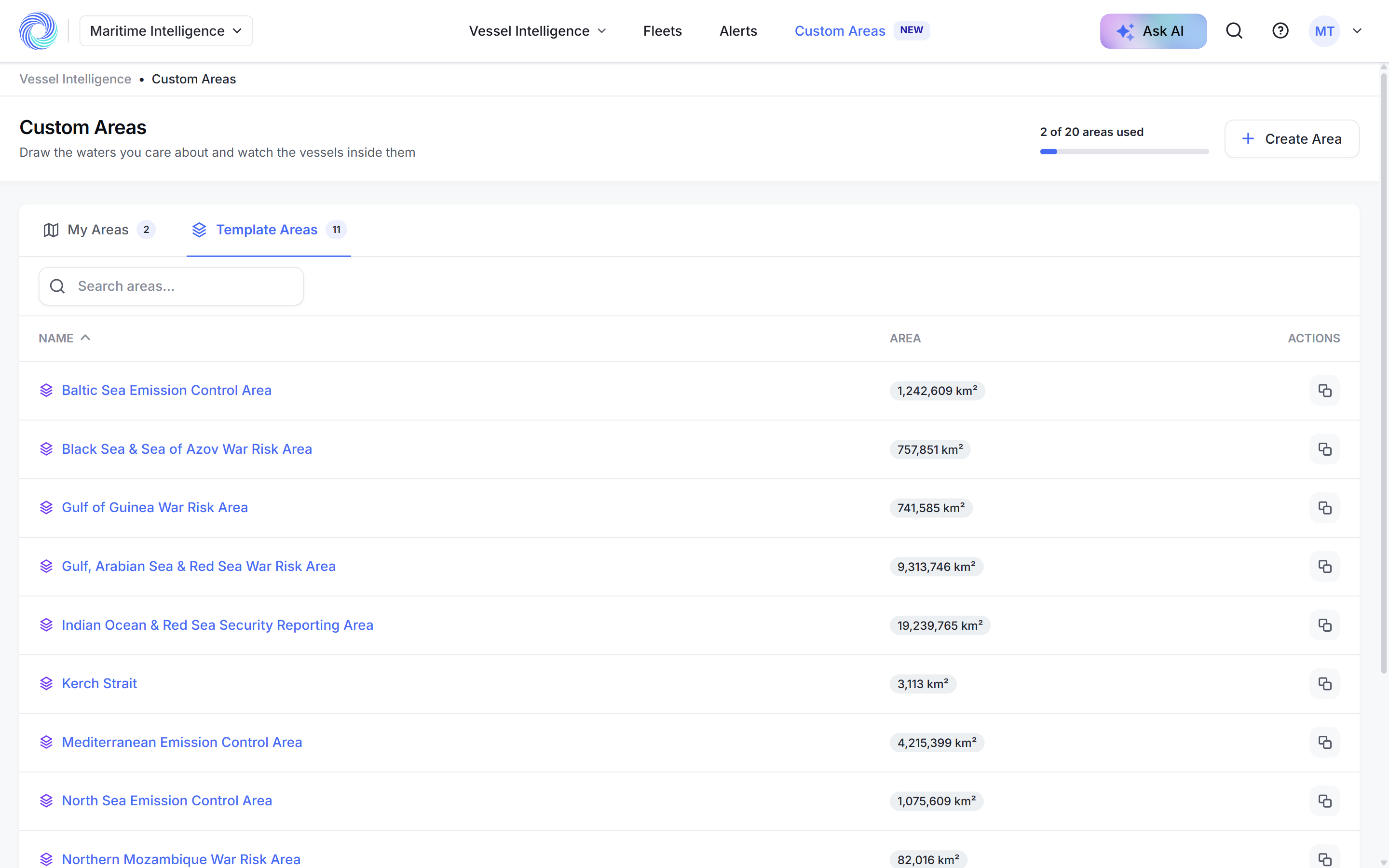
Open an area to see the vessels inside
Click an area’s name. The page shows its size, the number of vessels inside it now, and a table of those vessels with the usual Filters, Export, Customize, map and Hide risky vessels tools.
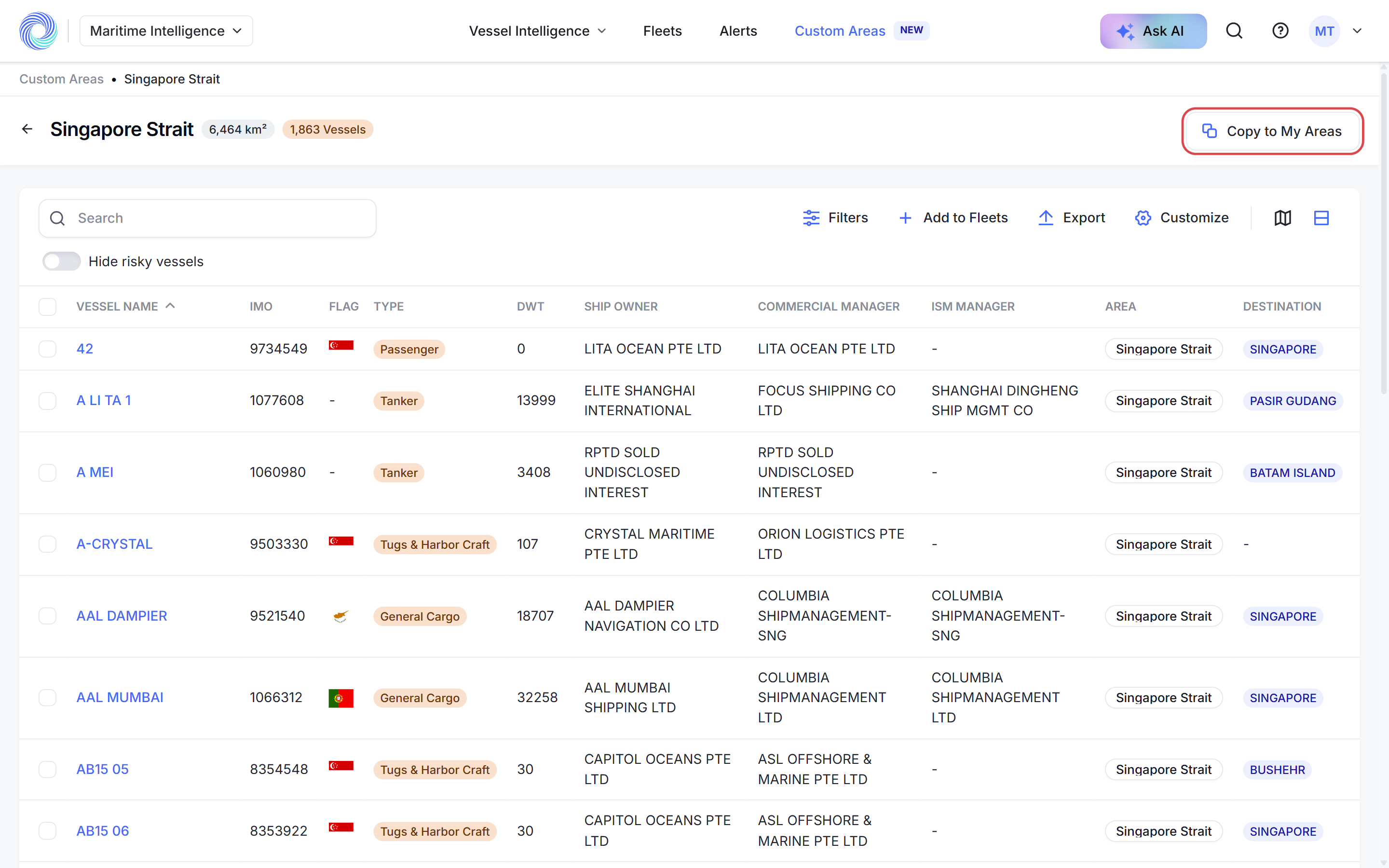
Click Copy to My Areas
Click Copy to My Areas in the top right corner, or the copy icon at the end of the area’s row in the list.
Check the name and category and click Copy
The dialog fills in the template’s Name and Category. Change them if you like and click Copy. The copy appears under My Areas and counts towards your 20 areas.
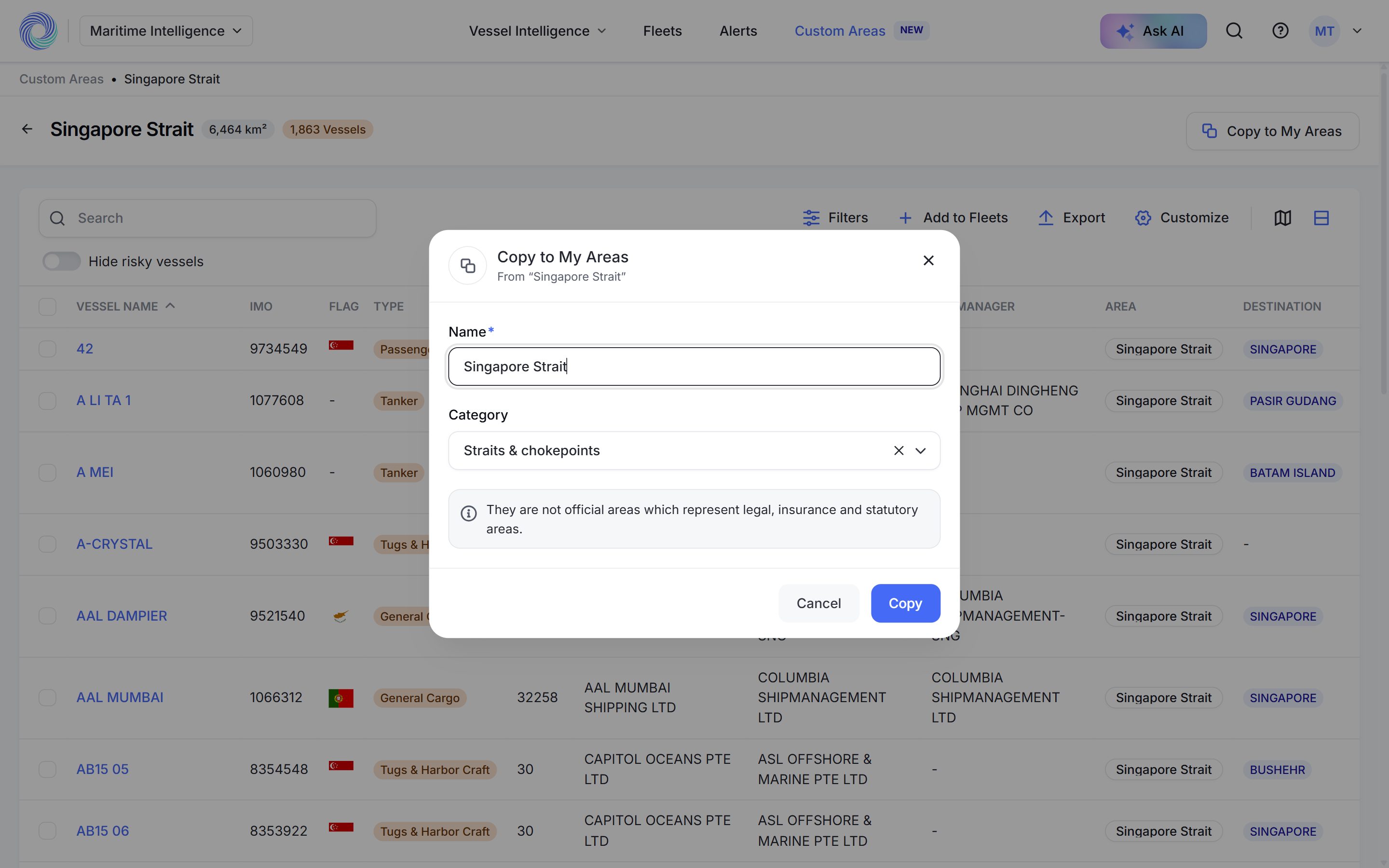
Note: Template areas are approximations for monitoring. They are not official legal, insurance or statutory boundaries.
Use the copy
Your copy works like any area you draw: filter searches by it, or create an alert for vessels entering or leaving it. See Alert when vessels enter or leave an area.
Was this article helpful?
Thanks for your feedback.