
Draw a custom area
Draw an area of sea on the map, save it, and see every vessel inside it.
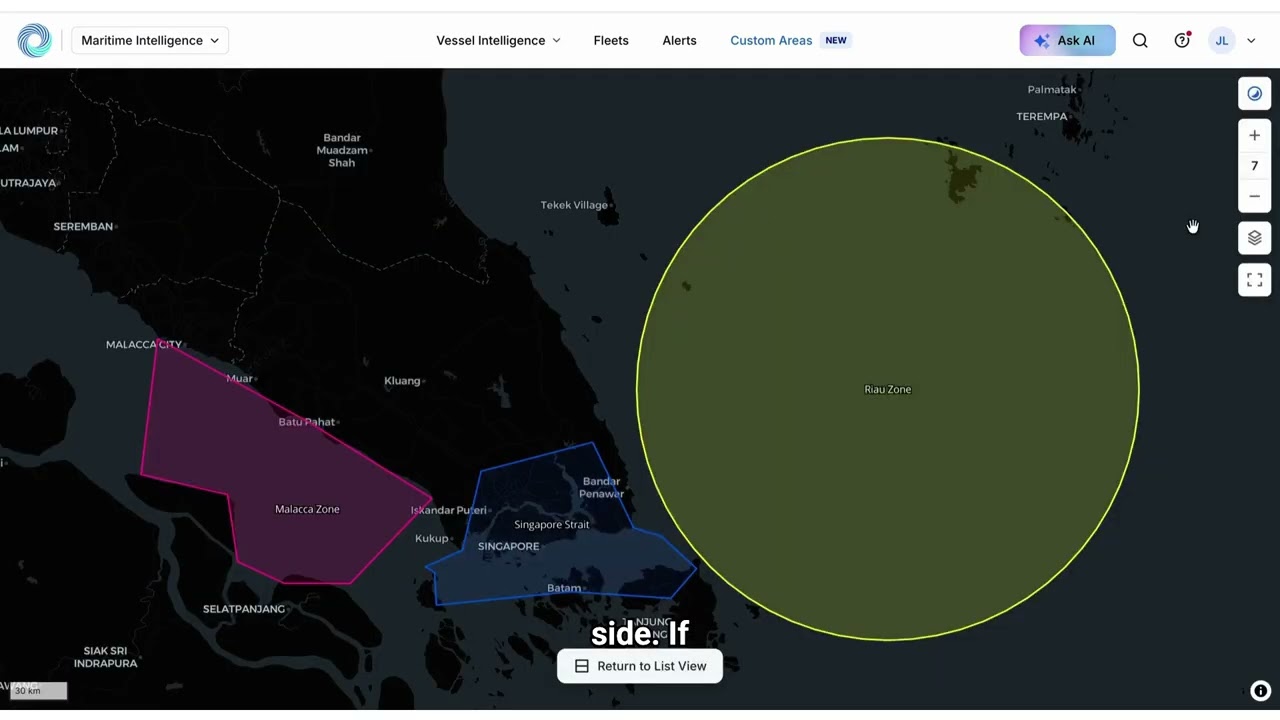 7 min walkthrough of Custom Areas
A custom area in Maritime Intelligence is a stretch of water you draw on the map, such as a port approach, an anchorage, or a strait. Once saved, it shows every vessel currently inside it, and you can use it to filter searches or to trigger alerts when vessels enter or leave.
Open Custom Areas and click Create Area
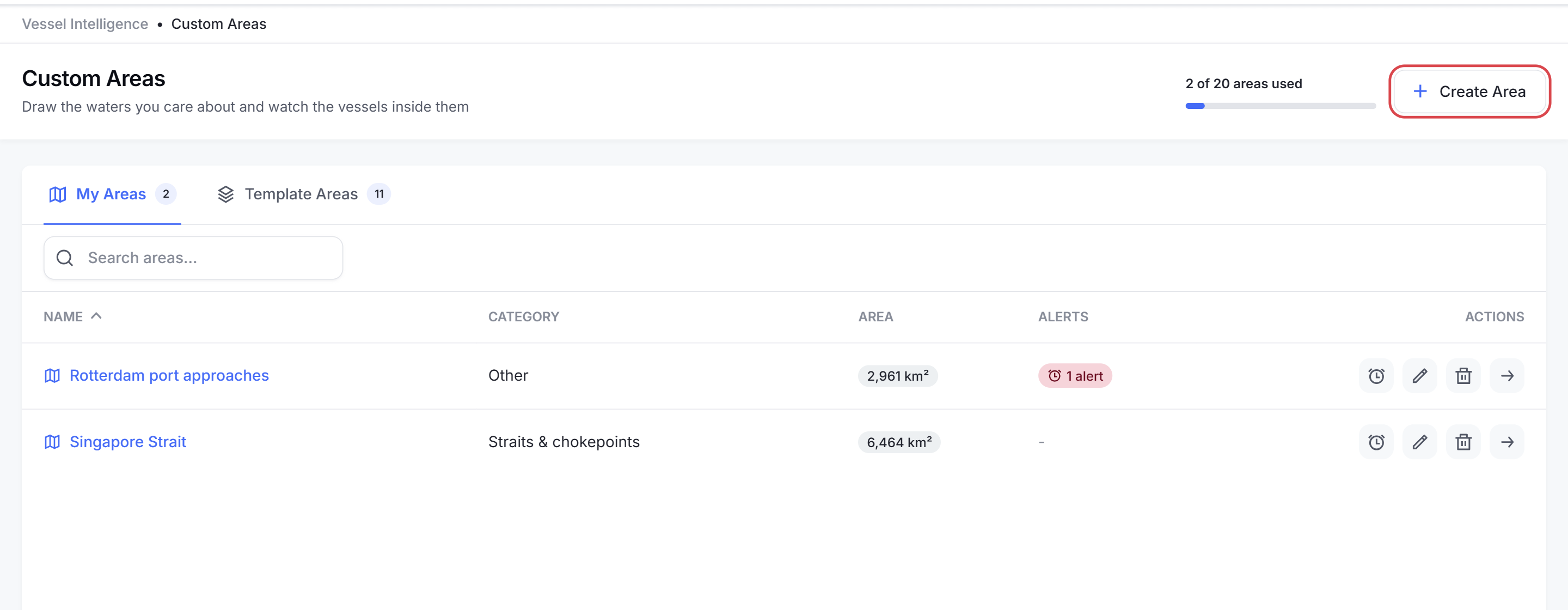
Click Custom Areas in the top navigation. My Areas lists the areas you have saved, and the bar at the top shows how many of your 20 areas you have used. Click Create Area.
Tip: To start from a ready-made area such as the Strait of Hormuz, see Use a template area.
Find the place on the map
Zoom in with the mouse wheel or the + and − buttons, and drag the map to move around.
Pick a drawing tool
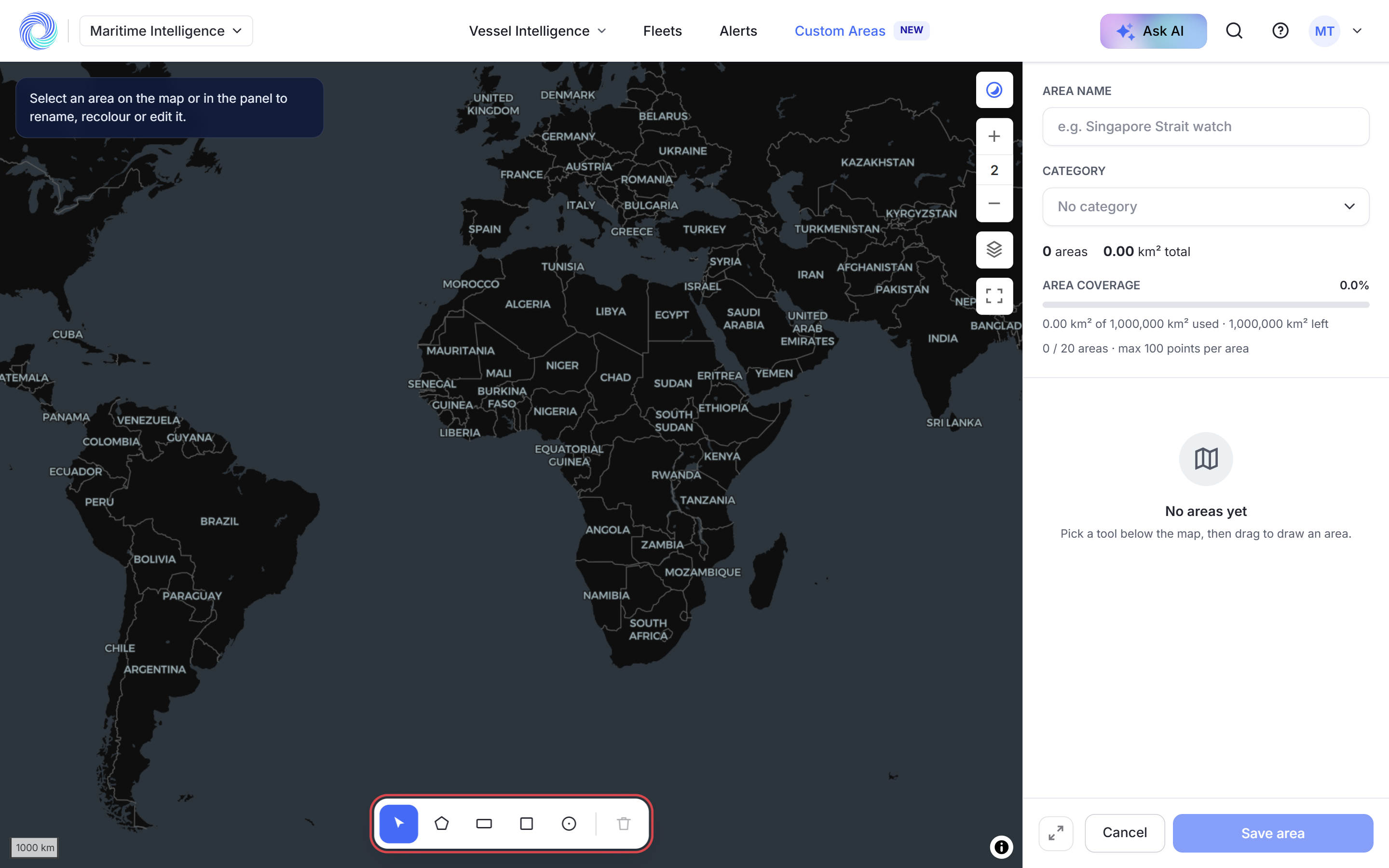
The tools sit under the map:
- Polygon: click each corner in turn and finish where you started.
- Rectangle or Square: drag from one corner to the opposite one.
- Radius: drag out a circle from its centre.
- Select: click a shape on the map or in the panel to rename, recolour or edit it.
The bin removes the selected shape. Hold Space while a tool is selected to drag the map instead of drawing.
Draw the shape and name it
Draw the shape. When you finish, Name this area opens. Enter a Name, for example “Bay of Mecklenburg”, and click Save. The name is shown as a label on the map. Click Skip to leave it unnamed.
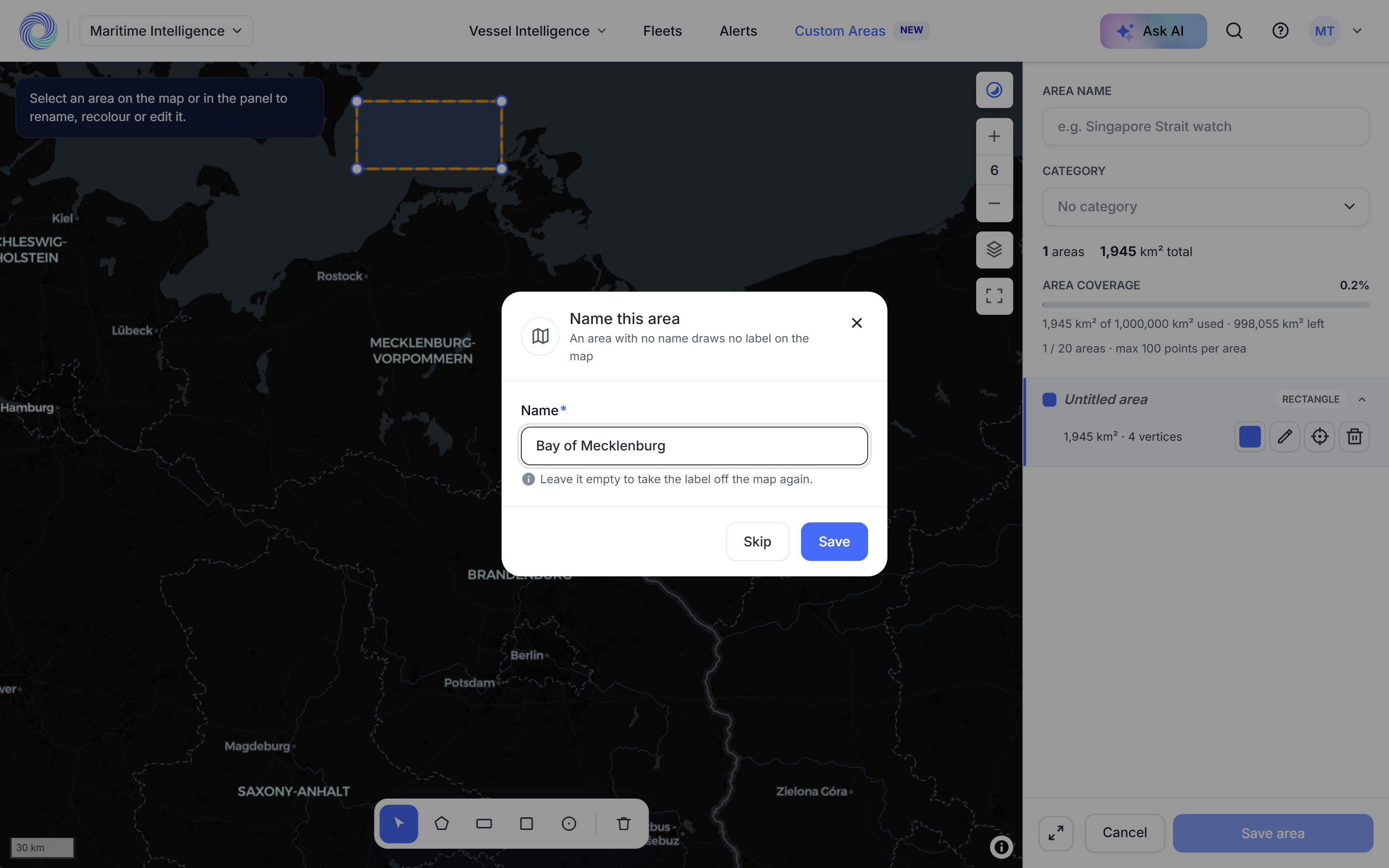
You can draw more than one shape in the same area. Each shape is listed in the panel on the right, with buttons to change its colour, rename it, zoom to it or delete it.
Give the area a name and category and click Save area
In the panel on the right, enter an Area Name and choose a Category: Emissions, Active conflict, Piracy, Straits & chokepoints or Other. The panel shows the area’s size and how much of your allowance it uses.
Click Save area. The area opens with the vessels inside it. Click Cancel to leave without saving.
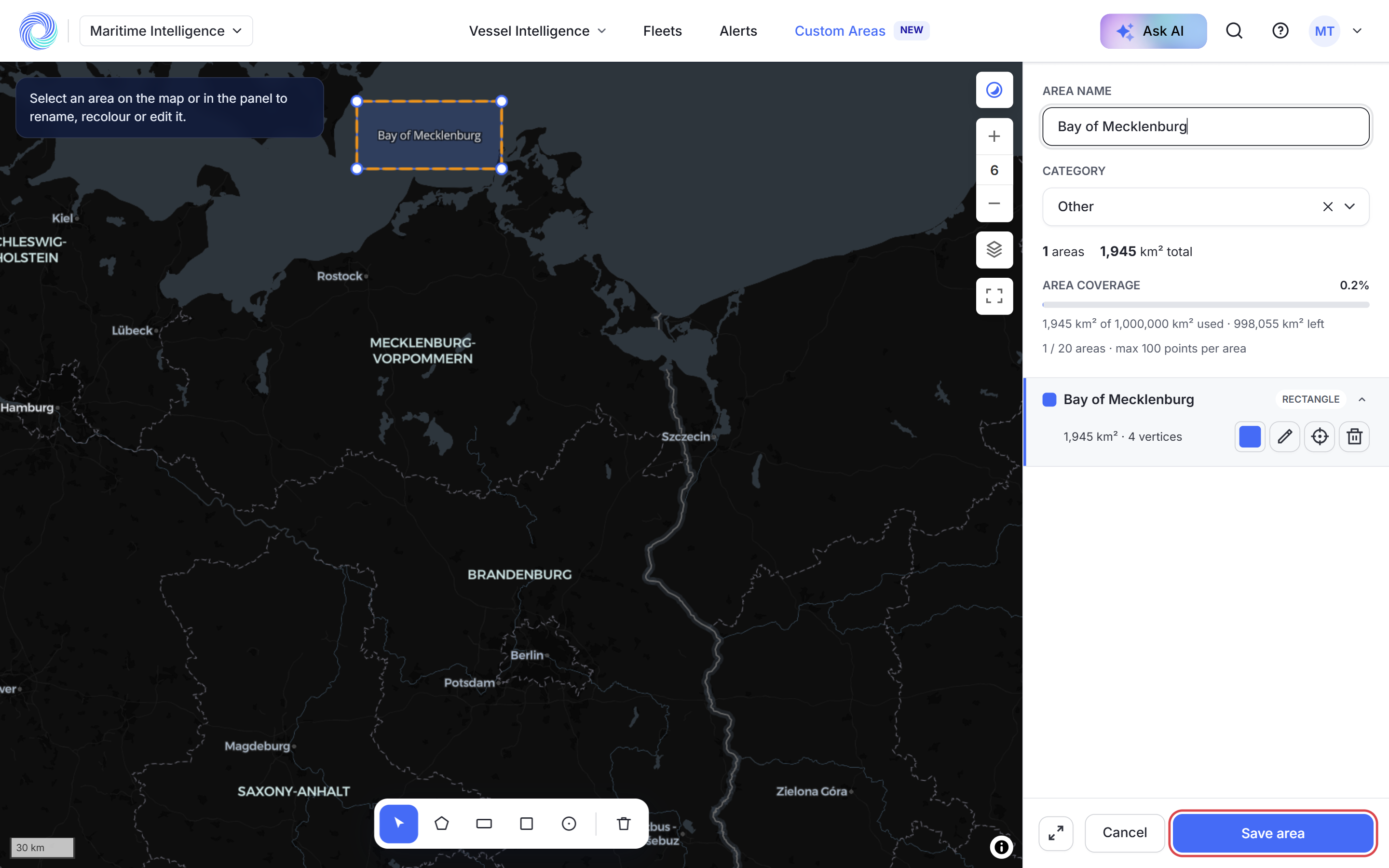
Note: You can save up to 20 areas, with up to 1,000,000 km² in total and up to 100 points per shape.
See the vessels inside the area
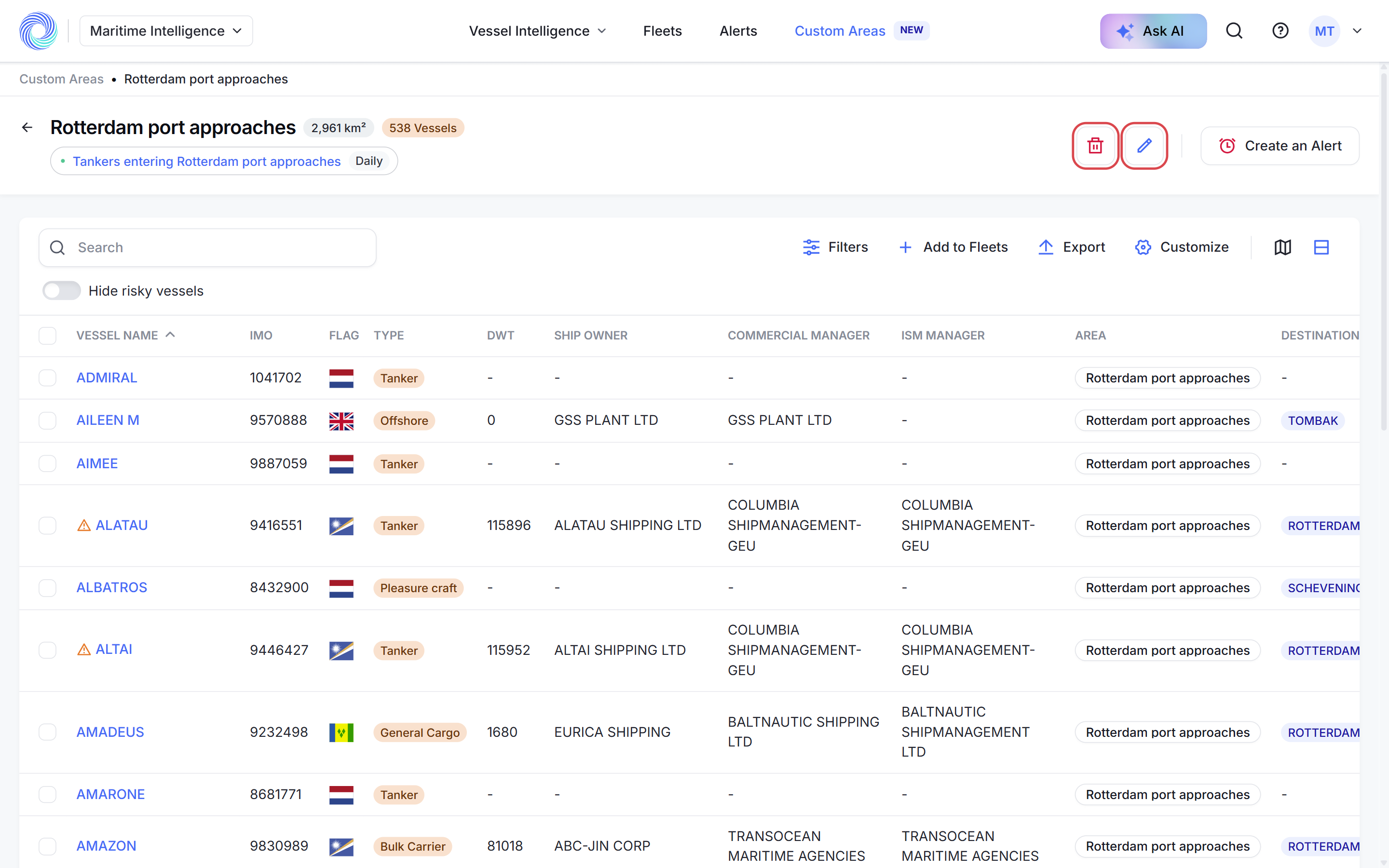
The area’s page shows its size and the number of vessels inside it, with the usual results tools: Filters, Add to Fleets, Export, Customize, the map and Hide risky vessels. See Work with search results.
From here you can also Edit area, Delete area, or click Create an Alert to be told when vessels enter or leave. See Alert when vessels enter or leave an area.
Tip: Your areas also appear under Custom Areas in the Filter Vessels panel, so you can limit any search to vessels inside them. See Narrow results with advanced filters.
Was this article helpful?
Thanks for your feedback.