

Work with search results
Search within results, choose columns, switch to the map, hide risky vessels, and export, add to fleets or create an alert from selected vessels.
Every vessel list in Maritime Intelligence has the same toolbar and tools: search within the results, choose and reorder columns, switch to a map, hide vessels with a sanctions risk, and export selected vessels to Excel, add them to fleets, or create an alert for them. This guide covers each tool in turn.
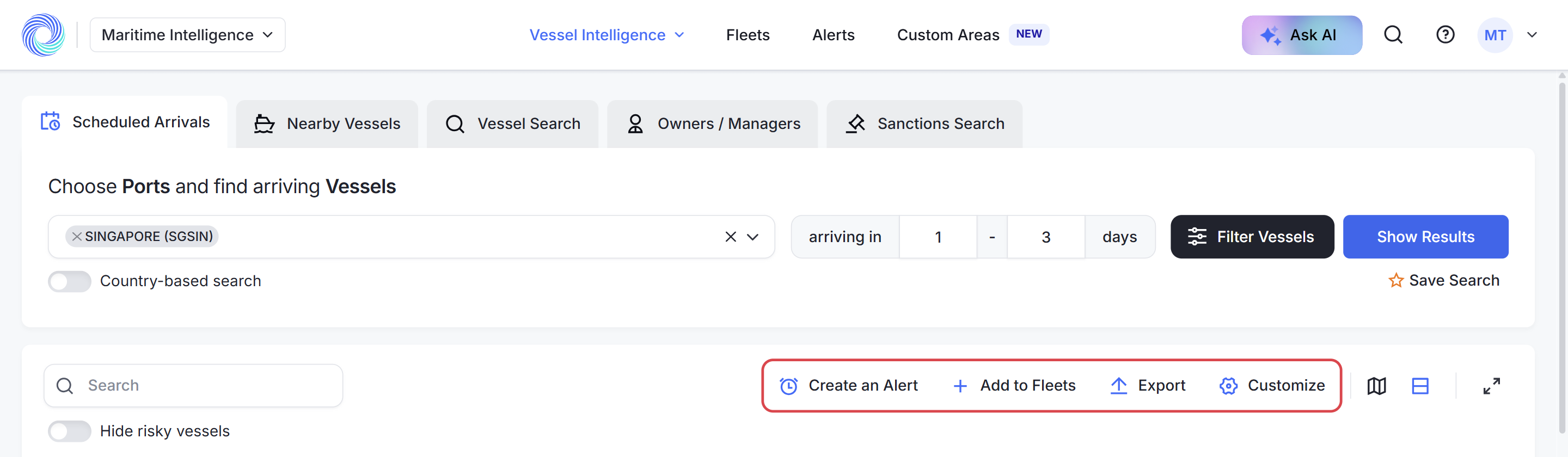
Search within the results
Type in the Search box above the table to find a vessel or company within the results you already have.
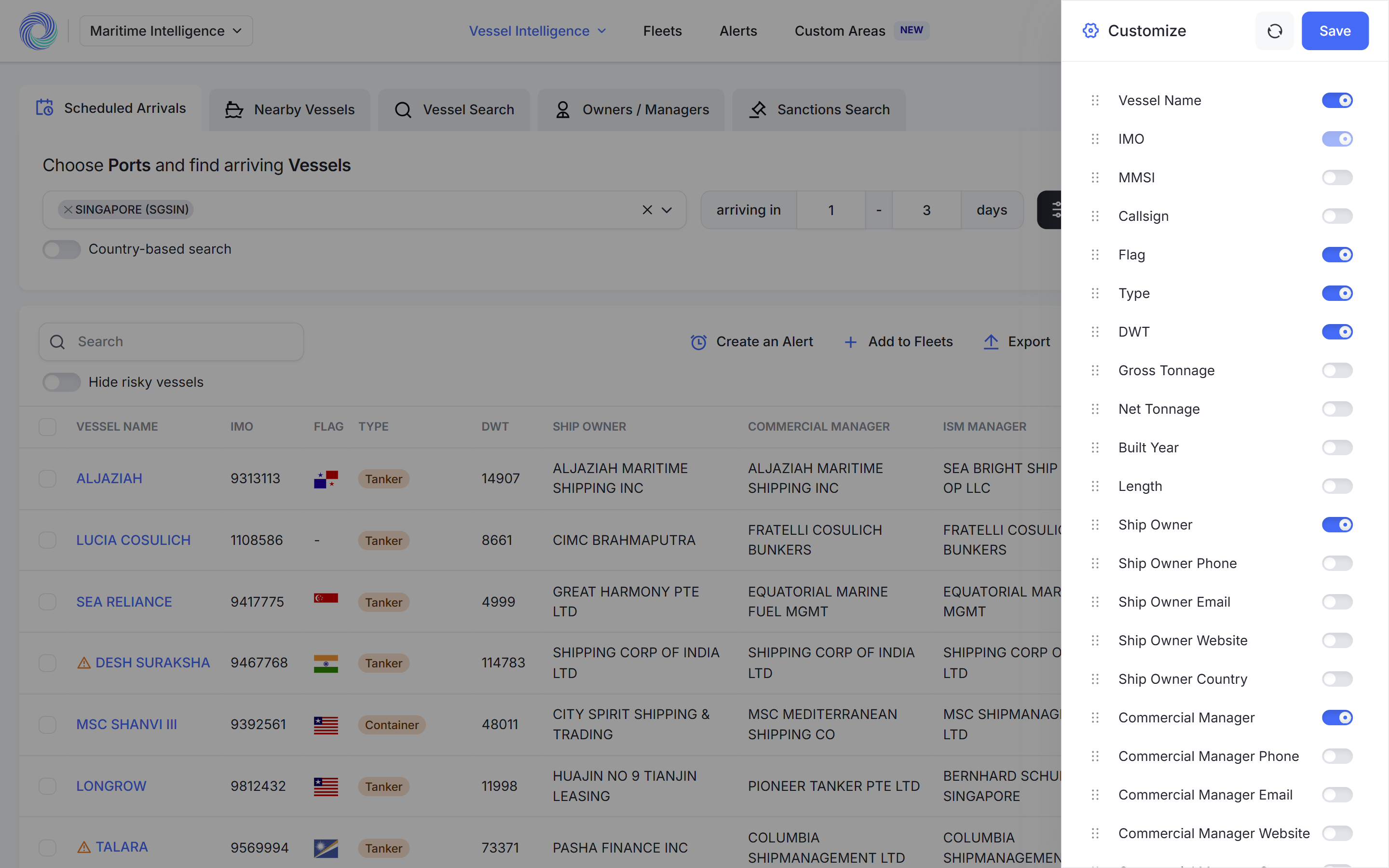
Choose your columns
Click Customize. Turn columns on or off with their switches, and drag a column by its handle to change the order. Extra columns include MMSI, Gross Tonnage, Built Year, the owner’s and managers’ phone, email, website and country, and Risk Level.
Click Save to keep your choice. Click the circular arrow next to Save to go back to the default columns.
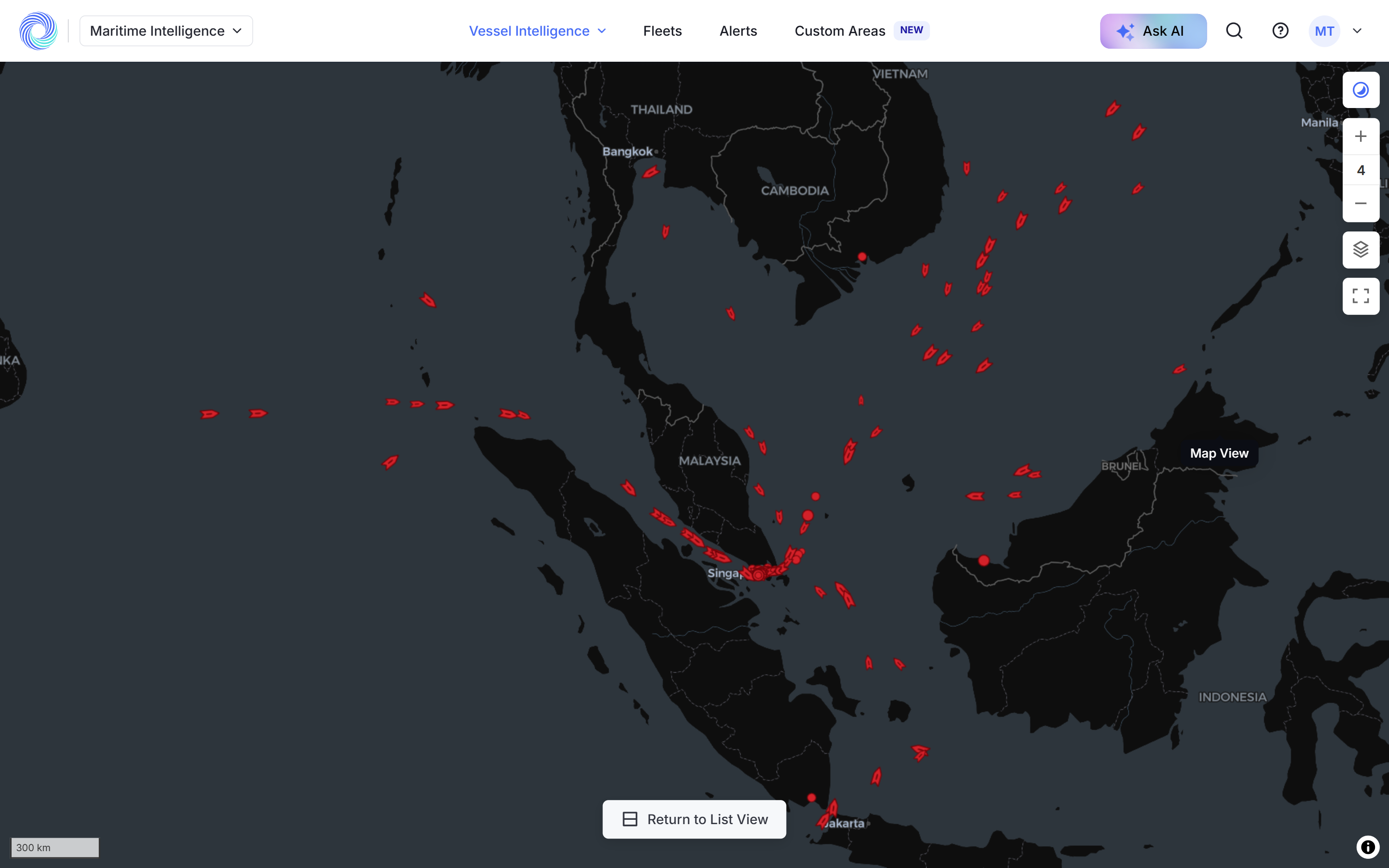
Switch to the map
Click the map icon to see where every vessel in the results is. Zoom with the + and − buttons, and use the layers button to change the map. Click Return to List View to go back to the table.
Hide risky vessels
Turn on Hide risky vessels to remove vessels with a sanctions risk from the list. See Vessel risk statuses.
Select vessels
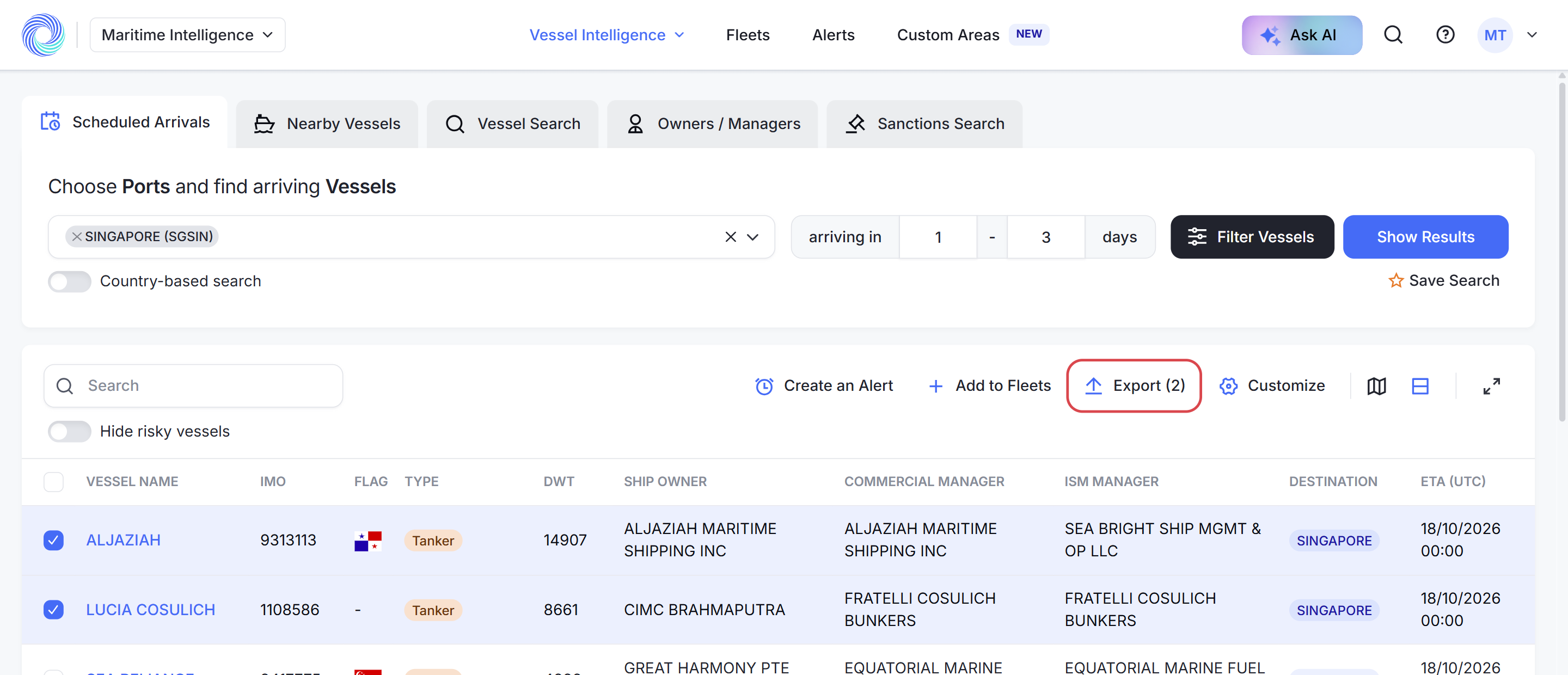
Tick the box next to each vessel you want, or the box in the header to select the whole page. The buttons show how many vessels are selected, for example Export (2).
Export to Excel
With vessels selected, click Export. An Excel file of the selected rows downloads. If nothing is selected you see “Please select at least one vessel to export.”
Add to a fleet
Click Add to Fleets, choose one or more fleets and click Save. See Create a fleet and add vessels.
Create an alert
Click Create an Alert to start an alert for the selected vessels. See Create an alert.
Open a vessel
Click any vessel name to open its profile in a new tab. See Read a vessel profile.
Was this article helpful?
Thanks for your feedback.