

Create a fleet and add vessels
Create a standard fleet and add vessels to it by name or IMO number.
 7 min walkthrough of Fleets
A standard fleet in Maritime Intelligence is a saved list of vessels that you choose and maintain yourself, added by vessel name or IMO (International Maritime Organization) number. Group vessels the way you work, such as by trade or customer, then filter, map, export, or set alerts on the whole group at once. For a list that follows a ship manager’s vessels automatically, see Create a dynamic fleet from a ship manager.
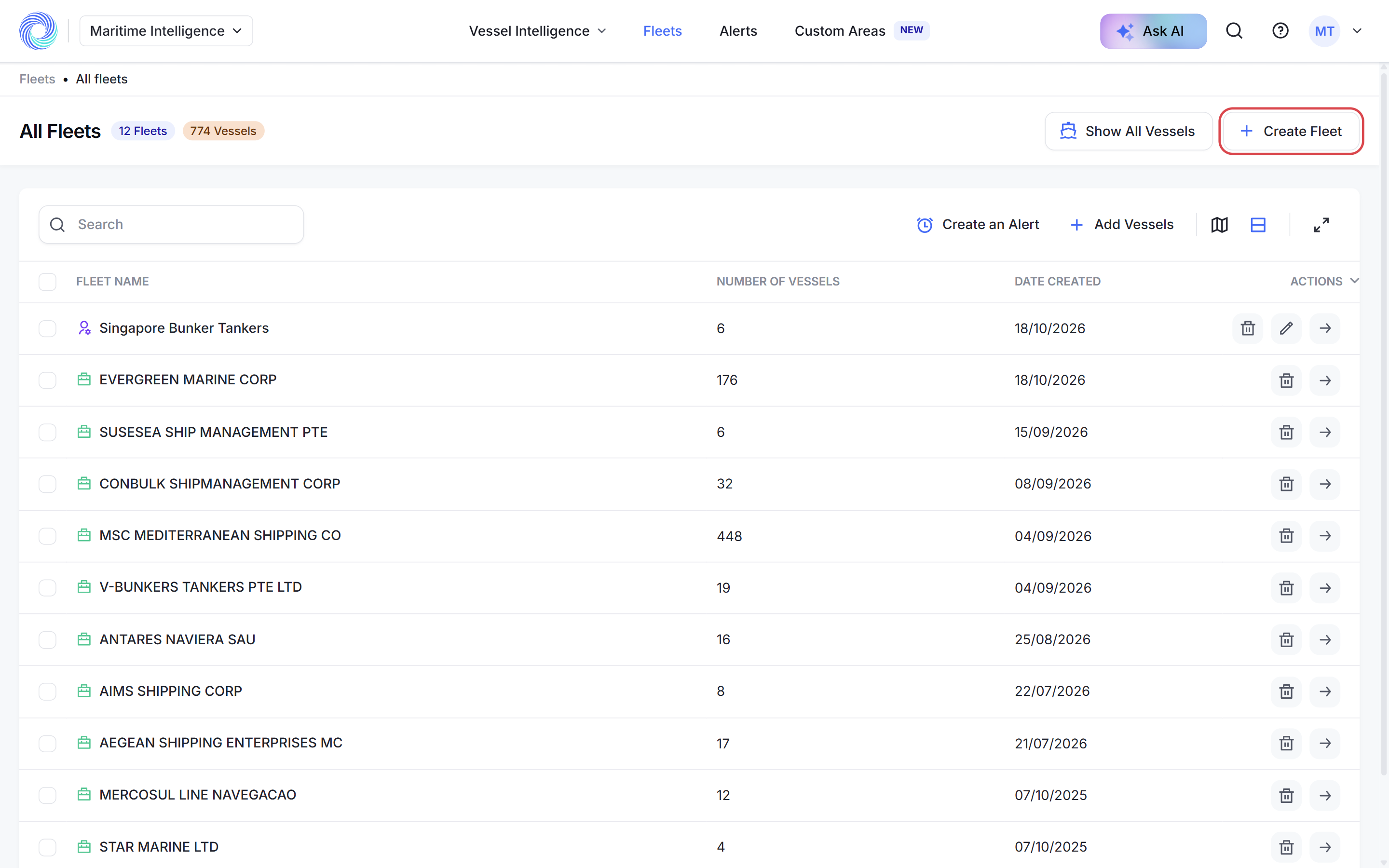
Open Fleets and click Create Fleet
Click Fleets in the top navigation. All Fleets lists your fleets with the number of vessels in each. Click Create Fleet in the top right corner.
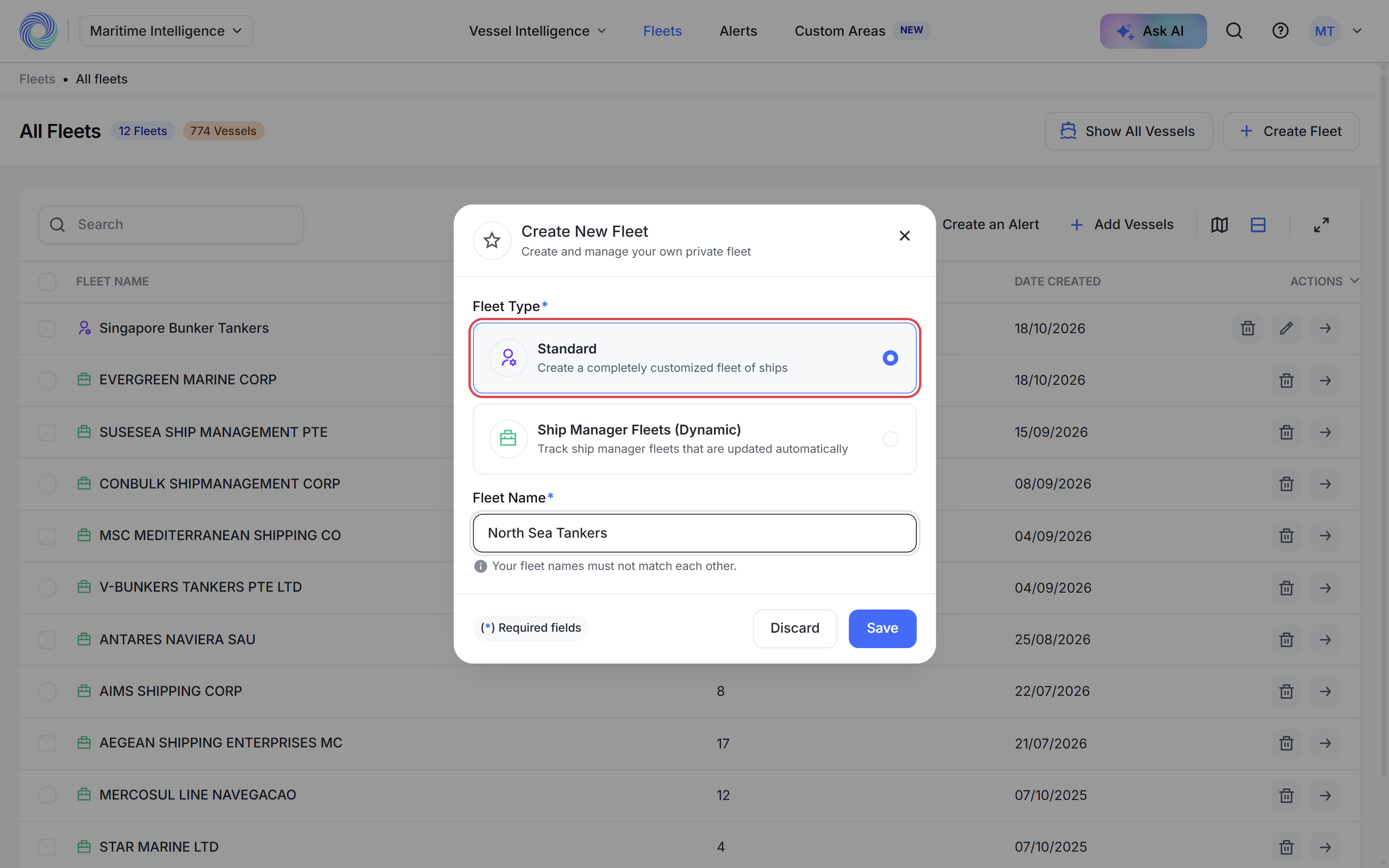
Choose Standard and name the fleet
Under Fleet Type, choose Standard. Enter a Fleet Name, for example “North Sea Tankers”, and click Save. Fleet names must be unique.
You see “Fleet successfully created!”. Click Ok! and the new, empty fleet opens.
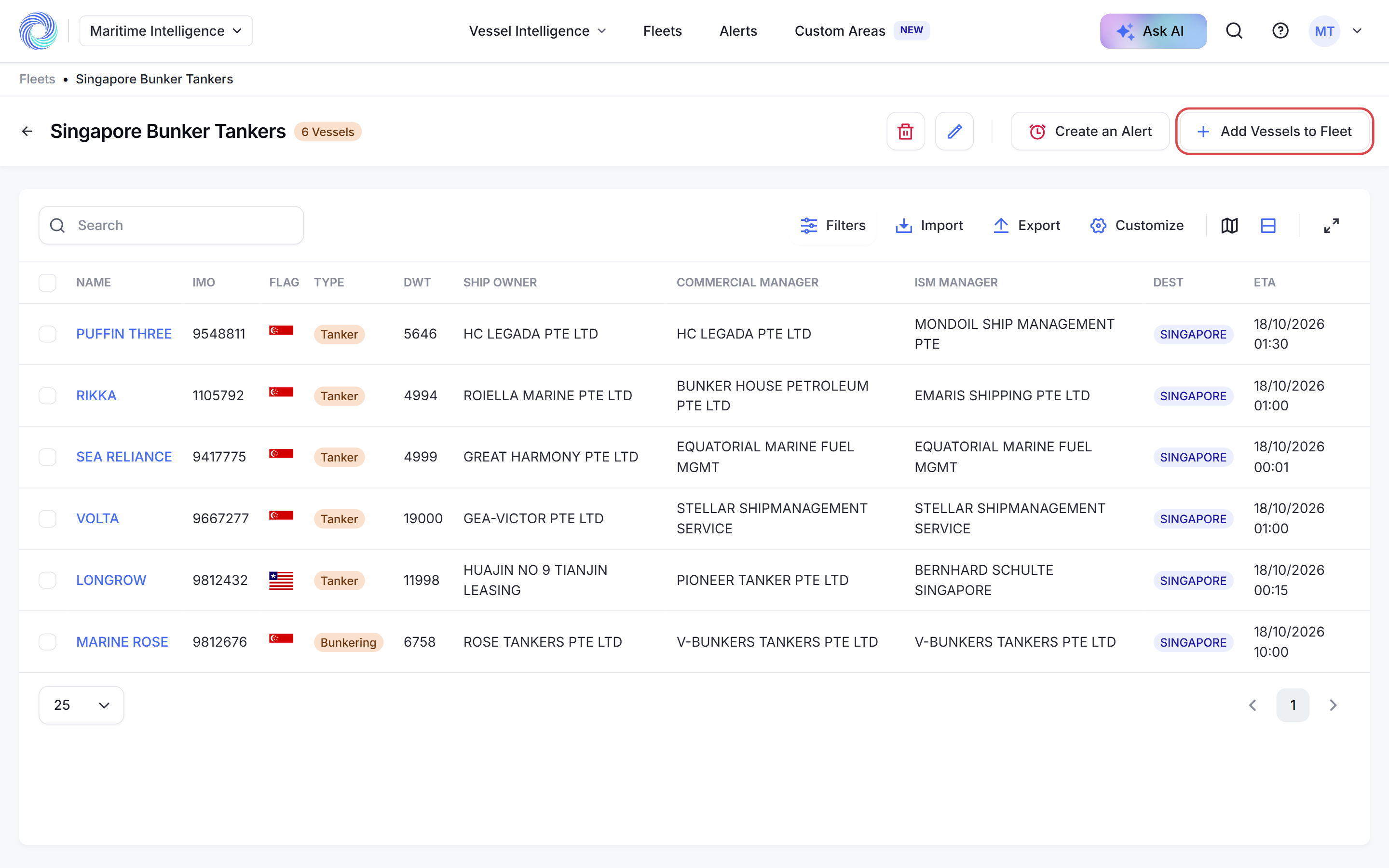
Click Add Vessels to Fleet
On the fleet page, click Add Vessels to Fleet in the top right corner.
Pick the vessels
Click Vessels and type a vessel name or IMO number, then click the vessel in the list. Repeat for each vessel. The selected vessels appear as chips.
Under Fleets, the fleet you are in is already selected. Click other fleets to add the same vessels to them too, or turn on Check All.
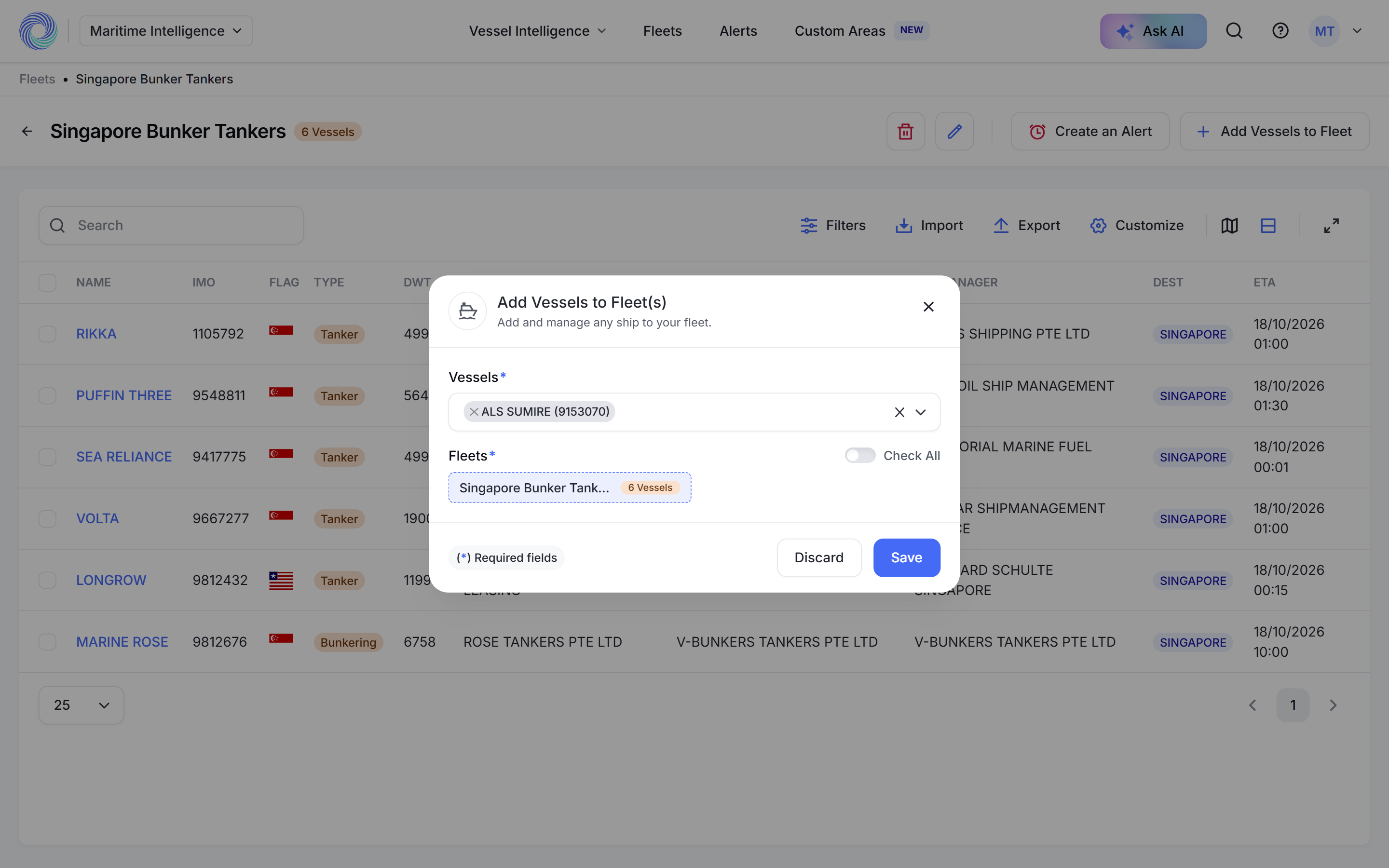
Tip: Vessel names repeat, so search by IMO number when you can. After picking a vessel, clear the search box before typing the next one.
Click Save
Click Save. The vessels now appear in the fleet table. Check that every vessel you picked is listed.
Tip: You can also add vessels from any search result. Select them and click Add to Fleets. For a long list, import an Excel file instead. See Import vessels into a fleet.
Was this article helpful?
Thanks for your feedback.