

Import vessels into a fleet
Add many vessels to a standard fleet at once from an Excel file of IMO numbers or from ship managers' fleets.
You can add many vessels to a standard fleet in Maritime Intelligence at once, either by uploading an Excel file of IMO (International Maritime Organization) numbers or by importing every vessel of one or more ship managers. One upload takes up to 1,000 vessels from an XLS or XLSX file of up to 10 MB, which saves adding a long list one by one.
Prepare your Excel file
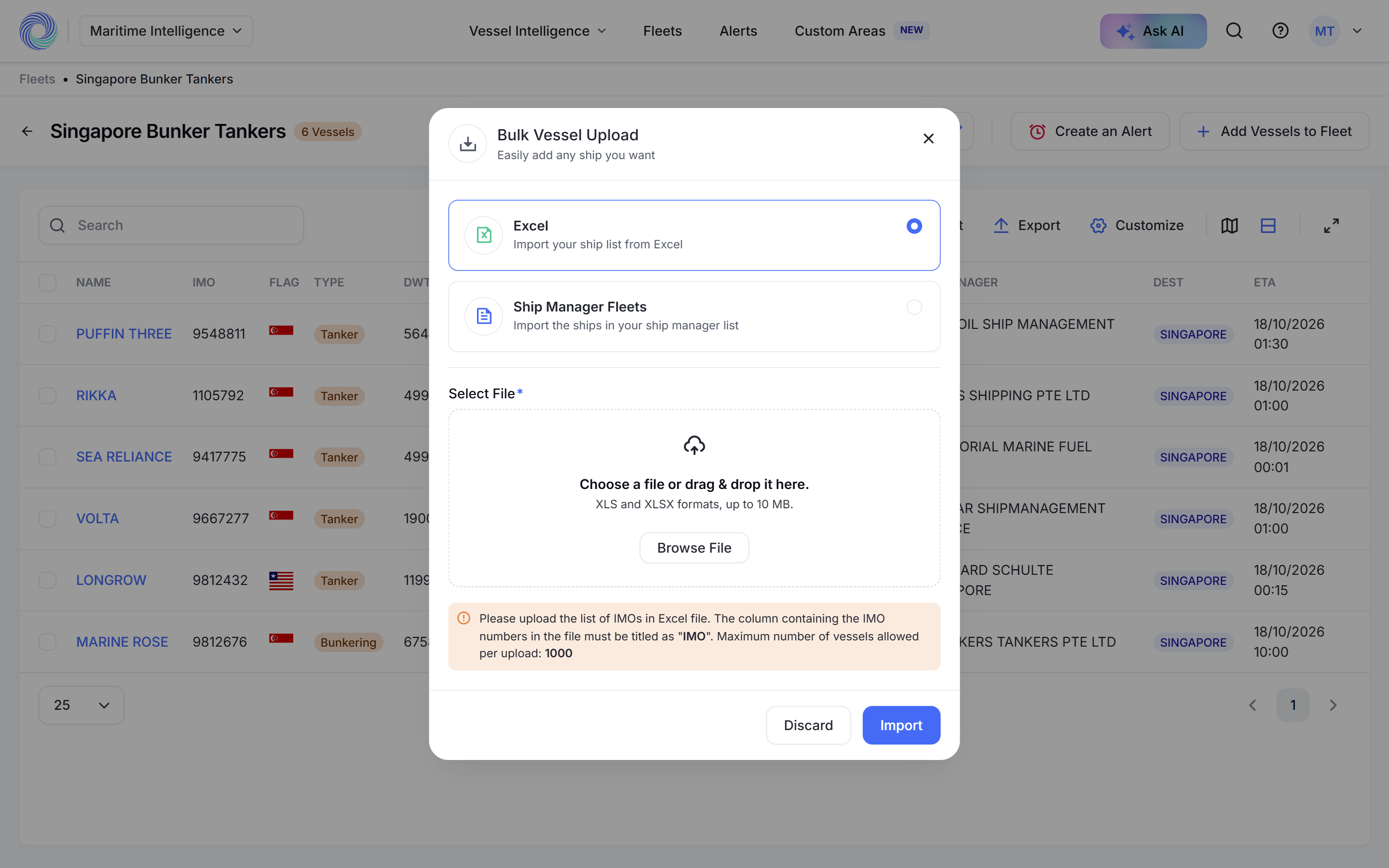
Put the vessels’ IMO numbers in one column titled IMO. Other columns, such as vessel names, are ignored.
- File type: XLS or XLSX, up to 10 MB.
- Up to 1,000 vessels per upload.
Open the fleet and click Import
Open a standard fleet from Fleets and click Import above the vessel table. The Bulk Vessel Upload dialog opens.
Upload the Excel file
Choose Excel. Drag your file onto Choose a file or drag & drop it here., or click Browse File and pick it. Click Import.
The vessels are added to the fleet. Reload the page if they don’t appear straight away.
Or import from ship managers
Choose Ship Manager Fleets instead, then pick one or more companies in Select Company and click Import. Every vessel of those companies is copied into your fleet.
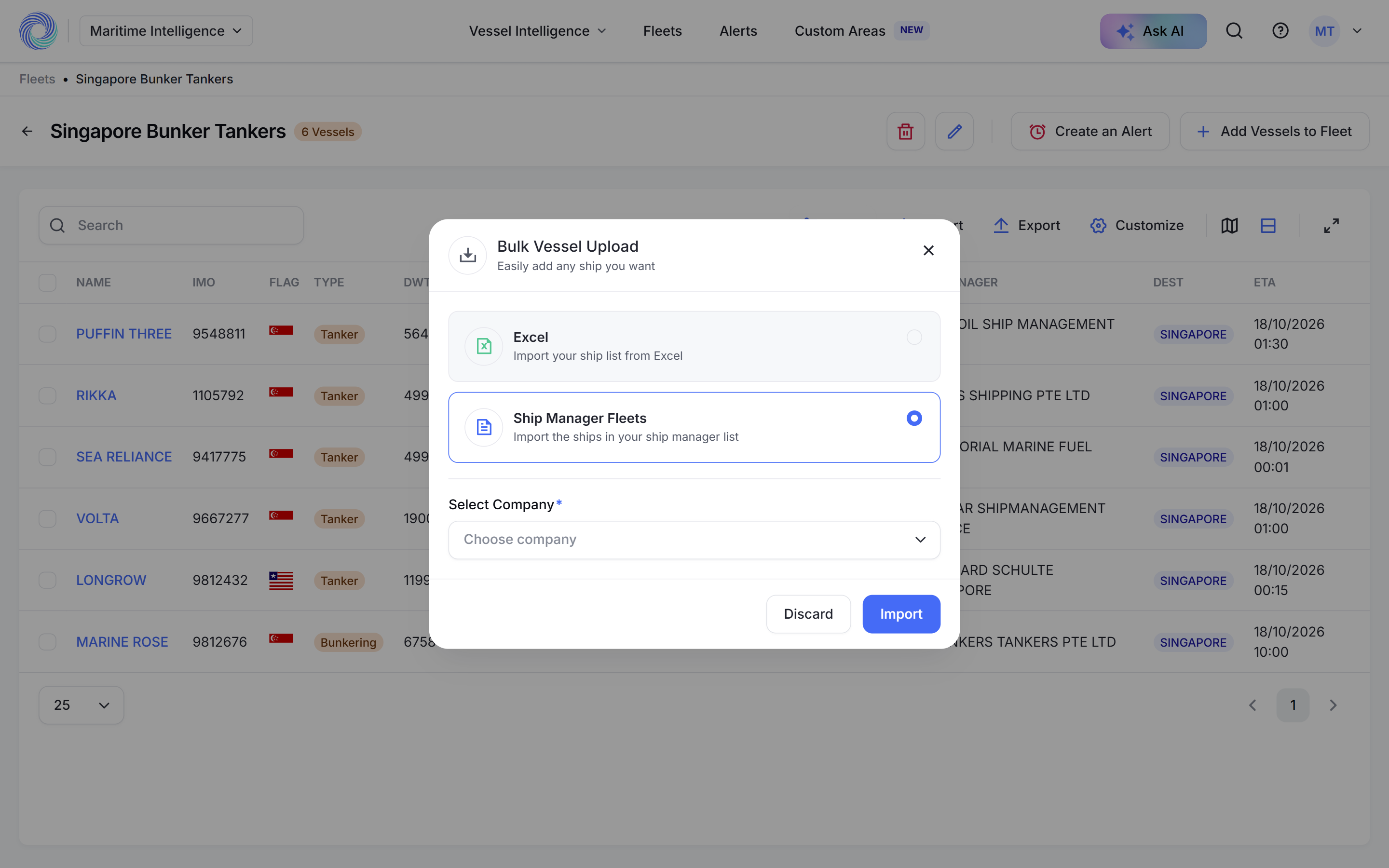
Note: This takes a copy. Later changes to the companies’ fleets are not reflected. To follow a company’s fleet automatically, create a dynamic fleet instead. See Create a dynamic fleet from a ship manager.
Was this article helpful?
Thanks for your feedback.