

Track and monitor vessels with Fleets
A Fleet is a saved group of vessels you follow over time, either a list you build yourself or one that stays in sync with a ship manager's vessels automatically.
 7 min walkthrough of Fleets
Fleets turn the vessels you care about into a watchlist. Each fleet shows live position, destination and ETA for every vessel, together with its owner and managers, and can be filtered, exported, shown on the map and used as the scope of an alert.
Who uses Fleets
- Ship agents and suppliers keep a list of their customers’ vessels and see where each one is heading next.
- Commercial teams follow a principal’s or competitor’s whole fleet without maintaining the list by hand.
- Compliance teams keep vessels under review in one place and spot the ones flagged as risky.
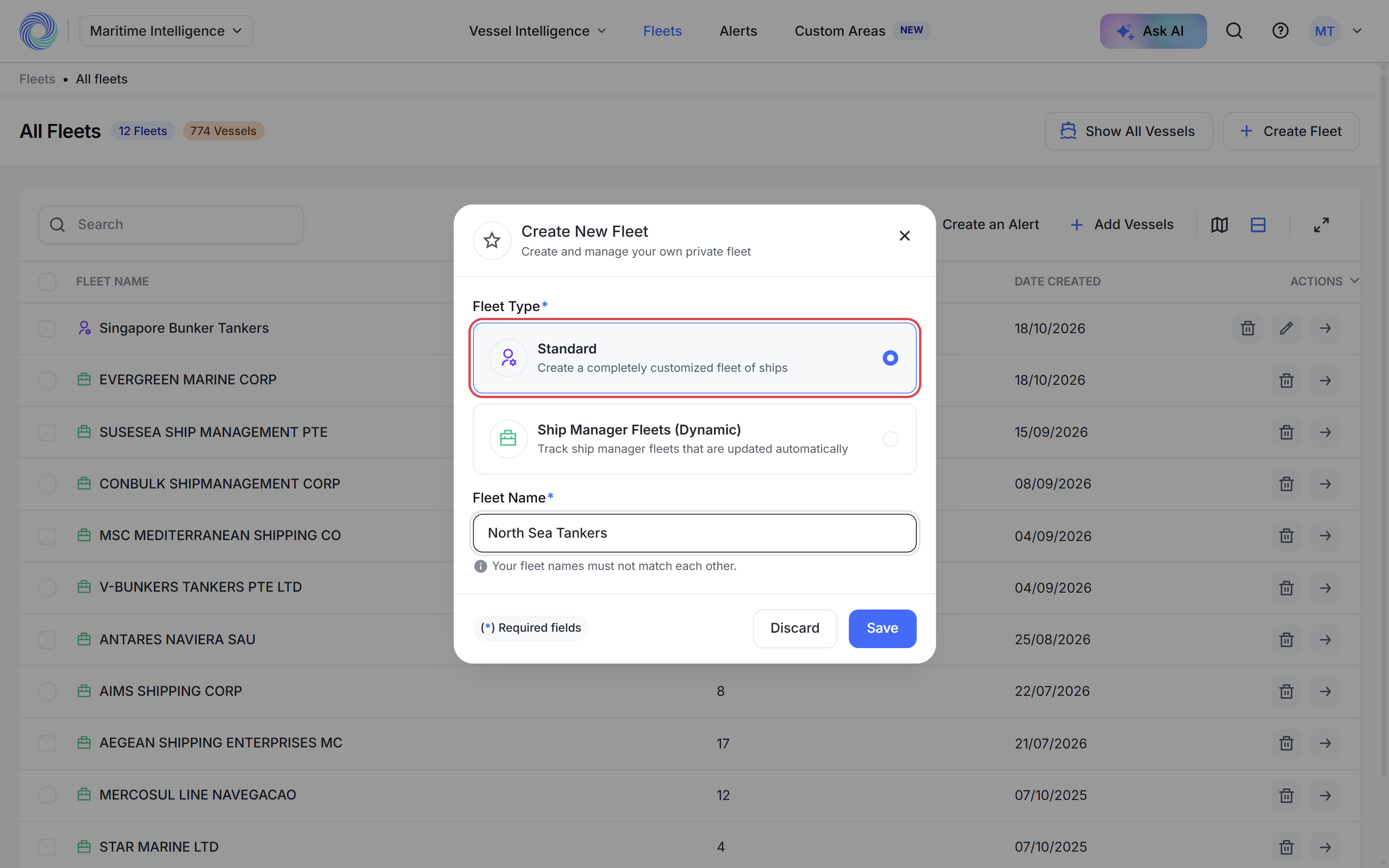
Two kinds of fleet
You choose the type when you create the fleet.
| Standard | Ship Manager Fleets (Dynamic) | |
|---|---|---|
| How vessels get in | You add them by name or IMO, from search results, or by import | Every vessel managed by the company you pick |
| Add or remove single vessels later | Yes | No |
| Stays up to date by itself | No, you maintain the list | Yes, it follows the company’s fleet |
| Best for | Customer lists, prospect watchlists, vessels with no common manager | Following an owner or manager as a whole |
Ways to add vessels to a standard fleet
| Method | Use it when |
|---|---|
| Add Vessels to Fleet on the fleet page | You know the vessels by name or IMO |
| Add to Fleets on any results table | You found the vessels in Scheduled Arrivals, Nearby Vessels, Vessel Search or a custom area |
| Import an Excel file | You already keep the list in a spreadsheet. The file needs a column titled IMO, with up to 1,000 vessels per upload |
| Import from Ship Manager Fleets | You want some or all of a company’s vessels as a one-off copy you can edit |
Note: Vessels imported from a ship manager into a standard fleet are a snapshot. If the company adds or sells vessels later, the standard fleet does not change. Use a dynamic fleet if you want it to follow the company.
What you can do with a fleet
- Filter the fleet by vessel type, flag, destination port or destination country. Filtering changes the view only; no vessels are removed.
- Customize the columns, including Risk Level. Your layout is saved to your account.
- Map view shows every vessel’s position and heading. Click a vessel for a summary, then Go to Vessel Page for its full profile.
- Export the list to Excel with your current columns.
- Create an Alert for the whole fleet, for example ETA changes or arrivals at a port.
- Show All Vessels on the Fleets page lists the vessels from every fleet in one table.
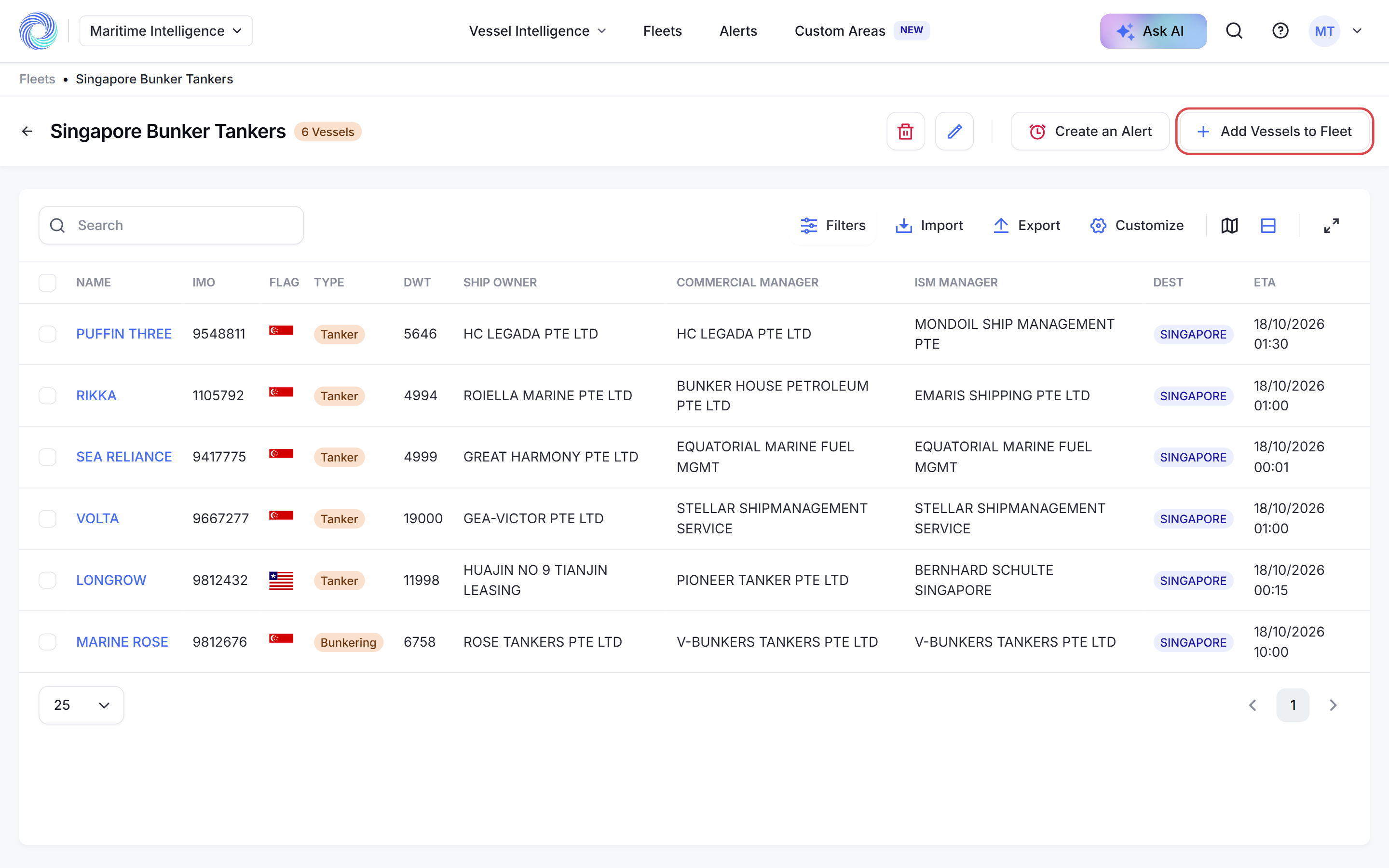
A warning icon next to a vessel name means it has been flagged as risky. It is a prompt to look closer, not a compliance decision: open the vessel and check Sanctions Compliance. See Vessel risk statuses.
How-to guides
- Create a fleet and add vessels
- Create a dynamic fleet from a ship manager
- Import vessels into a fleet
- Manage your fleets: filter, map, export, rename, alert and delete
Frequently asked questions
Can I add a vessel to a dynamic fleet? No. A dynamic fleet’s list comes from MagicPort’s data on the company. To pick vessels yourself, create a standard fleet and import the company’s vessels into it.
Can two fleets have the same name? No. Fleet names must be unique in your account.
Can a vessel be in more than one fleet? Yes. When you add vessels, you can choose several fleets at once.
What is the best way to add vessels with the same name? Use the IMO number. Names are not unique, but an IMO number belongs to one vessel for its whole life.
Does filtering a fleet change who gets alerts? No. Filters only change what you see. An alert on a fleet watches every vessel in it.
Was this article helpful?
Thanks for your feedback.