

Manage your fleets
Rename or delete a fleet, filter and export it, see it on the map, create an alert for it, and see every fleet's vessels in one list.
From a fleet’s page in Maritime Intelligence you can filter its vessels, view them on a map, export them to Excel, rename or delete the fleet, and create an alert for the whole fleet. You can also see the vessels from all your fleets in one combined list.
Filter the fleet
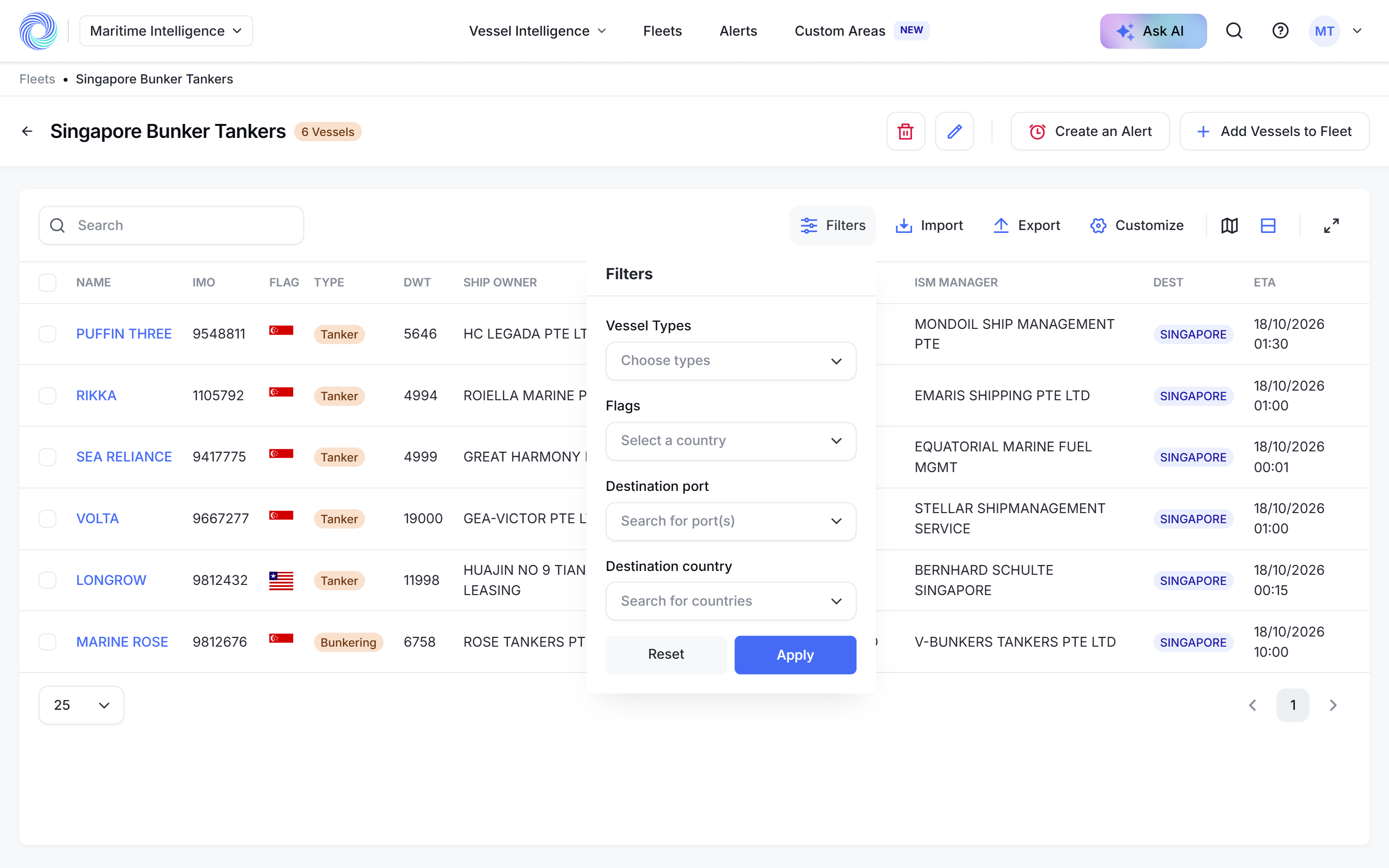
Click Filters to narrow the table by Vessel Types, Flags, Destination port or Destination country, then click Apply. This changes only what you see, not the fleet. Click Reset to clear the filters.
View the fleet on the map
Click the map icon above the table to see where every vessel in the fleet is. Click Return to List View to go back.
Export the fleet
Select vessels and click Export to download them as an Excel file. Customize chooses the columns, as on any results table. See Work with search results.
Rename the fleet
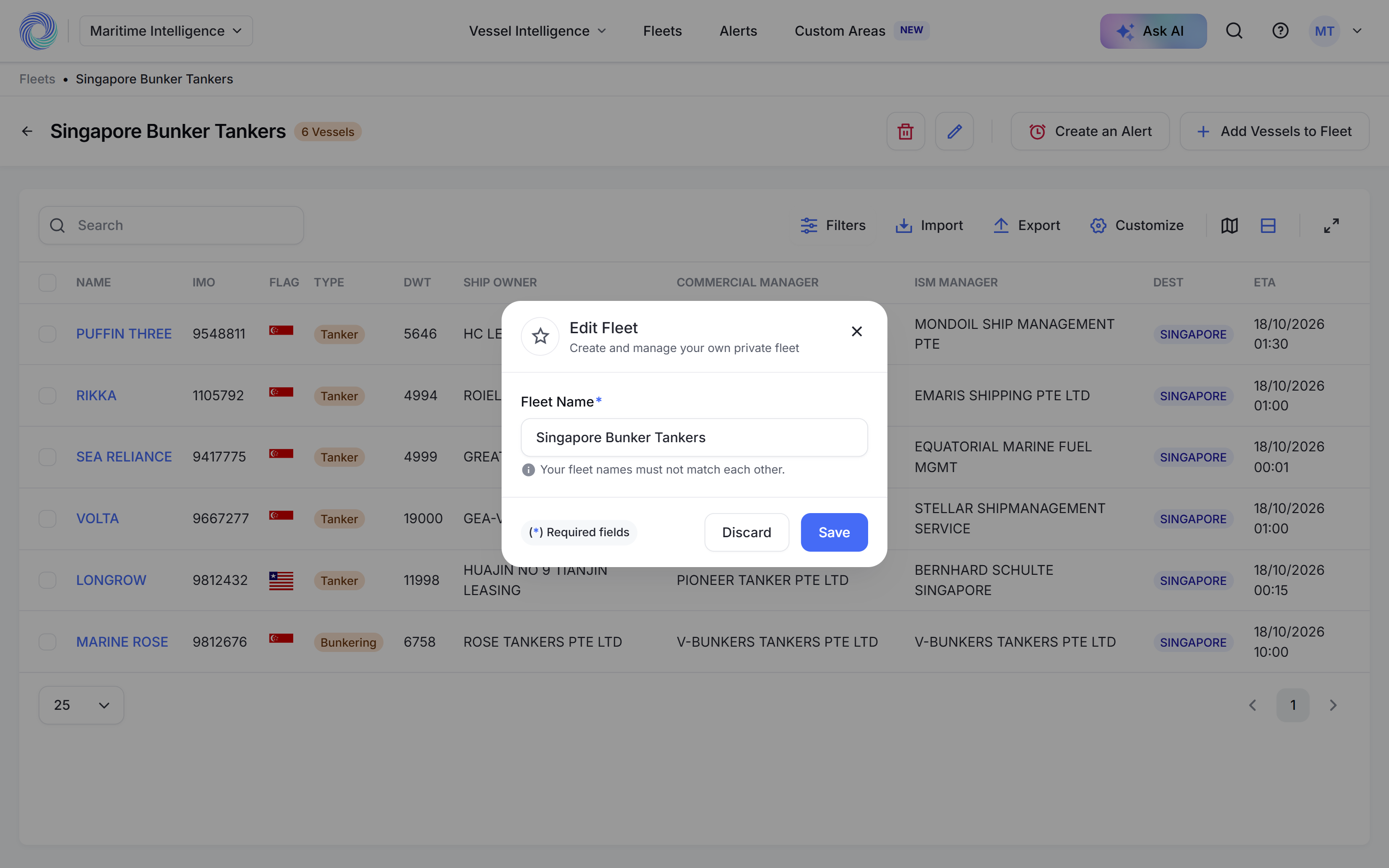
Click the pencil icon next to the fleet name, change the Fleet Name and click Save. Dynamic fleets can’t be renamed.
Create an alert for the fleet
Click Create an Alert. The alert is set up for the vessels in this fleet. See Create an alert.
Delete the fleet
Click the red bin icon next to the fleet name. On the Fleets page you can also tick several fleets and click Delete.
See every vessel across all fleets
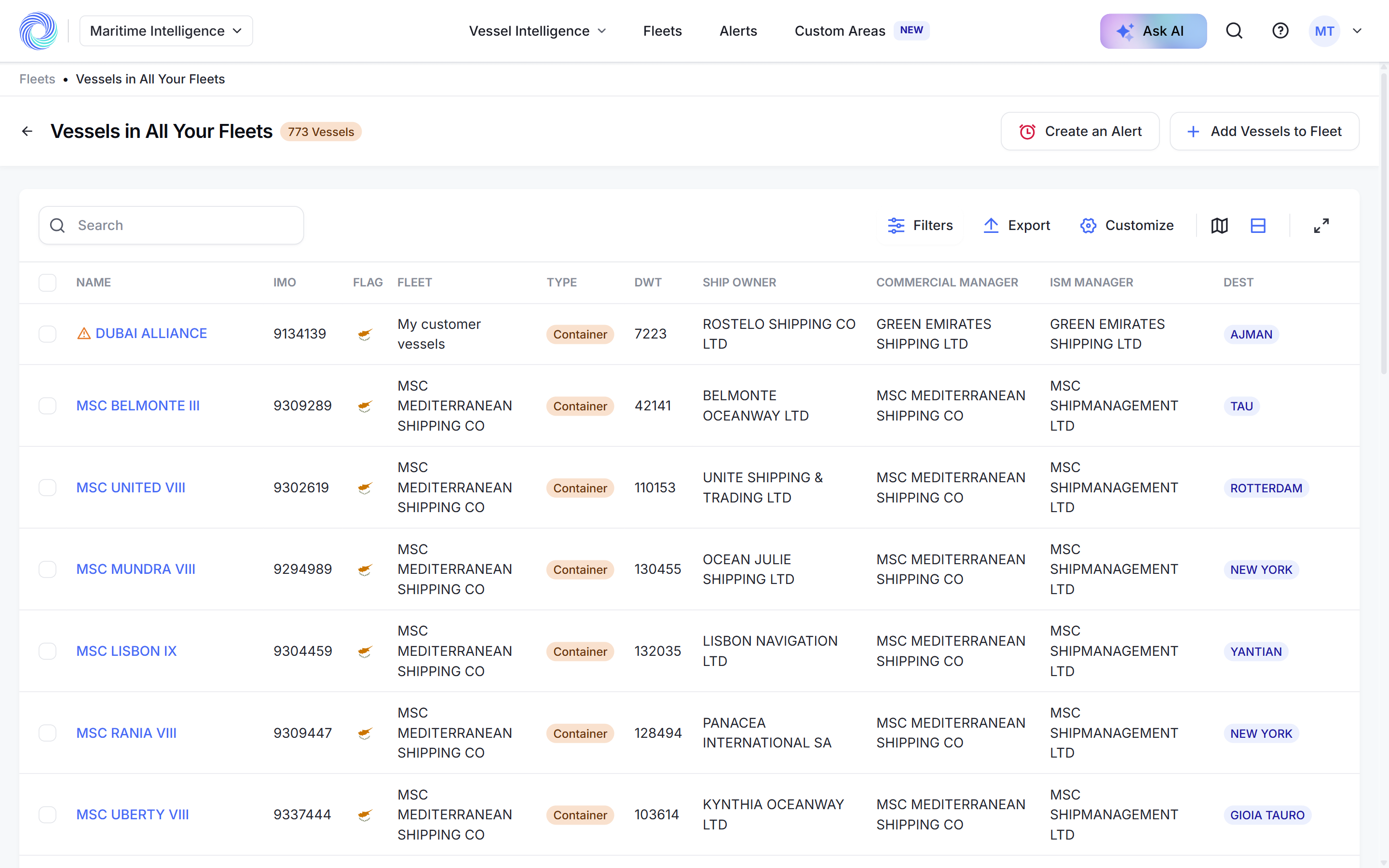
On the Fleets page, click Show All Vessels to see one combined list of the vessels in all your fleets, with Filters, Export, Customize and Create an Alert.
Was this article helpful?
Thanks for your feedback.