

Create an alert
Set up an email alert in three steps, choosing a trigger, the vessels to watch and when the digest arrives.
 4 min walkthrough of Alerts
A Maritime Intelligence alert emails you a digest when vessels match rules you set, so you hear about changes without checking the platform. You choose an event trigger (such as a scheduled arrival, an ETA change, or a sanctions status change), the vessels to watch, and when the digest arrives, for example when tankers in your fleet are due in Singapore within three days. Setup takes three steps: Build Rules, Scope & Delivery and Review.
This guide uses a Scheduled Arrival alert as the example. The other triggers work the same way and have their own guides, listed at the end.
Open Alerts and click Create an Alert
Click Alerts in the top navigation, then Create an Alert in the top right corner.
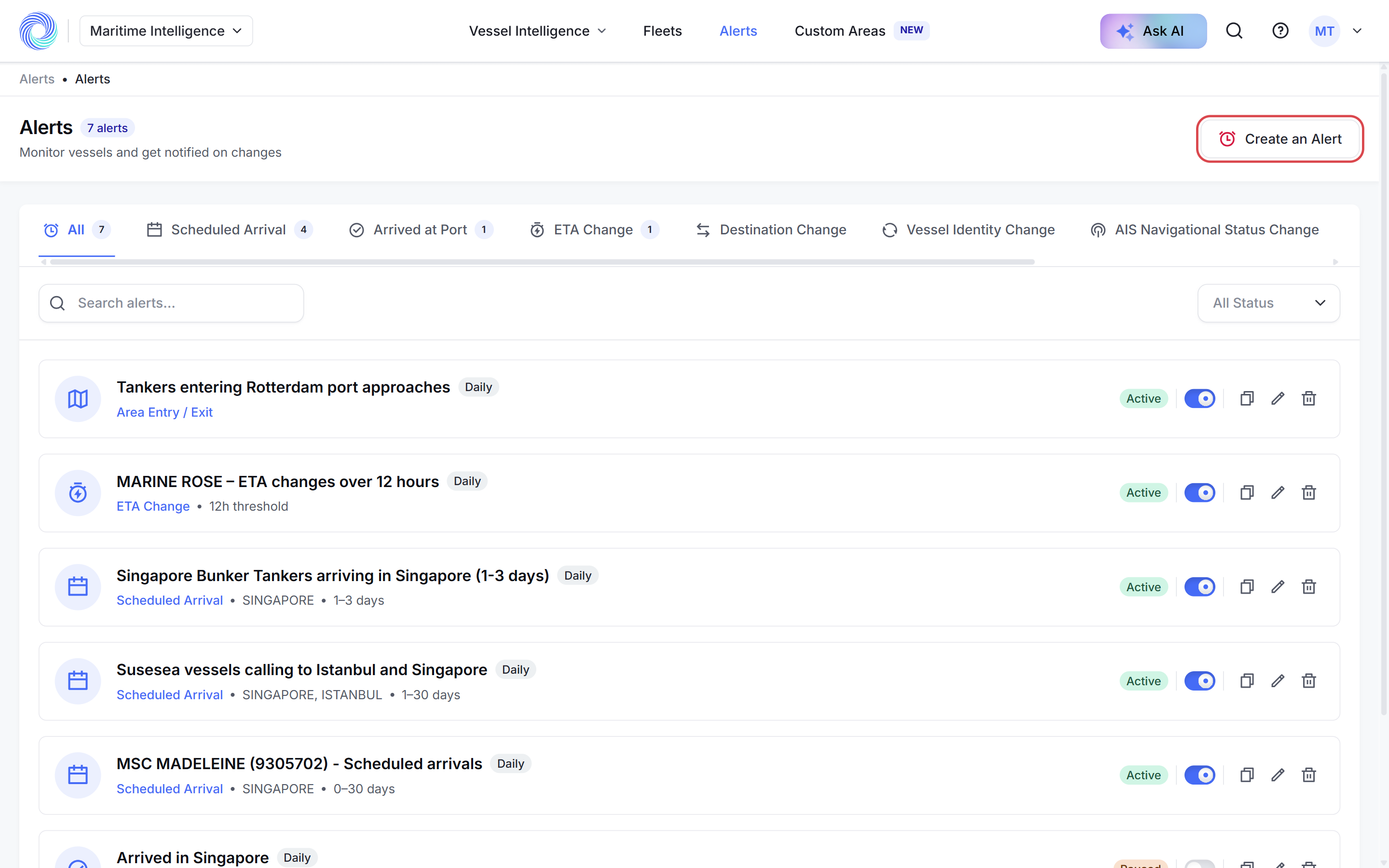
Tip: Click Tour at the top of the form for a short guided walk-through of each step.
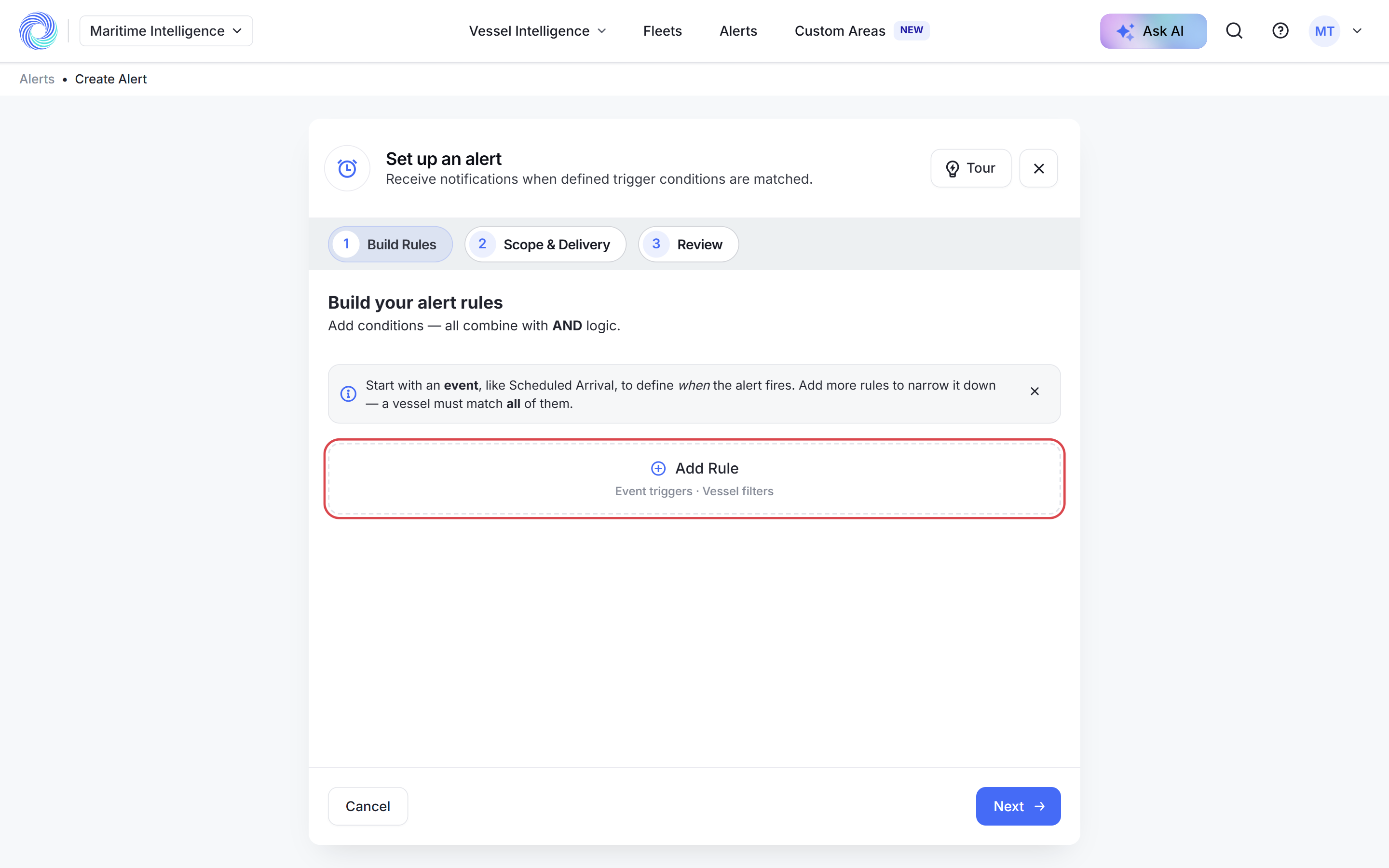
Click Add Rule
Under Build your alert rules, click Add Rule.
Choose one event trigger
The list has two groups:
- Event triggers decide when the alert fires: Scheduled Arrival, Arrived at Port, ETA Change, Destination Change, Sanction Status Change, Vessel Identity Change, AIS Navigational Status Change and Area Entry / Exit.
- Vessel filters narrow down which vessels count, such as Vessel Types, Technical, Ownership or Port Call History.
Click Scheduled Arrival.
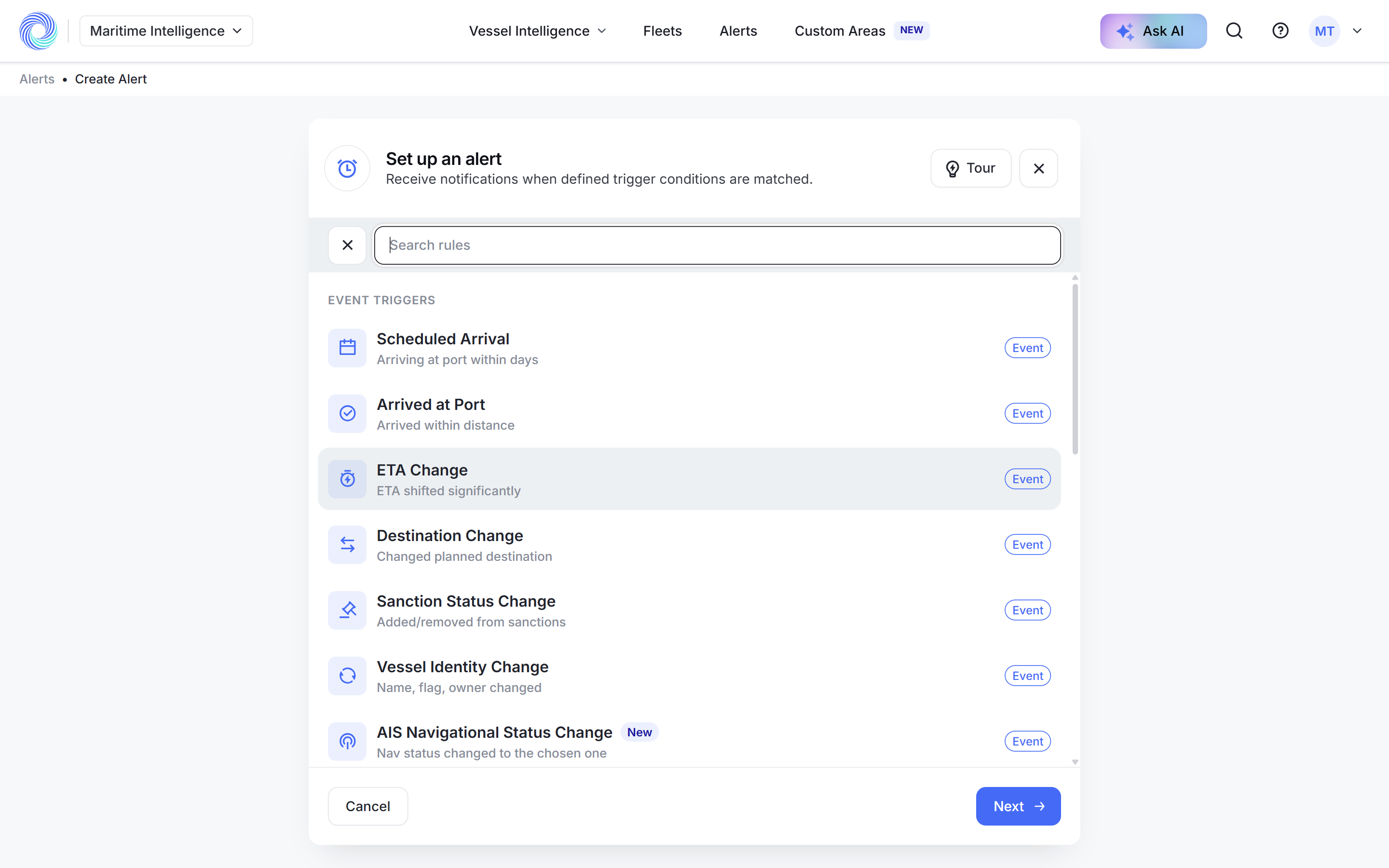
Note: An alert can have only one event trigger. To watch two kinds of event, such as ETA changes and destination changes, create two alerts.
Fill in the trigger
For Scheduled Arrival, pick the Ports and enter the Days to arrival, for example SINGAPORE (SGSIN) and 1 to 3.
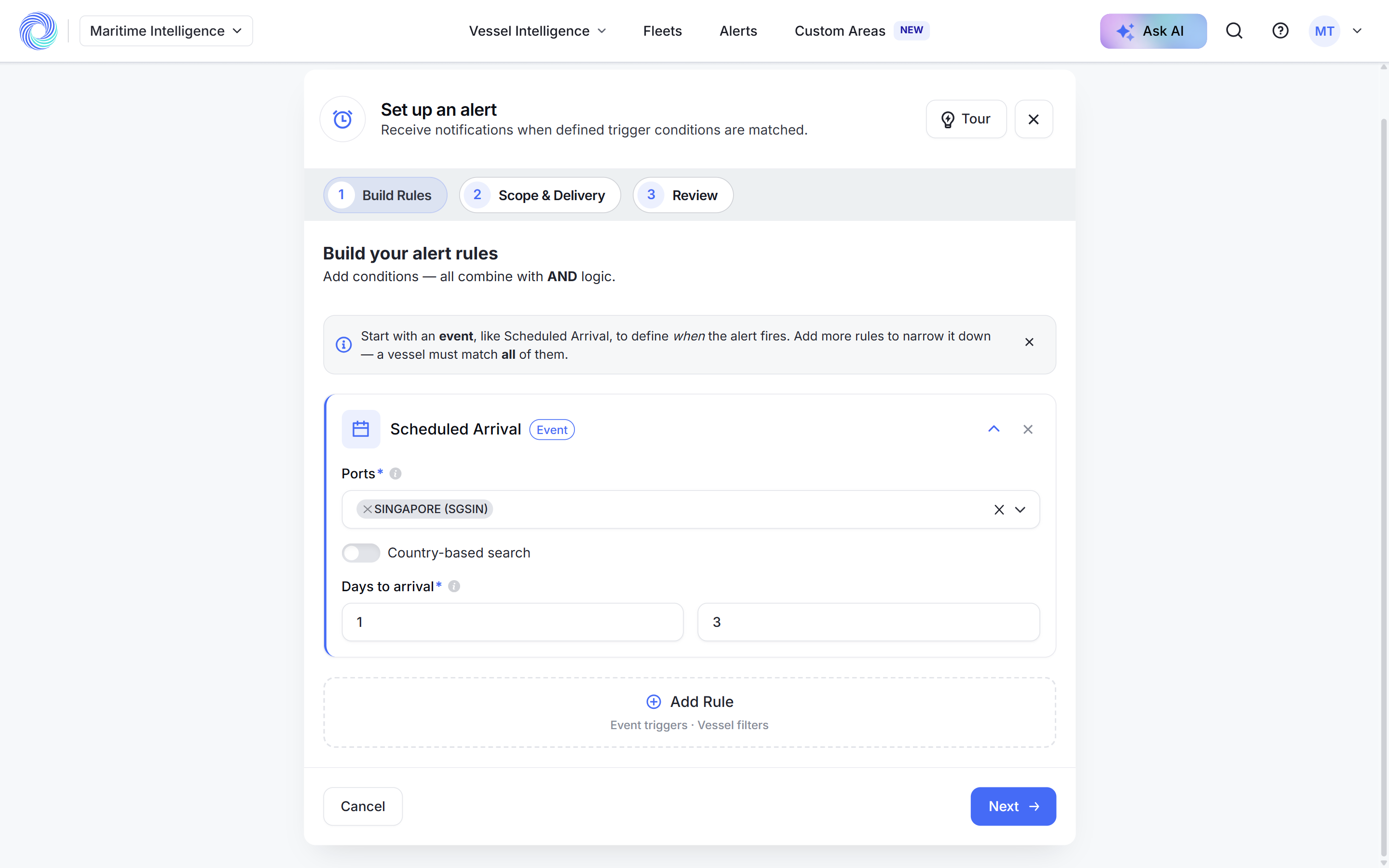
Add vessel filters if you need them
Click Add Rule again and choose a vessel filter, for example Vessel Types → Tanker. Rules combine with AND: a vessel must match all of them. Click the × on a rule to remove it.
Click Next.
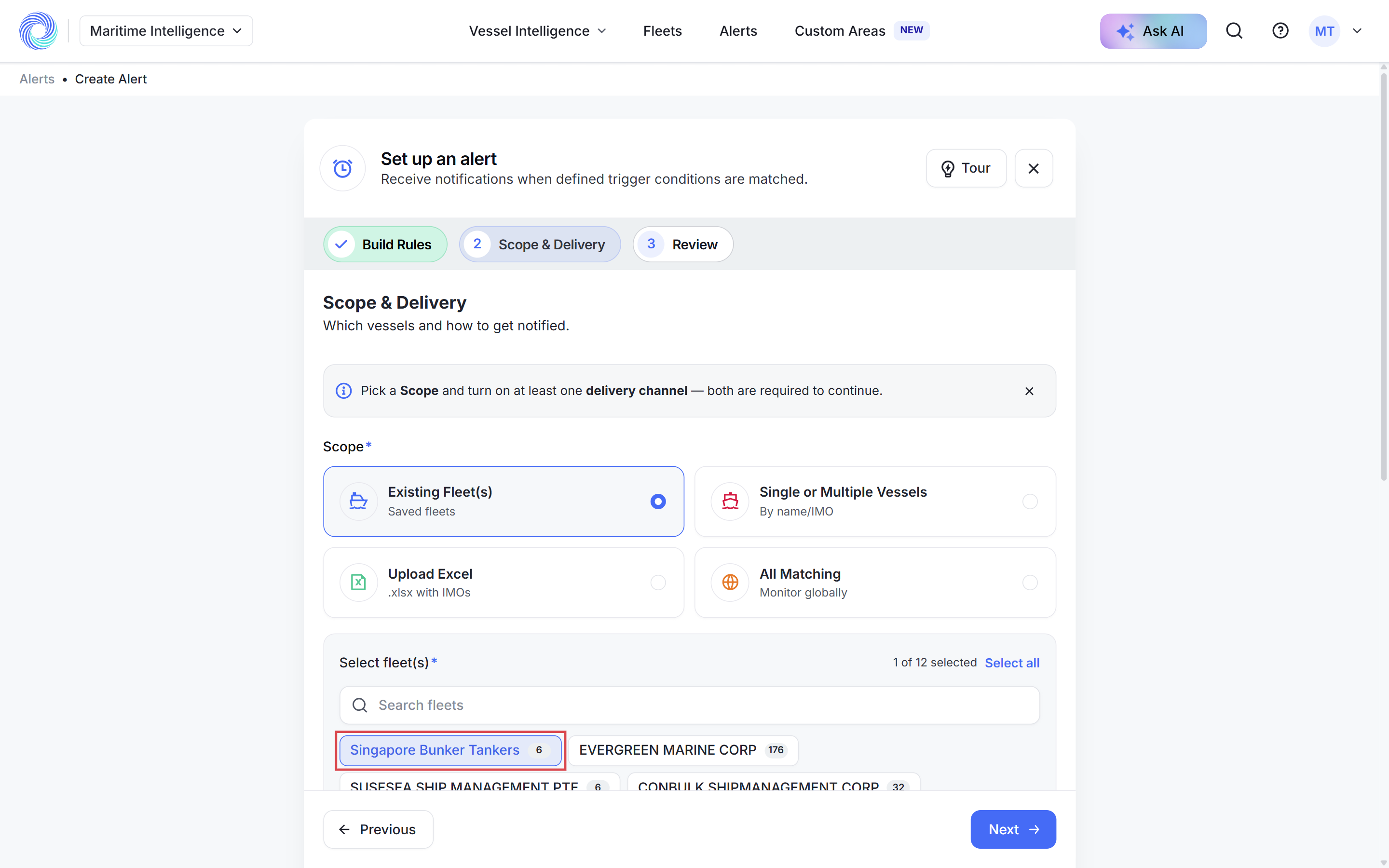
Choose the vessels to watch
Under Scope, choose one:
- Existing Fleet(s): one or more of your fleets. Click each fleet you want, or Select all.
- Single or Multiple Vessels: pick vessels by name or IMO.
- Upload Excel: an .xlsx file of IMO numbers.
- All Matching: every vessel in the world that matches your rules.
Turn on Email Digest and set the schedule
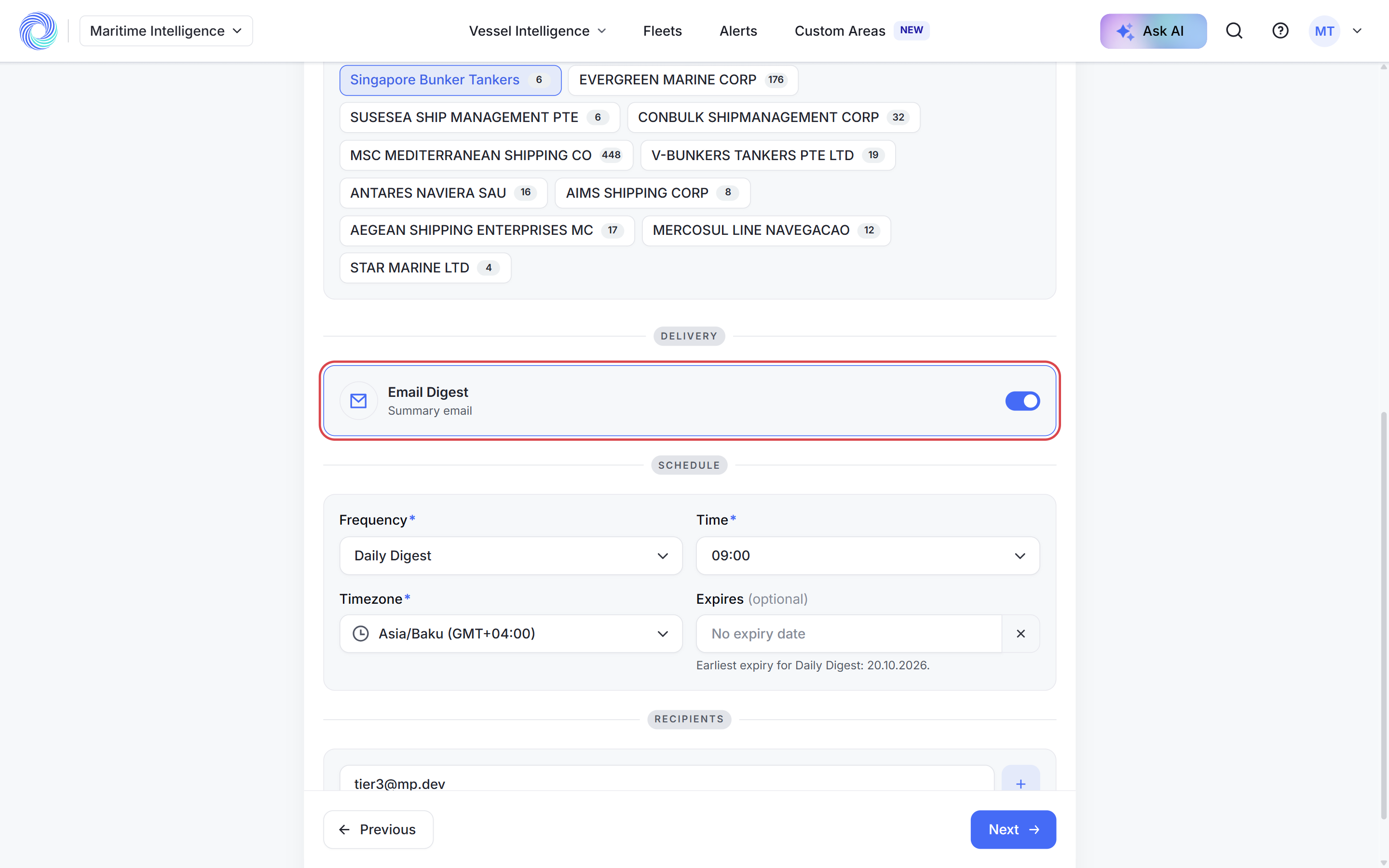
Under Delivery, turn on Email Digest. Then choose:
- Frequency: Daily Digest, Every 3 Days, Weekly or Every 2 Hours.
- Time and Timezone for the email. The time zone starts as your computer’s.
- Expires (optional): a date after which the alert stops. Leave it empty to keep the alert running.
A scope and at least one delivery channel are both required. Click Next.
Name the alert and click Create Alert
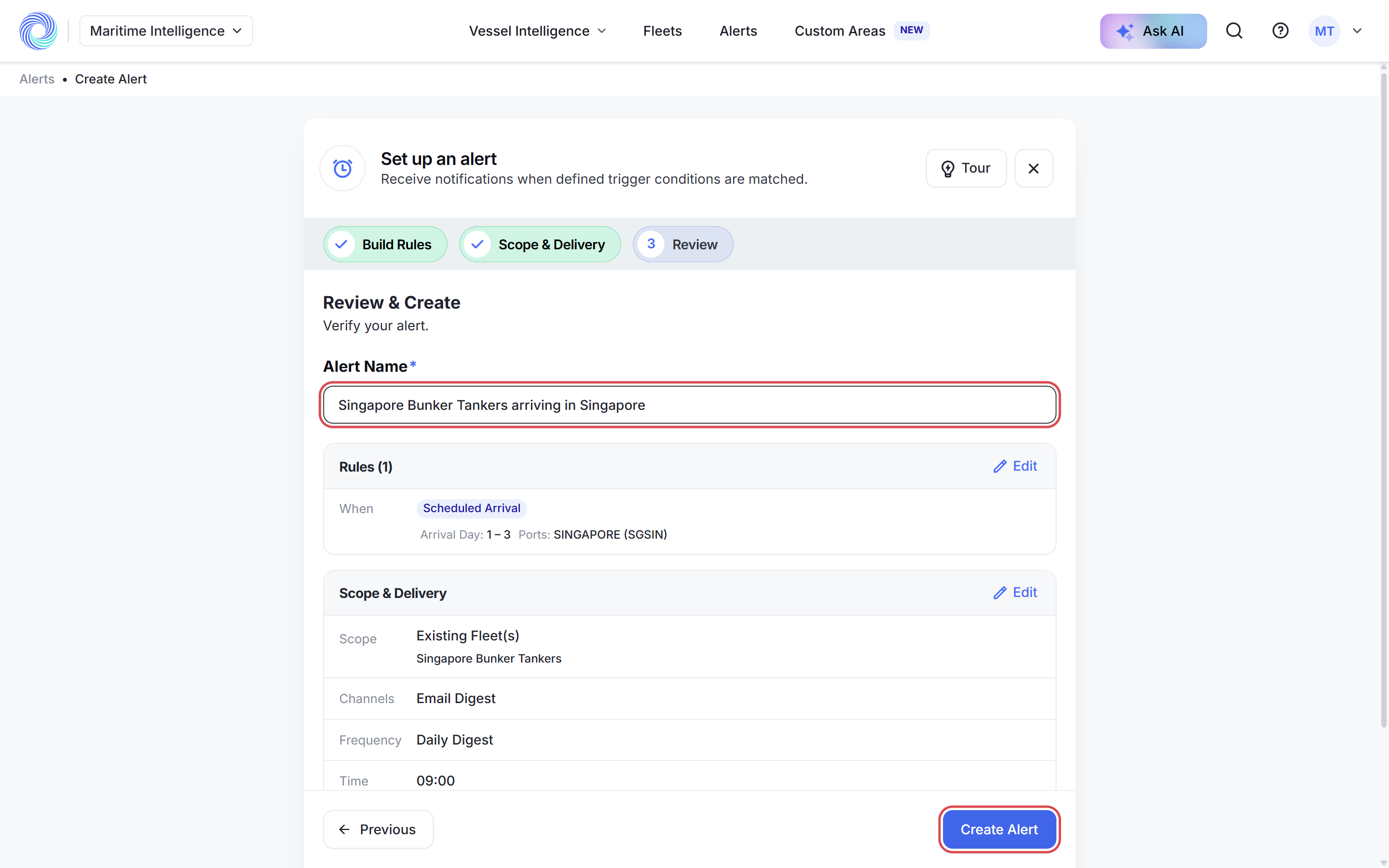
Enter an Alert Name you will recognise in the list. Check the summary: click Edit next to Rules or Scope & Delivery to change anything. Recipients shows the email address the digest goes to.
Click Create Alert. You see “Alert created successfully.”
Was this article helpful?
Thanks for your feedback.