

Manage your alerts
Find, pause, edit, duplicate or delete an alert, and open it to see which vessels match.
The Alerts page in Maritime Intelligence is where you find, pause, resume, edit, duplicate, or delete the alerts you have created, and open any alert to see which vessels currently match. Pausing lets you stop an alert without deleting it, then switch it on again later.
Find an alert
The tabs across the top show All alerts or one trigger type each, with a count. Type in Search alerts… to find one by name, or use All Status to show only Active, Paused or Expired alerts.
Each alert shows its name, how often it is sent (for example Daily), its trigger and its settings.
Pause or resume an alert
Use the switch next to the status to pause an alert without deleting it. The status changes from Active to Paused. Switch it on again to resume.
Duplicate, edit or delete an alert
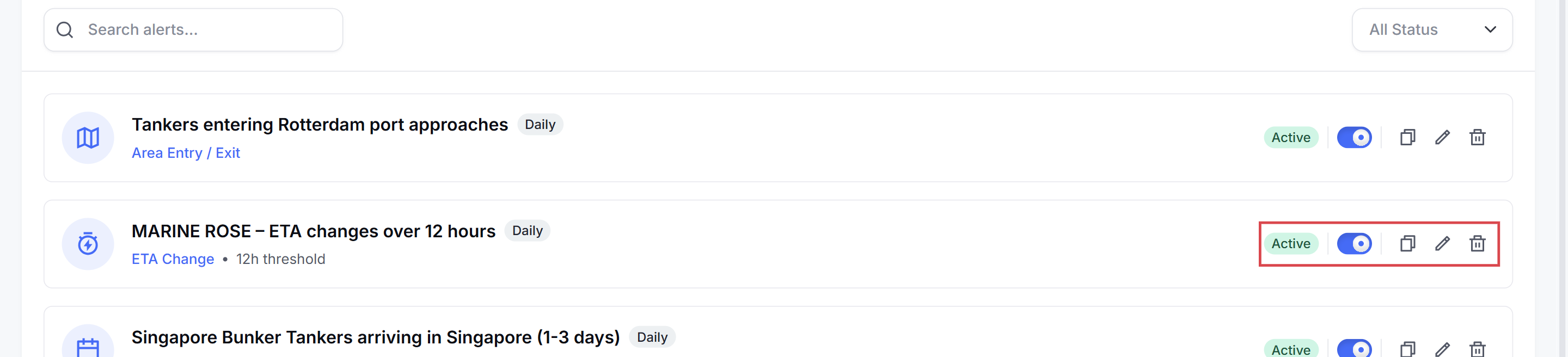
The icons at the end of each alert, from left to right:
- Duplicate opens a copy on the Review step, named ”… - Duplicate”. Change what you need and click Create Alert.
- Edit opens the alert on the Review step. Click Edit next to any section, then Update Alert.
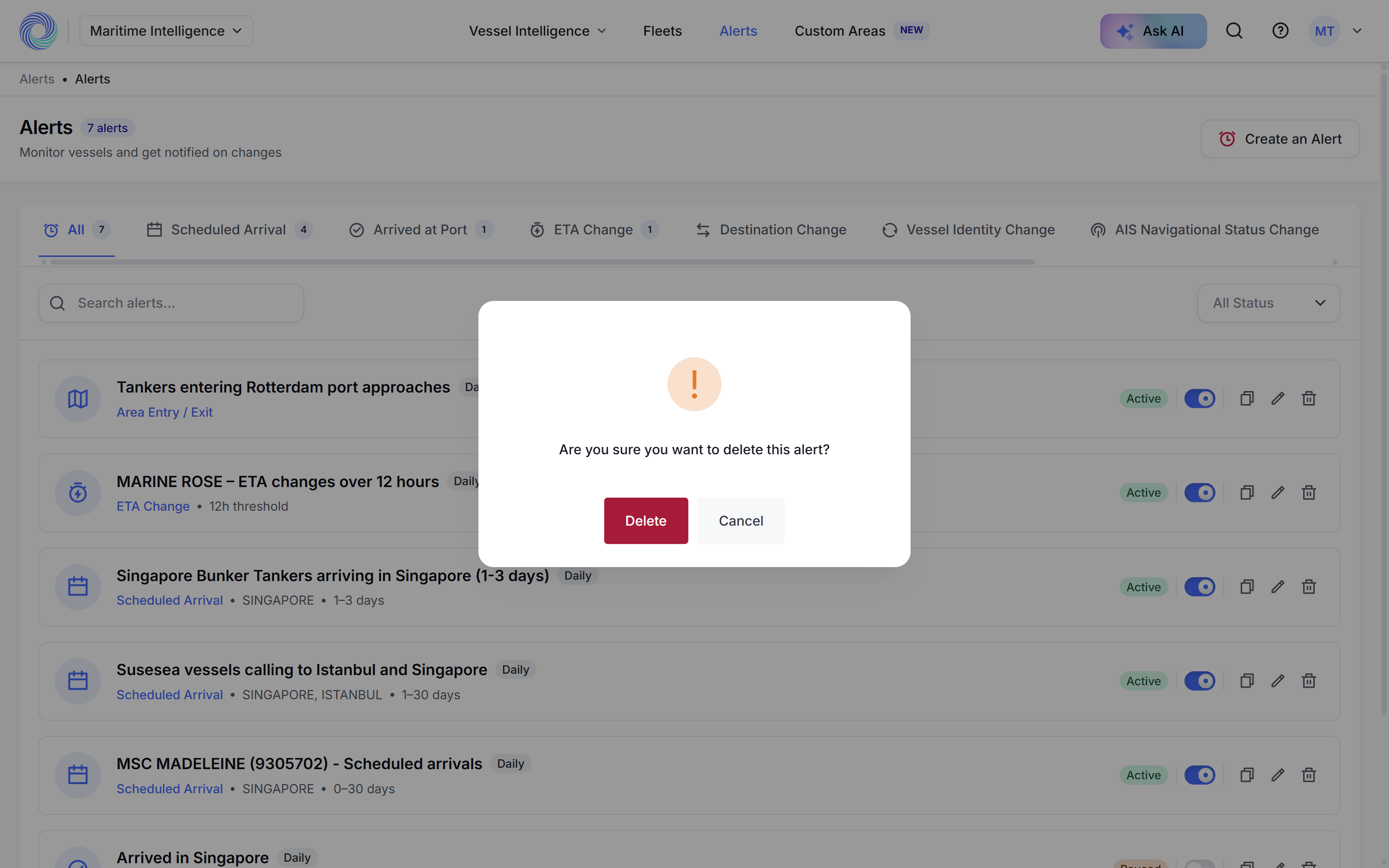
- Delete asks “Are you sure you want to delete this alert?”. Click Delete to confirm or Cancel to keep it.
Open an alert to see its vessels
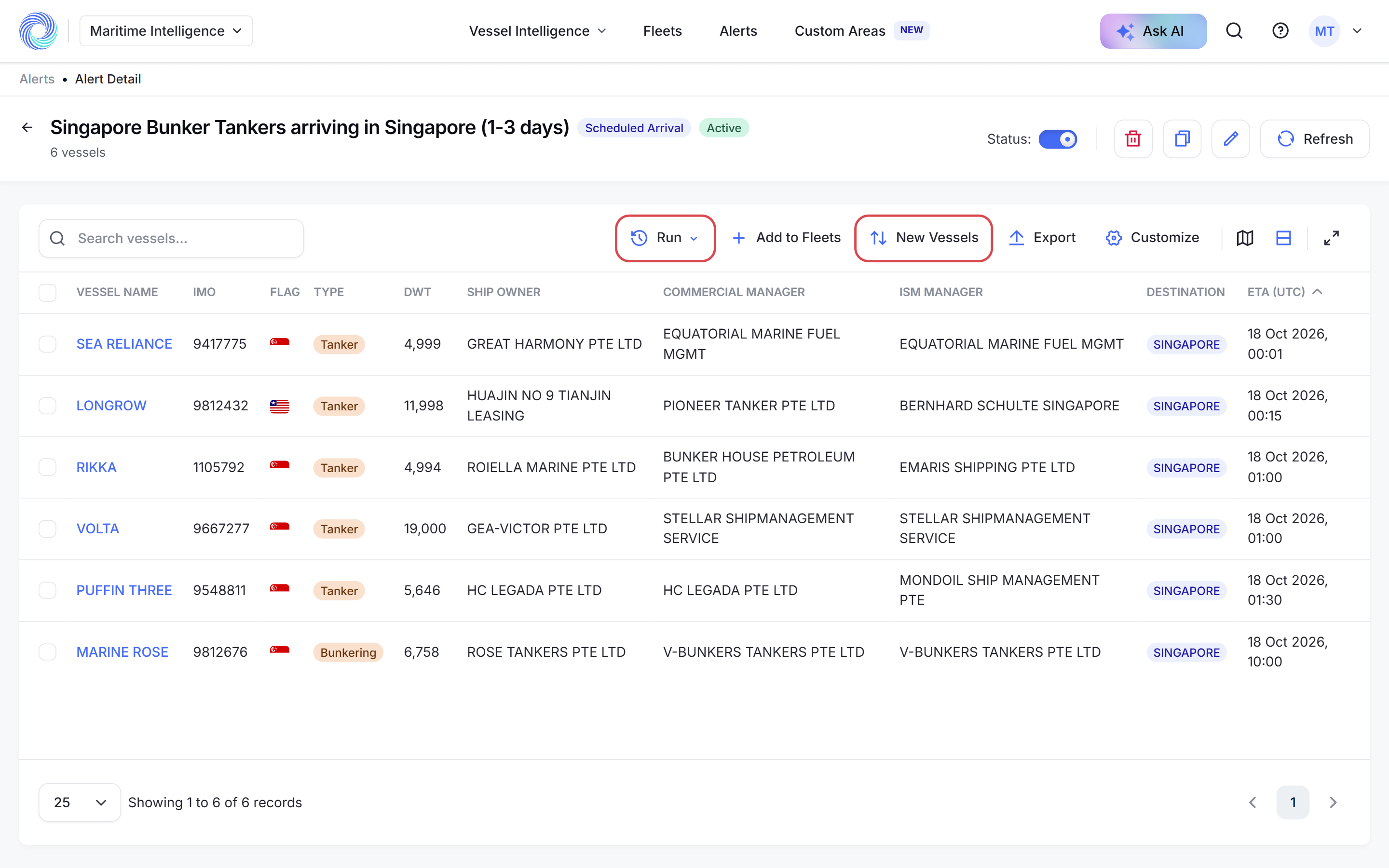
Click an alert’s name. The alert page lists the vessels that match it now, with their destination and ETA.
- Run runs the alert’s search again now, and Refresh reloads the list.
- New Vessels shows only the vessels that are new matches for the alert. The number on the button tells you how many.
- Add to Fleets, Export, Customize and the map work as on any results table. See Work with search results.
Was this article helpful?
Thanks for your feedback.