

Find vessels arriving at a port
Use Scheduled Arrivals to list every vessel due at one or more ports within a chosen number of days.
 4 min walkthrough of Scheduled Arrivals
Scheduled Arrivals in Maritime Intelligence lists every vessel due at one or more ports within a number of days you choose, with its ETA, flag, type, deadweight, owner, and managers. It answers one question: which vessels are coming to my port, and when? It is the first screen you see when you open the platform.
Open Scheduled Arrivals
Click Vessel Intelligence in the top navigation, then the Scheduled Arrivals tab. If you have just opened the app, you are already there.
Choose one or more ports
Under Choose Ports and find arriving Vessels, click Search for port(s) and start typing a port name. Pick the port from the list, for example SINGAPORE (SGSIN).
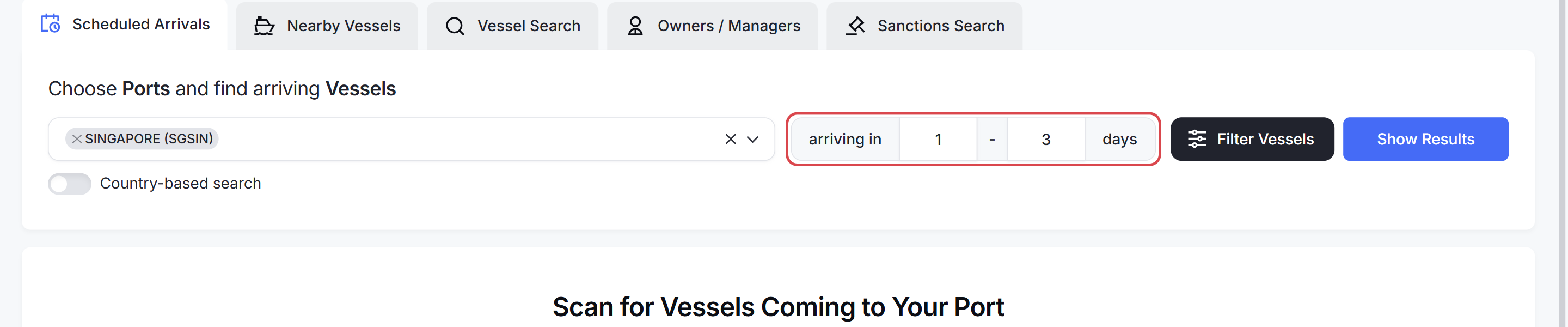
You can add several ports to the same search. To search a whole country instead, turn on Country-based search and pick the country.
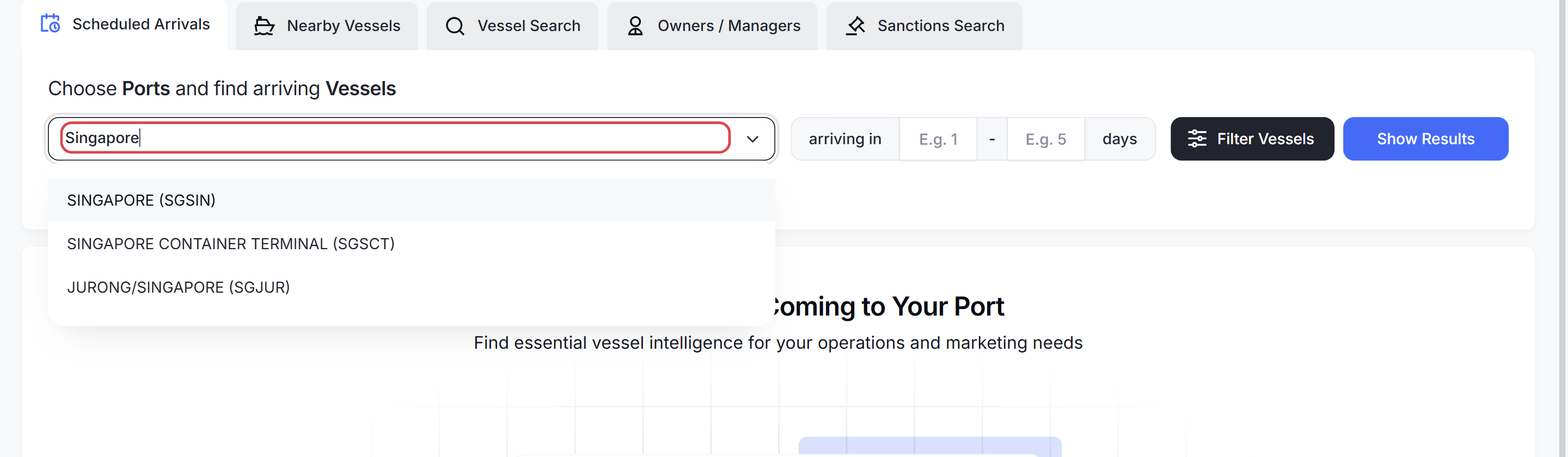
Tip: A city can have several terminals listed separately, for example SINGAPORE, SINGAPORE CONTAINER TERMINAL and JURONG/SINGAPORE. Add each one you need.
Set the arrival window
In arriving in … days, enter the first and last day of the window. For example, 1 to 3 finds vessels due in the next three days.
Click Show Results
Click Show Results. The table lists every vessel due at your ports inside the window, with its IMO, flag, type, deadweight, owner and managers, destination and ETA (UTC).
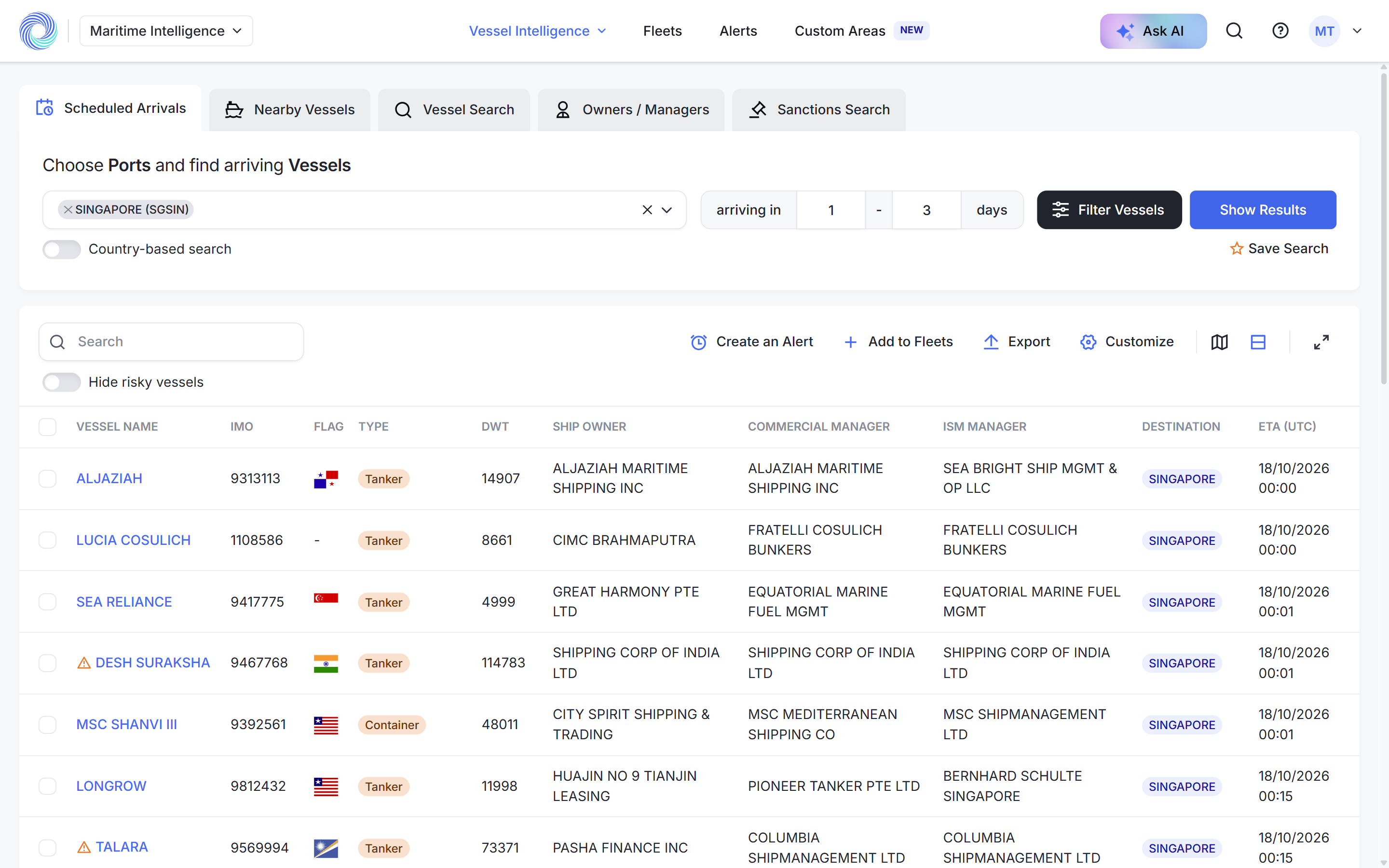
Note: A warning icon next to a vessel name means the vessel carries a sanctions risk. See Vessel risk statuses.
Refine or act on the results
From here you can:
- Click Filter Vessels to narrow the list by vessel type, size, ownership and more. See Narrow results with advanced filters.
- Switch to the map, choose your columns, or export the list. See Work with search results.
- Select vessels and click Add to Fleets or Create an Alert. See Create an alert.
- Click a vessel name to open its profile in a new tab. See Read a vessel profile.
Save the search for next time
If you run the same search regularly, click Save Search under Show Results and give it a name. See Save a search and run it again.
Was this article helpful?
Thanks for your feedback.