

Narrow results with advanced filters
Combine vessel type, size, ownership, voyage, class, shipbuilding, engine, certificate and fleet criteria to narrow any vessel list.
The Filter Vessels panel in Maritime Intelligence narrows any vessel list by combining criteria such as vessel type, size and technical specifications, ownership, voyage, class, shipbuilding, engine, certificates, and fleet. Filters combine, so each one you add shortens the list. The same panel works in Scheduled Arrivals, Nearby Vessels, and Vessel Search.
Open the filter panel
In Scheduled Arrivals or Nearby Vessels, click Filter Vessels. In Vessel Search, click Advanced.
Pick vessel types
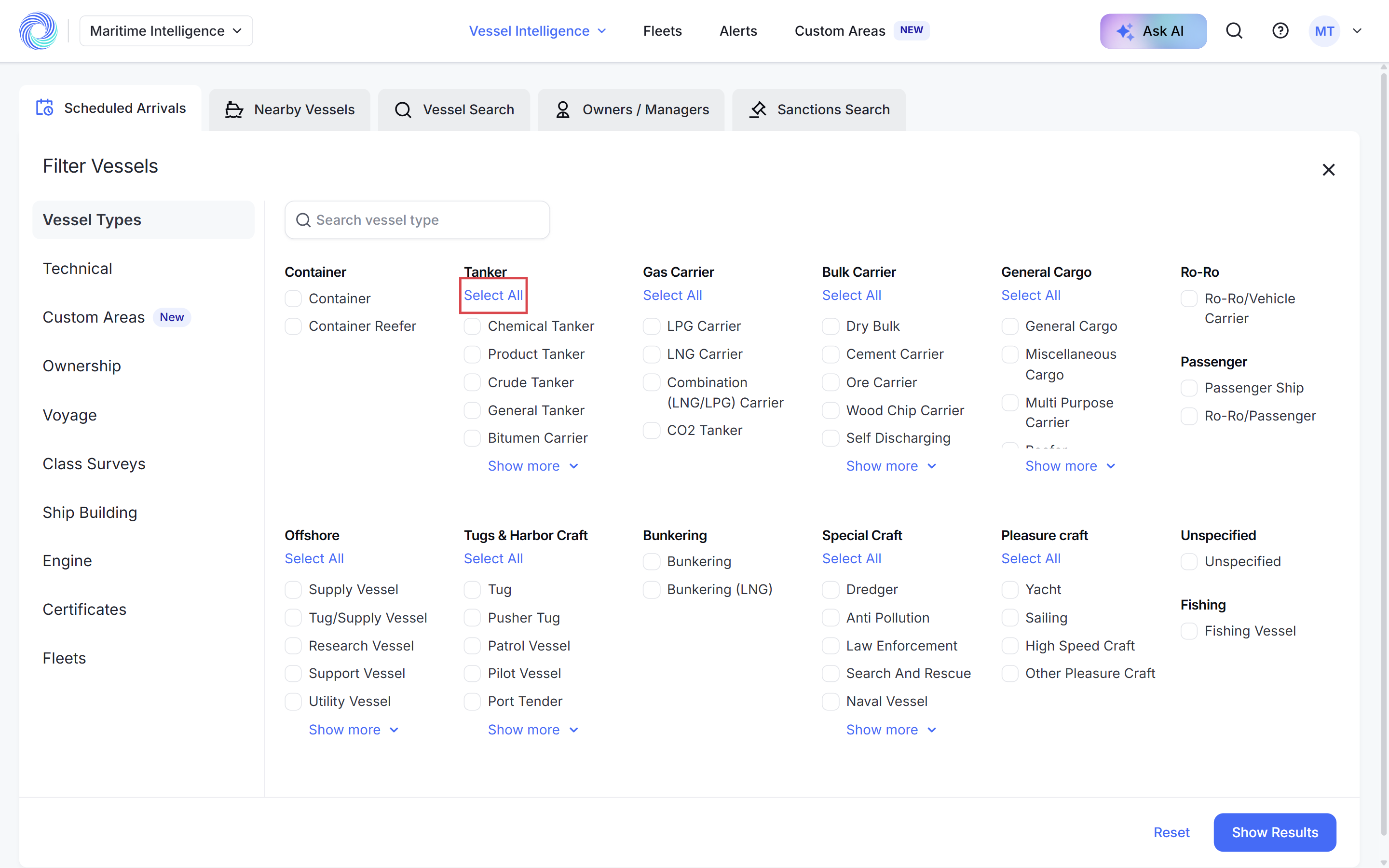
The panel opens on Vessel Types. Tick individual types, or click Select All under a group such as Tanker to add every type in it. Click Show more under a group to see the rest of its types, or type in Search vessel type.
Add size and technical criteria
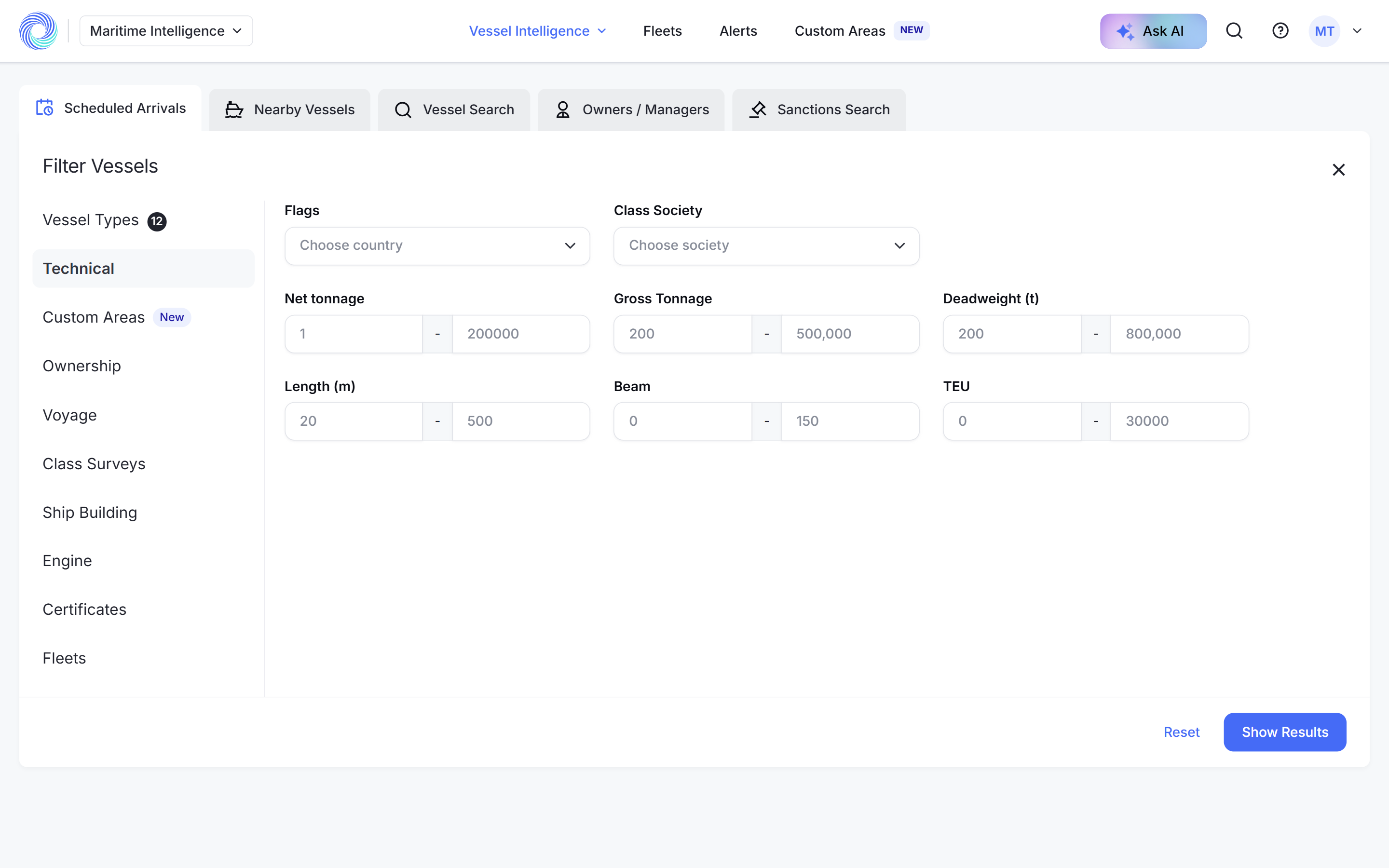
Click Technical to filter by Flags, Class Society, Net tonnage, Gross Tonnage, Deadweight (t), Length (m), Beam and TEU. Enter a minimum and maximum for each range.
Add ownership criteria
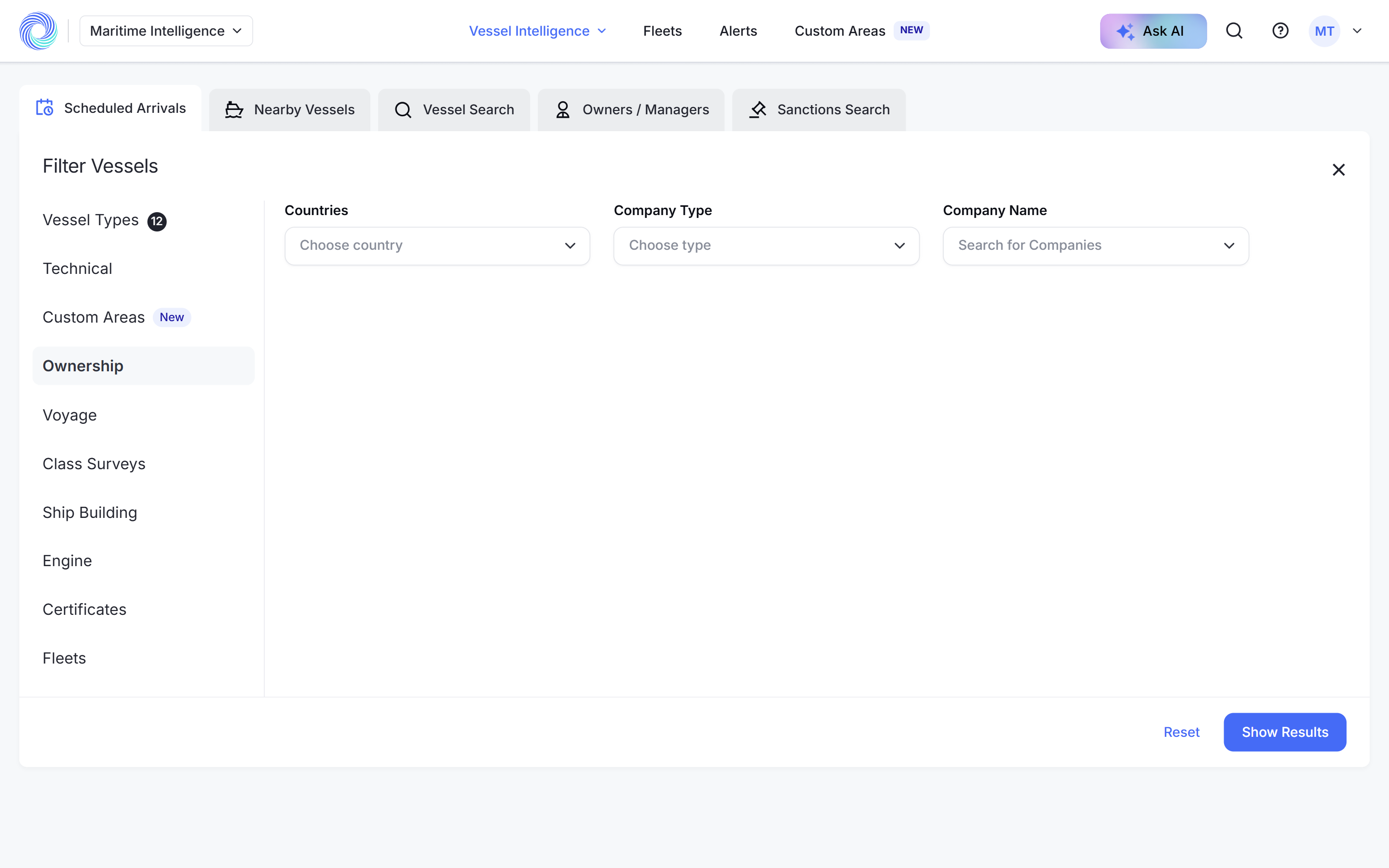
Click Ownership to filter by the company’s Countries, its Company Type (Registered Owner, Commercial Owner or ISM Manager) or a specific Company Name.
Add any other criteria
The remaining tabs cover:
- Custom Areas: only vessels inside one of your areas. See Draw a custom area.
- Voyage: the Last Port of Call.
- Class Surveys: survey type and next survey date.
- Ship Building: shipyard country, builder and year built.
- Engine: engine type, model, number of main engines and propulsion type.
- Certificates: certificate type and expiry date.
- Fleets: Show only vessels in my fleets.
- Navigation History (Vessel Search only): ports called at in a date range. See Find vessels that called at a port.
Click Show Results
Click Show Results at the bottom of the panel. Click Reset first if you want to start again.
Check which filters are on
Each filter you set appears as a chip under the search, and Filter Vessels shows how many are on, for example Filter Vessels(12). Click the × on a chip to remove that filter.
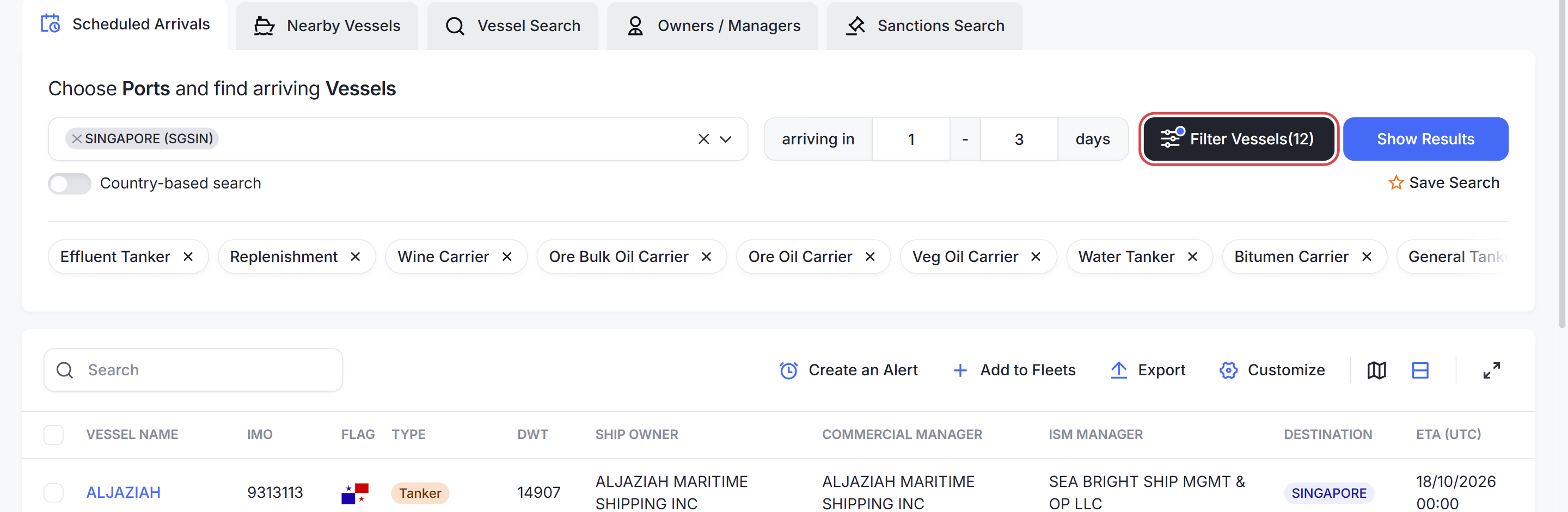
Note: Select All on a group adds one chip per type in it. Selecting all tankers adds 12 chips.
Use the results
Select vessels and click Add to Fleets to save them, or switch to the map to see where they are. See Work with search results and Create a fleet and add vessels.
Was this article helpful?
Thanks for your feedback.