

Create a Proforma Invoice
Send the customer an estimate of a job's costs.
A Proforma Invoice is the estimate you send a customer before the work is done, so they know what the job will cost and, where you ask for it, can pay an advance. It does not bill anything: its services stay unbilled until they go on a Final Invoice.
Add the services to the job
The lines of a Proforma Invoice are services already on the job. Add them on the job’s Services tab with their customer prices. Services that are Pending or Ready to bill can go on it. See Add services to a job.
Open Create Proforma Invoice
Open the job’s Financials tab, click Create and choose Proforma Invoice.
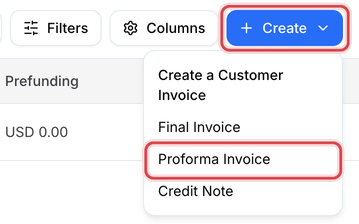
Tip: You can also start from the Services tab: tick the services, click Add To and choose Proforma Invoice.
Fill in the details
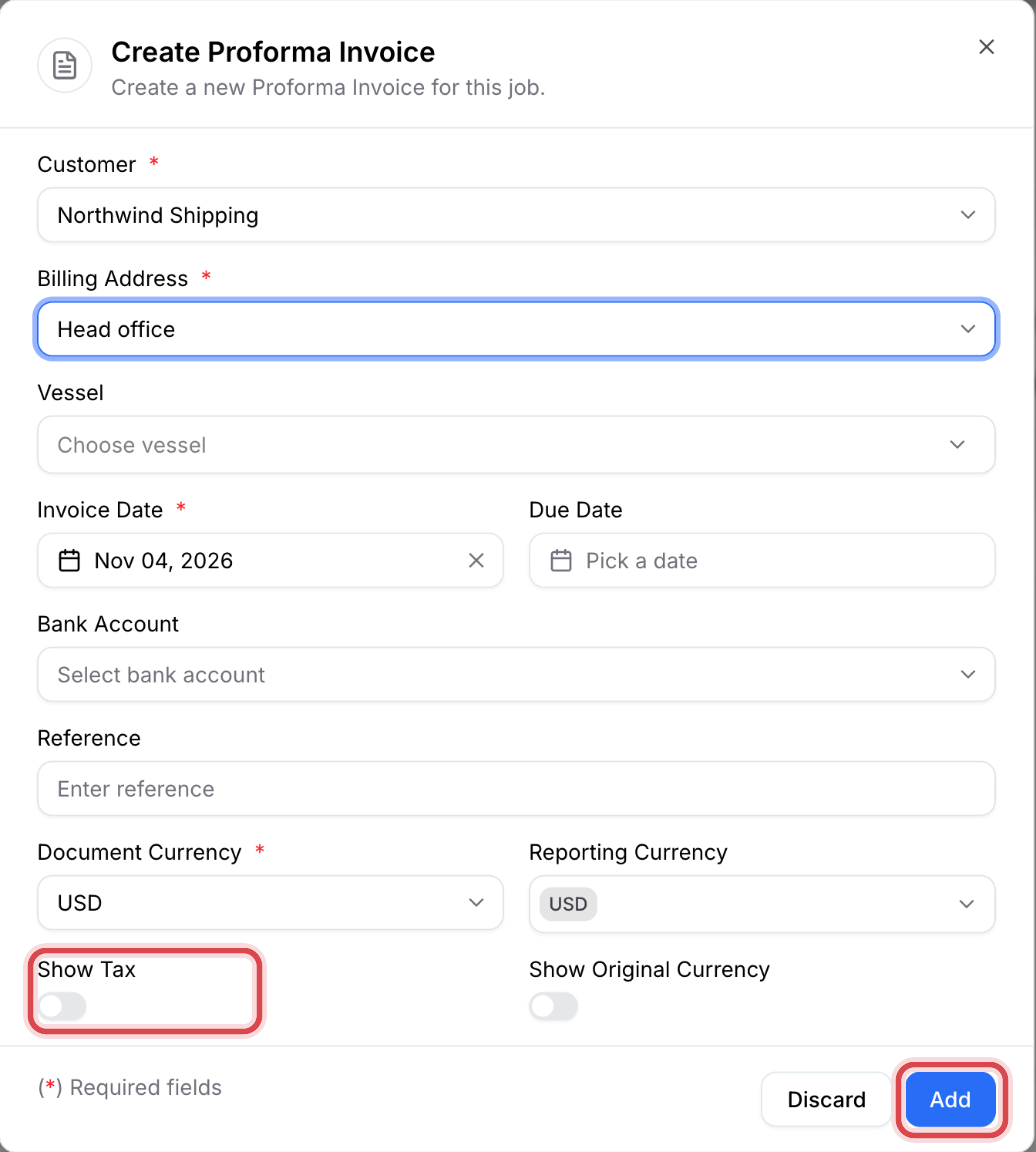
Fill in Customer, Billing Address, Invoice Date and Document Currency. Turn on Show Tax if the invoice should show taxes; while it is off, no line can carry a tax. Click Add. The invoice opens as a Draft.
Add the lines
Under Services Included in Customer Invoice, click Add Service and choose a service. Repeat for each one. You can change a line’s description, Unit Price and Tax here; the change is also saved on the service.
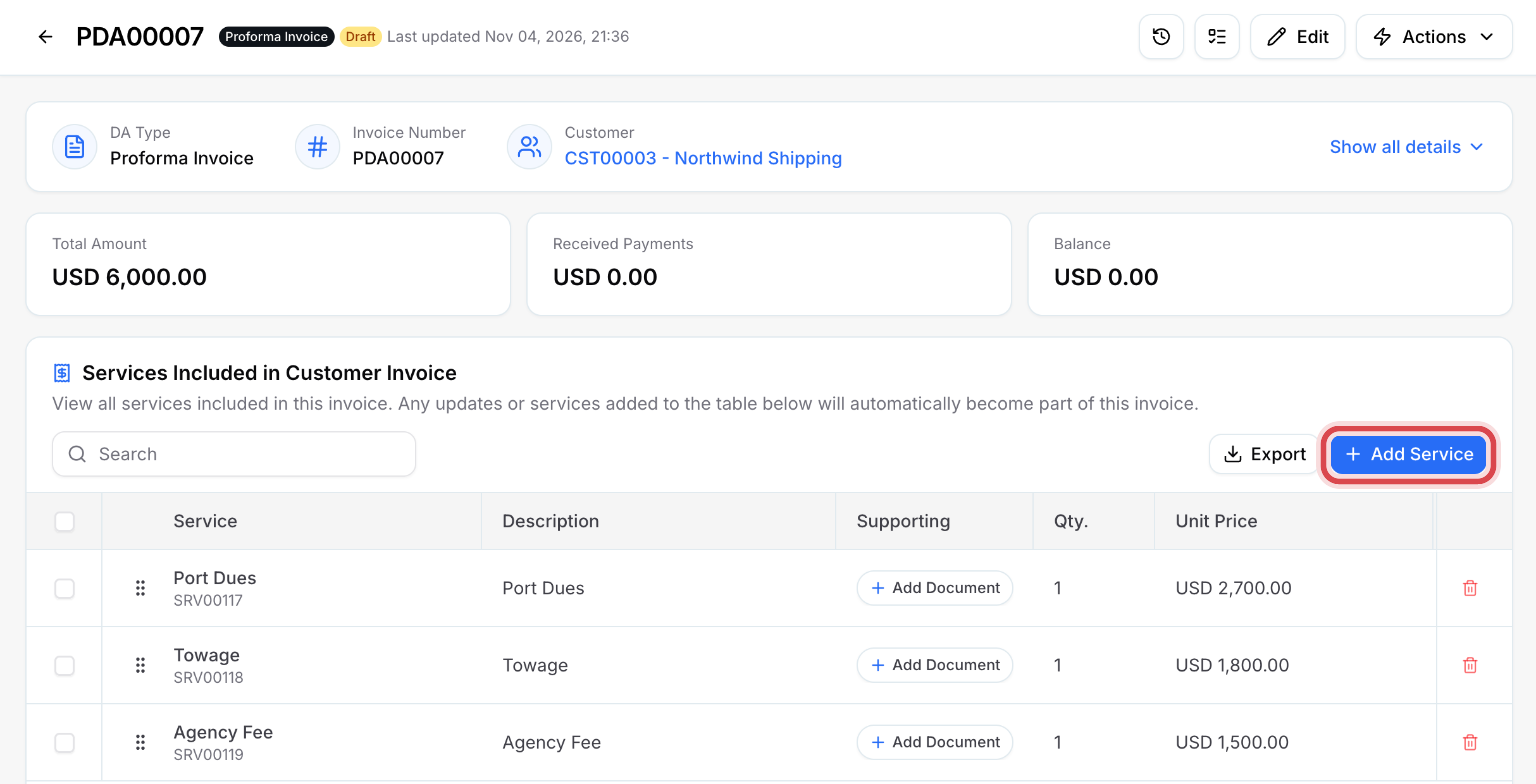
Note: A service can be on only one active Proforma Invoice. If your branch does not allow different currencies in documents, every line must be in the invoice’s currency. See Set credit limits and currency controls.
Approve it
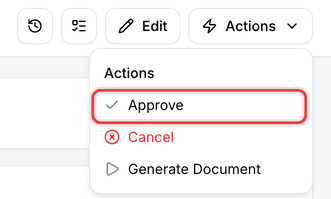
Open Actions, click Approve and confirm. If your branch has an approval rule, you see Submit for Approval instead. Once approved, the invoice is Not Funded and can no longer be edited.
Send it to the customer
Open Actions and click Generate Document. When the PDF is ready, click Download, or Send to email it. See Generate an invoice document.
For the statuses and what you can do in each, see Proforma Invoices.
Was this article helpful?
Thanks for your feedback.