

Generate an invoice document
Create the PDF of an invoice to download or send to the customer.
To send an invoice to the customer, you generate its PDF with your branch’s template. It works the same for a Proforma Invoice, a Final Invoice and a Credit Note. To check what the PDF will show first, see Set what an invoice document shows.
Click Generate Document
Open the invoice from the job’s Financials tab, open Actions and click Generate Document. The invoice needs at least one line, and cannot be Cancelled.
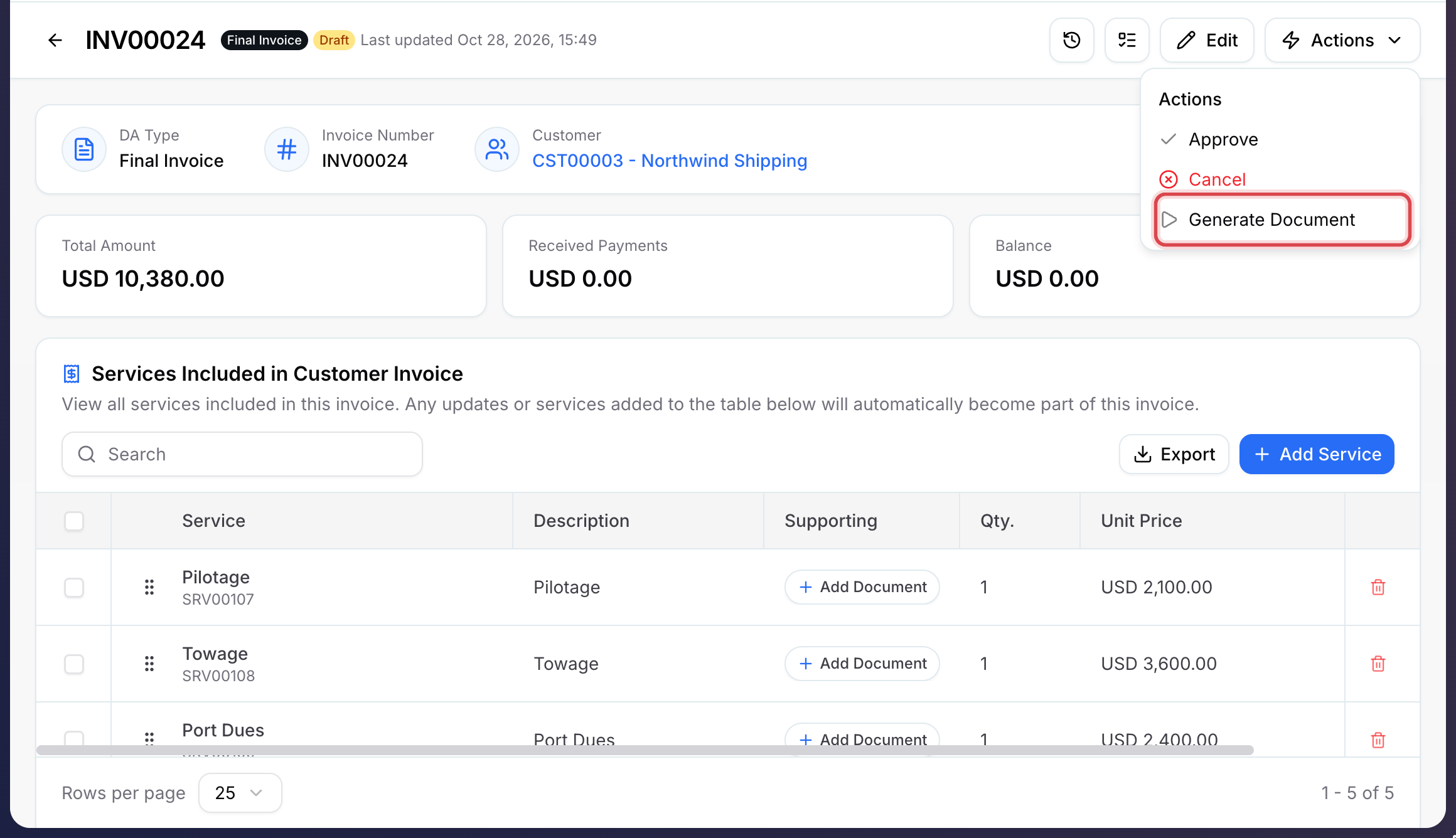
Note: You cannot generate documents while the job is closed or cancelled.
Choose the template
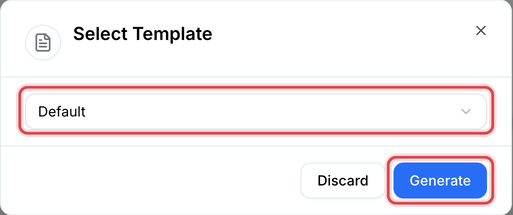
If your company has one template for this type of invoice, PCM starts at once. If it has several, Select Template opens with your branch’s default selected; change it if you need to and click Generate.
For a Proforma Invoice, Generate Proforma Invoice Document may open instead, for example to fill in Est. Days Alongside. Fill it in and click Generate.
Keep working while it is prepared
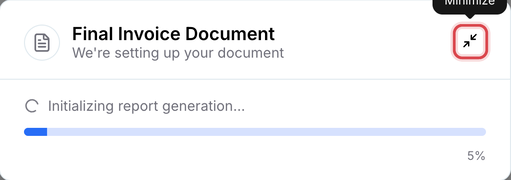
The window shows We’re setting up your document. Click Minimize to carry on working. When it is ready, a Document Ready note appears; click Show. If you see Generation Failed, click Retry.
Download or send it
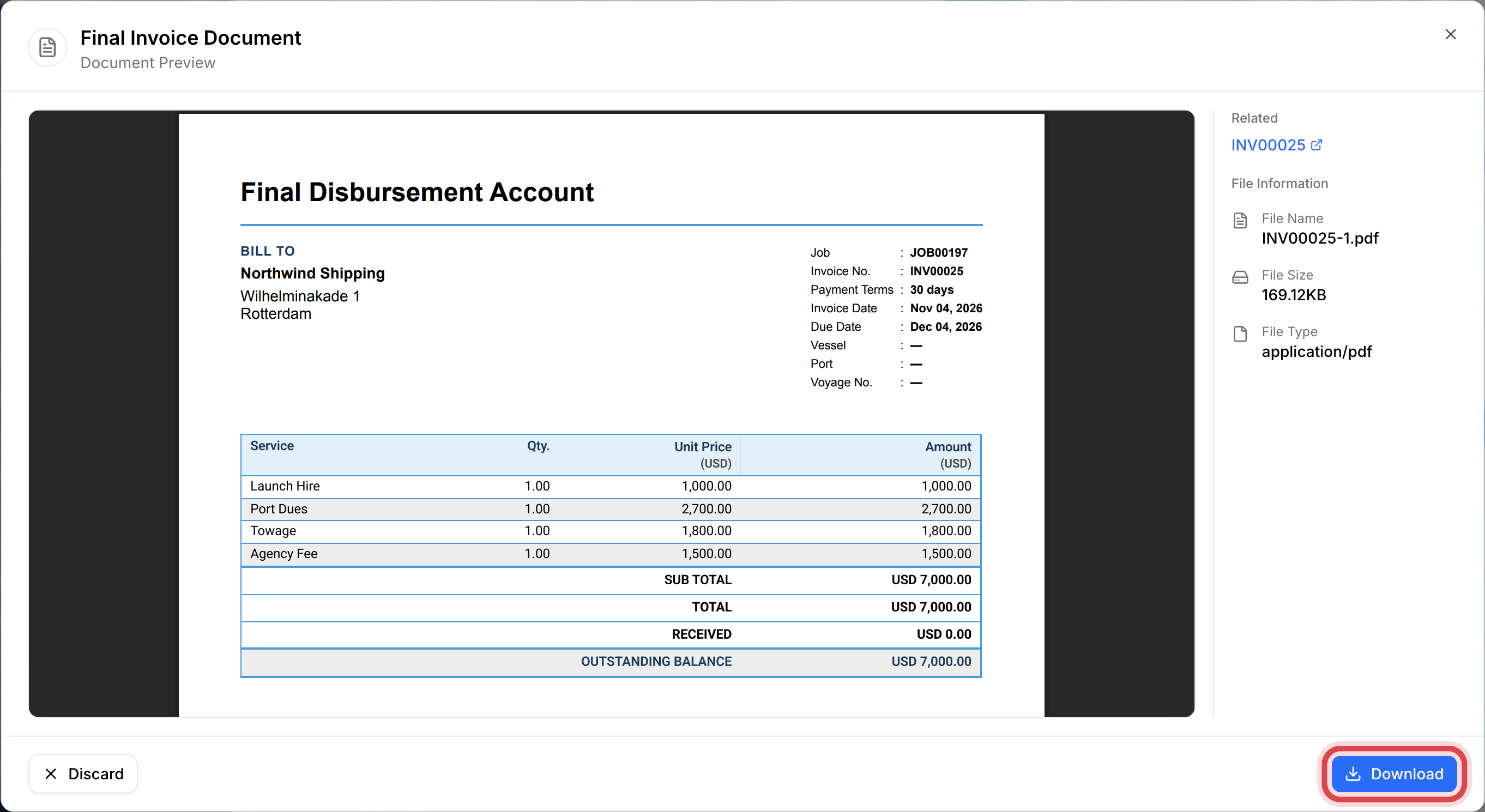
In the preview, click Download to save the PDF, or Send to open a new email from the job with the PDF attached. Send appears only if you have access to MagicPort X. See Email from a job.
Find it again later
To open the latest document, open Actions on the invoice and click How Customers See. Every generated document is also kept on the job’s Documents tab.
Note: While a document is being generated, the invoice’s lines cannot be changed.
Was this article helpful?
Thanks for your feedback.