

Set what an invoice document shows
Choose the tax, currencies, bank details and attachments an invoice PDF shows.
Most of what the invoice PDF shows comes from the invoice itself. Check these settings while the invoice is a draft, before you generate the document.
Open Edit on the draft invoice
Open the invoice and click Edit. Which of the settings below appear depends on your branch’s set-up.
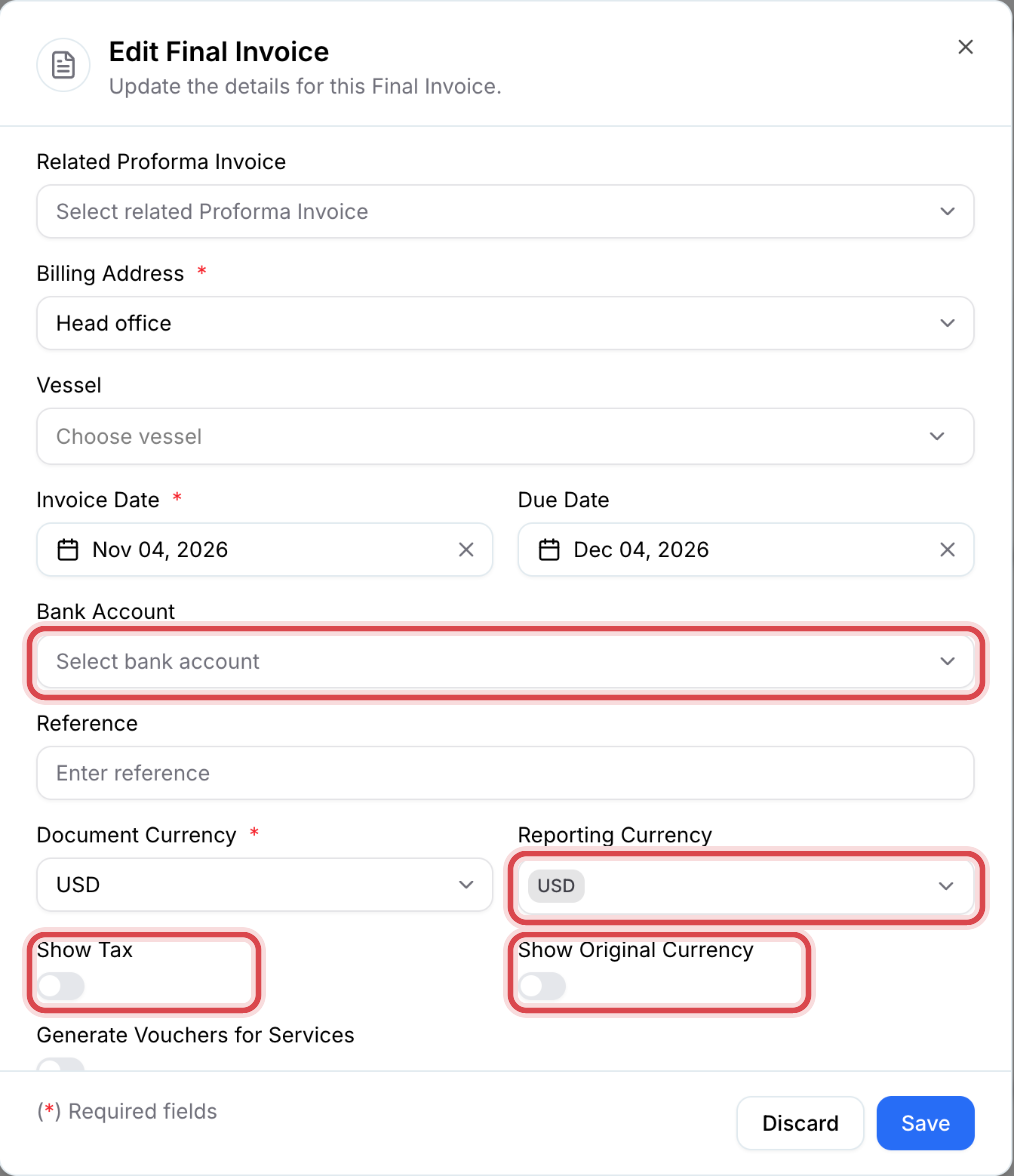
Choose what is printed
- Show Tax: adds each line’s tax rate and tax amount, and a tax total.
- Show Original Currency: also prints each converted amount in the currency the service was priced in.
- Reporting Currency: adds the amounts in a second currency.
- Bank Account: prints the bank details the customer should pay to.
Save the change.
Attach the supporting files
Files attached to the invoice and to its lines, such as vendor invoices, are added after the invoice pages, in the order of the lines. Only PDFs and images are added; other files, such as Word documents, are left out.

Turn on vouchers, if you need them
On a Final Invoice with Generate Vouchers for Services on, each line whose Voucher is on also gets a voucher page with its own voucher number.
Note: In the default Final Invoice layout, RECEIVED shows the advance taken from the related Proforma Invoice, not the payments recorded against the Final Invoice itself.
Tip: The default template for each type of document is set on Settings → Document Customization. See Customize documents.
Was this article helpful?
Thanks for your feedback.