

Arrange the lines of a Final Invoice
Change, group, reorder and remove the lines of a draft Final Invoice.
While a Final Invoice is a Draft, you decide how its lines look to the customer. The document prints them as you arrange them here.
Change a line
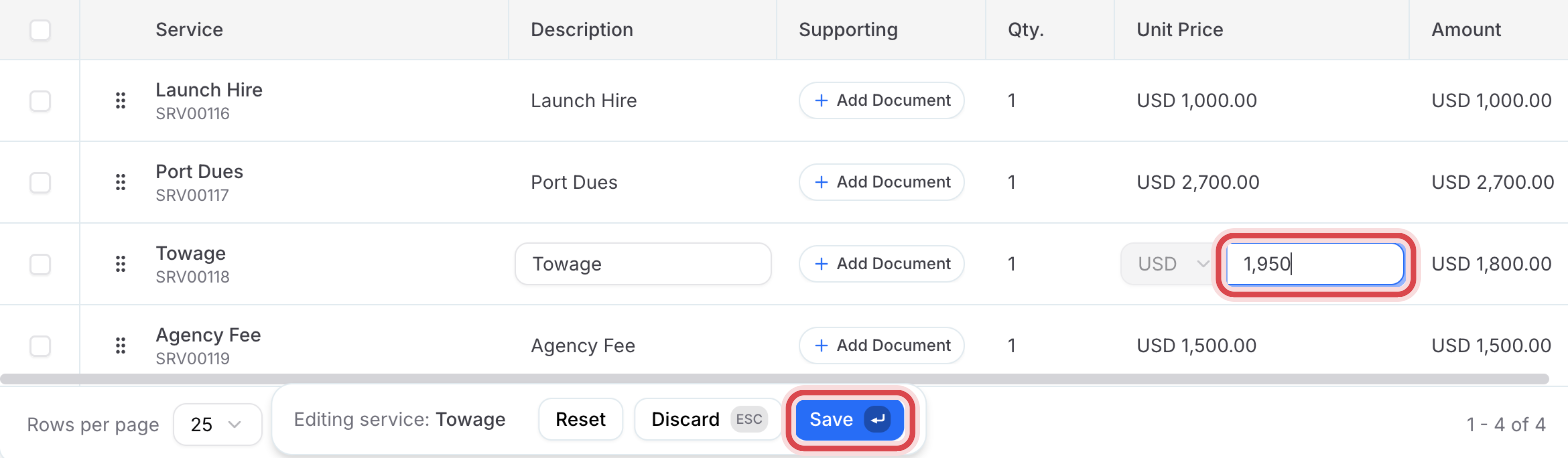
Under Services Included in Customer Invoice, click a line’s description to open it for editing, change the description, unit price or tax, and click Save. A price or tax you change here is also saved on the service.
Group lines
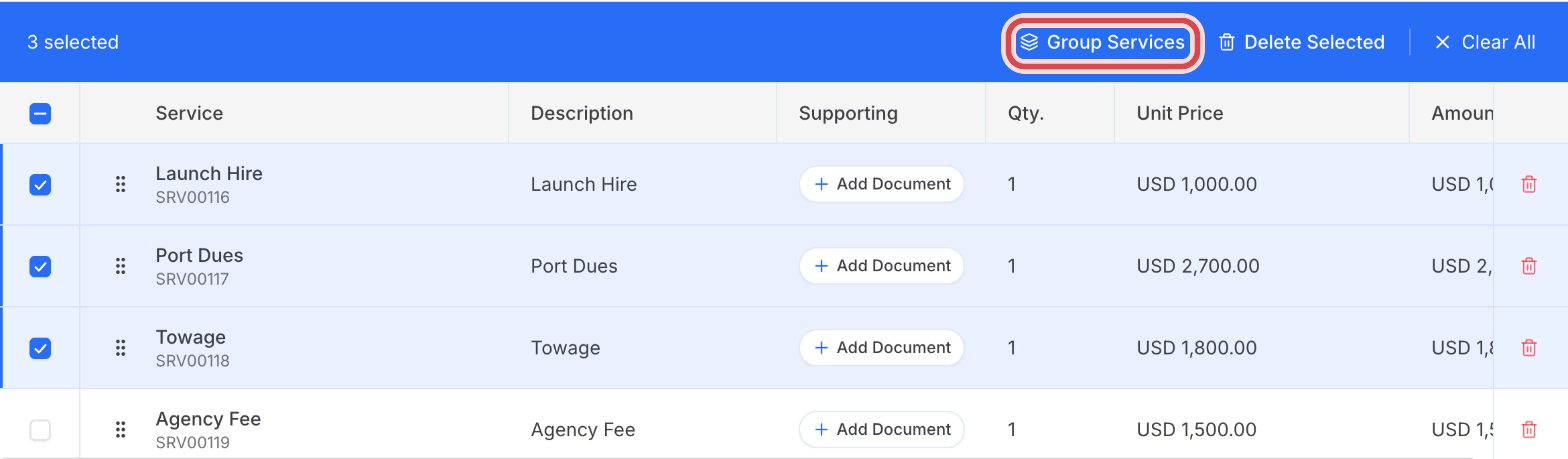
Tick several lines, click Group Services and enter a Group Name. The customer sees one line with the group’s total. The lines must share a currency and tax.
Note: A grouped line’s price cannot be changed. You can rename or ungroup the group later.
Reorder lines
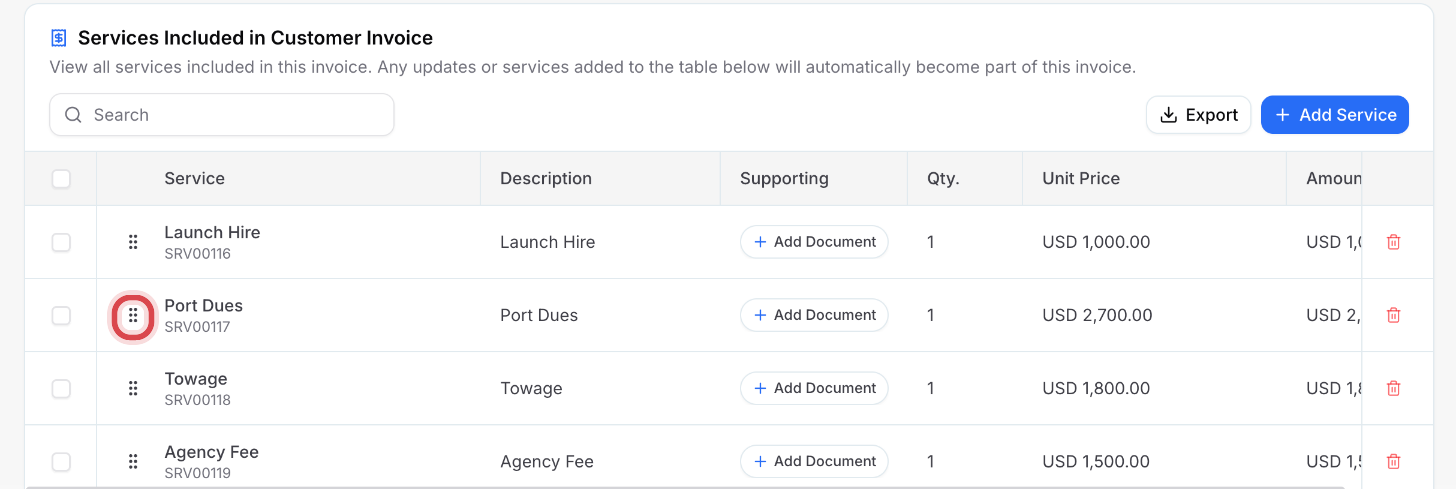
Drag a line by its handle to move it.
Set the vouchers
When the invoice generates vouchers, the Voucher column shows which lines get one. Use Turn on vouchers or Turn off vouchers to change all lines at once.
Remove lines
Tick the lines and click Delete Selected. The services stay on the job, ready to bill again.
Tip: To include a file in the invoice document, such as the vendor’s invoice for a line, use Link document in the invoice details, or the documents of each line.
To change the invoice’s own details, click Edit while it is a draft.
Was this article helpful?
Thanks for your feedback.