

Customize documents
Choose the template each document uses in your branch.
PCM lays out every document it generates, such as a Final Invoice or a Statement of Facts, with a template. Choose the template each document type uses in your branch, so everyone gets the same layout.
Open Document Customization
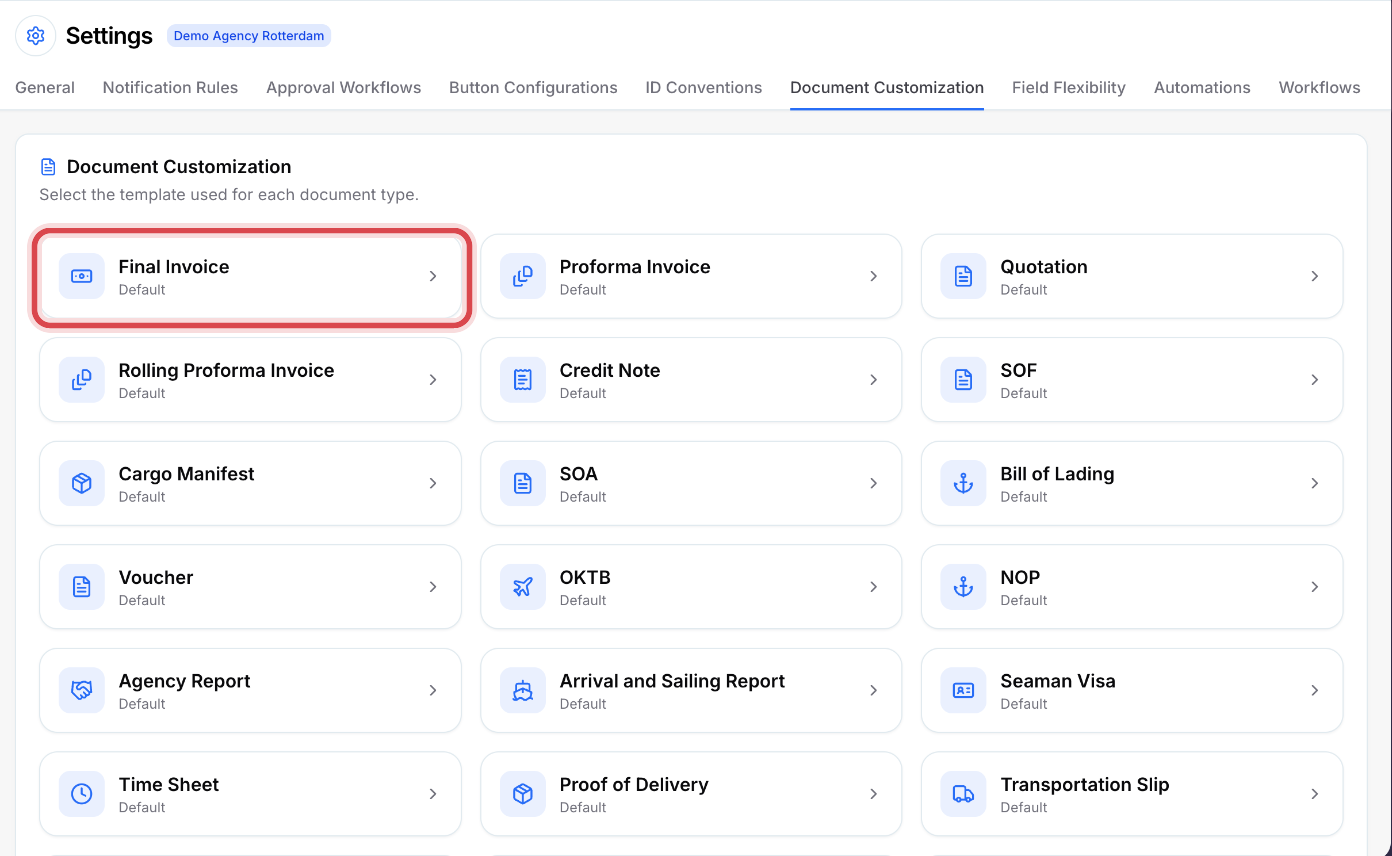
Check the branch at the top of the screen: your choice applies to that branch only. Click the gear icon (PCM Settings) and open the Document Customization tab. Each card is a document type, such as Final Invoice, Proforma Invoice, Credit Note, SOA or SOF, with the template it uses now.
Note: You need permission to see the Document Customization settings, and to update them to change a template. Super Admin and Manager have both. See Roles, permissions and plans.
Choose and preview a template
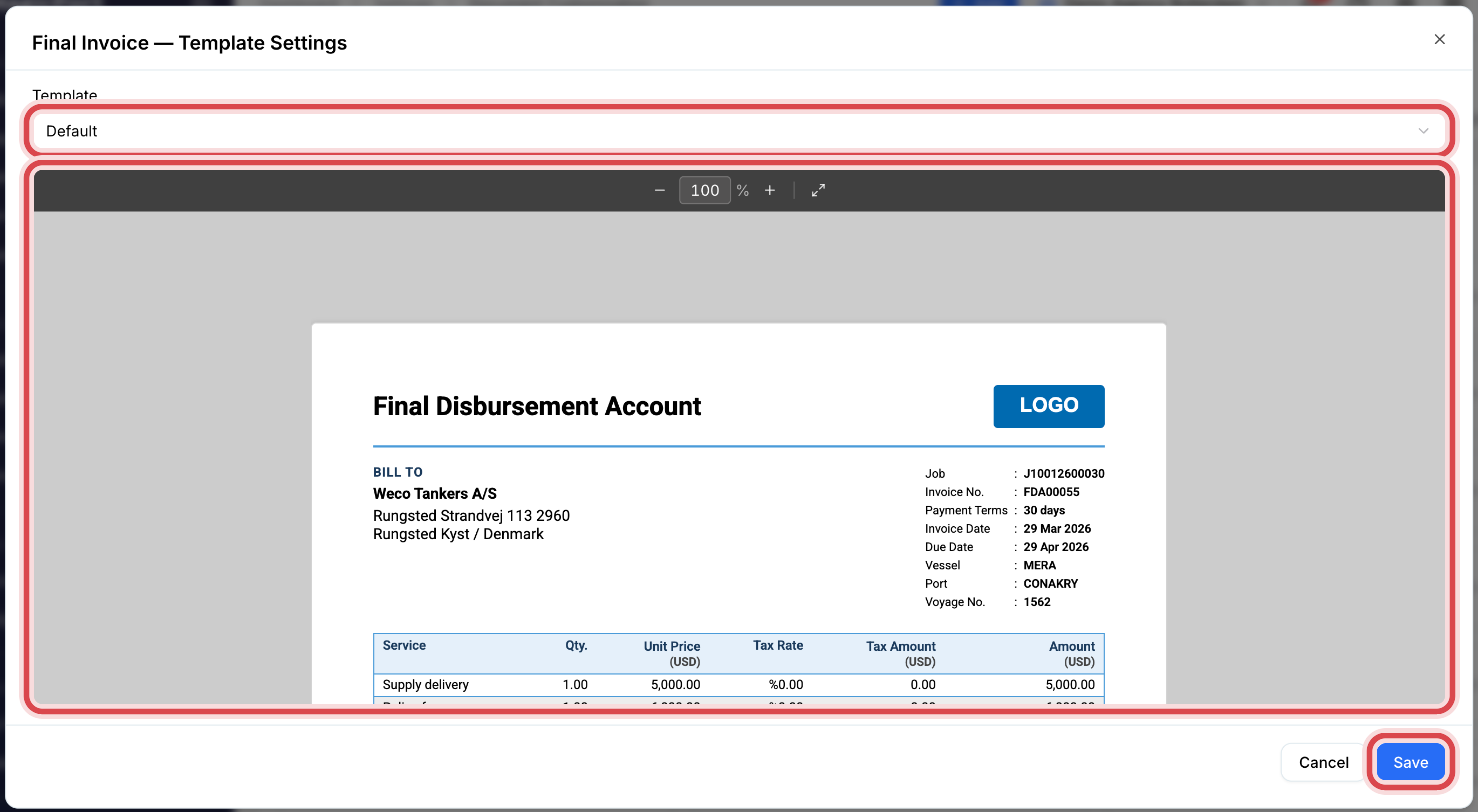
Click the card. In Template Settings, choose a template in Template and check the Preview; use the zoom buttons or Fit to width to read the details. Click Save.
Documents of that type generated in this branch now use this template.
Use another template for one document
When a type has more than one template, generating a document opens Select Template with your branch default selected. Choose another one and click Generate. The branch default does not change. With only one template, PCM generates the document straight away.
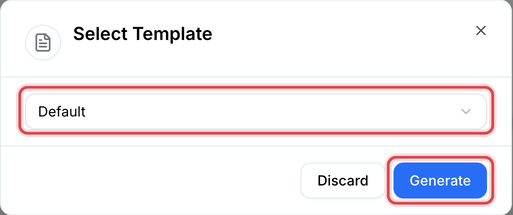
Note: If your role cannot see the Document Customization settings, Select Template shows Branch default. Leave it to use your branch’s template.
Was this article helpful?
Thanks for your feedback.