

Upload and manage job documents
Keep a job's files in one place.
The job’s Documents tab keeps all its paperwork in one place: vendor invoices, receipts, delivery notes, the vessel’s papers and your reports. Anyone working on the job can find them there.
Open the job’s Documents tab
Open the job and click the Documents tab. Each row shows the file’s name, Type, Document Type, Size and Created At. Use the search box to find a file by name.
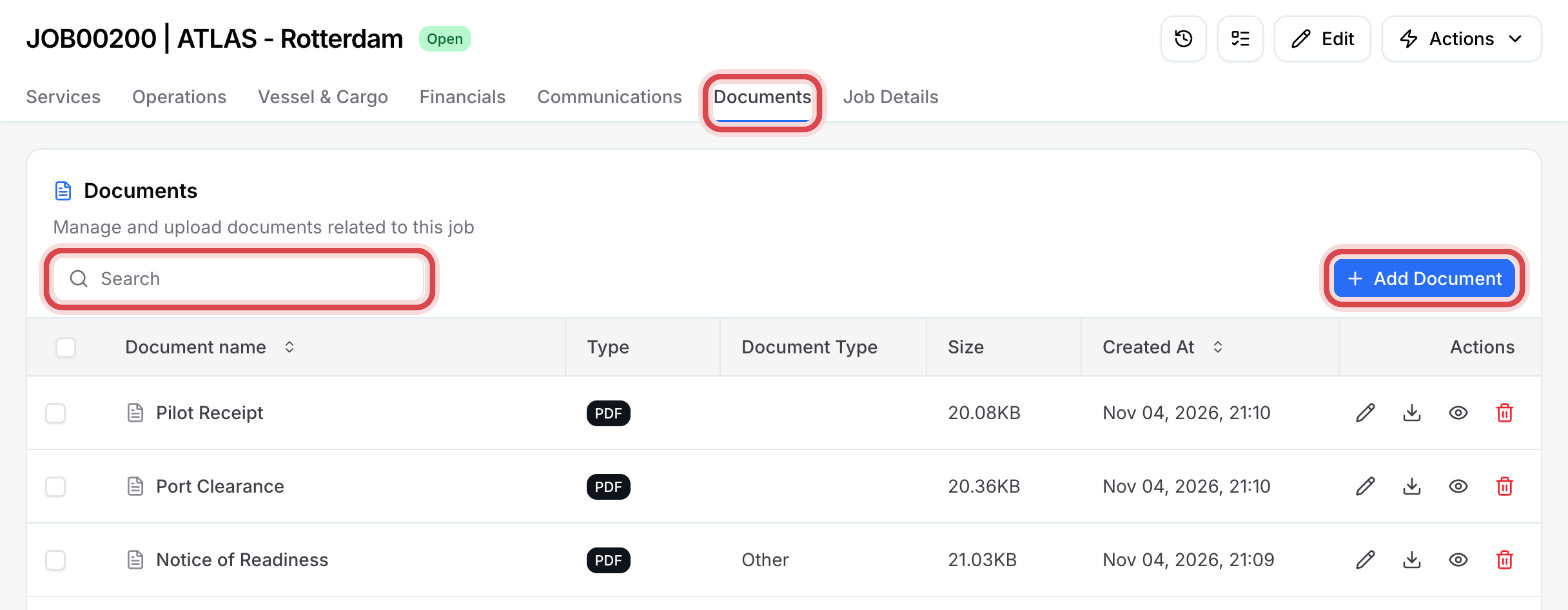
Upload a document
Click Add Document. Enter a Document Name (required) and choose the file under Attachment: PDF, Word, Excel, PNG or JPG, up to 50 MB. Click Add.
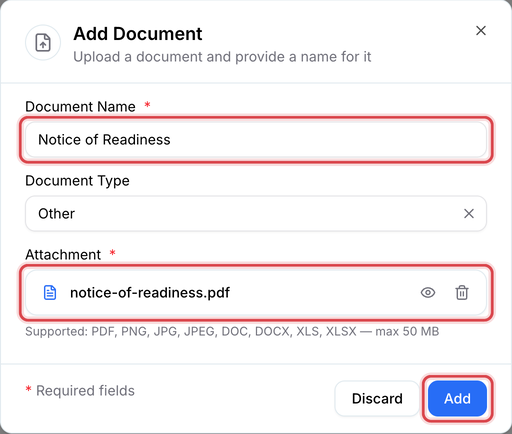
Note: Document Type is optional: Master Evaluation Form or Other. A job can have only one Master Evaluation Form.
Note: You cannot add or delete documents on a closed job. Reopen it first. See Reopen a job.
View, download or rename it
Use the buttons on the row to View the file in your browser, Download it, or Rename it. Renaming changes only the name shown in PCM.

To attach the file to a service or an invoice without uploading it again, see Link documents to a service or an invoice.
Delete documents you no longer need
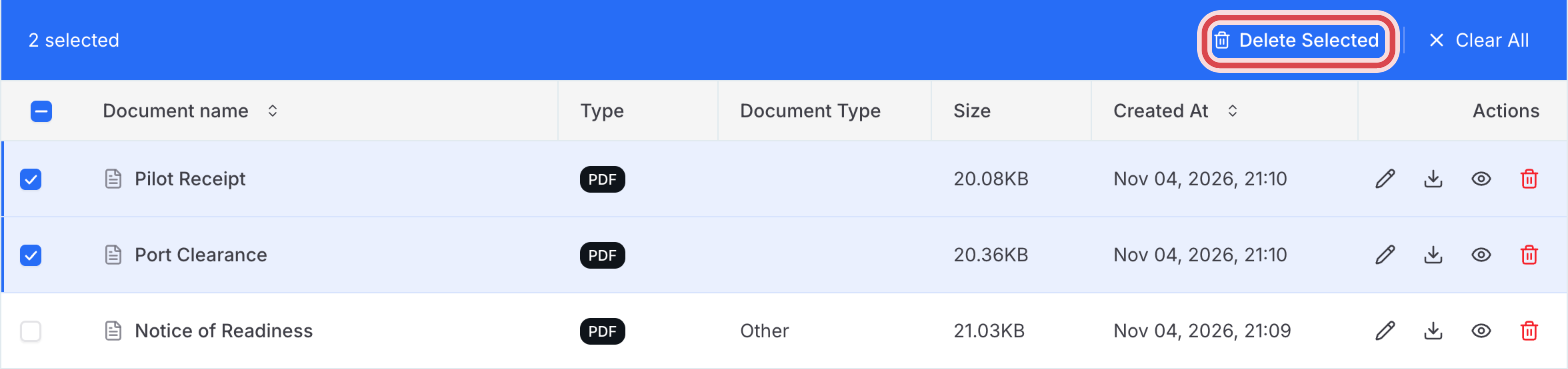
Click the delete button on the row and confirm. To delete several, tick them and click Delete Selected.
A document linked to a billed service, or to a customer invoice that is no longer a draft (unless it was cancelled), cannot be deleted. Its delete button is greyed out; point at it to see why. When you delete several, PCM skips those and tells you how many.
Note: Deleting a document cannot be undone from the screen.
Was this article helpful?
Thanks for your feedback.