

Close a job
Settle a finished job so nothing on it changes by mistake.
Close a job once it is billed and paid. From then on nothing on it can change, so nothing is billed twice or changed by mistake. If it needs a correction later, you can reopen it.
Choose Close Job
Open the job, open Actions at the top and choose Close Job.
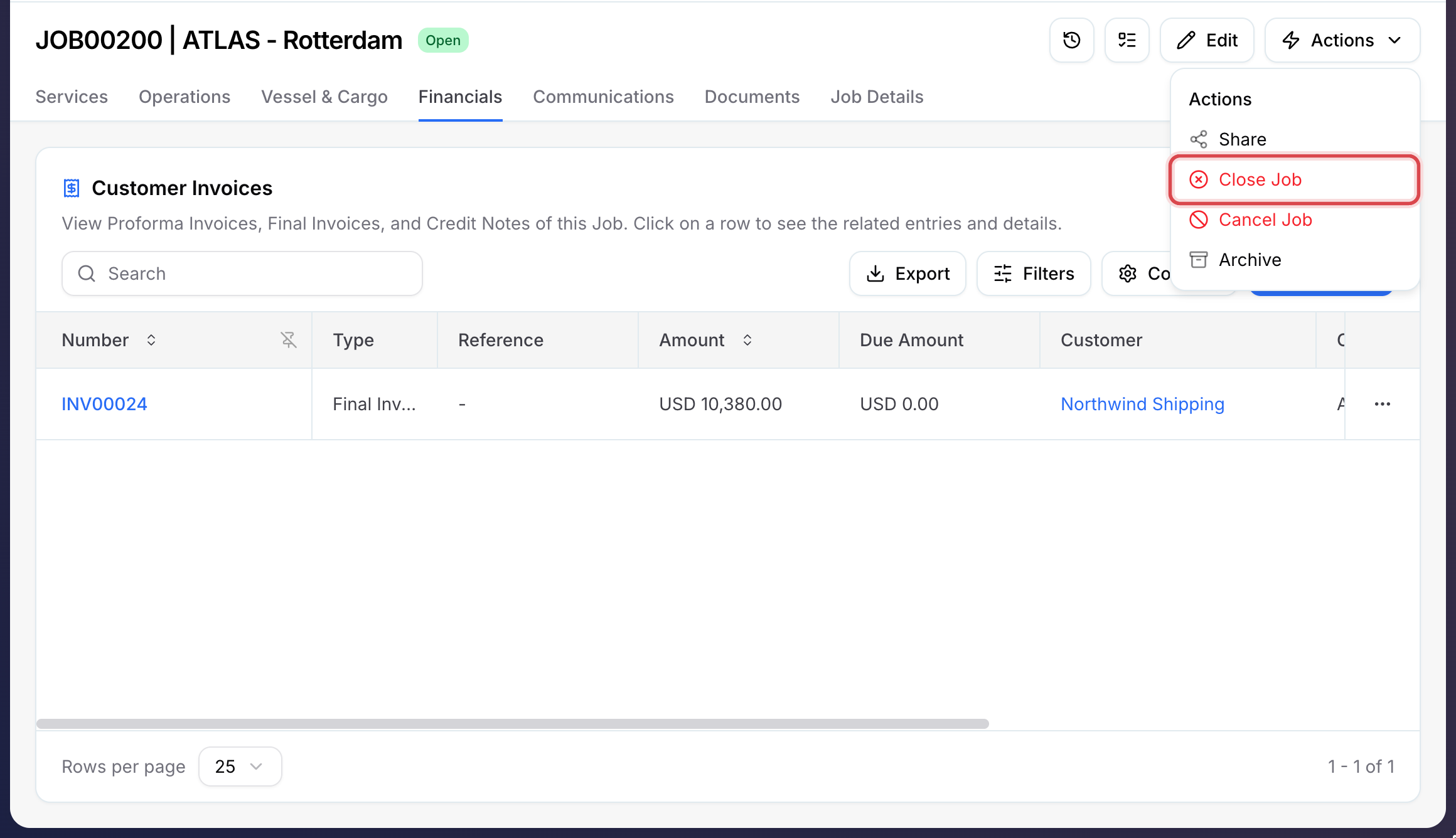
Note: If your branch has an approval rule for closing jobs, you see Submit for Close instead. See the last step.
Clear anything in the way
PCM checks the job first. If something blocks it, the dialog lists it under Cannot close job — resolve the following issues first:, for example a vendor invoice not approved yet, a customer invoice waiting for approval, or a service shared with another branch. Clear each one and try again. See I can’t close a job.
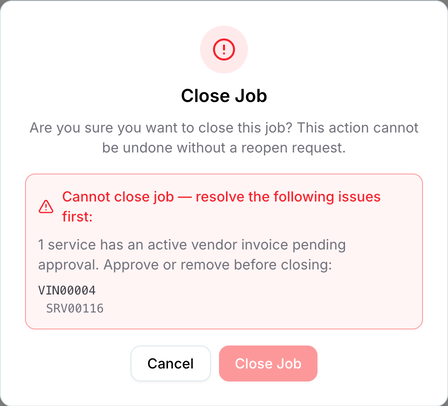
Check what closing will do
If nothing is in the way, the dialog lists The following actions will be taken:
- Services that were never billed are cancelled.
- An advance on a Proforma Invoice that was not used on a Final Invoice moves to a new Rolling Proforma Invoice for the customer, so the money is not lost.
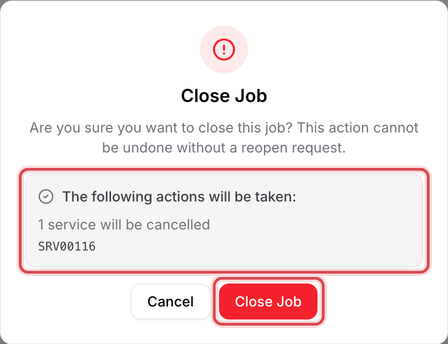
Confirm
Click Close Job. The status changes to Closed and the end date is set to today.
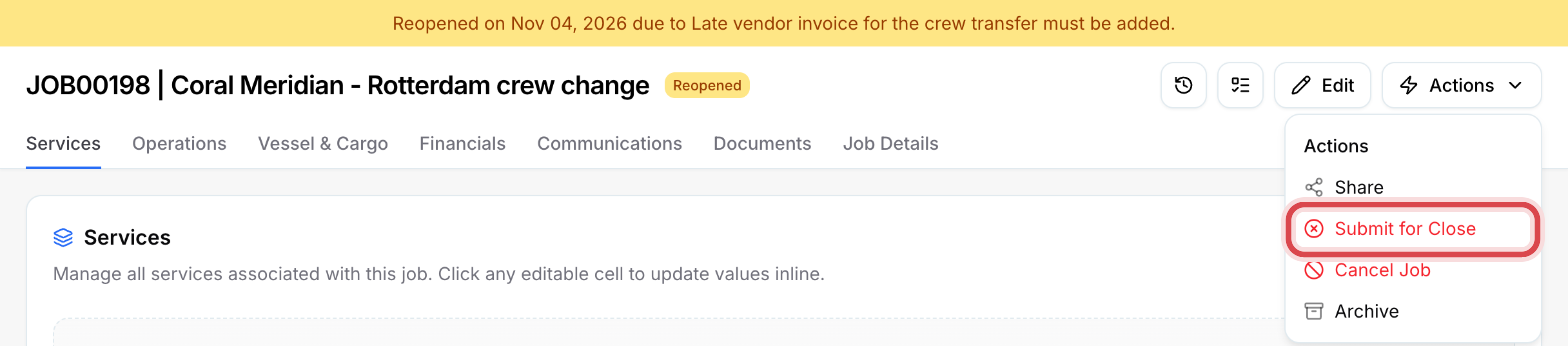
If closing needs approval
Choose Submit for Close. The job shows Submitted for Close and cannot be edited while the approver decides. If they approve, the job closes as above; if they reject, it goes back to its previous status. See Approve or reject items waiting for you.
Was this article helpful?
Thanks for your feedback.