

I can't close a job
What stops a job from closing and how to clear it.
When you choose Close Job, PCM checks the job first. If something is still in progress, the dialog says Cannot close job — resolve the following issues first: and lists it. Clear each one, then close the job again. See Close a job.
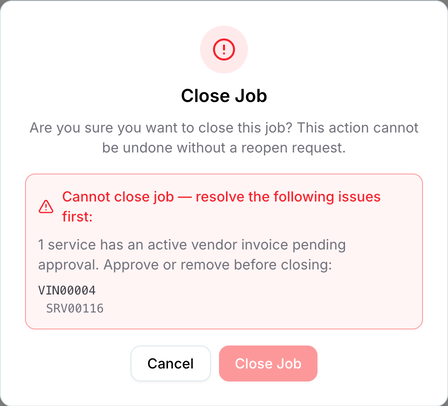
A vendor invoice is not approved yet
What you see: services with an active vendor invoice pending approval.
Why: the vendor invoice is still Draft or Submitted for Approval, so the vendor’s cost is undecided.
What to do: open it from the dialog or from Finance → Vendor Invoices. Approve it, take the service off it, or delete the draft. If it waits for an approver, ask them. See Vendor invoices and payments.
A customer invoice is waiting for approval
What you see: customer invoices pending approval.
Why: a Proforma Invoice, Final Invoice or Credit Note was submitted for approval or for cancellation, and the approver has not answered.
What to do: ask the approver to answer it. Follow it under Approvals → My Requests. See Approvals.
A service is shared with another branch
What you see: services shared with another branch.
Why: the other branch has not finished the request, and shared services stay locked until it is completed.
What to do: open Requests → Outgoing. Cancel the request if it is not accepted yet; otherwise accept their responses and click Confirm Completion when they complete it. See Requests: sharing work between branches.
Close Job is not in the Actions menu
Why: one of these:
- The job is not Open or Reopened.
- Your branch has an approval rule for closing jobs, so you see Submit for Close instead.
- Your role in this branch does not include closing jobs. Ask your company owner to check it.
The dialog could not verify the job
What you see: Could not verify whether this job can be closed.
What to do: close the dialog and try again. If it keeps happening, ask your administrator to check your role.
Was this article helpful?
Thanks for your feedback.