

Check a job's profit
See revenue, cost and profit for a job.
PCM adds up what you charge your customer and what your vendors charge you, so you can see whether a job made money. The Job Profit/Loss Statement counts only what is really invoiced; the Profit/Loss column on the Services tab is an estimate per service.
Open the Job Profit/Loss Statement
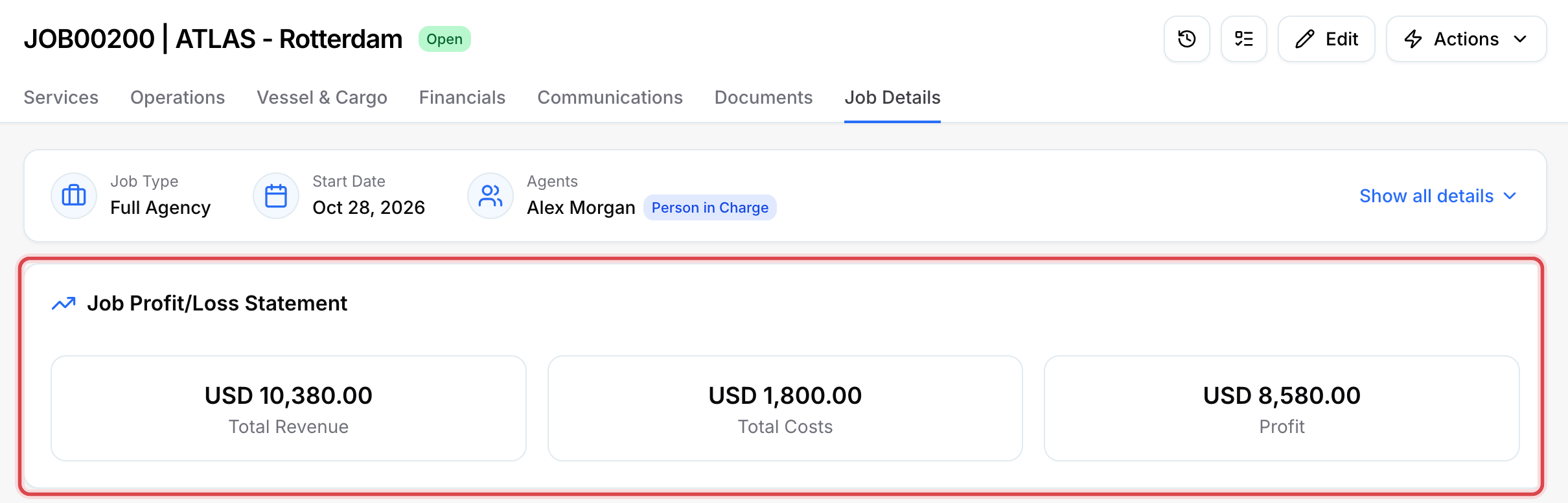
Open the job and click the Job Details tab. The Job Profit/Loss Statement card shows Total Revenue, Total Costs and Profit, all in your branch’s default currency.
Read what is counted
Side Counts Less Total Revenue Services that are Billed, that is, on an approved Final Invoice Approved Credit Notes against those Final Invoices Total Costs Services whose vendor invoice is approved Approved vendor credit notes against those vendor invoices Other currencies are converted at each invoice’s saved exchange rates, so the profit does not move when rates change later. Cash to Master and Customs Duty services are left out of both sides.
Note: While a job is in progress, the statement shows only what is invoiced so far. A service not yet on an approved Final Invoice adds no revenue; a draft vendor invoice adds no cost.
Tip: Ready to Bill and Awaiting Vendor Invoice under Services in the left menu list what is still missing.
Estimate profit per service
Open the job’s Services tab and look at the Profit/Loss column: the customer’s amount less the vendor’s amount for each service, in your branch’s default currency at the service date.
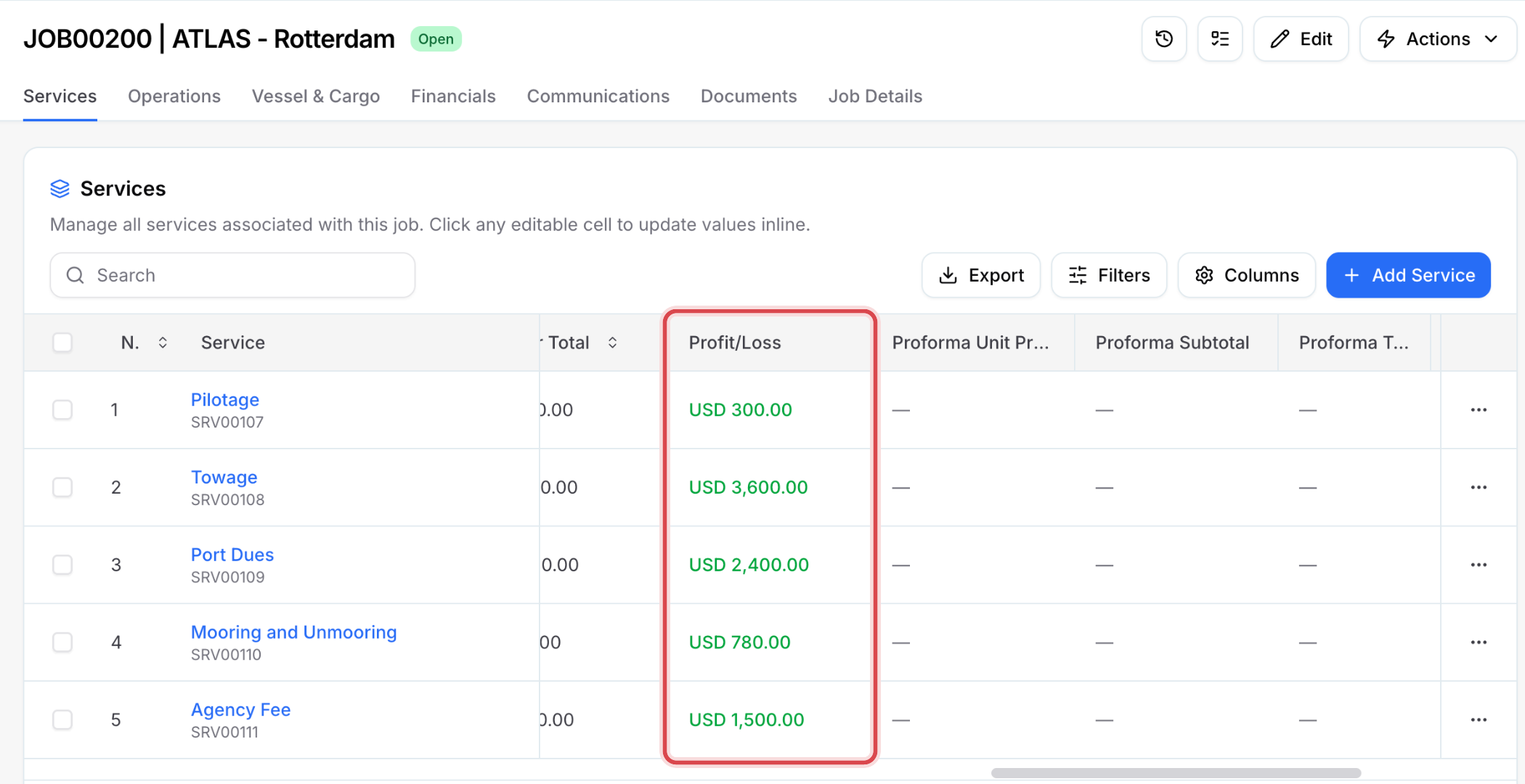
It uses the prices entered on the services, not the invoices, so its total can differ from the statement.
Was this article helpful?
Thanks for your feedback.