

Record an advance on a Proforma Invoice
Record the customer's advance against an approved Proforma Invoice.
When the customer pays against an approved Proforma Invoice, record the payment against it. The money then waits there as an advance until the Final Invoice.
Open Add Customer Payment
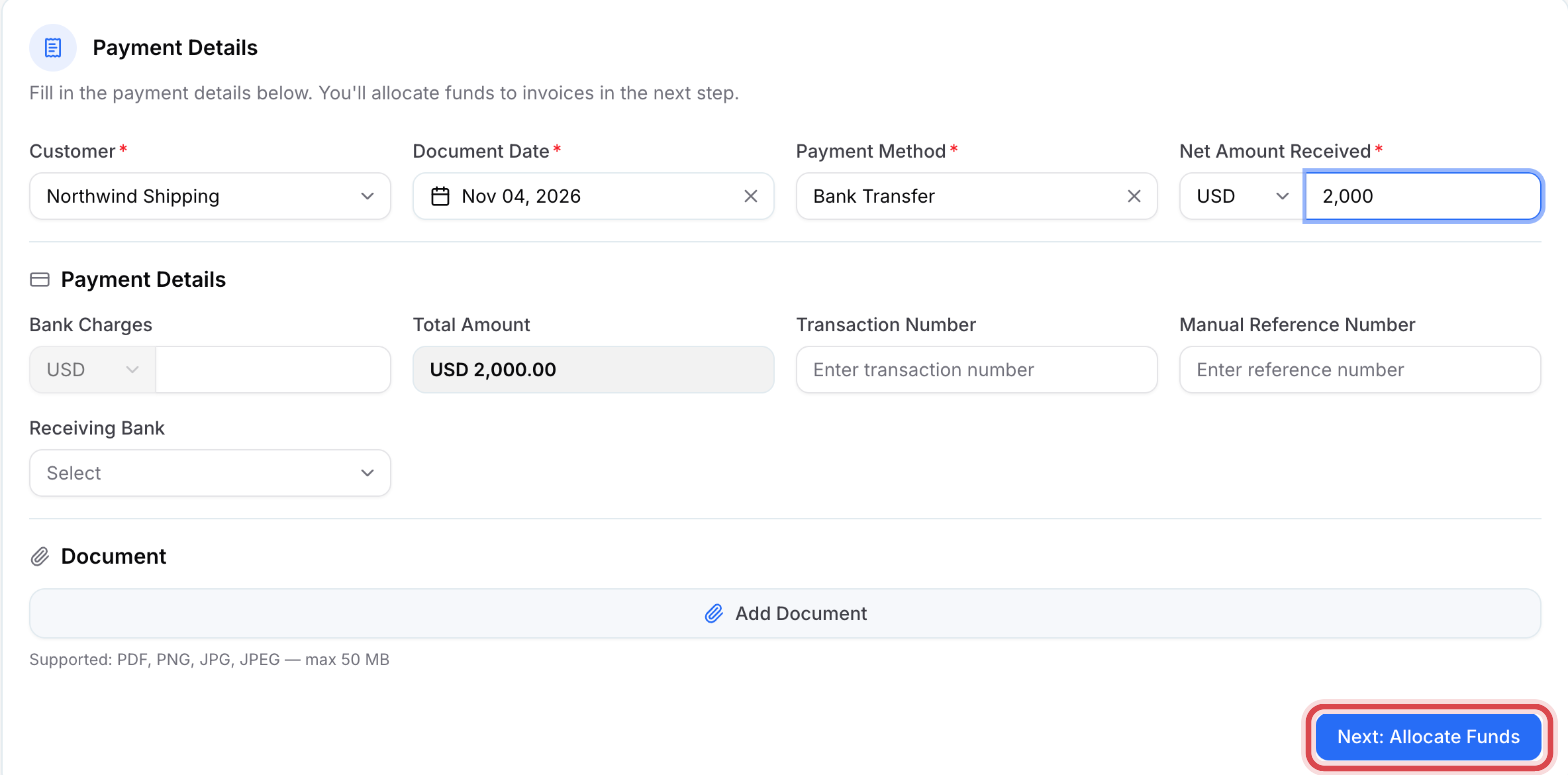
Go to Customer Payments in the Finance section of the left menu and click Add Customer Payment. Enter the customer, the date, the payment method and the amount received, then click Next: Allocate Funds.
Allocate it to the Proforma Invoice
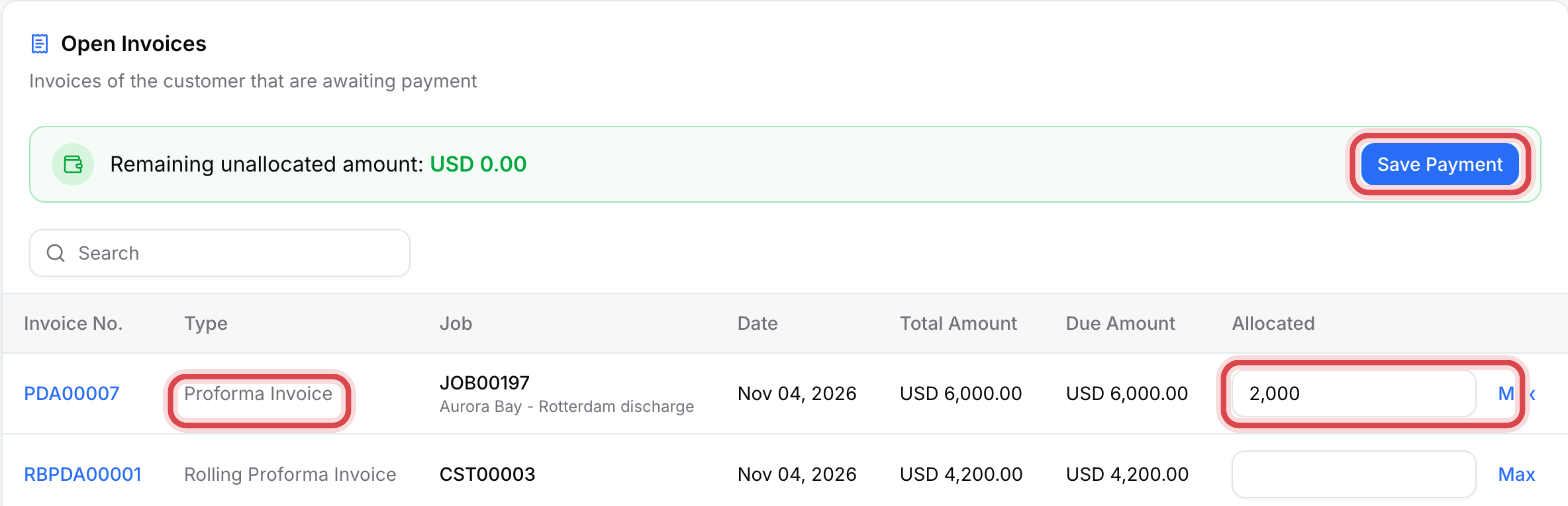
In Open Invoices, find the row whose Type is Proforma Invoice. Enter the amount in Allocated, or click Max. When Remaining unallocated amount reaches zero, click Save Payment.
Check its status
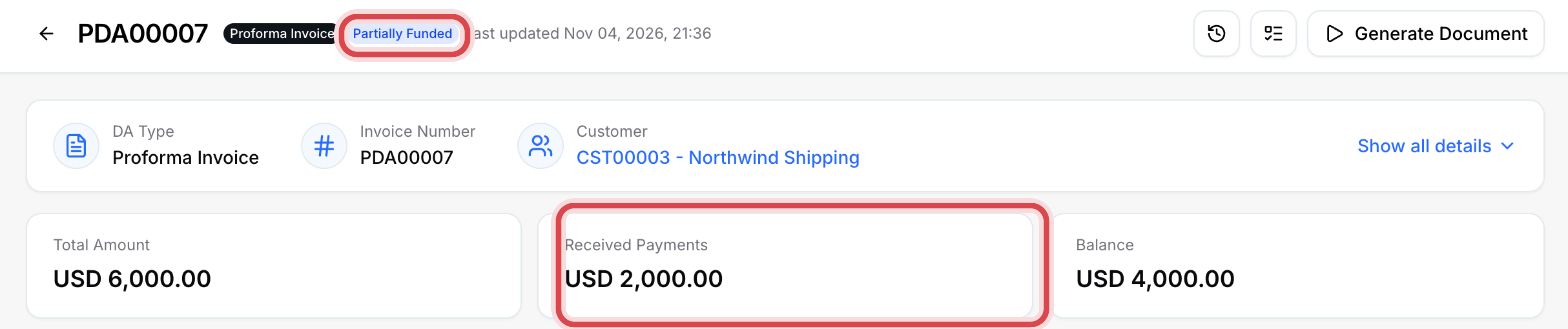
The Proforma Invoice shows how much has arrived: Not Funded, Partially Funded or Fully Funded. The customer can pay in several payments; record each one the same way.
Note: Record all the advance payments before you link the Proforma Invoice to a Final Invoice. After that, it no longer appears in Open Invoices, and the payments already allocated to it can no longer be changed or cancelled.
For payments in another currency and other details, see Record a customer payment and allocate it.
Was this article helpful?
Thanks for your feedback.