

Convert an enquiry into a job
Turn an accepted enquiry into a job.
When the customer accepts your quotation, convert the enquiry into a job. The customer, the vessel and the services come with it, and so does any advance the customer already paid on the quotation.
Check the enquiry is ready
Open the enquiry from Enquiries in the left menu. Its status must be Quotation Sent, that is, its quotation is approved. If it is still a Draft, see Approve and send a quotation.

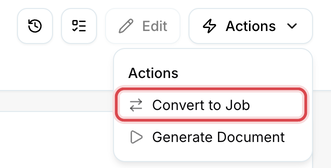
Choose Convert to Job
Open Actions and click Convert to Job.
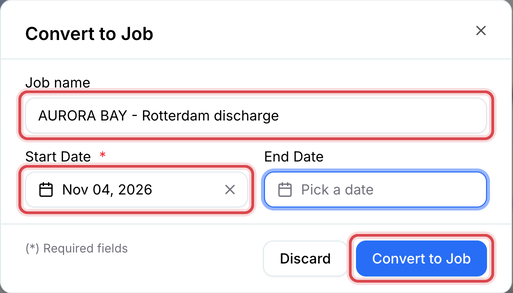
Fill in the job
- Job name: starts as the enquiry’s name. If your branch does not allow two jobs with the same name, PCM tells you when it is in use.
- Start Date: required; starts as today.
- Cost Center: shown and required only if cost centers are part of your company’s plan.
Click Convert to Job. PCM opens the new job on its Job Details tab, and the enquiry becomes Converted to Job.
Note: On a plan with a yearly job limit, a converted job counts towards it like any new job.
Check what was copied
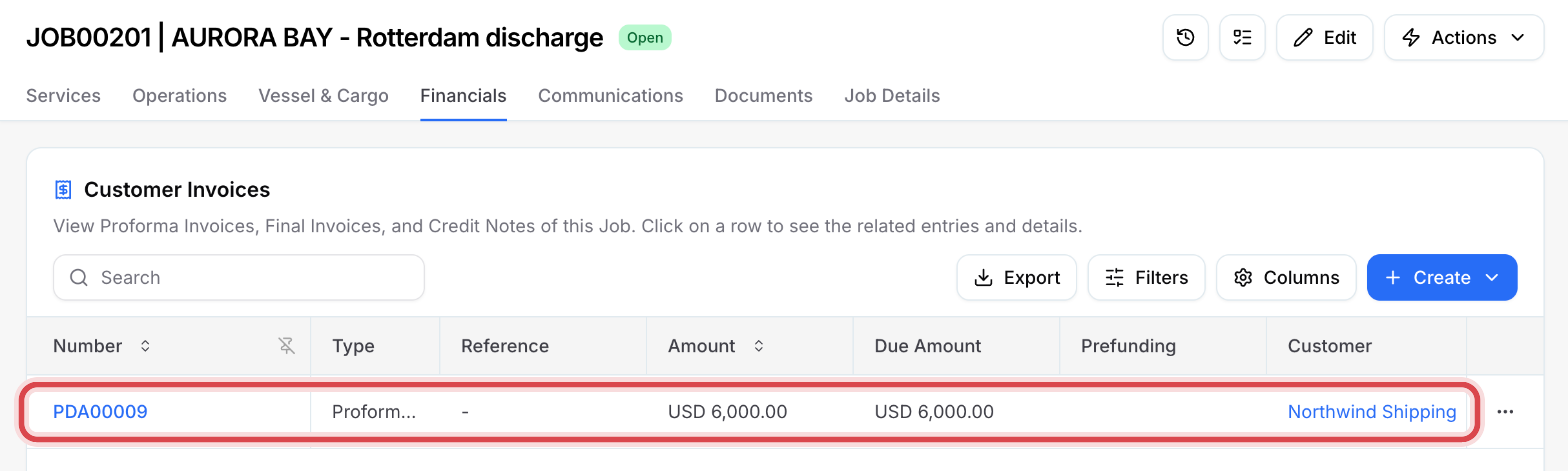
From the enquiry On the job Customer, agents, Job Type The same on the job Vessel and cargo Vessel & Cargo The quotation’s services Services, as Pending The quotation A Proforma Invoice on Financials, with any payment allocated to it Generated quotation PDFs The job’s documents Not copied: the vessel’s previous and next ports, cargo operations, bunkering, drafts, events and the documents you uploaded. See Take an advance and settle it on the Final Invoice.
Add the vendors
A quotation only has the customer’s side, so the services arrive without vendors or vendor prices. Add them on the Services tab as they become known. See Add services to a job.
Note: The job does not keep a link back to the enquiry. The enquiry stays in Enquiries as Converted to Job.
Was this article helpful?
Thanks for your feedback.