

Approve and send a quotation
Approve the quotation and send the PDF to the customer.
When the quotation is ready, approve it and send the PDF to the customer. Once approved, it can no longer be changed.
Approve the quotation
Open the enquiry, open Actions and click Approve. The enquiry’s status becomes Quotation Sent.
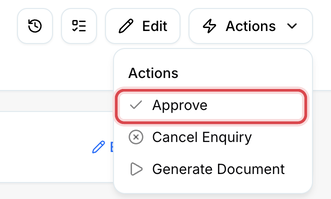
Note: Approve needs at least one service on the quotation.
If it needs approval
If your branch has an approval rule for quotations, you see Submit for Approval instead. The quotation is approved when the approver accepts it, and goes back to draft if they reject it.
Generate the PDF
Open Actions and click Generate Document. If your branch has more than one quotation layout, choose one.
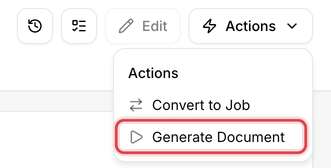
Tip: You can generate the PDF while the quotation is still a draft, to check how it looks before you approve it.
Send it to the customer
When the PDF is ready, click Download, or Send, if you see it, to email it with the PDF attached. See Email from a job.
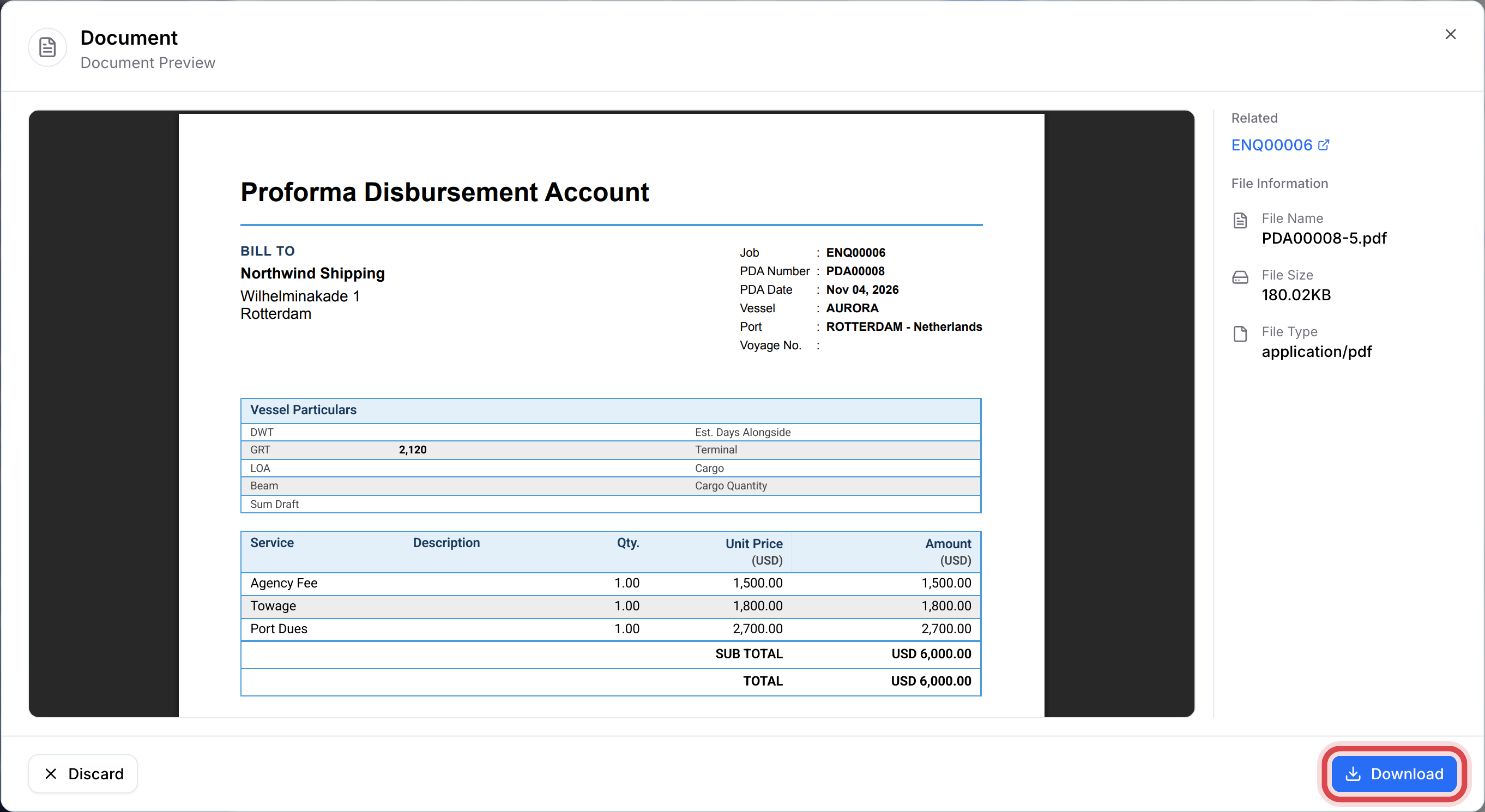
If the customer accepts, see Convert an enquiry into a job.
Was this article helpful?
Thanks for your feedback.