

Share a job with another branch
Assign a job's work to your local office or sub-agent.
When your local office or sub-agent in the port does the work of a job, you share that work with it; it is set up as a branch in PCM. The job stays with your branch, which bills the customer.
Open Share on the job
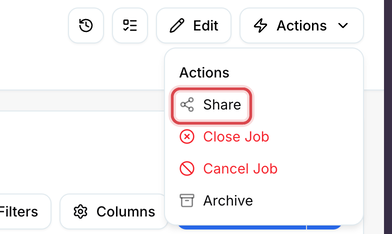
Open the job, open Actions and click Share. The Assign dialog opens.
Choose the branch and the customer
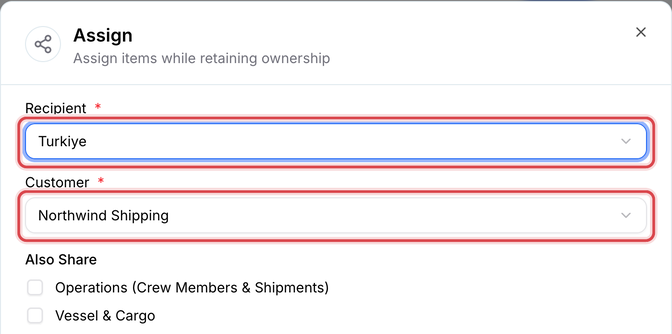
Choose the Recipient branch and the Customer the work is for. A request covers one customer; only that customer’s services and records are offered.
Choose what to share
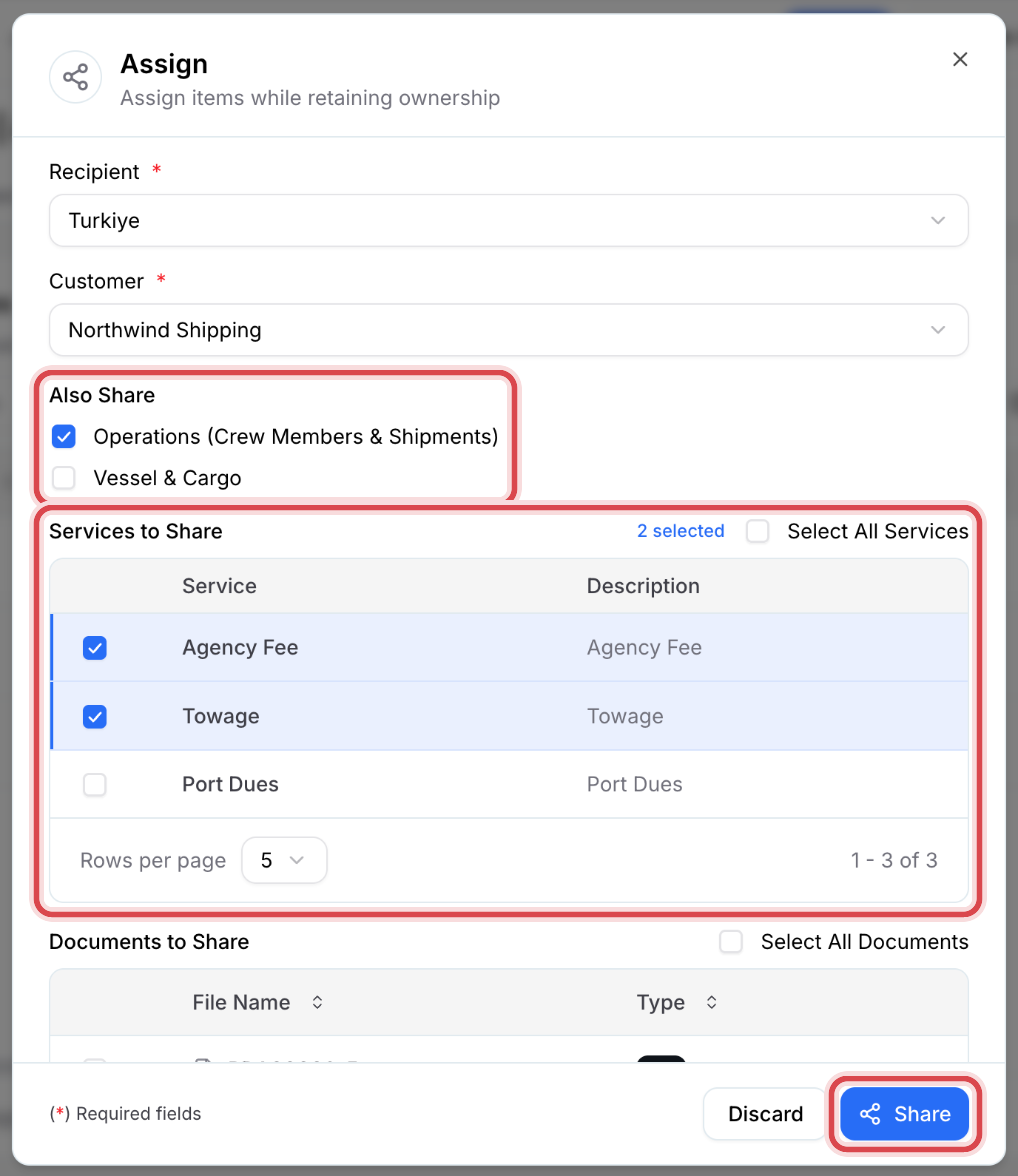
Tick the Services to Share and any Documents to Share. Under Also Share, tick Operations (Crew Members & Shipments) or Vessel & Cargo if needed.
Click Share. The other branch is notified, and the request appears under Requests → Outgoing as Pending.
Note: Only Pending or Ready to bill services can be shared, and not while they are on a Final Invoice, a Credit Note, a Rolling Proforma Invoice or a vendor invoice. A Proforma Invoice does not stop it.
Know what changes on your job
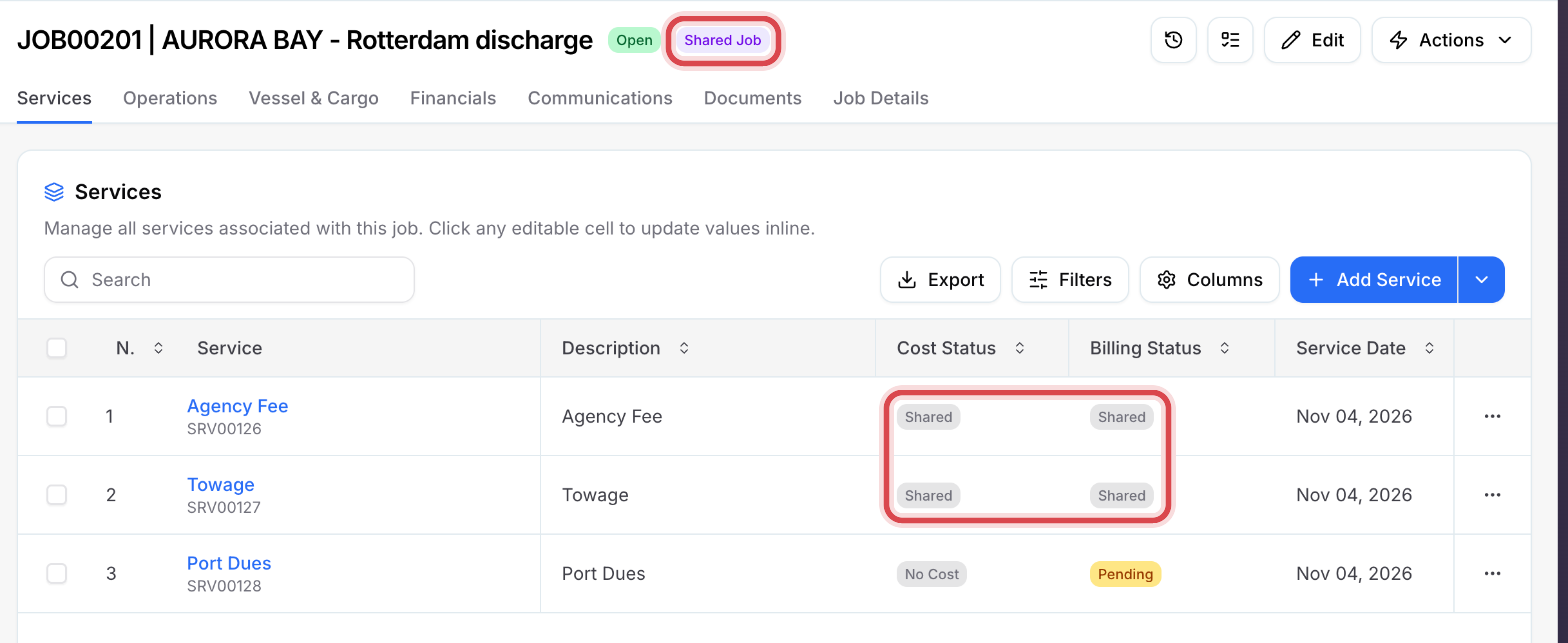
While the request is open, the shared services show Shared and the job is marked Shared Job. You cannot edit, cancel, delete or bill a shared service, and you cannot close or cancel the job until the request is finished. See Requests.
Cancel it if you change your mind
While the request is Pending, click Cancel in its row menu under Requests → Outgoing. Your services get back their earlier statuses.
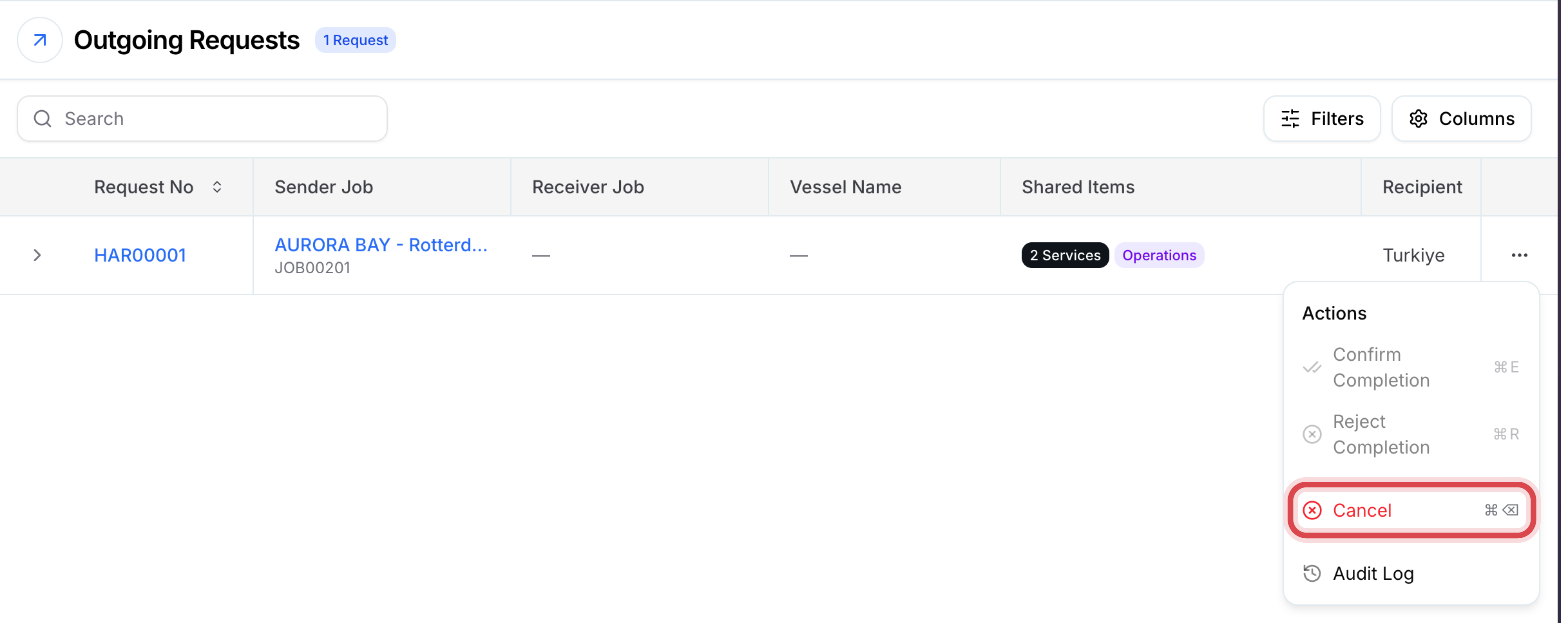
Note: Once the other branch accepts, neither branch can cancel or reject the request. It has to be completed.
Follow the request’s status
Status Meaning Pending Sent; the receiving branch has not answered. Accepted The receiving branch took it on. In Progress The receiving branch is working on it. Returned A response is waiting for the sending branch. Awaiting Confirmation The receiving branch completed it; the sending branch has to confirm. Completed Confirmed. Nothing more is shared. Rejected The receiving branch turned it down. Cancelled The sending branch withdrew it.
Was this article helpful?
Thanks for your feedback.