

Accept a request from another branch
Take on work another branch shared with you.
When another branch shares work with your branch, you are notified and the request waits under Requests → Incoming. You do the work in a job of your own.
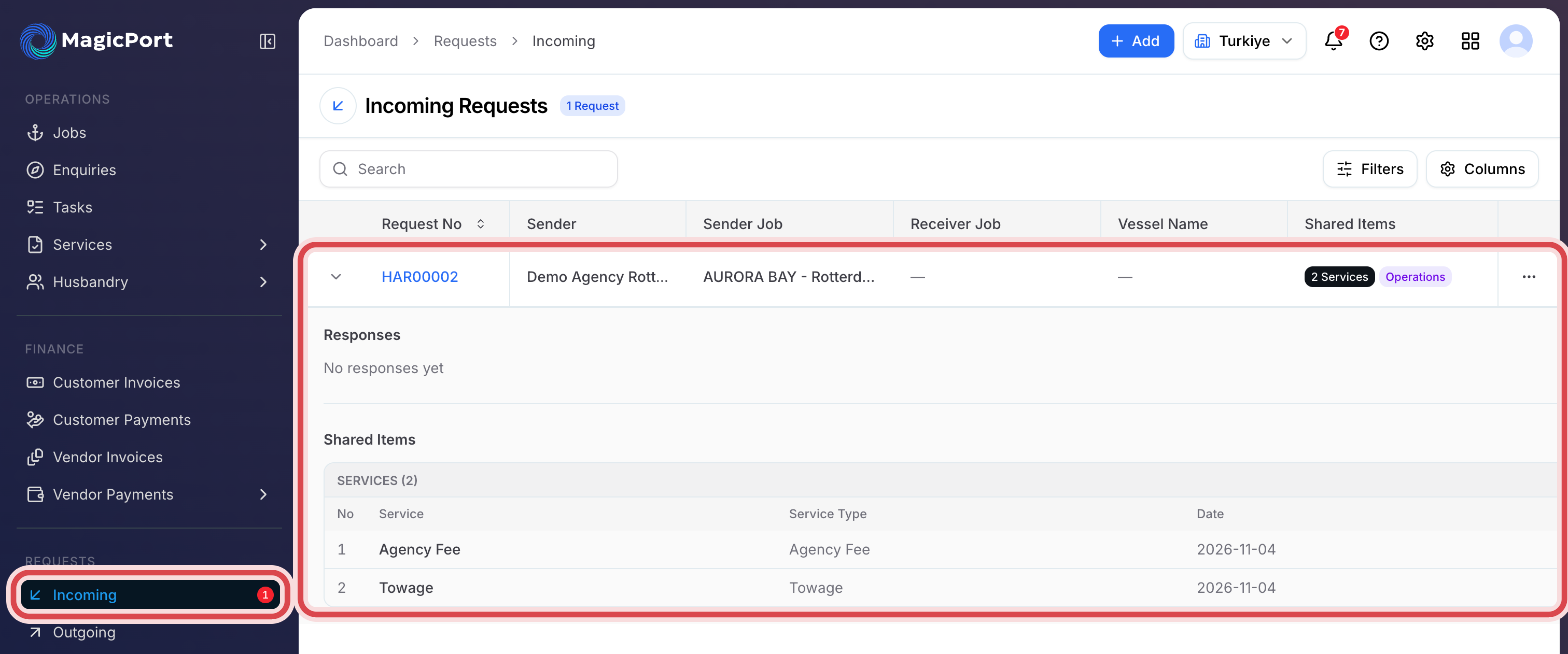
Open the incoming request
Go to Requests → Incoming and expand the row to see what was shared.
Accept or reject it
Open the row’s menu and click Accept. To turn it down, click Reject and give a reason; the sending branch’s services get back their earlier statuses.
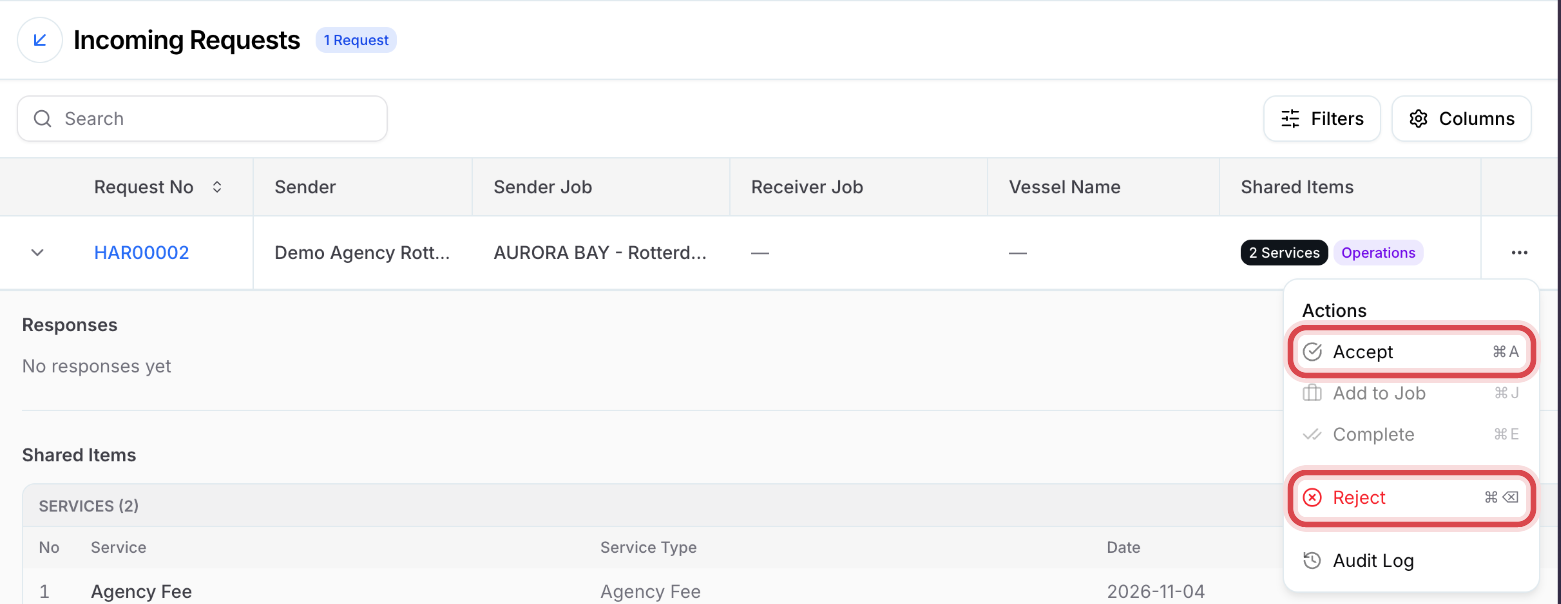
Note: Once you accept, neither branch can cancel or reject the request. It has to be completed.
Open Add to Job
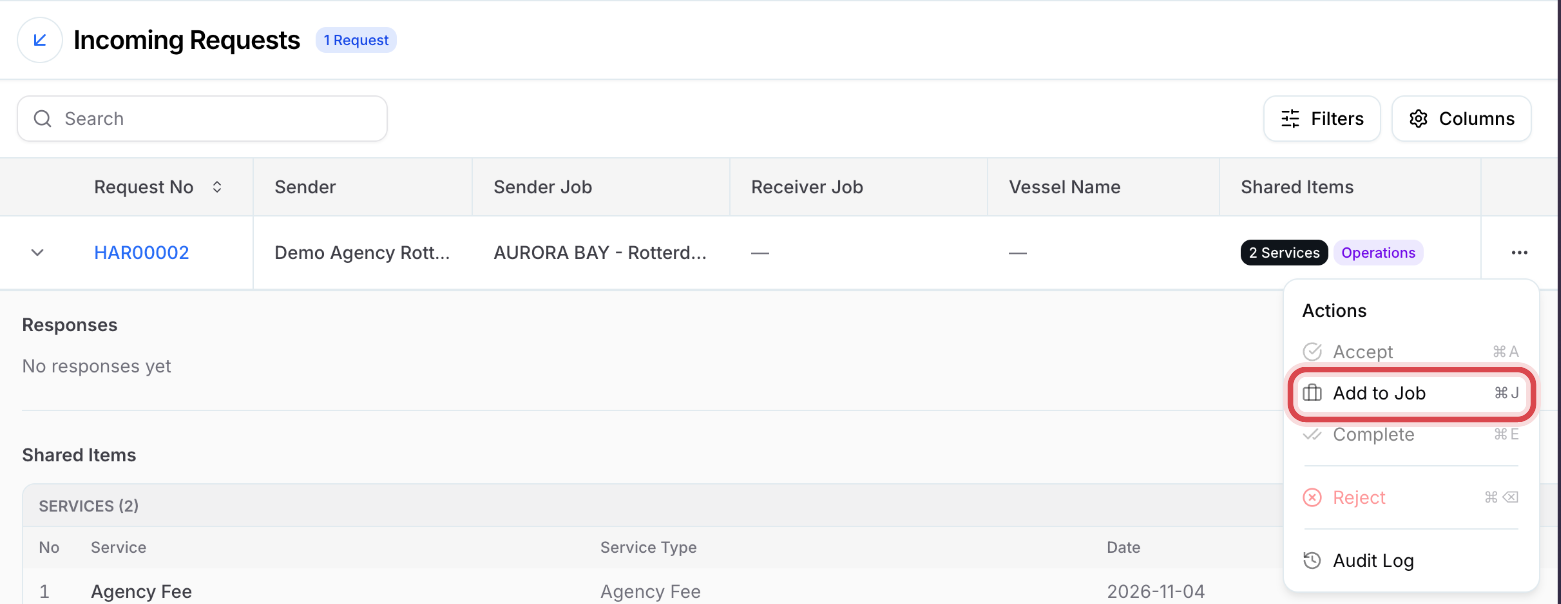
The Add to Job dialog opens as soon as you accept. If you close it, open the row’s menu again and click Add to Job. It is offered while the request is Accepted.
Choose the job
- Create New Job: fill it in as in Create a job; the name starts as the sending branch’s job name. Click Create Job & Add.
- Add to Existing: choose one of your open jobs in Job and its Customer. Click Add to Job.
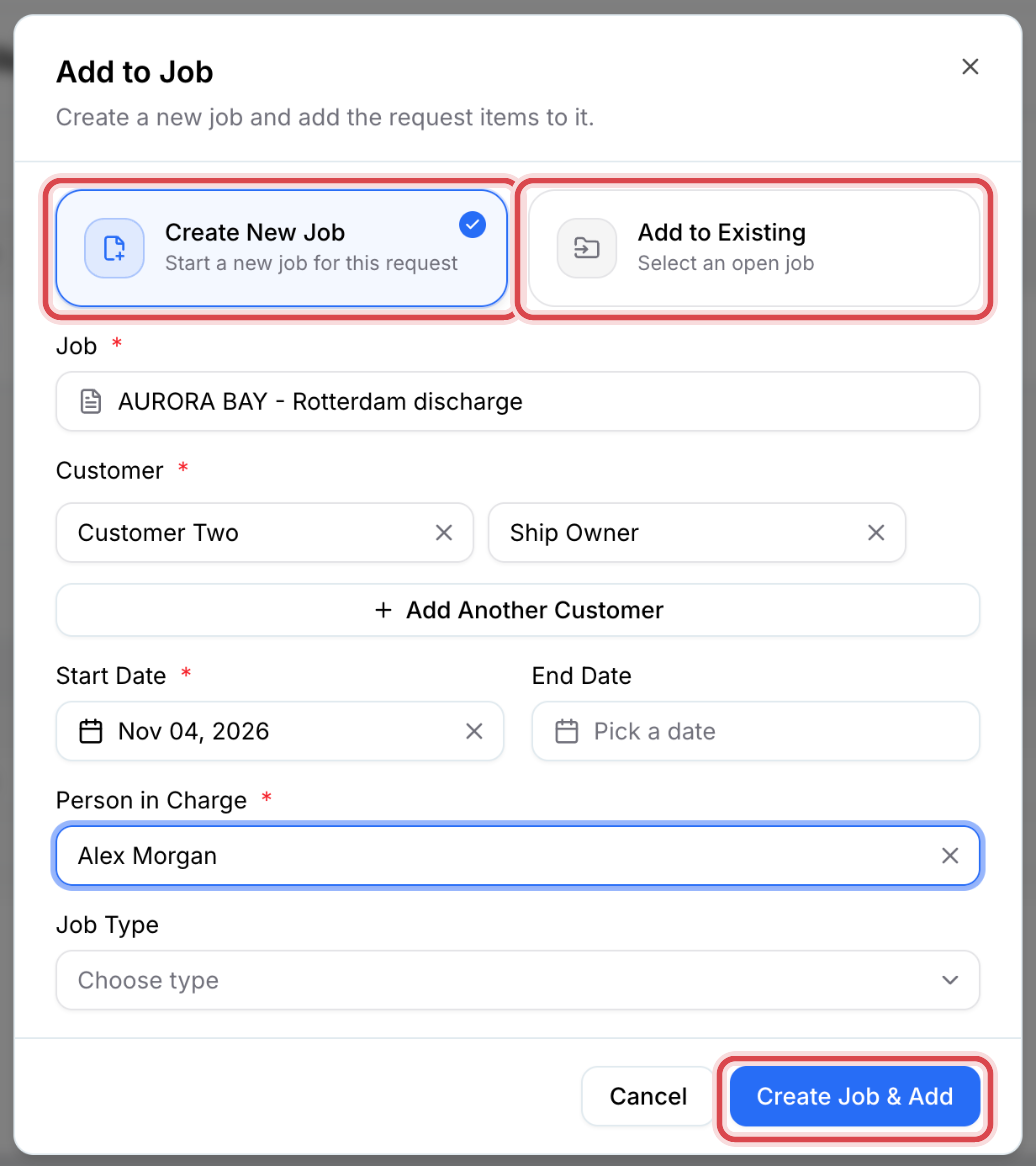
PCM copies the shared services, operations, vessel records and documents into that job. Services arrive as Pending. Service types, vendors, taxes and similar records are matched to your branch’s own, or created where there is no match. The job is marked Received Job, and the request moves to In Progress.
Do the work
Work in your job as usual: update the services and prices, add records, attach documents. When you have something to report, see Hand work back to another branch.
Was this article helpful?
Thanks for your feedback.