

Hand work back to another branch
Send your work back to the branch that shared it, and complete the request.
When you have done work for a request, hand it back so the sending branch can apply it to its job and bill the customer. You can send several responses, one at a time.
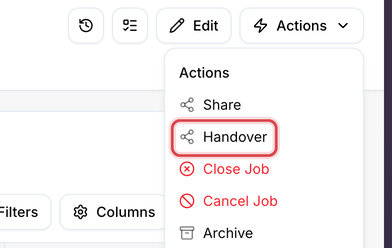
Open Handover on your job
Open your job, open Actions and click Handover.
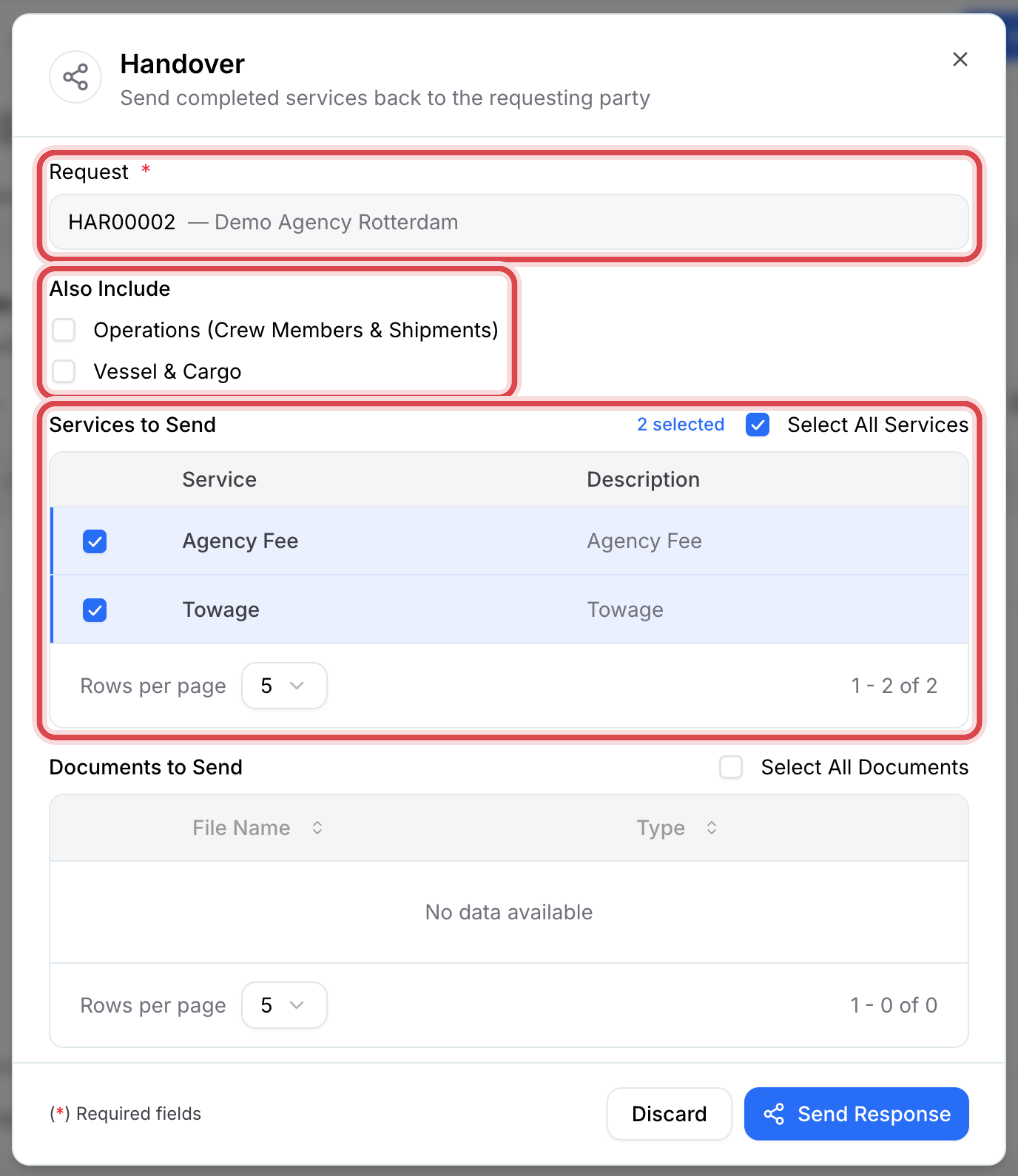
Choose what to send
Choose the Request you are answering. Tick the Services to Send and Documents to Send. Under Also Include, tick Operations (Crew Members & Shipments) or Vessel & Cargo to send those records as they stand now. Add a Note if you like.
Note: Services or records you cancelled or deleted, and anything you changed since the last accepted response, are always sent, even if you do not select them.
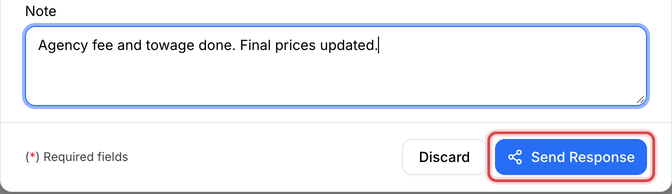
Send the response
Click Send Response. The request moves to Returned and the sending branch’s agents on the job are notified.
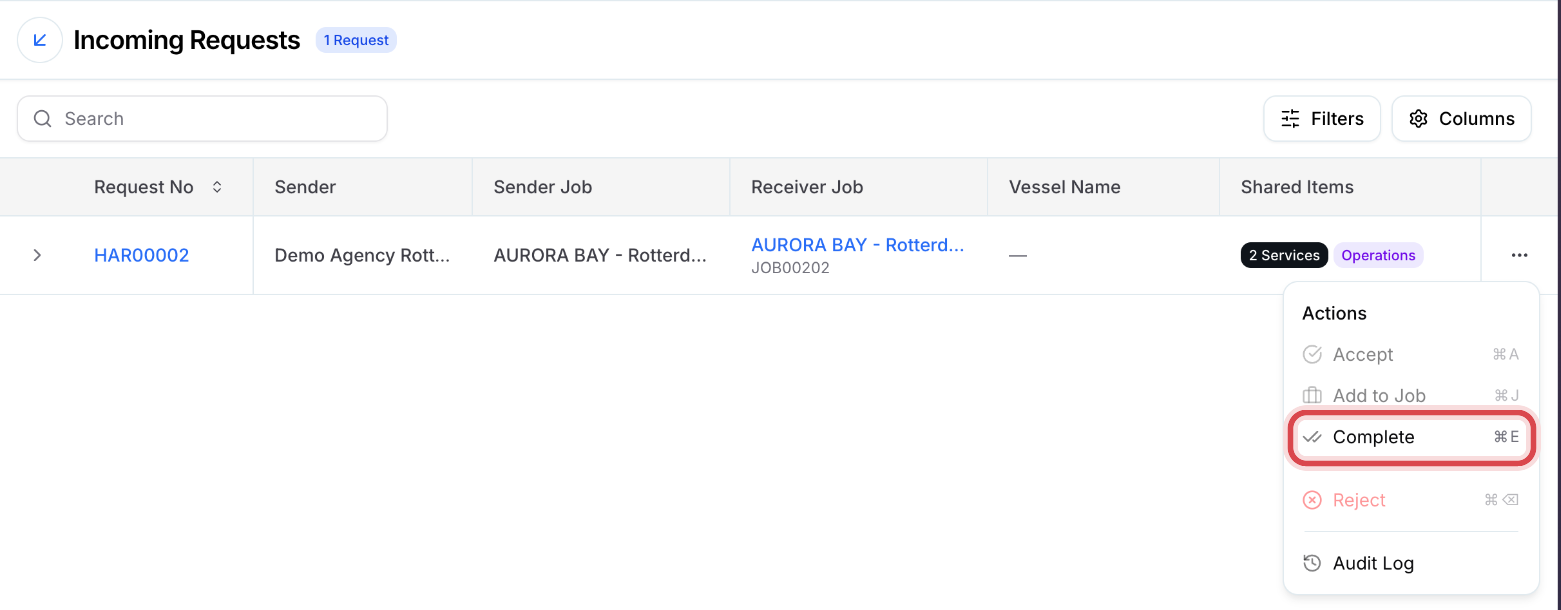
Complete the request
When everything is done and sent back, go to Requests → Incoming, open the row’s menu and click Complete. The request moves to Awaiting Confirmation until the sending branch confirms.
Note: PCM refuses Complete while something is still owed: a record you added, cancelled, deleted or changed that has not been sent and accepted yet.
Was this article helpful?
Thanks for your feedback.